> This is part 1 of 2 of the full documentation (pages 1–100 of 129).
> The content is paginated: fetch every part to see all of it.
> Next part: https://docs.instruqt.com/llms-full.txt/1
> Page index: https://docs.instruqt.com/llms.txt

# Overview

An overview of Instruqt's lab platform, and its usage.

## Hands-on learning

Instruqt enables you to create engaging hands-on learning experiences with your product. Using our cloud sandboxes, you can create real-world scenarios for product demos, tutorials, and workshops.

{% hint style="info" %}
Want to see the end user experience? [Try our Test Drive.](https://instruqt.com/test-drive)
{% endhint %}

## Learning made easy

Learners interact with your product alongside terminals, code editors, and more - all from a browser.

<figure><img src="https://2094212015-files.gitbook.io/~/files/v0/b/gitbook-x-prod.appspot.com/o/spaces%2F-MGJDYBXyftBAZb1Wq0e%2Fuploads%2FMpvzV4zmldC3URQci90F%2Finstruqt.svg?alt=media&amp;token=008eb5a8-5a83-4759-b2e7-e27bd42de821" alt=""><figcaption><p>The end user view of Instruqt</p></figcaption></figure>

## Integrate external systems

Embed Instruqt into your existing sites, such as an LMS, for a seamless learning experience.

<figure><img src="https://2094212015-files.gitbook.io/~/files/v0/b/gitbook-x-prod.appspot.com/o/spaces%2F-MGJDYBXyftBAZb1Wq0e%2Fuploads%2Fx7MefxFW5tUWNyxS4L09%2Fembed.svg?alt=media&amp;token=e54fcd25-199b-4b2c-8c7a-51dede8d32a0" alt=""><figcaption><p>Instruqt embedded inside an LMS</p></figcaption></figure>

## Rich analytics

Monitor learner progress as they progress through your content with in-depth analytics.

<figure><img src="https://2094212015-files.gitbook.io/~/files/v0/b/gitbook-x-prod.appspot.com/o/spaces%2F-MGJDYBXyftBAZb1Wq0e%2Fuploads%2FoBcvZK5yW7W9WQRI62VO%2Fimage%20471.svg?alt=media&amp;token=ae24dcb7-0a1d-42a2-9219-95e440585227" alt=""><figcaption><p>Example analytics screen from Instruqt</p></figcaption></figure>

## Flexible sandboxes

Instruqt sandboxes can contain any of the cloud infrastructure you need to make your product shine.

<figure><img src="https://2094212015-files.gitbook.io/~/files/v0/b/gitbook-x-prod.appspot.com/o/spaces%2F-MGJDYBXyftBAZb1Wq0e%2Fuploads%2F3dP3VyUIXPn35bL1WWoo%2Fimage%20471%20(1).svg?alt=media&amp;token=dd88d0da-3619-403c-8a55-b18627dce585" alt=""><figcaption><p>Sandboxes can contain virtual machines, containers, cloud accounts, and more.</p></figcaption></figure>


# Setting up

How to sign up and install the CLI.

## Step 1: Create an account <a href="#create-account" id="create-account"></a>

1. Go to [play.instruqt.com/signup](https://play.instruqt.com/signup) and create an account.
2. Have your colleagues add you to your company's Instruqt team.

## Step 2: Explore the Web UI <a href="#explore-web-ui" id="explore-web-ui"></a>

For new users, we recommend getting started using our Web UI.

1. Go to [play.instruqt.com](https://play.instruqt.com)
2. Explore the content from your company's Instruqt team

## Step 3: Install the Instruqt CLI (optional) <a href="#install-cli" id="install-cli"></a>

For advanced, code-first workflows, you can install the Instruqt CLI. The CLI is available on macOS, Windows and Linux, and can be installed using the following methods.

### Using a package manager

{% tabs %}
{% tab title="macOS (homebrew)" %}

1. Open a terminal
2. Install the CLI using [Homebrew](https://brew.sh)

   <pre><code><strong>brew install instruqt/tap/instruqt
   </strong></code></pre>
3. Confirm the Instruqt CLI was installed correctly:

   <pre><code><strong>instruqt
   </strong></code></pre>

{% endtab %}

{% tab title="Windows (winget)" %}

1. Open a PowerShell window
2. Install the CLI using [WinGet](https://learn.microsoft.com/en-us/windows/package-manager/winget/):

   <pre><code><strong>winget install instruqt
   </strong></code></pre>
3. Close and re-open the PowerShell window
4. Confirm the Instruqt CLI was installed correctly:

   <pre><code><strong>instruqt
   </strong></code></pre>

{% endtab %}
{% endtabs %}

### Manually from the latest release

Instruqt CLI releases are published to GitHub. You can download the latest release for your Operating System from <https://github.com/instruqt/cli/releases/latest>. Refer to the instructions below how to install these for your system.

{% tabs %}
{% tab title="macOS" %}

1. Open a terminal.
2. Download the appropriate CLI **(Apple Silicon or Intel Macbook, in that order):**

   ```bash
   curl -L https://github.com/instruqt/cli/releases/latest/download/instruqt-darwin-arm64.zip -o instruqt.zip
   ```

   ```bash
   curl -L https://github.com/instruqt/cli/releases/latest/download/instruqt-darwin-amd64.zip -o instruqt.zip
   ```
3. Extract the CLI binary:

   ```bash
   unzip instruqt.zip
   ```
4. Copy the binary to your local `bin` directory:

   ```bash
   sudo cp instruqt /usr/local/bin
   ```
5. Make the binary executable:

   ```bash
   sudo chmod +x /usr/local/bin/instruqt
   ```
6. Confirm the Instruqt CLI was installed correctly:

   ```
   instruqt
   ```

{% hint style="info" %}
**Need help?**\
Here's a [video tutorial](https://www.youtube.com/watch?v=6N1c5kMU4P4) to guide you through the installation process.
{% endhint %}
{% endtab %}

{% tab title="Windows" %}

1. Open a PowerShell window.
2. Copy and paste the following code:

   ```powershell
   mkdir scripts
   cd scripts
   [Environment]::SetEnvironmentVariable("Path", $env:Path + ";$($pwd.Path)", "User")
   Invoke-WebRequest -Uri https://github.com/instruqt/cli/releases/latest/download/instruqt-windows.zip -OutFile "instruqt.zip"
   Expand-Archive instruqt.zip -d .
   rm instruqt.zip
   ```
3. Close and re-open your Powershell window to detect the new program.
4. Enter the following command to check if Instruqt CLI was installed correctly:

   ```
   instruqt
   ```

{% hint style="info" %}
**Need help?**\
Here's a [video tutorial](https://www.youtube.com/watch?v=i4WH5WU_20w) to guide you through the installation process.
{% endhint %}
{% endtab %}

{% tab title="Linux" %}

1. Open a terminal.
2. Download the CLI:

   ```bash
   curl -L https://github.com/instruqt/cli/releases/latest/download/instruqt-linux.zip -o instruqt.zip
   ```
3. Extract the CLI binary:

   ```bash
   unzip instruqt.zip
   ```
4. Copy the binary to your local `bin` directory:

   ```bash
   sudo cp instruqt /usr/local/bin
   ```
5. Make the binary executable:

   ```bash
   sudo chmod +x /usr/local/bin/instruqt
   ```
6. Confirm the Instruqt CLI was installed correctly:

   ```bash
   instruqt
   ```

{% hint style="info" %}
**Need help?**\
Here's a [video tutorial](https://www.youtube.com/watch?v=i4WH5WU_20w) to guide you through the installation process.
{% endhint %}
{% endtab %}
{% endtabs %}

{% hint style="info" %}
The Instruqt CLI collects basic usage information and sends crash reports by default. No personal information is collected. You can disable these behaviours [by following this guide](/reference/cli/commands#telemetry-and-crash-reports).
{% endhint %}


# Study Room

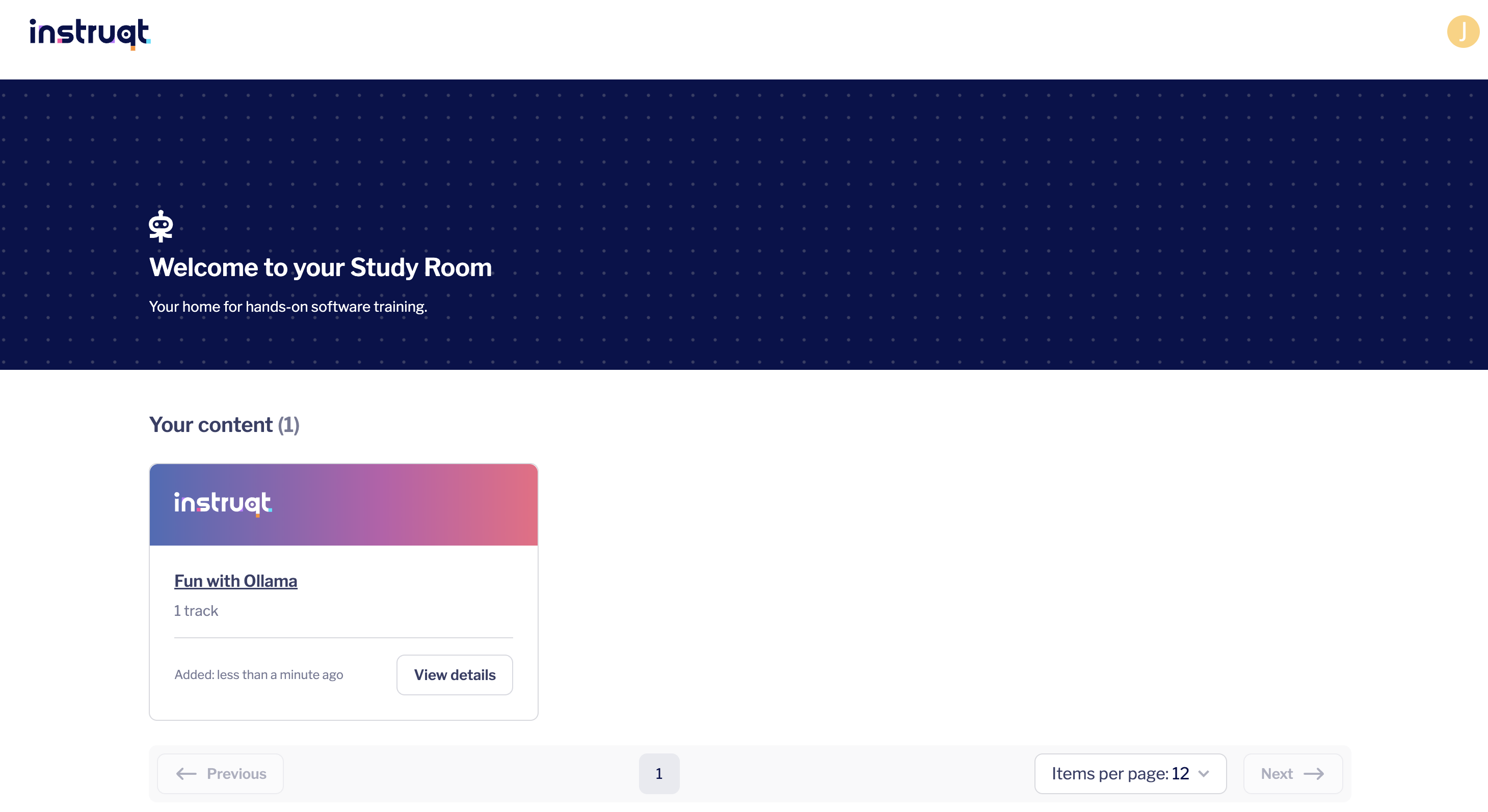
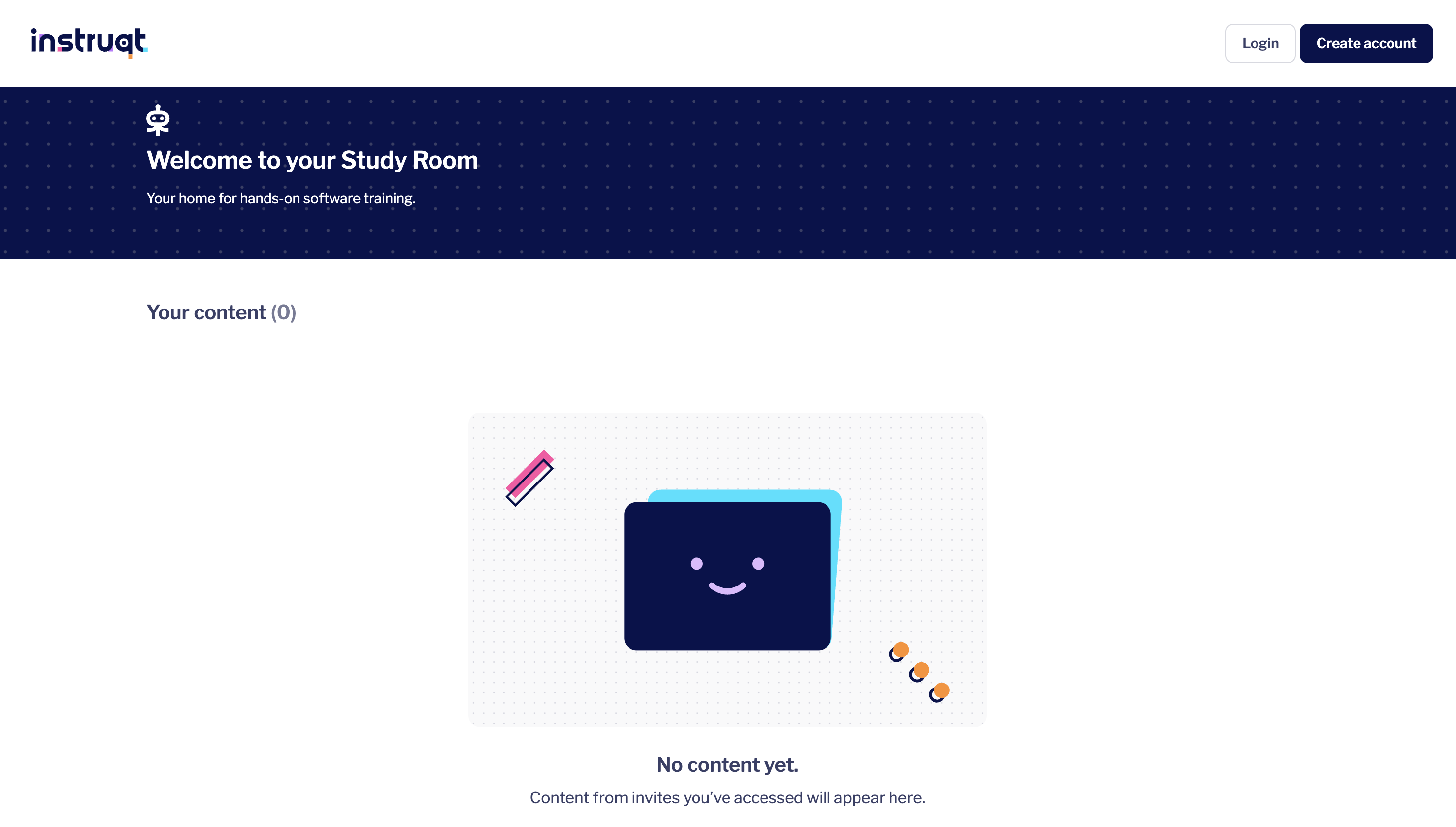
The Instruqt Study Room provides the learner with a view of all content that they have accessed while logged into Instruqt. An Instruqt account can be created from this page with an e-mail address or via SSO.

To access the study room go to <https://play.instruqt.com>

<figure><img src="https://2094212015-files.gitbook.io/~/files/v0/b/gitbook-x-prod.appspot.com/o/spaces%2F-MGJDYBXyftBAZb1Wq0e%2Fuploads%2FMm2kYvCuJZ36XUrmmsQ1%2FScreenshot%20at%20Apr%2001%2010-00-48.png?alt=media&amp;token=f0ca36d7-50c7-4759-9ca2-3f20405b9103" alt=""><figcaption><p>Example of a study room with 1 track available to play</p></figcaption></figure>

<figure><img src="https://2094212015-files.gitbook.io/~/files/v0/b/gitbook-x-prod.appspot.com/o/spaces%2F-MGJDYBXyftBAZb1Wq0e%2Fuploads%2FsIqXmMoMRuCADGh98t26%2FStudy%20Room.png?alt=media&amp;token=3d8288fd-58ca-4196-a6e6-c15bc4c01209" alt=""><figcaption><p>The default study room before logging in</p></figcaption></figure>


# Quickstart

Learn how to deploy your first Instruqt track.

## Background

Tracks are guided learning experiences. There are two main parts to a track:

* [Challenges](/tracks/challenges) for users to complete.
* [Sandboxes](/sandboxes/overview) for users to interact with, in challenges.

Every time a learner plays a track, the following occurs:

1. Instruqt deploys a sandbox.
2. The first challenge is presented to the leaner.
3. The learner solves the challenge by interacting with the sandbox, and optionally checks their work.
4. The subsequent challenge is displayed, or the track finishes.

{% hint style="info" %}
[Watch this introduction to Instruqt to learn more.](https://www.youtube.com/watch?v=eDj4cpst0tA)
{% endhint %}

## Overview

You will build a track that teaches learners how to create files and directories in Linux.

<figure><img src="https://2094212015-files.gitbook.io/~/files/v0/b/gitbook-x-prod.appspot.com/o/spaces%2F-MGJDYBXyftBAZb1Wq0e%2Fuploads%2F4ZZzWZRMjH0oyCvoroQL%2FGroup%201.png?alt=media&amp;token=20f1dc09-5f75-40b0-8bfd-132e172d1eab" alt=""><figcaption><p>Check scripts between challenges wil validate work</p></figcaption></figure>

### Step 1: Create a track

Create a track with the Instruqt Web UI or CLI:

{% hint style="info" %}
To use the Instruqt CLI you must install the executable. Instructions can be found [here](https://docs.instruqt.com/getting-started/set-up-instruqt#step-3-set-up-your-chosen-tool).
{% endhint %}

{% tabs %}
{% tab title="🌐 Web UI" %}

1. Click **Create track** in the upper-right corner of the *Content page*.
2. Select **Use template** from the dropdown.
3. Click **Select** on the `Sandbox container` template. This template has an Ubuntu container in its sandbox, and an initial challenge created.\
   ↳ This opens a "Create track" dialogue
4. Input a track title and slug (URL).
5. Finally, click **Create**.\
   ↳ This opens the T*rack dashboard* page

{% hint style="info" %}
A **track slug** is a unique identifier for your tracks, often used in URLs.
{% endhint %}
{% endtab %}

{% tab title="💻 Instruqt CLI" %}

1. Run the following command to create a track:

   ```bash
   instruqt track create
   ```
2. Enter `My First Track` as the track title.
3. When asked to select a build method, input **`2`** to select *From a template*.
4. When asked to select a template, input **`2`** for the *Sandbox container* template.

The `create` command will generate a file structure similar to the following:

{% code title="Track file structure" %}

```markdown
my-first-track/
    config.yml                    # sandbox configuration file
    track.yml                     # track configuration file
    01-creating-a-directory/      # first challenge directory
        assignment.md             # challenge config and assignment
```

{% endcode %}

{% hint style="info" %}
Check out [this documentation](/reference/cli/configuration-files) to learn more about the files created in the CLI.
{% endhint %}
{% endtab %}
{% endtabs %}

### Step 2: Add a challenge

A challenge has a few components:

* A `title`, `slug`, and `assignment`.
* `Tabs` with components that you make available to the learner. For example, a terminal.
* `Scripts` that prepare the challenge, check if the learner solved the challenge, etc.

Add a second challenge to the track with the Instruqt Web UI or CLI:

{% tabs %}
{% tab title="🌐 Web UI" %}

1. In the **Challenges** section of the *Track dashboard* page, click **Add new**.
2. Select **Assignment** from the dropdown.\
   ↳ This opens a new challenge page
3. Enter `Creating a text file` and `creating-file` as the challenge name and URL.
4. In the **Description** field, enter `Learn how to create a text file`.
5. In the upper-right corner, click **Save.**
6. From the top menu bar, click **Tabs.**
7. Click **Add new tab**.
8. Select the **Terminal** tab type.
9. In the **Tab name** field, enter `Shell`. In the **Select your host** list, pick `container`.
10. Click **Save**.
11. From the top menu bar, click **Assignment** and enter the following markdown:

    ````markdown
    Let's create a text file
    ========================

    Use the `echo` command to create the text file named "quickstart":

    ```
    echo "This quickstart rocks" > quickstart
    ```

    To complete this track, click the **Check** button.
    ````
12. Click **Save changes**.
    {% endtab %}

{% tab title="💻 Instruqt CLI" %}

1. Change into the directory created for the track:

   ```
   cd my-first-track
   ```
2. Enter the following command to add the challenge:

   ```
   instruqt challenge create --title "Creating a text file"
   ```
3. Open the `02-creating-a-text-file\assignment.md` file, replace its contents with the following, then save the file.

   <pre class="language-markdown" data-line-numbers><code class="lang-markdown">---
   slug: creating-a-text-file
   type: challenge
   title: Create a text file
   teaser: Learn how to create a text file.
   notes:
   - type: text
     contents: Please wait while we set up the second challenge
   tabs:
   - title: Shell
     type: terminal
     hostname: container
   difficulty: basic
   timelimit: 600
   ---

   Let's create a text file
   ========================

   Use the `echo` command to create the text file named "quickstart":

   ```
   echo "This quickstart rocks" > quickstart
   ```

   To complete this track, click the **Check** button.
   </code></pre>

{% hint style="info" %}
Line `1` to `15`is the configuration of the challenge in YAML, while line `17` onwards is markdown for the assignment learners will see.
{% endhint %}
{% endtab %}
{% endtabs %}

### Step 3: Add a check script

You can expand a challenge with a script to check if a learner has solved the challenge. This way, you can support the learner if they need help, or praise then when solving a challenge.

Add a script that checks if the learner created the required text file:

{% tabs %}
{% tab title="🌐 Web UI" %}

1. Click the `Creating a text file` challenge.
2. Click **Scripts** to open the *Lifecycle Scripts page*.
3. Under *container*, click **check**.
4. Enter the following bash script to check if the learner created the text file:

   ```bash
   #!/bin/bash
   set -euxo pipefail

   echo "Checking if the text file quickstart exists."

   if [ -f /root/quickstart ]
   then
       echo "The text file quickstart exists"
   else
       fail-message "There is no text file named quickstart, did you create it?"
   fi
   ```
5. Click **Save**.
6. Click the track name in the upper-left to open the *Track dashboard page* again.

{% hint style="info" %}
Read the [Lifecycle Scripts documentation](/sandboxes/lifecycle-scripts) for more information on the types of scripts you can use in your challenges and tracks.
{% endhint %}
{% endtab %}

{% tab title="💻 Instruqt CLI" %}

1. Open the `02-creating-a-text-file\check-container` file in your code editor, replace it's content with this bash script, then save the file.

   ```bash
   #!/bin/bash
   set -euxo pipefail

   echo "Checking if the text file quickstart exists."

   if [ -f /root/quickstart ]
   then
       echo "The text file quickstart exists"
   else
       fail-message "There is no text file named quickstart, did you create it?"
   fi
   ```

{% hint style="info" %}
Read the [Lifecycle Scripts documentation](/sandboxes/lifecycle-scripts) for more information on the types of scripts you can use in your challenges and tracks.
{% endhint %}
{% endtab %}
{% endtabs %}

### Step 4: Deploy a track (CLI only)

If you are using the CLI, then run the following command to upload your track to Instruqt:

{% tabs %}
{% tab title="💻 Instruqt CLI" %}

1. Run the following command to upload your track:

   ```
   instruqt track push
   ```

{% endtab %}
{% endtabs %}

{% hint style="info" %}
Changes made from the web UI are automatically deployed, so no further action is required.
{% endhint %}

### Step 5: Play a track

You can now play your track. Test the track as if you are a learner:

{% tabs %}
{% tab title="🌐 Web UI" %}

1. Click **Play track** on the *Track dashboard page*.
2. Wait until your environment is created and click **Start**.
3. Solve the first challenge and click **Check**.
4. Click **Start** again and solve the second challenge.
5. Click **Check** again to see if you solved the second challenge.
6. Click **Return to overview** to close the track execution.
   {% endtab %}

{% tab title="💻 Instruqt CLI" %}

1. Enter the following command to play the track:

   ```
   instruqt track open
   ```

   ↳ Your default browser opens the *Track overview page.*
2. Click **Start track**.
3. Wait until your environment is created and click **Start**.
4. Solve the first challenge and click **Check**.
5. Notice that you solved the first challenge.
6. Click **Start** again and solve the second challenge.
7. Click **Check** again to see if you solved the second challenge.
8. Click **Finish** to close the track execution.
   {% endtab %}
   {% endtabs %}

## Next steps

We recommend the following articles to continue your learning journey:

* [Challenge tabs](/tracks/challenges/challenge-tabs)
* [Sandbox hosts](/sandboxes/hosts)
* [Cloud accounts](/sandboxes/cloud-accounts)
* [Lifecycle scripts](/sandboxes/lifecycle-scripts)


# Manage tracks


# Create tracks

Learn how to create tracks.

## Overview

Generally speaking, there are four steps to creating a track:

1. Create the initial track (either from scratch, a template, or an existing track)
2. Add challenges and scripts
3. Test it
4. Publish it

## Create tracks from templates

Creating tracks from templates can save you time because templates provide a pre-defined sandbox, and some challenges to build off of.

{% tabs %}
{% tab title="🌐 Web UI" %}

1. Click **Create track** on the *Content page,* followed by **Use template** from the dropdown.
2. Click the template you wish to use.
3. Input a **Track title** and a **Track slug**.
4. Finally, click **Create**.

{% hint style="info" %}
A **track slug** is a unique identifier for your tracks, often used in URLs.
{% endhint %}
{% endtab %}

{% tab title="💻 Instruqt CLI" %}

1. Run the following command to create a track:

   ```bash
   instruqt track create
   ```
2. Input a track title.
3. When asked to select a build method, input **`2`** to select *From a template*.
4. When asked to select a template, input a number corresponding to the desired template.
   {% endtab %}
   {% endtabs %}

## Create tracks from scratch

Creating tracks from scratch lets you define every aspect of a track, from the start.

{% tabs %}
{% tab title="🌐 Web UI" %}

1. Click **Create track***,* followed by **Start from scratch** from the dropdown.
2. In the **Settings** section, click **Edit**.
3. In the **Track name** field, input the track name.
   {% endtab %}

{% tab title="💻 Instruqt CLI" %}

1. Run the following command to create a track:

   ```bash
   instruqt track create
   ```
2. Input a track title.
3. When asked to select a build method, input **`1`** to select *From scratch*.
   {% endtab %}
   {% endtabs %}

## Duplicate tracks

{% tabs %}
{% tab title="🌐 Web UI" %}

1. Click ••• on the track you want to duplicate, followed by **Duplicate track**.
2. Input a track title and slug.
3. If you are a member of multiple teams, select which team you want to duplicate to.
4. Click **Create**.
   {% endtab %}

{% tab title="💻 Instruqt CLI" %}

1. Run the following command to duplicate an existing track:

   ```bash
   instruqt track create --title "Blah" --from <team>/<existing-track-slug>
   ```

{% endtab %}
{% endtabs %}


# Edit locally

Edit tracks on your local machine and push changes to Instruqt

## Background

Once you determine a track's slug, you can download a tracks configuration to your local machine, make edits, and push the changes back to Instruqt.

{% hint style="info" %}
You can watch a video tutorial on how to edit tracks locally [here](https://www.youtube.com/watch?v=qgSaSgR2_GE).
{% endhint %}

### Step 1: Determine the track slug

Instruqt track slugs can be easily determined from the Web UI.

{% tabs %}
{% tab title="🌐 Web UI" %}

1. Click the track you want to pull to your machine.
2. In the **Settings** section of the *Track dashboard* page, click **Edit**.
3. Note the value in the **Track URL** field. This is the track "slug".
   {% endtab %}
   {% endtabs %}

### Step 2: Pull the track

Pulling tracks is only applicable to the Instruqt CLI.

{% tabs %}
{% tab title="💻 Instruqt CLI" %}

1. Open a terminal and run the following command:

   ```bash
   instruqt track pull <TRACK_SLUG_FROM_STEP_1>
   ```

{% endtab %}
{% endtabs %}

{% hint style="info" %}
If you are a member of multiple teams, you need to preface the `<TRACK_SLUG>` with a team. For example `my-team/my-track-slug`.
{% endhint %}


# Test tracks

Test track sandboxes by running simulated plays

## Before you begin

This guide explains how to test a track to ensure your content is free from errors. You need the following to test tracks:

* [The Instruqt CLI](/reference/cli/commands)
* [Check and solve scripts in your challenges](/sandboxes/lifecycle-scripts/add-a-script-to-check-challenge-execution)

## Background

The `instruqt track test` command simulates a user starting and completing a track. When you run this command, Instruqt starts a new instance of your track and simulates a learner going through the track by executing all challenge lifecycle scripts.

In the test, Instruqt deploys an instance of the track's sandbox (and runs the track setup scripts) and performs the following steps for each challenge:

1. Run the challenge setup script
2. Run check script, expecting failure.
3. Run solve script, to mimic what the user would do.
4. Run check script again, expecting success.

By running these steps, you achieve the following:

* Mimic the learner's behavior.
* Validate that the track starts properly.
* Validate that the challenge life cycle scripts (`setup`, `check` and `solve`) have been implemented correctly.

The test stops when one of the steps fails or when all steps have been completed successfully.

## Test a track

Tracks can only be tested using the Instruqt CLI.

{% tabs %}
{% tab title="💻 Instruqt CLI" %}

1. In a track's directory, run the following command:

   ```xml
   instruqt track test
   ```

   ↳ Example output:

   ```xml
   ==> Finding track by slug: TEAM/TRACK_SLUG
   ==> Testing track 'TEAM/TRACK_SLUG' (ID: jum7k2jboetj)
       Creating environment ....... OK

   ==> Testing challenge [1/2] 'YOUR_CHALLENGE_NAME_1' (ID: pjdxmwz493v7)
       Setting up challenge              OK
       Running check, expecting failure  OK
       Running solve                     OK
       Running check, expecting success  OK
       
   ==> Testing challenge [2/2] 'YOUR_CHALLENGE_NAME_2' (ID: pjdxmwz493v8)
       Setting up challenge              OK
       Running check, expecting failure  OK
       Running solve                     OK
       Running check, expecting success  OK
   ```

{% endtab %}
{% endtabs %}

### Skip the checking steps

Add the `--skip-fail-check` flag to the `instruqt track test` command to skip the first check attempt and go straight to the solve script.

{% tabs %}
{% tab title="💻 Instruqt CLI" %}

```
instruqt track test --skip-fail-check
```

{% endtab %}
{% endtabs %}

{% hint style="info" %}
The "Running check" steps will fail if you do not have check scripts present in your track.
{% endhint %}

### Keep tracks running after testing

When the test has finished, it will automatically stop the track and delete the sandbox. If you would like to keep it running afterward, add the `--keep-running` flag to the `instruqt track test` command. This is useful when you debug a script issue and want to inspect the environment after the test has finished. If you are running the test with your credentials, you can go to [play.instruqt.com](https://play.instruqt.com) and continue with the track where the test finished.

{% tabs %}
{% tab title="💻 Instruqt CLI" %}

```
instruqt track test --keep-running
```

{% endtab %}
{% endtabs %}

## Test in CI/CD pipelines

### Set authentication

To run tests from a CI/CD system like GitHub actions, you must authenticate with an Instruqt API token. To do this, [create an API token](/settings/platform/api#api-authorization). Once you have your API token, create an environment variable named `INSTRUQT_TOKEN` with the token value in your CI/CD system.

### Docker Image

Many CI/CD systems support running commands on containers as part of the build/test process. Instruqt provides a Docker Container Image with the current version of the Instruqt CLI pre-installed. Use this [image](https://hub.docker.com/r/instruqt/cli) in your CI/CD test pipelines to access the Instruqt CLI easily.


# Track logs

Inspect track logs and troubleshoot your configurations

When a learner plays a track, events such as a sandbox provisioning, setup scripts, and more are captured within track logs.

## View track logs

You can view track logs using the Web UI or the Instruqt CLI.

{% tabs %}
{% tab title="🌐 Web UI" %}

1. Select the track you want to view logs for.
2. In the **Statistics** section, near the bottom left of the Track Dashboard, select **Logs**.
3. Input a date range, severity level, and sandbox ID (optional).
4. Click **Apply**.
   {% endtab %}

{% tab title="💻 Instruqt CLI" %}

1. Run the following command to view all logs for a track:

   ```bash
   instruqt track logs <TRACK_SLUG>
   ```
2. Filter the date range of logs using the `--since` flag:

   ```
   instruqt track logs <TRACK_SLUG> --since 6h
   ```
3. Filter specific sandbox logs using the `--participant-id` flag:

   ```
   instruqt track logs <TRACK_SLUG> --since 6h --participant-id 88ewfsfsdf89
   ```

{% endtab %}
{% endtabs %}

{% hint style="info" %}
You can determine the ID of a sandbox through the `_SANDBOX_ID` environment variable, present in all Instruqt sandboxes. Simply run `echo $_SANDBOX_ID` in a terminal tab.
{% endhint %}


# Track time limits

Learn how to configure track time limits and idle timeouts

## Overview

Every Instruqt track has two parameters that cause a user's session to expire: a **track time limit** and an **idle timeout**. The track time limit is *required* and restricts how long a user can interact with your track. The idle timeout is *optional* **but highly encouraged** and restrict how long a user can be away from the track (in a different window, etc.) before their session expires.

## Track time limits

You can configure a track time limit using the Instruqt web UI or CLI:

{% tabs %}
{% tab title="🌐 Web UI" %}

1. Select the track you wish to modify the time limit of.
2. In the *Settings* section, click **Edit**.
3. In the **Time limit** field, enter the desired value in minutes.
4. Click **Save**.
   {% endtab %}

{% tab title="💻 Instruqt CLI" %}

1. If you have not already done so, pull the track you wish to modify the time limit of:

   ```
   instruqt track pull <track-slug>
   ```
2. Open the `track.yml` file and add a `timelimit` parameter.

   ```yaml
   timelimit: <value-in-seconds>
   ```

   As an example, the file might look like the following:

   ```yaml
   slug: example-track
   id: xnlauwy2zewf
   title: Example Track
   ...
   timelimit: 3600
   ```
3. From within the track directory, push the update to Instruqt:

   ```yaml
   instruqt track push 
   ```

{% endtab %}
{% endtabs %}

### Extend the time limit

You can allow users to increase their time limit themselves. When enabled, a prompt will appear when a track reaches its limit, allowing users to add more minutes. The maximum amount of extra time that users can add is customized for each track.

You can allow users to extend the time limit using the Instruqt web UI or CLI:

{% tabs %}
{% tab title="🌐 Web UI" %}

1. Select the track you wish to allow users to extend the time limit for.
2. In the *Settings* section, click **Edit**.
3. Click **Additional settings**.
4. Toggle **Allow users to extend their session** on, and input the desired value in minutes.
5. Click **Save**.
   {% endtab %}

{% tab title="💻 Instruqt CLI" %}

1. If you have not already done so, pull the track you wish to modify the extend ttl of:

   ```
   instruqt track pull <track-slug>
   ```
2. Open the `track.yml` file and add an `extend_ttl` parameter.

   ```yaml
   lab_config:
     extend_ttl: <value-in-seconds>
   ```

   As an example, the file might look like the following:

   ```yaml
   slug: example-track
   id: xnlauwy2zewf
   title: Example Track
   ...
   timelimit: 3600
   lab_config:
     extend_ttl: 600
   ```
3. From within the track directory, push the update to Instruqt:

   ```yaml
   instruqt track push
   ```

{% endtab %}
{% endtabs %}

## Idle timeouts

There are two ways to configure a track's idle timeout:

* Within the **Track details** page.
* Using the Instruqt CLI and configuring the `idle_timeout` parameter.

{% hint style="danger" %}
Websites or applications opened in external tabs or browser windows (outside of the Instruqt lab UI) are **not considered by the idle timer**. This means that activity in those external tabs will not reset the timer, and the track may time out even if the user is active there.
{% endhint %}

### Configure idle timeouts

You can configure a track's idle timeout using the Instruqt web UI or CLI:

{% tabs %}
{% tab title="🌐 Web UI" %}

1. Select the track you wish to modify the idle timeout of.
2. In the *Settings* section, click **Edit**.
3. Click **Additional settings**.
4. Toggle **Time out idle users** on, and input the desired value in minutes.
5. Click **Save**.
   {% endtab %}

{% tab title="💻 Instruqt CLI" %}

1. If you have not already done so, pull the track you wish to modify the idle timeout of:

   ```
   instruqt track pull <track-slug>
   ```
2. Open the `track.yml` file and add a `idle_timeout` parameter.

   ```yaml
   idle_timeout: <value-in-seconds>
   ```

   As an example, the file might look like the following:

   ```yaml
   slug: example-track
   id: xnlauwy2zewf
   title: Example Track
   ...
   timelimit: 3600
   idle_timeout: 300
   ```
3. From within the track directory, push the update to Instruqt:

   ```yaml
   instruqt track push 
   ```

{% endtab %}
{% endtabs %}


# Pausable tracks

Enable learners to pause tracks and resume later, preserving their progress and environment state while optimizing resource usage.

{% hint style="info" %}

## This feature is currently in closed beta. We're not currently accepting new beta customers. When the closed beta period has ended, and we're able to onboard more customers, we will update this status.

{% endhint %}

## Requirements

#### Supported Resources

| Resource Type    | Pausable   | Notes                                    |
| ---------------- | ---------- | ---------------------------------------- |
| Virtual Machines | ✅ Yes      | Fully supported - VMs suspend and resume |
| Containers       | ⚠️ Partial | Remain active while paused (incur costs) |
| Website Services | ⚠️ Partial | Remain active while paused (incur costs) |
| Cloud Accounts   | ⚠️ Partial | Remain active while paused (incur costs) |

{% hint style="warning" %}
Containers and website services will remain active while paused. Pause/resume scripts can be defined for pausing/resuming external resources (e.g. EC2 Instances).
{% endhint %}

## How to use

Using the Instruqt UI or CLI, you can configure pausable tracks:

* **Per track**: Enable pausing for the entire track
* **Per invite or landing page**: Override the track setting when sharing content (This is only possible if the original track has pausing enabled and it meets the requirements above)

{% tabs %}
{% tab title="🌐 Web UI" %}
**For the track:**

1. Select the track you wish to make pausable
2. Navigate to the **Settings** page
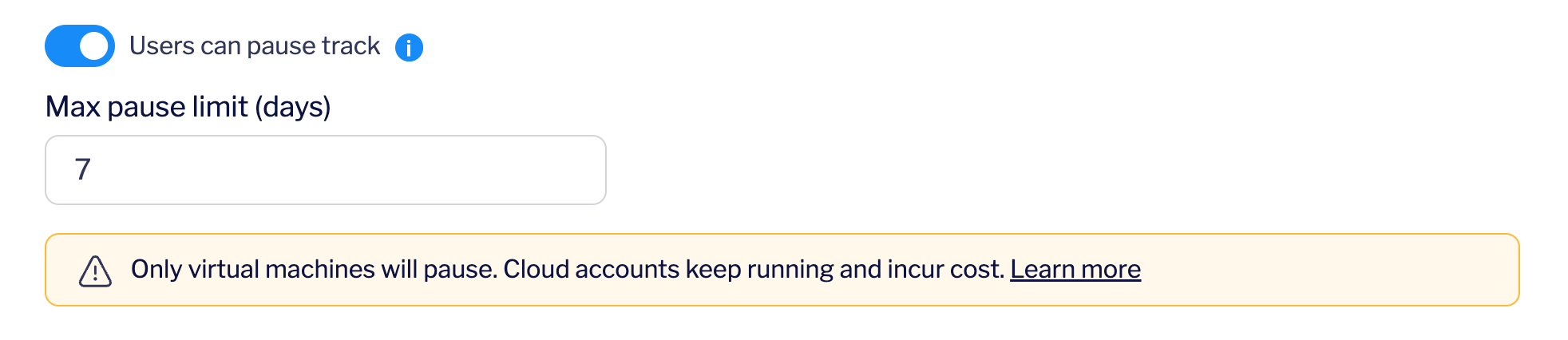
3. In the **Track Details** section, locate **"Users can pause track"**
4. Toggle the switch to enable pausing
5. Set the **Maximum pause duration** (1-60 days, default is 7)
6. Click **Save**

<figure><img src="https://2094212015-files.gitbook.io/~/files/v0/b/gitbook-x-prod.appspot.com/o/spaces%2F-MGJDYBXyftBAZb1Wq0e%2Fuploads%2FRsVx825TZQj7Txp0Qs2R%2FScreenshot%20From%202026-07-31%2011-22-23.png?alt=media&amp;token=23a2c38c-a8dd-4505-94a3-f077ac039589" alt=""><figcaption></figcaption></figure>

**For invites and landing pages:**

See the [Track invites](/tracks/share/track-invite-links) and [Landing pages](/tracks/share/landing-pages) documentation for configuring pausable tracks when sharing content.
{% endtab %}

{% tab title="💻 Instruqt CLI" %}

1. If you have not already done so, pull the track you wish to make pausable:

   ```bash
   instruqt track pull <track-slug>
   ```
2. Open the `track.yml` file and add the pausable parameters:

   ```yaml
   pausable: <boolean>
   pausable_ttl: <number> # in seconds
   ```

   * Set `pausable` to `true` to enable pausing
   * Set `pausable_ttl` to the maximum pause duration in seconds (e.g., 604800 for 7 days)

   As an example, the file might look like the following:

   ```yaml
   slug: example-track
   id: xnlauwy2zewf
   title: Example Track
   ...
   pausable: true
   pausable_ttl: 604800  # 7 days in seconds
   ```
3. From within the track directory, push the update to Instruqt:

   ```bash
   instruqt track push
   ```

{% endtab %}
{% endtabs %}

{% hint style="warning" %}
**Cloud Account Costs**: Cloud accounts (AWS, Azure, GCP) remain active while paused and continue to incur costs. Plan accordingly and communicate this to learners.
{% endhint %}

## Learner Experience

#### Pausing a Track

When learners are in a pausable track, they will see a **"Pause and exit"** button in the track interface.

<figure><img src="https://2094212015-files.gitbook.io/~/files/v0/b/gitbook-x-prod.appspot.com/o/spaces%2F-MGJDYBXyftBAZb1Wq0e%2Fuploads%2FciUAgmJui5rwEn0QW2ab%2Ftrack-playing-pause-button.png?alt=media&amp;token=d3b22baf-d816-4b5b-a8f7-0775edf56234" alt=""><figcaption></figcaption></figure>

1. Learner clicks "Pause and exit" button
2. The track enters the "pausing" state (this takes a few minutes)
3. Automated Pause script is executed
4. Virtual machines are suspended
5. Progress and state are preserved
6. The learner is redirected to the splash screen

#### Resuming a Track

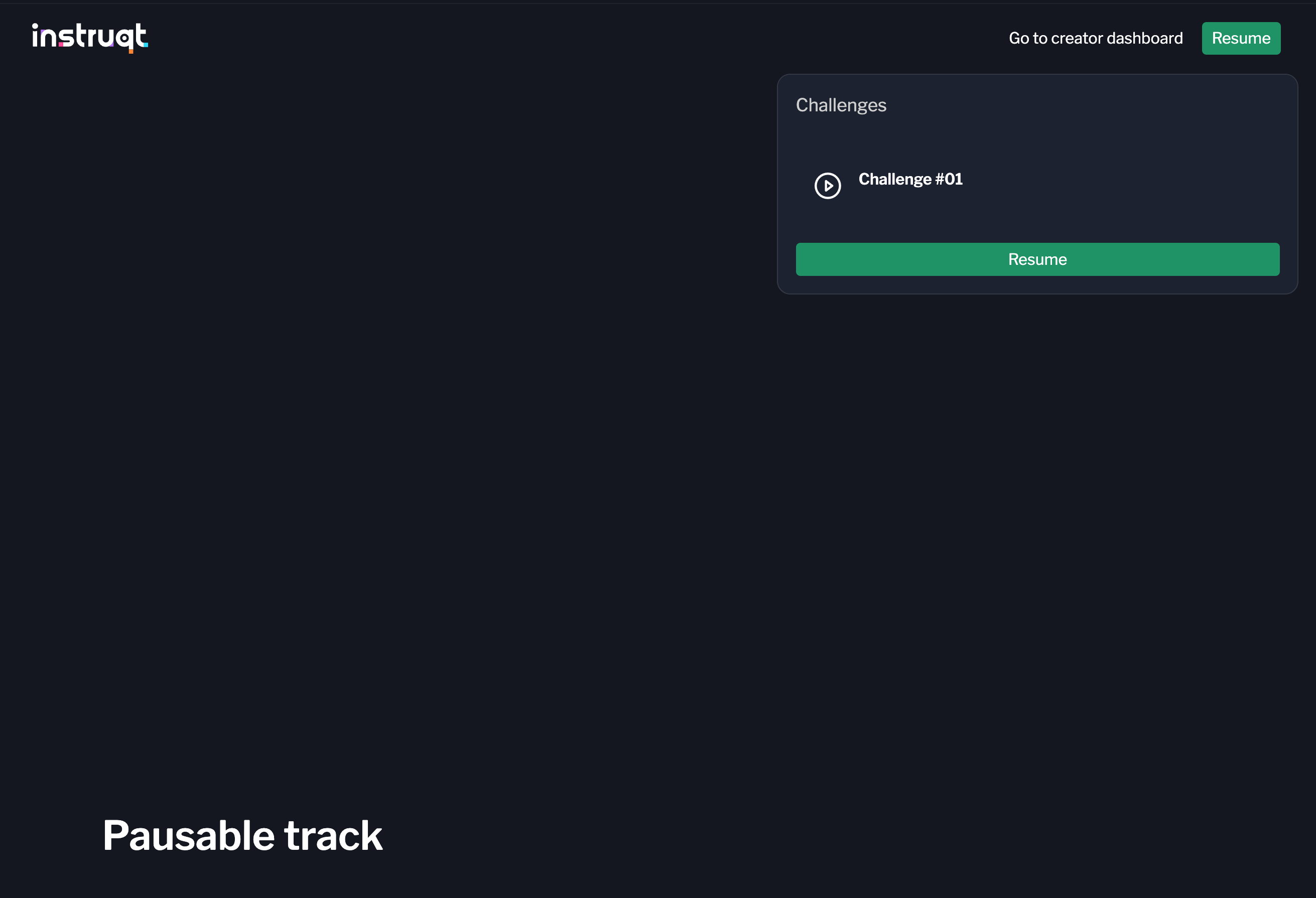
1. Access the track URL or navigate from an invite or landing page
2. Click the **"Resume"** button on the splash screen
3. The track enters the "resuming" state
4. Virtual machines are restored
5. Automated Resume script is executed.
6. Continue from the last accessed challenge

<figure><img src="https://2094212015-files.gitbook.io/~/files/v0/b/gitbook-x-prod.appspot.com/o/spaces%2F-MGJDYBXyftBAZb1Wq0e%2Fuploads%2FgkFCj1pOKXYZGRf06rdz%2Fsplash-screen-resume-button.png?alt=media&amp;token=1a374a58-c4a0-4c41-89b4-cab6bc19b9f4" alt=""><figcaption></figcaption></figure>

{% hint style="info" %}
**Resume Time**: Resuming typically takes 1-3 minutes as VMs are restored to their previous state, and resume script is executed.
{% endhint %}

### Automatic Pausing on Idle

For pausable tracks, the idle timeout system automatically pauses tracks instead of stopping them when learners become inactive:

* **Idle Detection**: When a pausable track exceeds its idle timeout without activity
* **Automatic Pause**: The system pauses the track rather than stopping it completely
* **Resource Optimization**: Pause script is executed and VMs are suspended to save resources while preserving state
* **Resume on Return**: Learners can resume from where they left off when they return

**Required Settings for Automatic Idle Pausing:**

1. **Track must be pausable**: Set `pausable: true` in track configuration
2. **Pause TTL must be configured**: Set `pausable_ttl` > 0 (e.g., 604800 for 7 days)
3. **Idle timeout must be set**: Configure `idle_timeout` in track settings (in seconds)

When all these conditions are met, the idle service will automatically pause the track instead of stopping it when the idle timeout is exceeded.

### Pause Duration Reset Behavior

When you pause a track after resuming it, the pause duration timer resets to the full maximum configured value. This means:

* **Fresh timer on each pause**: Every time you pause, you get the full pause duration allowance
* **Example**: If the maximum pause duration is set to 7 days:
  * You pause for 3 days, then resume
  * When you pause again, you have another full 7 days available (not the remaining 4 days)
* **TTL limitation**: While each pause resets the duration, you are still bound by the overall track Time-To-Live (TTL)
  * If you repeatedly pause and resume, the track will eventually expire based on its total TTL

### Track States

Pausable tracks introduce additional states:

| State      | Description                                                         |
| ---------- | ------------------------------------------------------------------- |
| `pausing`  | Track is being paused (Pause Script running or VMs are suspending)  |
| `paused`   | Track is paused and can be resumed                                  |
| `resuming` | Track is being resumed (VMs are restoring or Resume script running) |

### FAQs

<details>

<summary><strong>Can all tracks be made pausable?</strong></summary>

Yes, any track can be made pausable. However, only virtual machines are actually paused. Cloud accounts, containers and website services will remain active while paused. Pause/resume scripts can be defined for pausing/resuming external resources (e.g. EC2 Instances).

</details>

<details>

<summary><strong>What happens to cloud accounts when a track is paused?</strong></summary>

Cloud accounts (AWS, Azure, GCP) remain active while paused and continue to incur costs. Only the virtual machines are suspended. Communicate this to learners, and consider using lifecycle scripts to minimize resource usage while paused.

</details>

<details>

<summary><strong>How long can a track remain paused?</strong></summary>

You can configure the maximum pause duration (TTL) from 1 to 60 days. The default is 7 days. After the TTL expires, the track will be automatically cleaned up and the learner will need to start over.

</details>

<details>

<summary><strong>Can learners pause tracks in embed mode?</strong></summary>

No, the pause/resume functionality is not available in embed mode. Learners must access the track through a direct link, invite, or landing page to use the pause feature.

</details>

## Limitations

#### Technical Limitations

* **Embed mode** does not support pause/resume
* **Maximum pause duration** is 60 days

## Troubleshooting

#### Common Issues

**Pause button not appearing**

* Verify that the track is configured as pausable
* Check that the user is not in embed mode

**Resume fails or takes too long**

* Check whether the pause TTL has expired
* Verify that VM resources are available

## API Reference

For programmatic access to the pausable tracks functionality, see the [Instruqt GraphQL API documentation](/settings/platform/api).

Key operations include:

* **Query track pausability**: Check if a track is pausable and its configuration
* **Pause play mutation**: Pause a learner's track progress
* **Resume play mutation**: Resume a paused track
* **Track status**: Monitor track states including `pausing`, `paused`, and `resuming`


# Track feedback

Decide when users are able to share feedback about the track.

## Overview

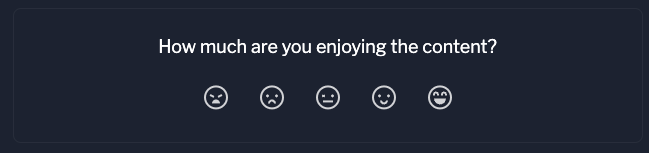
Users can provide valuable feedback on Instruqt tracks by rating their experience on a scale from very unhappy to very happy.<br>

<figure><img src="https://2094212015-files.gitbook.io/~/files/v0/b/gitbook-x-prod.appspot.com/o/spaces%2F-MGJDYBXyftBAZb1Wq0e%2Fuploads%2Ffi0FeBHyFalUxznkOHaY%2Fimage.png?alt=media&amp;token=7e489097-1a4f-4bd2-b877-4cbd51452de9" alt=""><figcaption><p>Happiness rating scale</p></figcaption></figure>

\
After rating it's also possible to add written feedback.

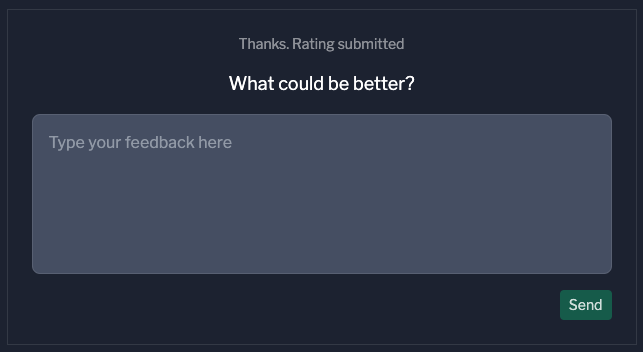
<figure><img src="https://2094212015-files.gitbook.io/~/files/v0/b/gitbook-x-prod.appspot.com/o/spaces%2F-MGJDYBXyftBAZb1Wq0e%2Fuploads%2FkOWYAMtidlfTsrOb404U%2Fimage.png?alt=media&amp;token=c25ec36f-4a6c-4851-b3ec-1c1be2d804c0" alt=""><figcaption><p>Written feedback</p></figcaption></figure>

\
\
Track authors can configure feedback settings to best fit their needs.\
By default, the feedback option appears at the end of the track, after all challenges are completed.

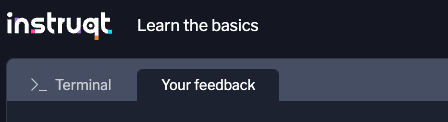
Alternatively, authors can enable a *persistent feedback tab*, allowing users to share feedback during any challenge. For cases where feedback isn’t needed, this option can also be disabled entirely.

<figure><img src="https://2094212015-files.gitbook.io/~/files/v0/b/gitbook-x-prod.appspot.com/o/spaces%2F-MGJDYBXyftBAZb1Wq0e%2Fuploads%2FDciJ4Tcb8WJ636bsHejW%2Fimage.png?alt=media&amp;token=58ef615d-d624-4af3-a8ec-e2c289f345a6" alt=""><figcaption><p>Persistent feedback tab</p></figcaption></figure>

### **Feedback Score Behavior**

Currently, Instruqt **only stores a single feedback submission** per play, meaning that each new score and comment will replace the previous one. The written feedback is tied to the score, so submitting a new score will reset any previously entered comments.

{% hint style="info" %}
For example, if a user rates the track with a score of three during an early challenge, but updates it to a score of two later on, the final feedback recorded for the track will be a score of two.
{% endhint %}

### Configure the track feedback

You can configure a track's feedback using the Instruqt web UI:

{% tabs %}
{% tab title="🌐 Web UI" %}

1. Select the track you wish to configure.
2. In the *Settings* section, click **Edit**.
3. Click **Additional settings**.
4. In the *Track feedback* section, you will see two options:

   1. *After user completes all challenge* - Toggle this option on to enable feedback at the end of the track.
   2. *During any challenge* - Toggle this option on to enable a *persistent feedback tab* displayed during all challenges.

   It is also possible to disable both options to disable feedback for the track entirely.
5. Click **Save**.
   {% endtab %}

{% tab title="track.yml" %}

1. Open the *track.yml* of the desired track.
2. Under the `lab_config` section you can add or modify the following options: `feedback_tab_enabled` and `feedback_recap_enabled`.
3. Set `feedback_tab_enabled` to *true* if you want to enable a *persistent feedback tab* displayed during all challenges.
4. Set `feedback_recap_enabled` to *true* if you want to enable feedback at the end of the track.

\
Example of how a track.yml would look like with both options enabled.

```yaml
slug: mytrack
id: baekpuxv2m5g
type: track
title: MyTrack
teaser: Get started quickly with just one container-based sandbox host.
description: Get started quickly with a container-based sandbox host. Choose a container
  when you need a fast, lightweight Linux system.
...
owner: myteam
developers:
- developer@content.com
...
lab_config:
...
  feedback_recap_enabled: true
  feedback_tab_enabled: true
 ...t
```

{% endtab %}
{% endtabs %}


# Developer workflow

Keep your track building under control using CI/CD pipelines

This guide explains how to maintain a developer workflow based on Git and GitHub Actions for your track building with development-to-production testing and promotion.

### Why would you maintain a developer workflow?

The benefit of a developer workflow is that you can change and test a track without disrupting production tracks. So, by maintaining a developer workflow, you ensure your content is free from errors that could cause a bad experience for learners.

### Warning

The developer workflow will cause track challenge IDs to be overwritten whenever a pull request is merged. There is no easy fix for this at the moment because of the way tracks are ordered.

### Overview

The bottom line of the developer workflow is that you maintain a development and production version of a track. In this setup, you change the development version until you are satisfied and it is error-free. And then you merge the changes into the production version, making the updated track available to your learners.

At a high level, the developer workflow looks like this:

1. Create a new branch for your development work.
2. Run a [GitHub Action](https://docs.github.com/en/actions) to create a development version of your production track.
3. Modify the development version of the track (via the Instruqt platform, or locally).
4. Run another GitHub Action to restore the production track's attributes (ID, name, etc).
5. Merge the pull request.

As mentioned, this is only a high-level overview. The following sections describe all the steps and components in the developer workflow.

## Before you begin

You need the following to maintain the developer workflow:

* A [GitHub](https://github.com/) account.
* [Instruqt CLI](/getting-started/set-up-instruqt#step-3-set-up-your-chosen-tool) on your machine.
* [GitHub CLI](https://github.com/cli/cli) on your machine (optional).
* [Git](https://git-scm.com/downloads) on your machine (optional).

## Maintain a developer workflow

### Initial configuration

First, you need to set up a repository. These steps are performed once.

{% tabs %}
{% tab title="Web UI" %}

1. Open the [Instruqt Skeleton](https://github.com/instruqt/skeleton) repository and select **Use this template**.
2. Provide your new repository a name and select **Create repository from template**.
3. Open a new tab and navigate to your organization's [Instruqt page](https://play.instruqt.com).
4. Select **Team Settings,** followed by **API keys**. If there is no key present, then create one. Otherwise, select **Copy to clipboard**.
5. Return to your repository and select **Settings** from the top menu. On the left side, expand **Secrets** and select **Actions**. Select **New repository secret**. Configure the secret name as `INSTRUQT_TOKEN` and paste your organization's API key as the value.
6. In the same **Secrets and Variables** section select the **Variables** tab. Create a new repository variable called `TRACK_DIR` and set the value to `instruqt-tracks`. This must match the name of the directory in your repo where all tracks are stored. The skeleton template you copied already has this directory in it.
7. From within the **Settings** menu, select **Actions** > **General** and scroll down to **Workflow Settings.** Enable **Read and Write** permissions.
8. Pull the latest versions of your tracks to your local machine using the [Instruqt CLI](https://docs.instruqt.com/getting-started/set-up-instruqt#step-3-set-up-your-chosen-tool) (apologies...there is no method of doing this via a Web UI):

   ```git
   instruqt track pull <org-slug>/<track-slug>
   ```
9. From your repository's main page, navigate into the **instruqt-tracks** directory. Select **Add file** followed by **Upload files**. Drag and drop all of your track directories and select **Commit changes**.
10. Make sure that any tracks that you do not want tested have one of the following tags: `no-ci`, `ci-skip`, or `skip-ci`. All other tracks in the directory will become part of your automated tests.
    {% endtab %}

{% tab title="CLI" %}

1. Open the [Instruqt Skeleton](https://github.com/instruqt/skeleton) repository and select **Use this template**.
2. Provide your new repository a name and select **Create repository from template**. Choose the **Private** option to keep your track code hidden from public view.
3. Open a new tab and navigate to your organization's [Instruqt page](https://play.instruqt.com).
4. Select **Team Settings,** followed by **API keys**. If there is no key present, then create one. Otherwise, select **Copy to clipboard**
5. Return to your repository and select **Settings** from the top menu. On the left side, expand **Secrets** and select **Actions**. Select **New repository secret**. Configure the secret name as `INSTRUQT_TOKEN` and paste your organization's API key as the value.
6. In the same **Secrets and Variables** section select the **Variables** tab. Create a new repository variable called `TRACK_DIR` and set the value to `instruqt-tracks`. This must match the name of the directory in your repo where all tracks are stored. The skeleton template you copied already has this directory in it.
7. Clone the repository to your local machine (The URL is available via the **Code** button on your repositories main page):

   ```git
   git clone <your_new_repository_url> 
   ```
8. Navigate into the repository's `instruqt-tracks` directory and pull your tracks:

   ```git
   cd <repository_dir>/instruqt-tracks
   instruqt track pull <org-slug>/<track-slug>
   ```
9. Add, commit, and push your changes to the repository:

   ```git
   git add .
   git commit -m "Adding tracks to repository"
   git push -u origin main
   ```
10. Make sure that any tracks that you do not want tested have one of the following tags: `no-ci`, `ci-skip`, or `skip-ci`. All other tracks in the directory will become part of your automated tests.
    {% endtab %}
    {% endtabs %}

{% embed url="<https://www.loom.com/share/5264dd0b8d2f4471a69688f6162bff7c?sid=b96f0229-1a3d-4563-ba18-a97a51bbb07d>" %}
Initial Configuration Walkthrough
{% endembed %}

{% hint style="success" %}
From this point forward, you can manage all changes to your tracks with the Developer Workflow. If you add new tracks, make sure to tag any that should not be part of automated testing with the `no-ci` tag.
{% endhint %}

### Developer workflow

Repeat the following steps each time you modify your production tracks:

{% tabs %}
{% tab title="Web UI" %}
From the repository that contains your Instruqt tracks:

1. Create a new branch by selecting **Main > View all branches > New branch.**
2. Select **Actions** from the top menu of your repository. On the left side, select the `copy-prod-track-to-dev` workflow. On the right side, expand the **Run workflow** dropdown menu, and select your new branch name. Next, provide the slug of the track you intend to modify. Finally, select **Run workflow**. You must run this workflow on your dev branch, and not on the main/master branch which is not allowed for safety purposes. Also note that if you already have a dev version of this track it will be overwritten with the prod version to provide a clean starting environment.
3. Go to your organization's [Instruqt page](https://play.instruqt.com/) and modify the development version of your track until you are satisfied with the changes. Test your track in the UI until you are happy with its performance. When your track is working smoothly and all check/solve scripts are functional, turn off maintenance mode. You must disable maintenance mode on the dev track to proceed!
4. Once the development version of your track is ready, return to GitHub and run the `prepare-dev-for-pull-request` workflow from the **Actions** menu. Provide the same branch and track slug you used in the `copy-prod-track-to-dev` workflow.
5. Create a pull request by selecting **Pull requests** in the top menu of your repository, followed by **New pull request**. Indicate your new branch, and select **Create pull request**.
6. Have a colleague review your work, make sure the tests all pass, and merge the pull request! Once merged, the changes will be applied to the production version of your track and production will receive another round of post-merge testing. You can review the results of the tests in the Actions tab of your repo.
   {% endtab %}

{% tab title="CLI" %}

1. Change into the directory containing your repository and create a new branch. Make sure to push the new branch to GitHub as well:

   ```git
   cd <repository_dir>
   git pull
   git checkout -b my-new-content
   git push -u origin my-new-content
   ```
2. Run the `copy-prod-track-to-dev` workflow, providing the branch and track slug you wish to modify:

   ```git
   gh workflow run "copy-prod-track-to-dev" -F "slug=<track-slug>" -r my-new-content
   ```
3. Pull the changes made by the workflow (the name and IDs will be modified):

   ```git
   git pull
   ```
4. Go through your normal workflow of pushing, testing, and validating your Instruqt track using the `instruqt` command. Make sure your final local changes are reflected in the track on Instruqt, because it will be used as the source of truth for the development version of the track.
5. Add, commit, and push your changes to GitHub:

   ```git
   # If you haven't yet, run `instruqt track push` before this!
   git add .
   git commit -m "Adding new content!"
   git push
   ```
6. Once you are satisfied with your development track, and the latest changes have been pushed to Instruqt, run the `prepare-dev-for-pull-request` workflow:

   ```git
   gh workflow run "prepare-dev-for-pull-request" -F "slug=<track-slug>" -r my-new-content 
   ```
7. Create a pull request by selecting **Pull requests** in the top menu of your repository, followed by **New pull request**. Indicate your new branch, and select **Create pull request**.
8. Have a colleague review your work, and merge the pull request! Once merged, the changes will be applied to the production version of your track.
   {% endtab %}
   {% endtabs %}


# Track tags

How to manage tags and add them to your content in order to group related items together.

## Overview

A tag is a label that can be attached to content. This allows you to group similar content together, and can later be used for filter on the team content page. We also have the concept of group tags, which can be used to assign and filter multiple tags in bulk.

You create tags using the Web UI.

{% tabs %}
{% tab title="🌐 Web UI" %}

1. Click **Settings** → **Tags**.
2. On the *Tag management page,* click **Create tag** on the right-hand side.
3. Input a tag name.
4. Click **Create tag**.
   {% endtab %}
   {% endtabs %}

## Create tag groups

You create tags groups using the Web UI.

{% tabs %}
{% tab title="🌐 Web UI" %}

1. Click **Settings** → **Tags**.
2. On the *Tag management page,* click the **Groups** tab at the top of the page.
3. Click **Create group** on the right-hand side.
4. Input a tag group name.
5. Search and associate tags with the tag group.
6. Click **Create group**.
   {% endtab %}
   {% endtabs %}

{% hint style="info" %}
You can always go back and add more tags later to groups.
{% endhint %}

## Add tags to tracks

You can add tags to tracks using the Web UI or the Instruqt CLI.

{% tabs %}
{% tab title="🌐 Web UI" %}

1. Click the track you want to add a tag to.
2. On the *Track dashboard*, click **Edit tags** in the *Tags* widget.
3. Select tags.
   {% endtab %}

{% tab title="Second Tab" %}

{% endtab %}
{% endtabs %}

## Search by tag

You search and filter by tags using the Web UI.

{% tabs %}
{% tab title="🌐 Web UI" %}

1. On the *Content page*, click the **All tags/groups** filter button.
2. Input a tag you wish to filter for.
   {% endtab %}
   {% endtabs %}


# Track authors

Add and remove authors to tracks

Instruqt users with the owner or content creator role can edit tracks by default. But you can also give Instruqt users with the member role edit rights by assigning them as a track author. This is handy when you want to give an Instruqt user the edit right for some specific track or tracks, but not all.

## Before you begin

You need to have the owner or content creator role for setting the track authors. Furthermore, if you want to set track authors with Instruqt CLI, you need to have their email addresses with which they are registered as team members.

## Add a track author

You can add track authors from the Web UI or the Instruqt CLI:

{% tabs %}
{% tab title="🌐 Web UI" %}

1. Click the track you want to add track authors to.
2. Click the authors' avatars at the top of the page.
3. Click **Add author**.
4. In the **Add author** field, enter the member's name you want to add.
5. In the *Authors* list, select the wanted team member.
6. Click **Close**.
   {% endtab %}

{% tab title="💻 Instruqt CLI" %}

1. Open the `track.yml` file of the track where you want to add a track author.
2. Add the email of the member you want to set as track author to the `developers` property:

   ```yaml
   developers:
   - jennifer@mycorp.com
   - brandon@mycorp.com
   - newbie@mycorp.com
   ```
3. Save the `track.yml` file and push your track to the Instruqt platform:

   ```xml
   instruqt track push
   ```

{% endtab %}
{% endtabs %}

## Remove a track author

You can remove track authors from the Web UI or the Instruqt CLI:

{% tabs %}
{% tab title="🌐 Web UI" %}

1. Click the track you want to remove track authors from.
2. Click the authors' avatars at the top of the page.
3. Hover over the track author you want to remove until the ![](https://2094212015-files.gitbook.io/~/files/v0/b/gitbook-x-prod.appspot.com/o/spaces%2F-MGJDYBXyftBAZb1Wq0e%2Fuploads%2FUITMkNOihNoTwfi5VfOA%2FTrashIcon.svg?alt=media\&token=8298116f-5c43-467f-a040-170f478c981f) button shows up.
4. Click ![](https://2094212015-files.gitbook.io/~/files/v0/b/gitbook-x-prod.appspot.com/o/spaces%2F-MGJDYBXyftBAZb1Wq0e%2Fuploads%2FUITMkNOihNoTwfi5VfOA%2FTrashIcon.svg?alt=media\&token=8298116f-5c43-467f-a040-170f478c981f) to remove the track author.
5. Click **Close**.
   {% endtab %}

{% tab title="💻 Instruqt CLI" %}

1. Open the `track.yml` file of the track where you want to remove a track author.
2. Delete the whole line of the member you want to remove as track author from the `developers` property:

   ```yaml
   developers:
   - jennifer@mycorp.com
   - brandon@mycorp.com
   - newbie@mycorp.com
   ```

   ↓

   ```yaml
   developers:
   - jennifer@mycorp.com
   - brandon@mycorp.com
   ```
3. Save the `track.yml` file and push your track to the Instruqt platform:

   ```xml
   instruqt track push
   ```

{% endtab %}
{% endtabs %}


# Delete tracks

Delete tracks to cleanup your team

## Delete a track

You can delete a track from the Web UI or the Instruqt CLI:

{% tabs %}
{% tab title="🌐 Web UI" %}

1. Click ••• on the track you want to delete, followed by **Delete track**.
2. Click **Confirm**.
   {% endtab %}

{% tab title="💻 Instruqt CLI" %}

1. Open a terminal and change into the track directory that you want to delete.
2. Enter the following command:

   ```xml
   instruqt track delete
   ```

   ↳ The track files will still exists on your machine but the track will be deleted from Instruqt
   {% endtab %}
   {% endtabs %}


# Custom layouts

Learn how to enable, and customise your lab layouts and themes. Custom layouts help you create a tailored lab experience for your product.

Read the docs below or view this video to learn more about activating the new lab UI and how to create custom layouts for your challenges.

{% embed url="<https://www.youtube.com/watch?v=32S86ZSp_aE>" %}

## What are Custom Layouts

Custom layouts allow you to customise the tab panels of a lab for an entire play, or customise the layout of each individual challenge for a more tailored experience.

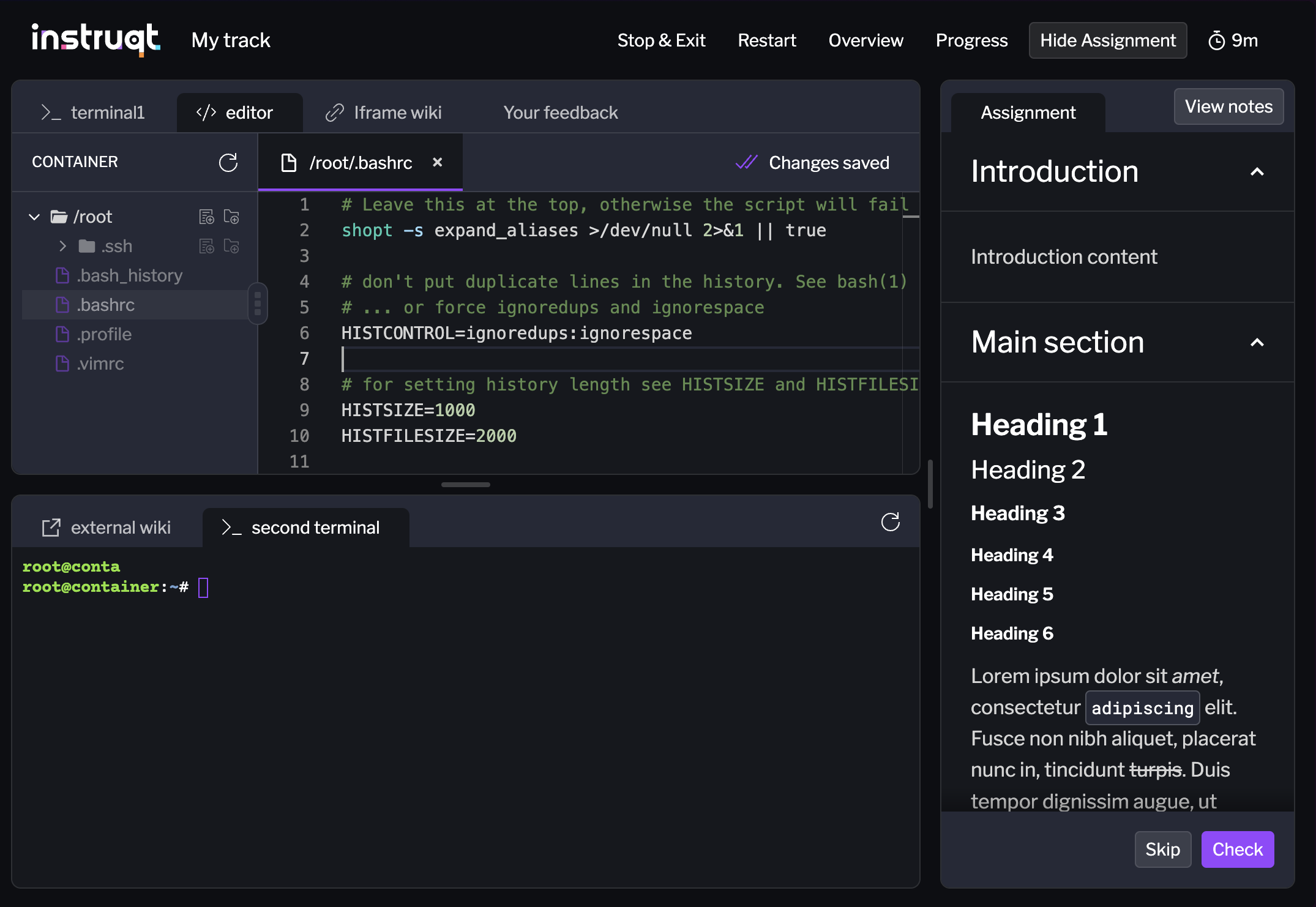
<figure><img src="https://2094212015-files.gitbook.io/~/files/v0/b/gitbook-x-prod.appspot.com/o/spaces%2F-MGJDYBXyftBAZb1Wq0e%2Fuploads%2FWaOJsrfaEECtwQPkFSqp%2Fimage.png?alt=media&amp;token=bb456966-3f31-400c-9fb2-f1f46ce73bd6" alt=""><figcaption><p>A lab set up with custom layouts.</p></figcaption></figure>

In the screen shot above, we show a lab with custom layouts enabled. Users entering the lab will all have this layout by default.

## How to configure custom layouts

{% tabs %}
{% tab title="Web" %}

1. You can create your custom layouts from the same `Layout & Theming` widget on the sidebar of a track dashboard.
2. Click the `Edit` button next to the `Layout` label.

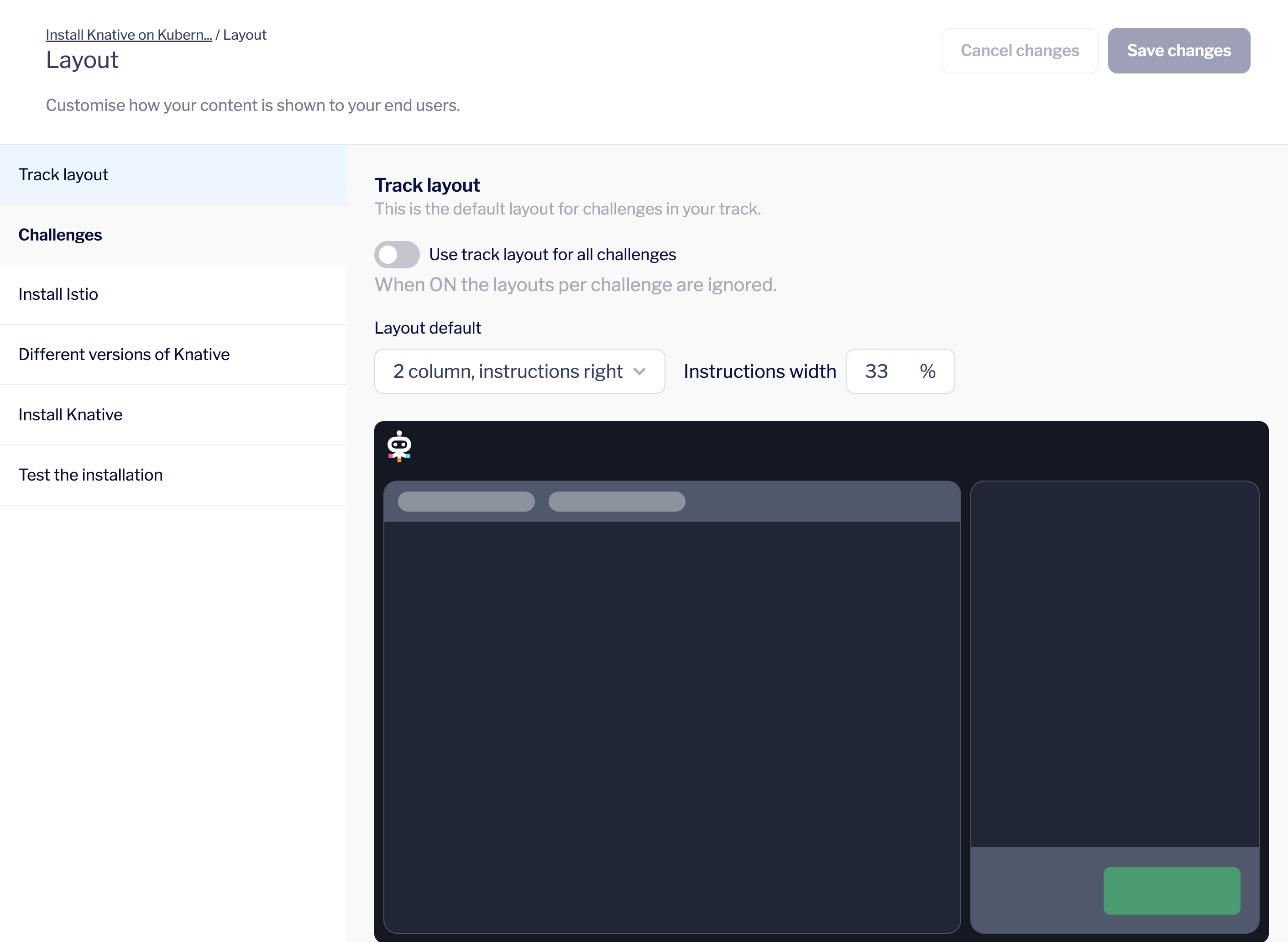
<figure><img src="https://2094212015-files.gitbook.io/~/files/v0/b/gitbook-x-prod.appspot.com/o/spaces%2F-MGJDYBXyftBAZb1Wq0e%2Fuploads%2FpW1CH5gUUIoZaBEIQRUJ%2Fimage.png?alt=media&amp;token=75421a31-be1f-437f-be7b-82aabcfbb75c" alt=""><figcaption><p>The Layout configuration page.</p></figcaption></figure>

**Choosing a layout for all challenges in your track.**

3. If you want to have the same, simple layout for your lab, simply enable on the `Use track layout for all challenges` toggle on the layout landing page. You now have useful default layouts that should easily fit most use cases.
4. Save changes, and you're done! Your lab should now be using the default layout for each of your challenges.

**Customising layouts for individual challenges.**

3. Select the challenge you want to customise and drag-and-drop tabs to your desired outcome.
4. Save your changes, and you're done! The challenge should now be reflecting the specific layout you have designed for the challenge.

You can customise each challenge to best fit your product and how you design your content.
{% endtab %}

{% tab title="CLI" %}
**Customise the layout for the whole track**

Open up your `track.yml` file, under the `lab_config` options you can configure the `default_layout` option, and toggle `override_challenge_layout` to true, configuring the layout for the entire lab.

```yaml
# track.yml
...
lab_config:
  theme:
    name: modern-dark
  override_challenge_layout: false
  default_layout: AssignmentLeft
...
```

**Layout API for lab\_config**

| Field                       | Options                                                    | Description                                                                                                                         |
| --------------------------- | ---------------------------------------------------------- | ----------------------------------------------------------------------------------------------------------------------------------- |
| `theme.name`                | `modern-dark` or `original`                                | These two options are the only current themes available. A modern take on the Instruqt lab, and the classic original colour scheme. |
| `override_challenge_layout` | `true` or `false`                                          | Tells Instruqt to use the default track layout for your lab. And overrides any custom layouts you have enabled for any challenge.   |
| `default_layout`            | `AssignmentRight`, `AssignmentLeft`, or `AssignmentBottom` | Selects which default layout you would like to have for a track.                                                                    |

**Customise layout for an individual challenge**

You can also manage the individual, custom layouts as code, by adding a serialised string.

```yaml
# <challenge_slug>/assignment.md frontmatter block
...
lab_config:
  custom_layout: '{"root":{"children":[{"branch":{"children":[{"leaf":{"tabs":["assignment"],"activeTabId":"assignment","size":50}},{"leaf":{"tabs":["feedback"],"activeTabId":"feedback","size":50}}],"size":49}},{"leaf":{"tabs":["xpbbhgg2ilnm","vcly1o5zid56","jvcbfq9tblpa","zaw51ozikez1","dmyxy9cxga73"],"activeTabId":"xpbbhgg2ilnm","size":50}}],"orientation":"Horizontal"}}'
...

```

{% endtab %}
{% endtabs %}

## Themes

|                                                                                                      ModernDark                                                                                                     |                                                                                                       Original                                                                                                      |
| :-----------------------------------------------------------------------------------------------------------------------------------------------------------------------------------------------------------------: | :-----------------------------------------------------------------------------------------------------------------------------------------------------------------------------------------------------------------: |
| ![](https://2094212015-files.gitbook.io/~/files/v0/b/gitbook-x-prod.appspot.com/o/spaces%2F-MGJDYBXyftBAZb1Wq0e%2Fuploads%2FWaOJsrfaEECtwQPkFSqp%2Fimage.png?alt=media\&token=bb456966-3f31-400c-9fb2-f1f46ce73bd6) | ![](https://2094212015-files.gitbook.io/~/files/v0/b/gitbook-x-prod.appspot.com/o/spaces%2F-MGJDYBXyftBAZb1Wq0e%2Fuploads%2F7ZdK4Eo0nVhQbfUxE9AE%2Fimage.png?alt=media\&token=9e3b93bb-fc10-4a9f-9c45-e7e6ac4cdbe0) |

{% tabs %}
{% tab title="Web" %}

1. Enable `New Lab UI` for the track.
2. In the `Layout & Theming widget` select between the ModernDark theme and the Original colour scheme. \\

   <figure><img src="https://2094212015-files.gitbook.io/~/files/v0/b/gitbook-x-prod.appspot.com/o/spaces%2F-MGJDYBXyftBAZb1Wq0e%2Fuploads%2FlVTcY3GiVDAxzVKj22o4%2Fimage.png?alt=media&amp;token=e581fe37-a75f-4b22-8cc7-087cd1367335" alt=""><figcaption></figcaption></figure>
3. The track will now use the selected theme for all plays.
   {% endtab %}

{% tab title="CLI" %}
Refer to the `How to configure layouts` and [check the API here](/tracks/manage/custom-layouts#layout-api-for-lab_config).
{% endtab %}
{% endtabs %}


# Version control

Learn how to use version control in your tracks. Version control helps you streamline development processes, enable faster iteration and delivery of tracks.

{% hint style="warning" %}
This feature is currently in beta and feedback is highly appreciated.

To have the feature enabled for your organization, reach out to customer success, or reach out in either your organization channel on the Instruqt slack workspace or any of the support channels.
{% endhint %}

{% embed url="<https://youtu.be/waAj8NlxMrU>" %}

## Overview

The version control feature allows you to collaborate in real-time across the UI and code workflows with no overwriting and a history of auditing any changes.

### Collaborate with confidence

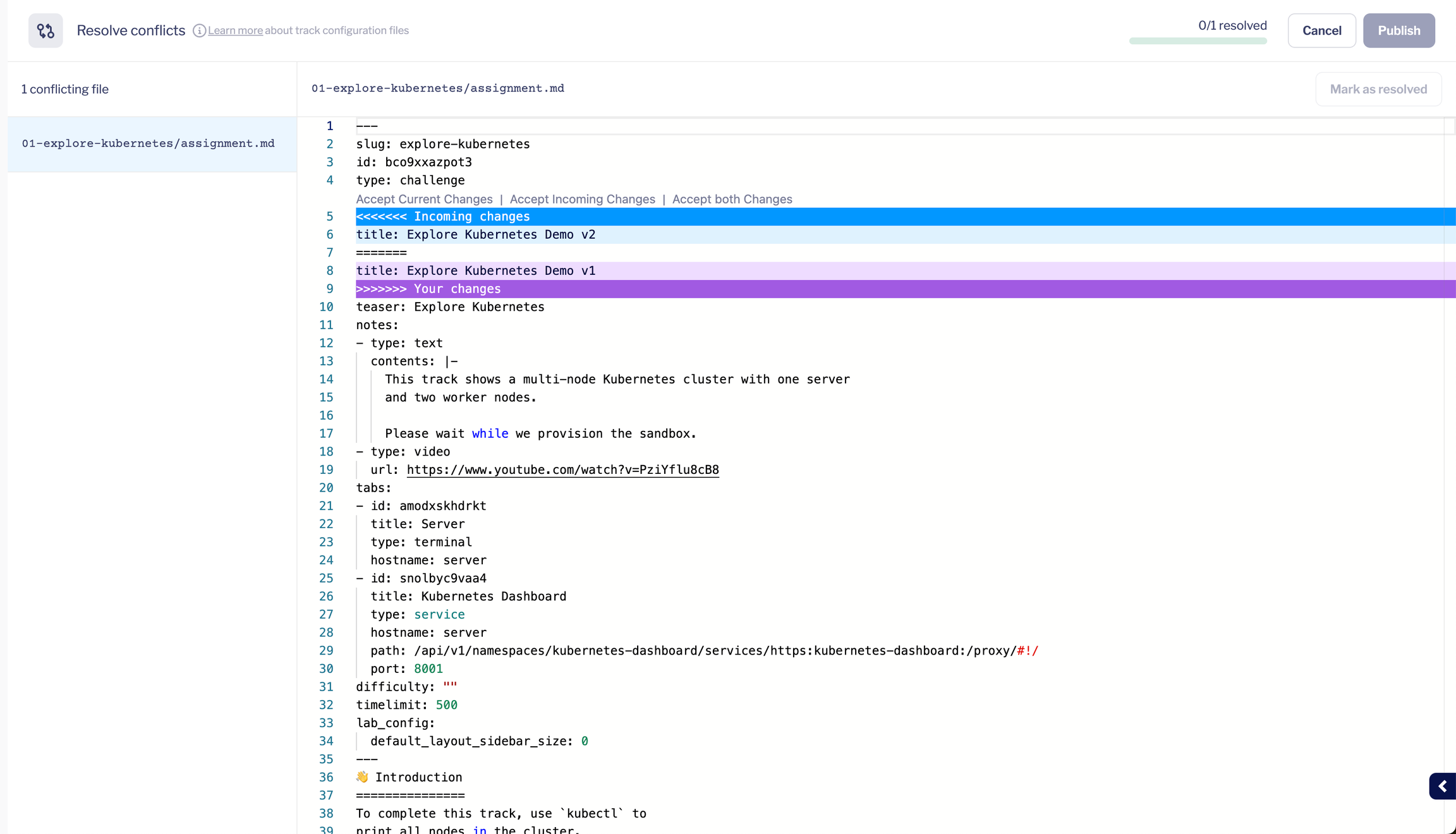
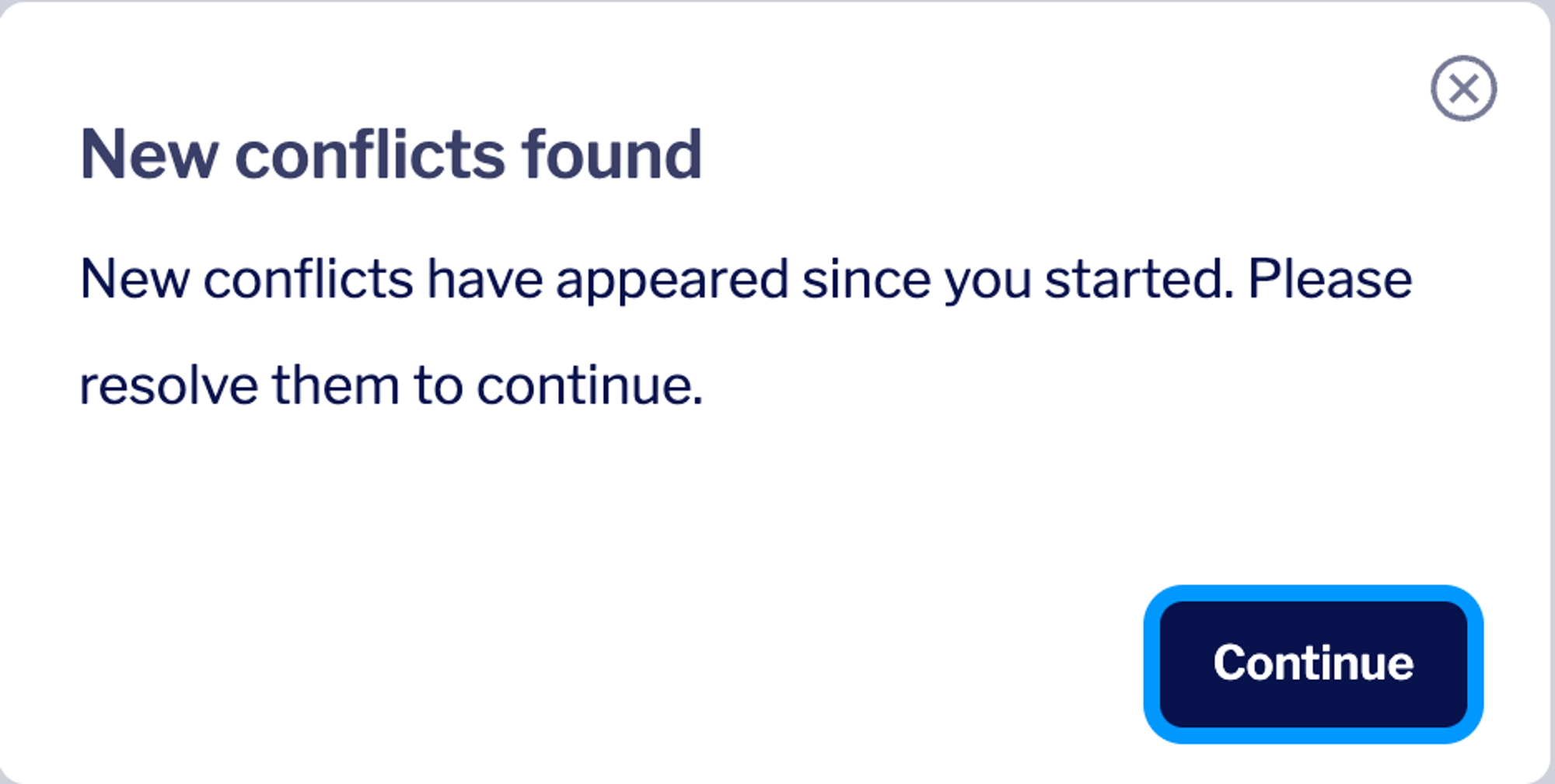
Multiple team members can work on the same content at the same time with no risk of overwriting each other’s changes. If there are conflicting changes made by multiple users, they can be compared, resolved and merged directly in the UI or using [git](https://git-scm.com/) from the command line.

### Keep track of changes

All changes made to content are stored, and functions as an audit log showing who changed what, when, and why the changes were made. The changes include the creation and deletion of files as well as edits to their contents.

Having the complete history and being able to annotate each change with the date, an author and a message describing the purpose and intent of the change, enables going back to previous versions to help in root cause analysis for bugs. This capability is crucial when needing to fix problems and being able to compare changes with earlier versions of the content.

### Integrate with existing workflows

For content creators that are already using version control systems such as GitHub, the new integration allows you to connect your GitHub organization directly without the need for GitHub actions and the Instruqt CLI to push your content. This allows you to use your standard git workflow best practices already adopted by your organization.

## Limitations

In the current beta implementation there are a few limitations to consider:

* **Currently, a single track per repository is supported.** This means that mono-repositories are currently not supported.
* **Currently, only a single main branch is supported per repository.** This can be either `main` or `master`.
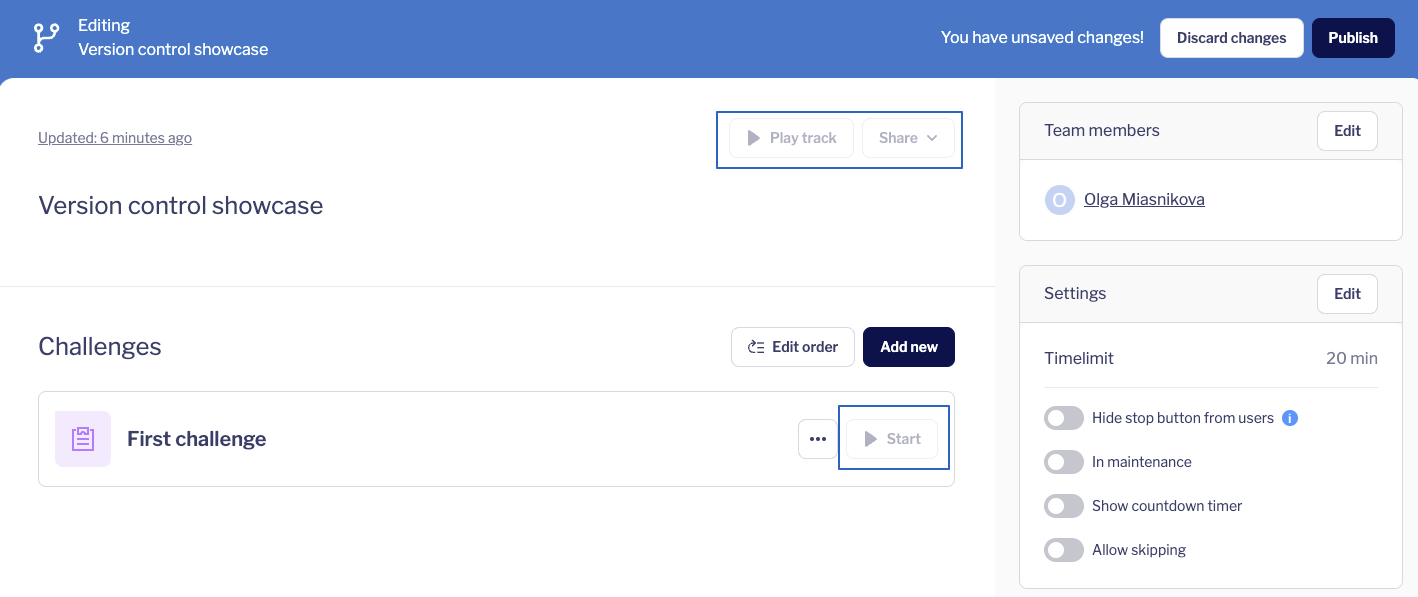
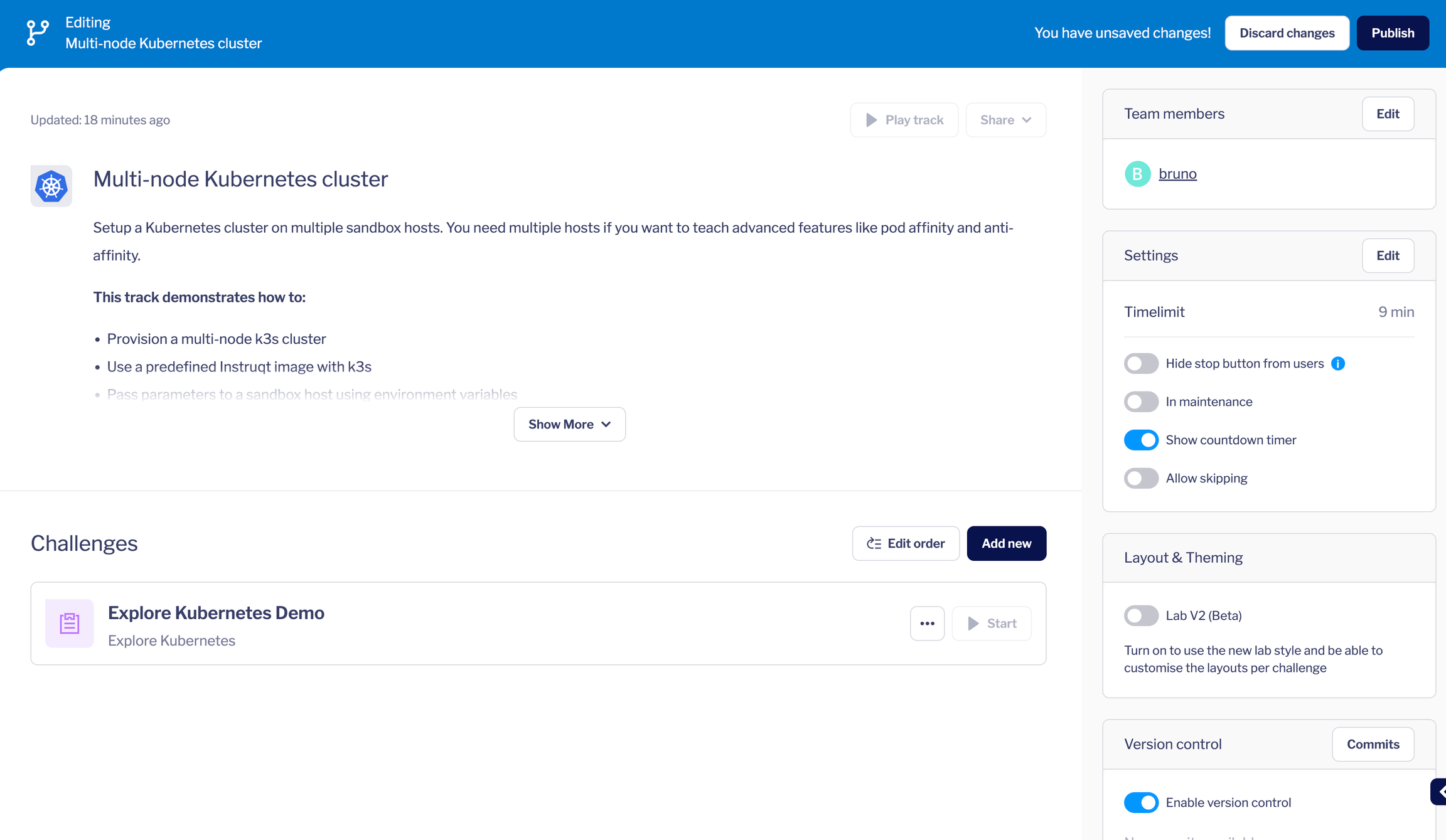
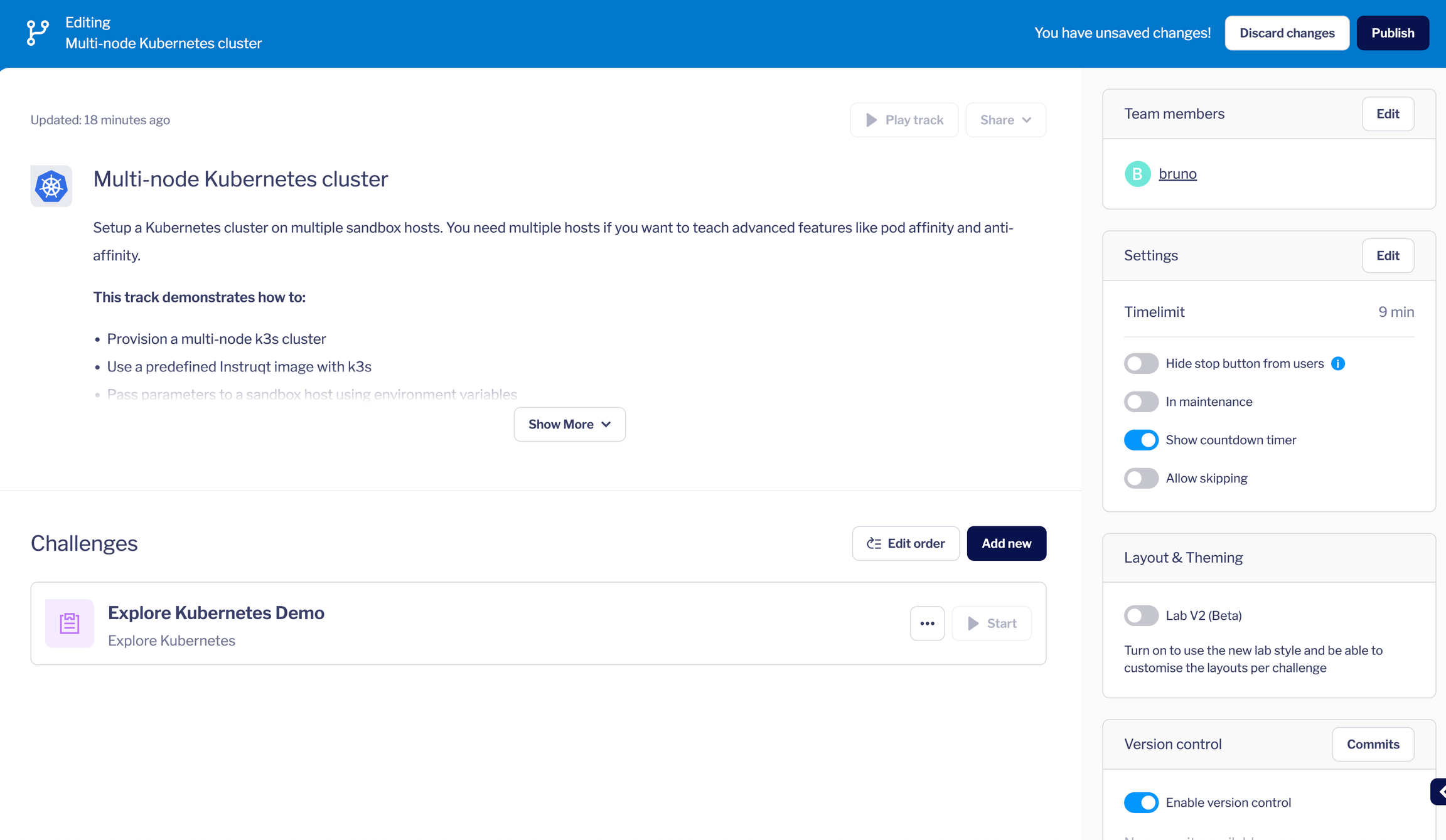
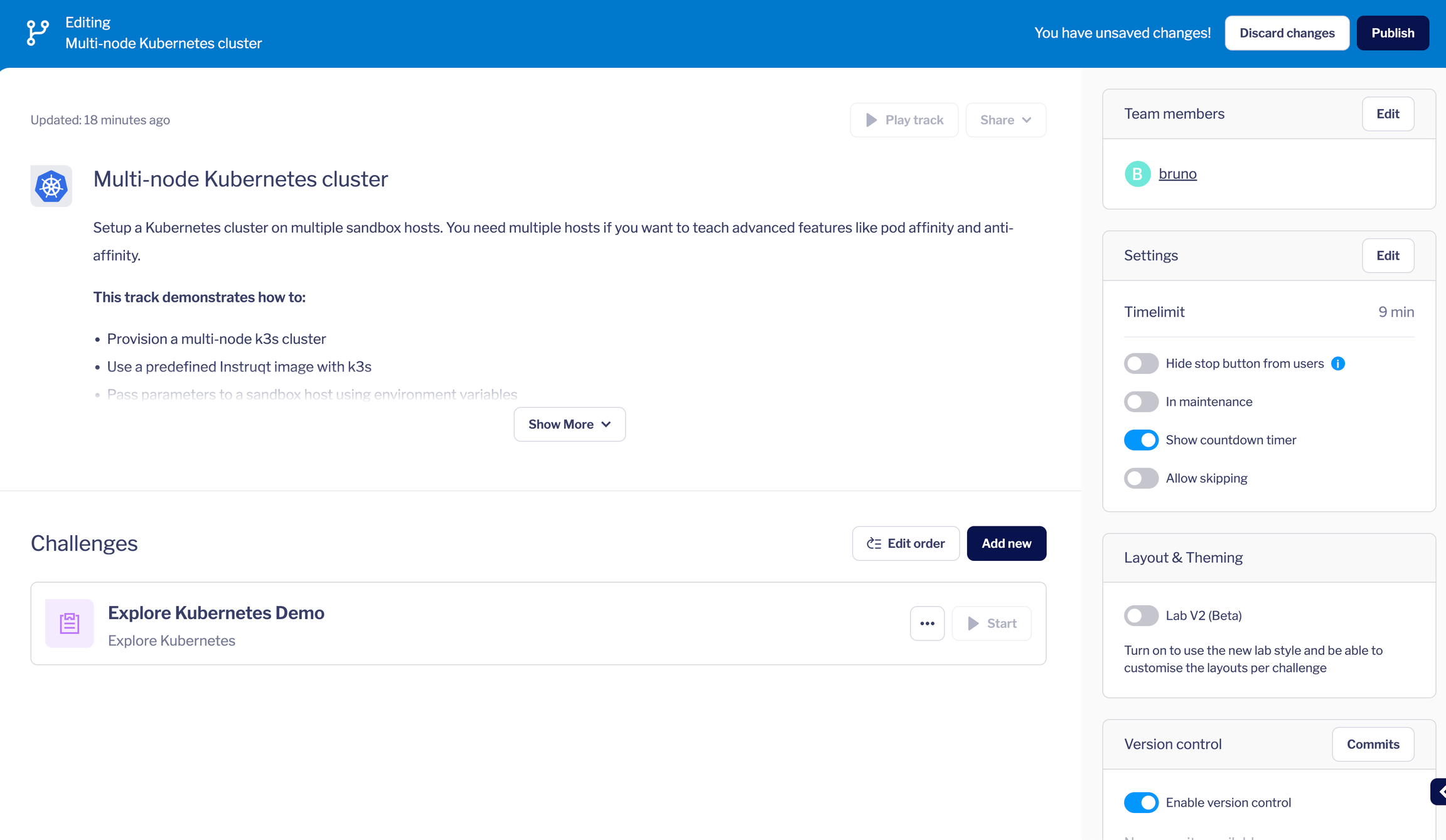
* **Currently, you can’t play a track if you have unpublished changes for it.** If the track is under version control and changes were made but haven't been published yet (the blue bar is on top of the page), then the track can't be played or previewed. Related buttons will be disabled.\
  \
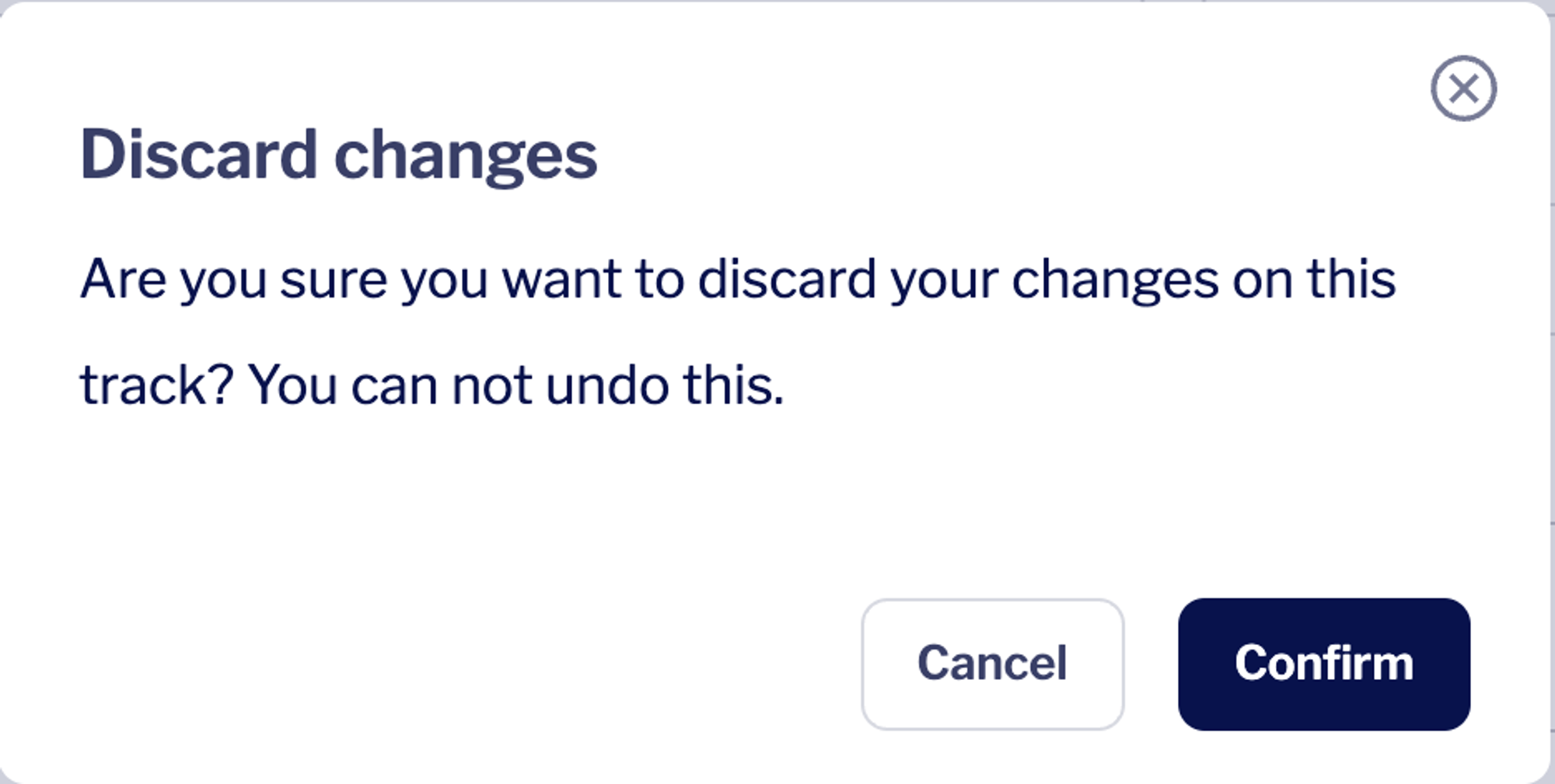
  To play the track you need to either publish the changes or discard them, and the play buttons will be available.

<figure><img src="https://2094212015-files.gitbook.io/~/files/v0/b/gitbook-x-prod.appspot.com/o/spaces%2F-MGJDYBXyftBAZb1Wq0e%2Fuploads%2FYLZntNGbLhF7xAo5HEca%2Fimage.png?alt=media&amp;token=c14740df-fabc-4497-9c4b-4a92112e4888" alt=""><figcaption></figcaption></figure>

* **Version Control currently only integrates with GitHub.**
* **Currently, you can only connect a track to an empty repository on GitHub.**
* **Instruqt CLI pushes are not recorded in version control.** This can lead to changes from the CLI being either committed to version control at a later time when a new change through the UI is made, or overwritten by an incoming change from GitHub. It is therefore recommended to not use the CLI to push changes in combination with version control.
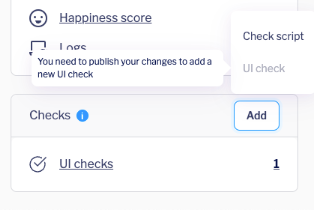
* **Virtual Browser UI checks are currently not supported.** The creation process of UI checks (available if a virtual browser host exists) requires playing the track that is disabled while unpublished changes exist. UI checks could be deleted through the checks widget on the dashboard and these changes will be under version control. For UI checks creation or modification unsaved changes should be published or discarded first.

<figure><img src="https://2094212015-files.gitbook.io/~/files/v0/b/gitbook-x-prod.appspot.com/o/spaces%2F-MGJDYBXyftBAZb1Wq0e%2Fuploads%2FHk5akFuvmWZm6Np4AC5a%2Fimage.png?alt=media&amp;token=d95e0f3a-8eb1-4b98-a992-08fdcc0033cb" alt=""><figcaption></figcaption></figure>

* **Virtual Browser check scripts are still created as normal scripts so they will show as part of a subsequent commit.** When creating, editing or deleting Virtual Browser scripts they will still be versioned but they will be added on a subsequent commit after the scripts have been added.
* **Custom Resources are currently not supported.** If the track is under version control but there aren't any unpublished changes, custom resources can be modified, and these changes will be saved immediately, without the need to publish.
* **If there are unpublished version-controlled changes** (the blue bar on top of the page is visible), Custom Resources can't be changed and will be disabled until the other changes are published (by clicking the “Publish” button on the blue bar) or discarded. After that, modifying Custom Resources will be enabled again.

<figure><img src="https://2094212015-files.gitbook.io/~/files/v0/b/gitbook-x-prod.appspot.com/o/spaces%2F-MGJDYBXyftBAZb1Wq0e%2Fuploads%2FxN1bW8p4OFEx4oOwsHPO%2Fimage.png?alt=media&amp;token=e28be317-8483-4c9d-a81f-f14a07c90db2" alt=""><figcaption></figcaption></figure>

* **The ID fields might show as part of a subsequent commit.** When creating certain entities through the UI such as challenges, sandboxes, track scripts, challenge notes, tabs, etc. temporary IDs are created for these entities and these will be the ID they are initially committed with. This means that the first subsequent commit of those entities might change the value of the ID without it being explicitly changed by the content creator.

## Enabling Version Control

Version control is currently in Beta. To have the feature enabled for your organization reach out in either your organization channel on the instruqt slack workspace or any of the support channels.

## Enabling Version Control for a track

Once the feature is enabled for your organization you can choose to turn on version control for each track individually. Enabling version control for a track will change the authoring experience of that track for all content creators.

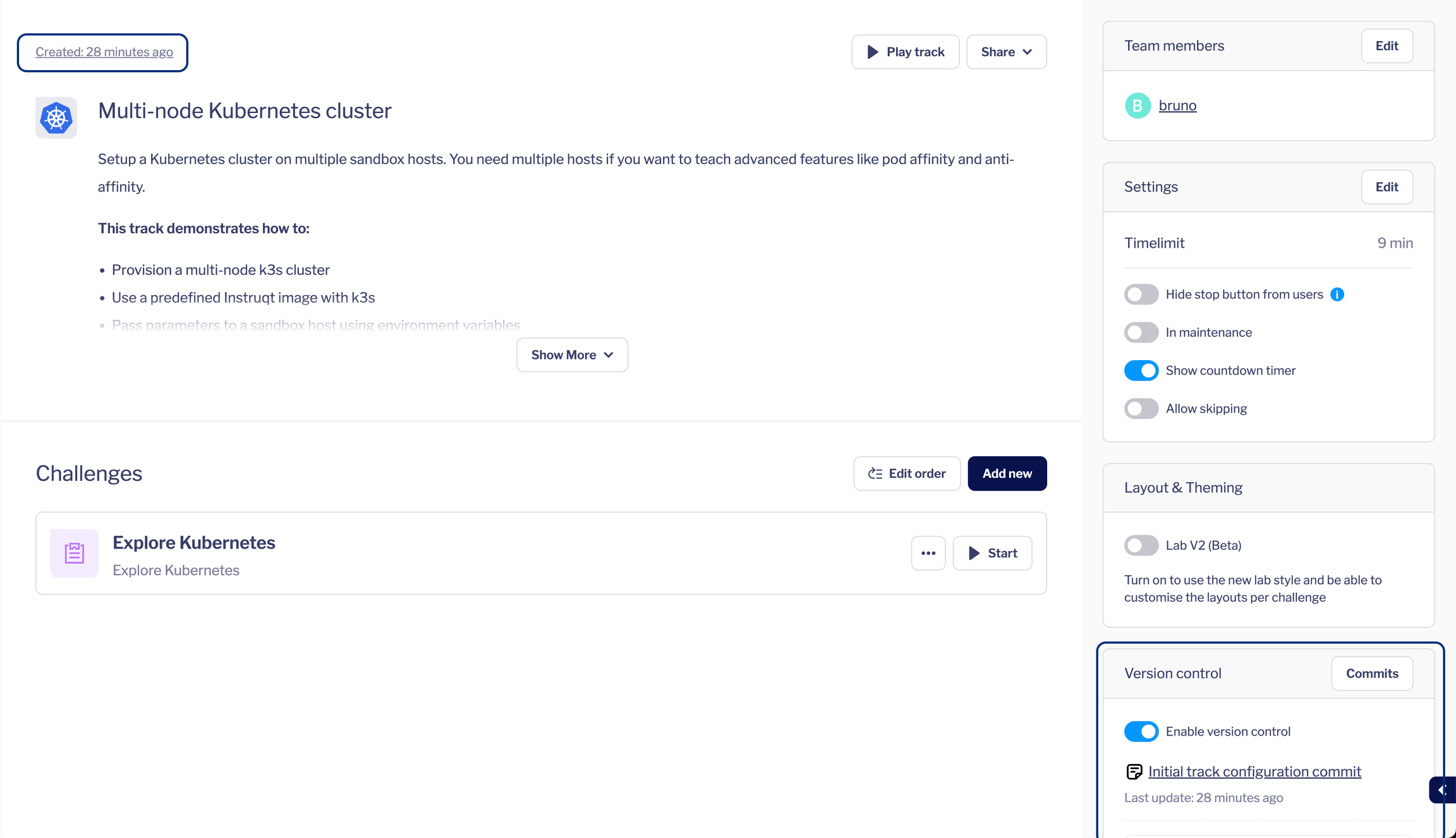
To enable version control, toggle it on in the “Version control” widget, which is visible on the track dashboard.

<figure><img src="https://2094212015-files.gitbook.io/~/files/v0/b/gitbook-x-prod.appspot.com/o/spaces%2F-MGJDYBXyftBAZb1Wq0e%2Fuploads%2FOf8p6niacAKa7YA22c7L%2Fimage.png?alt=media&amp;token=e33a0c66-f979-4c75-a3d6-bdba9e29007f" alt=""><figcaption></figcaption></figure>

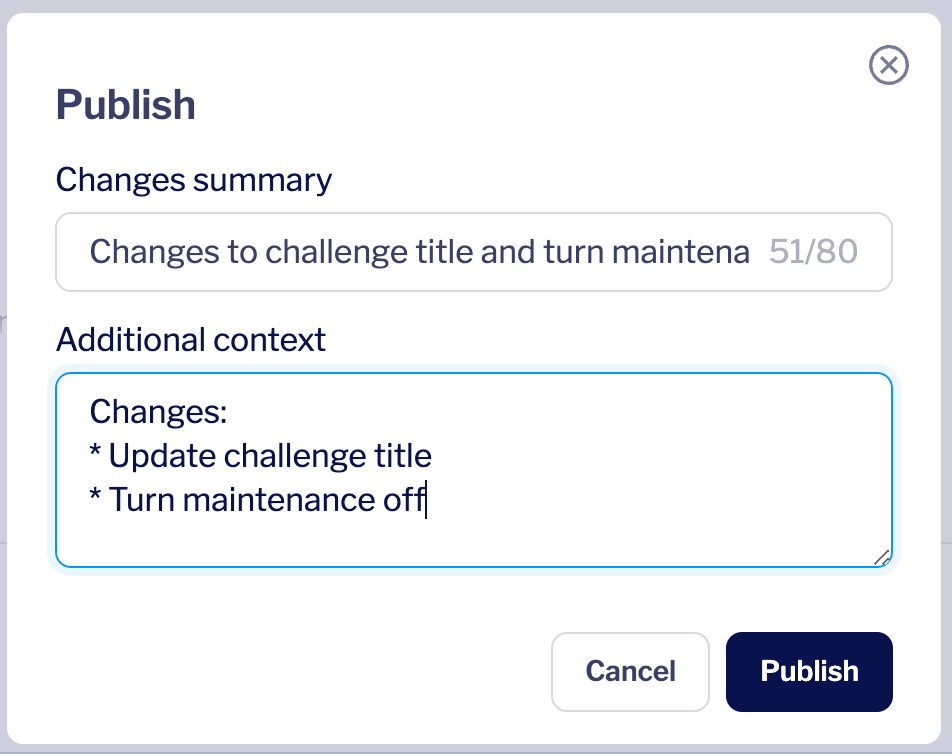
The moment Version Control is turned on for a track there will be an initial commit containing all the changes made to the track up until that point. The Version Control widget shows the latest change, when it was made, and a commit message that provides additional context about the change. All subsequent changes will be stored individually in version control and visible in the Version Control widget.

<figure><img src="https://2094212015-files.gitbook.io/~/files/v0/b/gitbook-x-prod.appspot.com/o/spaces%2F-MGJDYBXyftBAZb1Wq0e%2Fuploads%2FrhDyWesXQ7cL9KJdOL91%2Fimage.png?alt=media&amp;token=a5a28910-16e8-4f51-958d-0b72c966be3b" alt=""><figcaption></figcaption></figure>

## Viewing change history

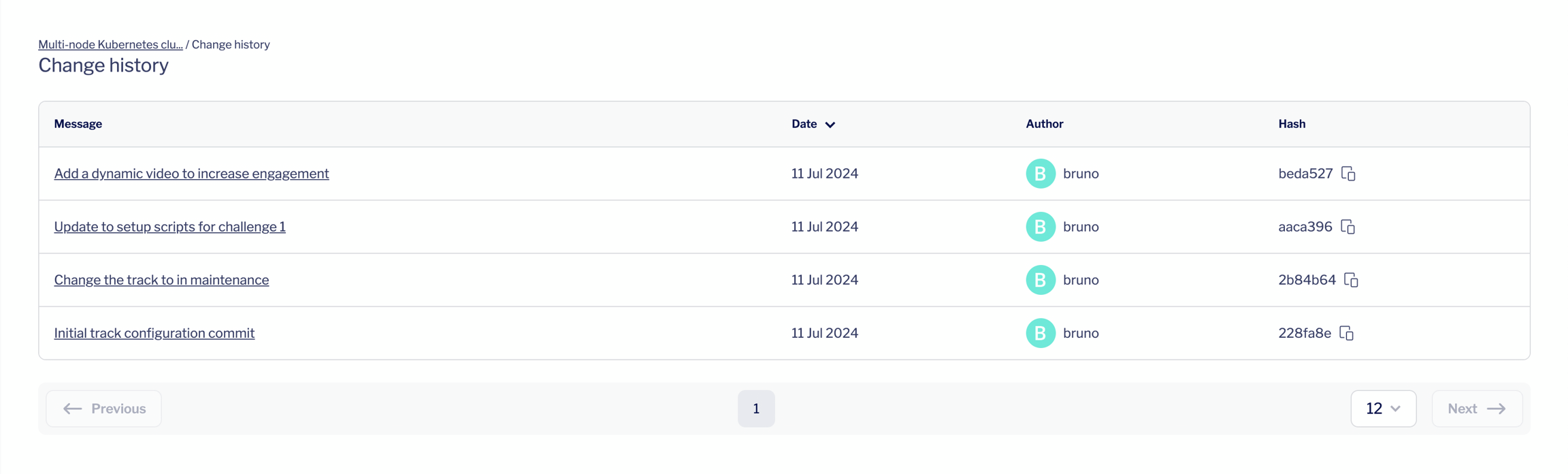
You can view the change history of a track by clicking the “Commits” button on the Version Control widget, or by clicking on the “Created: 28 minutes ago” in the top left of the track dashboard.

<figure><img src="https://2094212015-files.gitbook.io/~/files/v0/b/gitbook-x-prod.appspot.com/o/spaces%2F-MGJDYBXyftBAZb1Wq0e%2Fuploads%2FnkLs6ipqIGCylQbP8GOk%2Fimage.png?alt=media&amp;token=5daac883-4de9-403d-9ca2-1f9f158b3846" alt=""><figcaption></figcaption></figure>

The change history contains a list of all changes made to a track. Each entry describes when the change was made, who made the change and the commit message that describes the change. For convenience there is also the git commit hash that can be used to inspect the commit on the command line.

<figure><img src="https://2094212015-files.gitbook.io/~/files/v0/b/gitbook-x-prod.appspot.com/o/spaces%2F-MGJDYBXyftBAZb1Wq0e%2Fuploads%2FoNHaNcB7O2odWDS1364m%2Fimage.png?alt=media&amp;token=6b9714f4-8ec5-4453-8d83-c9df33858bef" alt=""><figcaption></figcaption></figure>

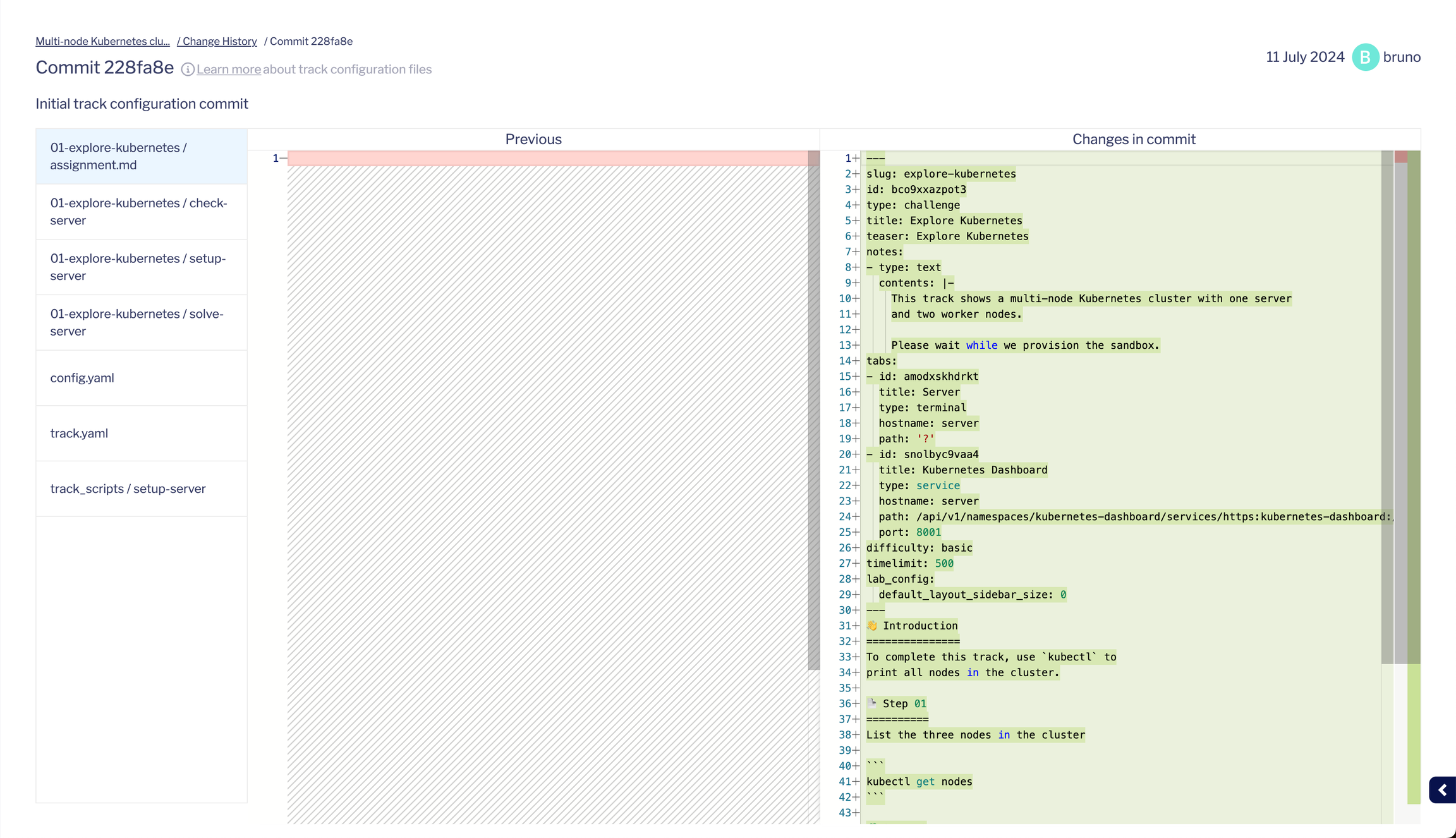
All changes have a detail page that can be accessed by clicking the message for the specific change. The details page shows the contents of the configuration files that were altered in the change. The syntax of these configuration files is the same as [used by the instruqt CLI](https://docs.instruqt.com/reference/cli/configuration-files).

<figure><img src="https://2094212015-files.gitbook.io/~/files/v0/b/gitbook-x-prod.appspot.com/o/spaces%2F-MGJDYBXyftBAZb1Wq0e%2Fuploads%2F9lmG8pcZQQaGkEEafmM8%2Fimage.png?alt=media&amp;token=c8029eda-99b6-4886-bc77-d0b59f638c1c" alt=""><figcaption></figcaption></figure>

## Making changes

To start making changes to a track, you can make any change as usual. The main difference is that changes are not directly live, but instead are collected before being published together.

When you make your first change to a track, a blue bar will appear at the top of your track showing that you are currently editing the track and that you have unsaved changes.

<figure><img src="https://2094212015-files.gitbook.io/~/files/v0/b/gitbook-x-prod.appspot.com/o/spaces%2F-MGJDYBXyftBAZb1Wq0e%2Fuploads%2FWQuCmhxDDsouwiuA9NjC%2Fimage.png?alt=media&amp;token=d90437f8-ea80-49da-a812-97f6a1d4a53d" alt=""><figcaption></figcaption></figure>

In this state, changes won't be permanently saved until they are published. You can keep making changes until you are ready to publish them.

## Publishing changes

To publish your changes, and make them available to end-users, click the “Publish” button in the blue Version Control bar at the top of the track screen.

<figure><img src="https://2094212015-files.gitbook.io/~/files/v0/b/gitbook-x-prod.appspot.com/o/spaces%2F-MGJDYBXyftBAZb1Wq0e%2Fuploads%2FWQuCmhxDDsouwiuA9NjC%2Fimage.png?alt=media&amp;token=d90437f8-ea80-49da-a812-97f6a1d4a53d" alt=""><figcaption></figcaption></figure>

You are then shown a publish dialog, where you can provide a summary of the changes and any additional context that will help other content creators understand what has changed and why these changes were made.

<figure><img src="https://2094212015-files.gitbook.io/~/files/v0/b/gitbook-x-prod.appspot.com/o/spaces%2F-MGJDYBXyftBAZb1Wq0e%2Fuploads%2FkPZQIORj29c5PDgLkvnI%2Fimage.png?alt=media&amp;token=36eabe60-77a4-47d9-9f39-62447cccbcdd" alt=""><figcaption></figcaption></figure>

After clicking “Publish”**,** the changes to the track will be saved and the changes will be reflected in the change history.

## How to deal with conflicts

If someone else has published changes to the same track while you were making your changes, there might be conflicting changes. In this case the publish dialog will notify you that there are conflicting changes and that they need to be resolved before being able to publish your changes.

You can provide a summary of your changes and any additional context that will help other content creators understand what has changed and why these changes were made. These messages will be used after the conflicts have been resolved.

<figure><img src="https://2094212015-files.gitbook.io/~/files/v0/b/gitbook-x-prod.appspot.com/o/spaces%2F-MGJDYBXyftBAZb1Wq0e%2Fuploads%2F3xxNQ3WBOitfvvtUERAI%2Fimage.png?alt=media&amp;token=7de0ab57-335a-413c-a69d-3f4617aa06dd" alt=""><figcaption></figcaption></figure>

When clicking “Resolve conflicts” you are taken to the conflict resolution screen.

This screen shows all configuration files that contain conflicting values, and provides a way to resolve these conflicts by accepting “your changes”, or the “incoming changes” made by others.

<figure><img src="https://2094212015-files.gitbook.io/~/files/v0/b/gitbook-x-prod.appspot.com/o/spaces%2F-MGJDYBXyftBAZb1Wq0e%2Fuploads%2FlyGKv4us9cSyrk0eU2sW%2Fimage.png?alt=media&amp;token=aa9c929a-4e8f-46b6-94b3-67dc04b68ca7" alt=""><figcaption></figcaption></figure>

If there is a need for more complex conflict resolution, where a combination of the values from both changes is the desired outcome, instead of selecting one of the changes it is possible to change the contents of the files directly in the file editor.

After all conflicts in a file are resolved, click the “Mark as resolved” button for the file to update the “Resolved” counter. Once all conflicts in all configuration files are resolved, the “Publish” button will be enabled.

Clicking “Publish” will save the track with all the changes you have made, including the changes that have been made during the conflict resolution process. The changes summary and additional context that you provided earlier during the publish confirmation will be used to publish the changes.

If any new conflicting changes have been introduced to the track while you were resolving the previous conflicts, you get a dialog prompting you about these new conflicts and asking you to resolve them as before.

<figure><img src="https://2094212015-files.gitbook.io/~/files/v0/b/gitbook-x-prod.appspot.com/o/spaces%2F-MGJDYBXyftBAZb1Wq0e%2Fuploads%2FxCuTDs3a6EEo3VANGdvX%2Fimage.png?alt=media&amp;token=051c8db7-91c2-4879-8bee-a070bb71c5f8" alt=""><figcaption></figcaption></figure>

## Discarding changes

After making any changes, you can choose to discard the changes by clicking “Discard changes” in the blue Version Control bar.

<figure><img src="https://2094212015-files.gitbook.io/~/files/v0/b/gitbook-x-prod.appspot.com/o/spaces%2F-MGJDYBXyftBAZb1Wq0e%2Fuploads%2FWQuCmhxDDsouwiuA9NjC%2Fimage.png?alt=media&amp;token=d90437f8-ea80-49da-a812-97f6a1d4a53d" alt=""><figcaption></figcaption></figure>

After clicking “Discard changes” you will be prompted to confirm your choice. Doing so will cause all changes that you have made to be lost.

<figure><img src="https://2094212015-files.gitbook.io/~/files/v0/b/gitbook-x-prod.appspot.com/o/spaces%2F-MGJDYBXyftBAZb1Wq0e%2Fuploads%2Fa2sP090NuAXhf6vEicbX%2Fimage.png?alt=media&amp;token=e2d07db1-c83d-42c0-83d5-34bcc7efce47" alt=""><figcaption></figcaption></figure>

## Integrating Version Control with GitHub

Even though Version Control can be used without integrating with a remote Version Control System such as GitHub, there are several benefits that come with using a code-driven workflow.

* Possibility to automate of repetitive tasks
* Have an off-site backup of your content
* Integrate with existing workflows and systems within your organization
* Use pullrequests to review changes before they are commited
* Increase consistency and reliability of content

{% embed url="<https://youtu.be/ZpdBgF7BuFo>" %}

To enable the GitHub integration, navigate to the Version Control settings page.

<figure><img src="https://2094212015-files.gitbook.io/~/files/v0/b/gitbook-x-prod.appspot.com/o/spaces%2F-MGJDYBXyftBAZb1Wq0e%2Fuploads%2FIVN8v6mbpUXPlyzMybsA%2Fimage.png?alt=media&amp;token=a45a7b70-64b2-425f-84eb-2c1f4cafa456" alt=""><figcaption></figcaption></figure>

The VCS integrations are listed, with GitHub currently being the only option. Click the “Install” button on the GitHub integration to install the Instruqt GitHub application in your GitHub organization. You will then be redirected to GitHub, where you are taken through the GitHub application installation flow.

First you need to select the organization you want to install the application in.

<figure><img src="https://2094212015-files.gitbook.io/~/files/v0/b/gitbook-x-prod.appspot.com/o/spaces%2F-MGJDYBXyftBAZb1Wq0e%2Fuploads%2FYUapdxyAgYqZ2bKjDhKI%2Fimage.png?alt=media&amp;token=155ec933-e80d-4207-8b59-ca605219d77b" alt=""><figcaption></figcaption></figure>

Depending on your settings, the flow might ask you to provide two-factor authentication details to GitHub.

<figure><img src="https://2094212015-files.gitbook.io/~/files/v0/b/gitbook-x-prod.appspot.com/o/spaces%2F-MGJDYBXyftBAZb1Wq0e%2Fuploads%2FuuBmN7pzHcaPrqznM3MR%2Fimage.png?alt=media&amp;token=d619d4ea-20a1-4cad-b441-994a0b38d40f" alt=""><figcaption></figcaption></figure>

You are then taken to the application permissions page, where you can review which permissions the application wants to use.

The permissions that the Instruqt GitHub application needs are:

* **Read access to metadata** (this is the default permissions for an application)
  * read the organization name, etc.
* **Read and write access to code**
  * This allows the integration to read the contents of a track repository, so it can update the data in the Instruqt platform with any changes made through GitHub.
  * This allows the integration to write changes made in the instruqt UI back to the track repository on GitHub.

You can choose to give the permissions on all repositories in the organization, or to specific repositories only.

To complete the installation, click “Install” to confirm your choices and install the application.

<figure><img src="https://2094212015-files.gitbook.io/~/files/v0/b/gitbook-x-prod.appspot.com/o/spaces%2F-MGJDYBXyftBAZb1Wq0e%2Fuploads%2FUb2ZmNhhRpHAdjL67KMI%2Fimage.png?alt=media&amp;token=8d4121f9-c2b6-419d-b5e1-2a3b698eb41d" alt=""><figcaption></figcaption></figure>

You are then taken back to the Version Control settings page, which now shows that the integration was successfully installed.

<figure><img src="https://2094212015-files.gitbook.io/~/files/v0/b/gitbook-x-prod.appspot.com/o/spaces%2F-MGJDYBXyftBAZb1Wq0e%2Fuploads%2FvqFbVP8LzigKVYrZ2uXs%2Fimage.png?alt=media&amp;token=88153322-0df5-4879-b687-6029dcab4459" alt=""><figcaption></figcaption></figure>

## Connecting a track to a GitHub repository

To connect a track to a repository on GitHub, go to the track dashboard of the track and ensure that Version Control has been [enabled](#enabling-version-control-for-a-track) for the track.

In the Version Control widget on the right of the track dashboard, below the latest committed change to the track, click the button “Connect to a remote repository”.

<figure><img src="https://2094212015-files.gitbook.io/~/files/v0/b/gitbook-x-prod.appspot.com/o/spaces%2F-MGJDYBXyftBAZb1Wq0e%2Fuploads%2F0Vnd5b08qQAadO1IMMzt%2Fimage.png?alt=media&amp;token=7b4cf8d4-6602-48a4-bd6a-c80fec93cb3a" alt=""><figcaption></figcaption></figure>

The available repositories of the GitHub organizations that are connected will be listed. Search for the repository you want to connect to the track.

<figure><img src="https://2094212015-files.gitbook.io/~/files/v0/b/gitbook-x-prod.appspot.com/o/spaces%2F-MGJDYBXyftBAZb1Wq0e%2Fuploads%2FfHkWgaJmjUkmMJydFAEg%2Fimage.png?alt=media&amp;token=6177d73a-17c2-4b23-91aa-a76069cdeb55" alt=""><figcaption></figcaption></figure>

Select the desired repository (the repository must be an empty repository outside of the standard initialized files on GitHub), then click “Connect to repository”.

<figure><img src="https://2094212015-files.gitbook.io/~/files/v0/b/gitbook-x-prod.appspot.com/o/spaces%2F-MGJDYBXyftBAZb1Wq0e%2Fuploads%2FxTyhovFnB4eM2kZBNoIM%2Fimage.png?alt=media&amp;token=90bdfc49-e483-453b-a951-122ae5a08bca" alt=""><figcaption></figcaption></figure>

The track is now correctly connected to the remote repository on GitHub and the Version Control widget will show the name of the connected repository.

<figure><img src="https://2094212015-files.gitbook.io/~/files/v0/b/gitbook-x-prod.appspot.com/o/spaces%2F-MGJDYBXyftBAZb1Wq0e%2Fuploads%2F1xkkmO79MXUBxdHiUHmR%2Fimage.png?alt=media&amp;token=4523ed03-d846-4eb3-a6b2-74895b392493" alt=""><figcaption></figcaption></figure>

Any changes made to the track or the repository will automatically be synched to the other side.

<figure><img src="https://2094212015-files.gitbook.io/~/files/v0/b/gitbook-x-prod.appspot.com/o/spaces%2F-MGJDYBXyftBAZb1Wq0e%2Fuploads%2FND1laV8Z5oujpMdNXeXS%2Fimage.png?alt=media&amp;token=7c9d69de-9839-4129-99ce-fb16c665cf4c" alt=""><figcaption></figcaption></figure>

## Changing the repository for an existing track

If you need to move an existing version-controlled track to a repository in another GitHub organization, follow these steps.

1. Go to the repository currently connected to your Instruqt track in GitHub. Open **Settings → General → Danger Zone → Transfer ownership** and transfer the repository to the new GitHub organization.
2. Go to **Manage → Tracks** in Instruqt, open the track connected to the transferred repository, and refresh the page.
3. In the new GitHub organization, go to **Repositories → New** and create a new repository. Do not add a `README`, `.gitignore`, or license file.
4. Open the track in Instruqt and go to the **Version control** widget. Click **Connect to a remote repository**.
5. Select the new empty repository from the list of available GitHub repositories.
6. Click **Connect to repository**.
7. Check that the **Version control** widget shows the new repository connected.

{% hint style="info" %}
Note: If you want to keep the same repository name, temporarily rename the transferred repository before creating the new empty one. Then create the new repository using the original name before reconnecting the track.
{% endhint %}

## Viewing incoming events from GitHub

On the Version Control widget of each track that is connected to a remote repository, there is a link to view webhook events for that track. This page will show all incoming webhook events from GitHub.

<figure><img src="https://2094212015-files.gitbook.io/~/files/v0/b/gitbook-x-prod.appspot.com/o/spaces%2F-MGJDYBXyftBAZb1Wq0e%2Fuploads%2FMnZwaTagAH1SQG8XbD3b%2Fimage.png?alt=media&amp;token=0ab08171-a220-4680-bc74-2b78efb52395" alt=""><figcaption></figcaption></figure>

To see more details about a specific event, click it.

<figure><img src="https://2094212015-files.gitbook.io/~/files/v0/b/gitbook-x-prod.appspot.com/o/spaces%2F-MGJDYBXyftBAZb1Wq0e%2Fuploads%2FH9It9TbnoROIMMxyP0WF%2Fimage.png?alt=media&amp;token=7210f423-653e-4509-a42d-4d028807c020" alt=""><figcaption></figcaption></figure>


# Loading experience

Learn how to configure the loading experience for tracks and challenges

When your users start a track or move between challenges the system needs to load the sandbox and tabs (the technology included in your track). Depending on your software, loading a track/challenge can take some time. <mark style="color:blue;">To keep users engaged, you have the choice of what users can see and interact with while the track or challenge loads.</mark>

{% embed url="<https://www.youtube.com/watch?v=28kTJoNSSu0>" %}

## Loading options

The loading experience has two options: [Notes only](#notes-only) or [Full access](#full-access).

### **Notes only**

Users can only interact with the notes for the upcoming challenge while they wait for it to finish loading.

{% hint style="info" %}
The default setting for all tracks
{% endhint %}

#### What this looks like:

Users push “Launch” button and the track starts loading. A loading bar is shown on the same screen. While the track is loading the users can only interact with the notes slides.

<figure><img src="https://2094212015-files.gitbook.io/~/files/v0/b/gitbook-x-prod.appspot.com/o/spaces%2F-MGJDYBXyftBAZb1Wq0e%2Fuploads%2FGgXfTt7bRBUwQAScOa3V%2Fimage.png?alt=media&amp;token=f82c3c69-82f3-48f5-ab7d-78f49c5f57d3" alt="" width="375"><figcaption></figcaption></figure>

If you have **not added** notes, users will see a message asking them to be patient while the challenge loads.

<figure><img src="https://2094212015-files.gitbook.io/~/files/v0/b/gitbook-x-prod.appspot.com/o/spaces%2F-MGJDYBXyftBAZb1Wq0e%2Fuploads%2FBcz4uteDK3uicdzC49TZ%2Fimage.png?alt=media&amp;token=7020d9ea-dc48-47d2-8791-8a740a7e3ee6" alt="" width="375"><figcaption></figcaption></figure>

When the loading is complete the users push the “start” button and they enter the first challenge. They now see the challenge assignment and the tabs in the track(lab).

### **Full access**

Users can browse the upcoming challenge notes, assignment and tabs while it loads.

#### What this looks like:

Users push “Launch” button and the track/challenge starts loading. As the underlying technology loads the user is moved into the upcoming challenge. They can see and interact with the notes and assignment.

<figure><img src="https://2094212015-files.gitbook.io/~/files/v0/b/gitbook-x-prod.appspot.com/o/spaces%2F-MGJDYBXyftBAZb1Wq0e%2Fuploads%2FPfxLq5zI8OHEslN24LfL%2Fimage.png?alt=media&amp;token=a8ace366-0809-48d3-97b3-108663875ed8" alt=""><figcaption></figcaption></figure>

Users can click tabs. Any tab that is still loading shows a loading bar and messages. The user cannot move to the next challenge until the current challenge is fully loaded.

{% hint style="warning" %}
The messages are one set per track. You cannot add specific messages per tab.
{% endhint %}

### Create the perfect landing

You can use the [layouts capabilities](https://docs.instruqt.com/tracks/manage/custom-layouts) to customise what the lab looks like so users are greeted by the parts of the content you think are most relevant.

<figure><img src="https://2094212015-files.gitbook.io/~/files/v0/b/gitbook-x-prod.appspot.com/o/spaces%2F-MGJDYBXyftBAZb1Wq0e%2Fuploads%2FDq6r3M8bMleRXGvKrIzx%2Fimage.png?alt=media&amp;token=54ef615c-dc34-4eca-b15d-cda561c8eaec" alt=""><figcaption></figcaption></figure>

## FAQs

<details>

<summary><strong>Will this automatically apply to all of my labs, or is this configurable?</strong></summary>

The loading UX is fully configurable, so you can choose where it applies. You can set it up at the track level to enable the experience across all challenges in a lab, or you can customize it per challenge if you'd prefer a more selective approach. This way, you have complete control over when and where the feature is active, allowing you to tailor it to your team’s specific needs.

</details>

<details>

<summary><strong>How does loading UX actually reduce waiting times for users?</strong></summary>

The loading UX feature optimizes the lab start experience by letting users access assignment content immediately, even if the full lab environment is still loading in the background. This approach not only saves time but also keeps users engaged by allowing them to explore relevant material while waiting. It’s designed to reduce perceived wait times and keep learners in a productive flow.

</details>

<details>

<summary><strong>What happens if there’s an issue loading the environment?</strong></summary>

If the environment encounters an error during the loading process, the loading UX displays a clear error message with an option to retry. This built-in error handling allows users to stay informed, take corrective action, and seamlessly continue their work without needing to contact support.

</details>

<details>

<summary><strong>Can we apply the loading UX to specific tracks or challenges only?</strong></summary>

Yes, the loading UX is highly flexible. It can be set up at the track level for a consistent experience across all challenges, or it can be customized on a per-challenge basis to meet specific needs. This means you can enable it where it adds the most value, ensuring an optimal experience for your users at every step.

</details>

## How to use

Using the instruqt UI or CLI you can configure the loading experience:

* Per track: the loading experience you select is used for all challenges in that track
* Per challenge: you can override the track setting per challenge

{% tabs %}
{% tab title="🌐 Web UI" %}
**For the track:**

1. Select the track you wish to modify the loading experience of.
2. In the *Settings* section, click **Edit**.
3. In the **Loading** part, select the desired loading behaviour.
4. Click **Save**.

**For the challenge:**

1. While on the track, select the specific challenge you wish to modify the loading experience of.
2. Make sure you are located in the *Details* tab.
3. In the **Loading** part, select the desired loading behaviour.
4. Click **Save**
   {% endtab %}

{% tab title="💻 Instruqt CLI" %}

1. If you have not already done so, pull the track you wish to modify the time limit of:

   ```
   instruqt track pull <track-slug>
   ```
2. Open the `track.yml` file and add a `enhanced_loading` parameter.

   ```yaml
   enhanced_loading: <boolean>
   ```

   * Set it to `true` to enable the assignment loading experience.
   * Set it to `false` to use the notes loading experience.

   \
   As an example, the file might look like the following:

   ```yaml
   slug: example-track
   id: xnlauwy2zewf
   title: Example Track
   ...
   enhanced_loading: true
   ```
3. Open the `assignment.md` file and add a `enhanced_loading` parameter.

   ```yaml
   enhanced_loading: <boolean | null>
   ```

   * Set it to `null` to use the track-level configuration for this challenge.
   * Set it to `true` to use the assignment loading experience for this challenge.
   * Set it to `false` to use the notes loading experience for this challenge.

   \
   As an example, the file might look like the following:

   ```yaml
   slug: example-challenge
   id: 3s0piwynqvhi
   title: Example Challenge
   ...
   enhanced_loading: null
   ```
4. From within the track directory, push the update to Instruqt:

   ```yaml
   instruqt track push 
   ```

{% endtab %}
{% endtabs %}


# Challenges


# Create challenges

Challenges are the steps in a track a user must complete.

## Overview

You can either add brand new challenges to tracks, or duplicate existing ones.

## Add new challenges

You can create challenges from scratch using the Web UI or the Instruqt CLI.

{% tabs %}
{% tab title="🌐 Web UI" %}

1. Click the track you want to add a challenge to.
2. In the *Challenges* section, click **Add new**.
3. Click either the **Assignment** or **Multiple choice** challenge type.
4. Input a **Name**, **URL**, and **Description**.
5. Click **Save**.
   {% endtab %}

{% tab title="💻 Instruqt CLI" %}

1. Within a track directory, run the following command to create a new challenge:

   ```bash
   instruqt challenge create --title "Example title"
   ```

{% hint style="info" %}
For a comprehensive overview of the files created, [read the Configuration files section of the documentation.](/reference/cli/configuration-files)
{% endhint %}
{% endtab %}
{% endtabs %}

## Duplicate existing challenges

You can duplicate challenges using the Web UI or the Instruqt CLI.

{% tabs %}
{% tab title="🌐 Web UI" %}

1. Click ••• on the challenge you want to cop&#x79;**,** followed by **Duplicate.**
   {% endtab %}

{% tab title="💻 Instruqt CLI" %}
*Not available today.*
{% endtab %}
{% endtabs %}


# Challenge tabs

Configure different tab types in challenges.

## Overview

Tabs are how learners interact with your product and a track's sandbox. You can have the following tab types:

* Web based applications
* Your applications
* Code editor
* Terminal
* Virtual Browser

## Web based applications

Web based applications are the simplest tab type - all they do is point to a website.

{% hint style="warning" %}
If your website is not displaying, it is likely blocking iframes. Use a site like [https://iframetester.com](https://iframetester.com/) to check compatibility. Try turning on the optional setting to open the link in a new tab, or use the Virtual browser.
{% endhint %}

{% hint style="warning" %}
Tabs that open in external browser tabs (when using the `new_window` option) are not considered by the [idle timer](/tracks/manage/time-limits-and-idle-timeouts#idle-timeouts).
{% endhint %}

{% tabs %}
{% tab title="🌐 Web UI" %}

<table><thead><tr><th width="143">Field</th><th width="332">Description</th><th width="124">Type</th><th>Required</th></tr></thead><tbody><tr><td><strong>Tab name</strong></td><td>This property sets the tab title. And each service has its own tab.</td><td><code>string</code></td><td>Required</td></tr><tr><td><strong>Website link</strong></td><td>The URL of the website opened in this browser. Must be a https:// address. Self-signed SSL certificates are OK. If you use <code>${_SANDBOX_ID}</code> in a URL, it will be replaced with the sandbox ID.</td><td><code>string</code></td><td>Required</td></tr><tr><td><strong>Open website in a new window</strong></td><td>Whether to open the tab in a new window. Useful for when the service doesn't allow being run in an iframe.</td><td><code>boolean</code></td><td>Optional</td></tr></tbody></table>
{% endtab %}

{% tab title="💻 Instruqt CLI" %}

```markdown
tabs:
- title: <tab_title>
  type: website
  url: <website_url>
  new_window: <true/false> # optional
```

{% endtab %}
{% endtabs %}

## Your applications

Your applications are tabs that point to web services running *inside* a sandbox.

For example, if you select a host but don't specify a path, the application will display the service hosted at `https://[HOSTNAME]-[PORT]-[PARTICIPANT_ID].env.play.instruqt.com` with the specified port number. You can think of this as [https://localhost:port](https://docs.instruqt.com/tracks/challenges/https:/localhost:port), but the concept of localhost doesn't exist within the Instruqt platform. For more details on networking within Instruqt, view the [networking overview](https://docs.instruqt.com/reference/platform/networking#overview) page.

{% hint style="warning" %}
If your application isn't reachable through a service tab, check that it's binding to 0.0.0.0 rather than localhost. The Instruqt proxy connects via the sandbox's internal network address, so services bound only to localhost may not be accessible.
{% endhint %}

{% tabs %}
{% tab title="🌐 Web UI" %}

<table><thead><tr><th width="168">Field</th><th width="376">Description</th><th>Type</th><th>Required</th></tr></thead><tbody><tr><td><strong>Tab name</strong></td><td>This property sets the tab title. And each service has its own tab.</td><td><code>string</code></td><td>Required</td></tr><tr><td><strong>Select your host</strong></td><td>This property sets the tab hostname.</td><td><code>string</code></td><td>Required</td></tr><tr><td><strong>Path</strong></td><td>The filesystem path on the host that should be used in the editor. For example, if you specify the path to be <strong>/example</strong> then the web service shown in the tab will be <code>https://[HOSTNAME]-[PORT]-[PARTICIPANT_ID].env.play.instruqt.com/example</code></td><td><code>string</code></td><td>Optional</td></tr><tr><td><strong>Port</strong></td><td>The port that is used to connect to the service running on the host. If the sandbox host is a container, the port must be exposed in the containers host settings.</td><td><code>string</code></td><td>Required</td></tr><tr><td><strong>Protocol</strong></td><td><p>The protocol used to connect to the service running on the host.</p><p>Note: When the <strong>Default</strong> protocol option is selected, the protocol is determined by the port number. Ports ending in <strong>443</strong> use <strong>HTTPS</strong>; all other ports use <strong>HTTP</strong>.</p></td><td><code>string</code></td><td>Optional</td></tr></tbody></table>
{% endtab %}

{% tab title="💻 Instruqt CLI" %}

```markdown
tabs:
- title: <tab_title>
  type: service
  hostname: <hostname>
  path: <path> # optional
  port: <port>
  protocol: <http/https> # optional
  new_window: <true/false>
```

{% endtab %}
{% endtabs %}

## Code editor

Code editor tabs open a simple code editor to a specified path on a host.

{% tabs %}
{% tab title="🌐 Web UI" %}

<table><thead><tr><th width="170">Field</th><th width="367">Description</th><th>Type</th><th>Required</th></tr></thead><tbody><tr><td><strong>Tab name</strong></td><td>This property sets the tab title. And each service has its own tab.</td><td><code>string</code></td><td>Required</td></tr><tr><td><strong>Select your host</strong></td><td>This property sets the tab hostname.</td><td><code>string</code></td><td>Required</td></tr><tr><td><strong>Path</strong></td><td>The filesystem path on the host that should be used in the editor.<br>For example, in Linux start with /root/</td><td><code>string</code></td><td>Optional</td></tr></tbody></table>
{% endtab %}

{% tab title="💻 Instruqt CLI" %}

```markdown
tabs:
- title: <tab_title>
  type: code
  hostname: <hostname>
  path: <path> # optional
```

{% endtab %}
{% endtabs %}

## Terminal

Terminal tabs open a terminal on a specified host.

{% tabs %}
{% tab title="🌐 Web UI" %}

<table><thead><tr><th width="140">Field</th><th width="359">Description</th><th>Type</th><th>Required</th></tr></thead><tbody><tr><td><strong>Tab name</strong></td><td>This property sets the tab title. And each service has its own tab.</td><td><code>string</code></td><td>Required</td></tr><tr><td><strong>Select your host</strong></td><td>This property sets the tab hostname.</td><td><code>string</code></td><td>Required</td></tr><tr><td><strong>Working directory</strong></td><td>This property sets the working directory of the terminal. It defaults to <code>$HOME</code>.</td><td><code>string</code></td><td>Optional</td></tr><tr><td><strong>Custom commands</strong></td><td>This property sets a command to run upon opening the terminal. Further commands cannot be run.</td><td><code>string</code></td><td>Optional</td></tr></tbody></table>
{% endtab %}

{% tab title="💻 Instruqt CLI" %}

```markdown
tabs:
- title: <tab_title>
  type: terminal
  hostname: <hostname>
  workdir: <working_directory> # optional
  cmd: <command_to_run> # optional
```

{% endtab %}
{% endtabs %}

## Virtual browser

Virtual browser tabs display the URL of a [*Website service* host](/sandboxes/hosts/website-service). You must have the website service host created in your sandbox before you can add the virtual browser to your challenge.

{% tabs %}
{% tab title="🌐 Web UI" %}

<table><thead><tr><th>Field</th><th width="304">Description</th><th>Type</th><th>Required</th></tr></thead><tbody><tr><td><strong>Tab name</strong></td><td>This property sets the tab title.</td><td><code>string</code></td><td>Required</td></tr><tr><td><strong>Select your host</strong></td><td>This property sets which website service host the tab displays.</td><td><code>string</code></td><td>Required</td></tr></tbody></table>
{% endtab %}

{% tab title="Second Tab" %}

```markdown
tabs:
- title: <tab_title>
  type: browser
  hostname: <hostname>
```

{% endtab %}
{% endtabs %}

{% hint style="info" %}
Virtual browser tabs only become available once a website service host is created.
{% endhint %}


# Challenge order

Modify the order of your track's challenges

## Change challenge order

You can change a track's challenge order using the Web UI or the Instruqt CLI.

{% tabs %}
{% tab title="🌐 Web UI" %}

1. Click the track whose challenge order you want to change.
2. In the Challenges section, click **Edit order**.\
   ↳ ![](https://2094212015-files.gitbook.io/~/files/v0/b/gitbook-x-prod.appspot.com/o/spaces%2F-MGJDYBXyftBAZb1Wq0e%2Fuploads%2F9jQM80kad0hYztrL86E8%2Fhandle.svg?alt=media\&token=7a83bfc9-193b-446a-b0bc-82486852a34e) Icons now appear in front of the challenges.
3. Drag (click-hold-move-release) the challenge or challenges to the desired position.
4. Click **Save order**.
   {% endtab %}

{% tab title="💻 Instruqt CLI" %}
The Instruqt CLI prefixes challenge directory names with a sequence number. The directory of the first challenge is called `01-CHALLENGE_SLUG`, the second `02-CHALLENGE_SLUG`, and so on. You can modify these sequence numbers to configure the challenge order.

1. Open a terminal or code editor.
2. Change into the track directory whose challenge order you want to change.
3. Change the sequence numbers of the challenge directories to match a desired order.
4. Push your updates to Instruqt:

   ```xml
   instruqt track push
   ```

{% endtab %}
{% endtabs %}


# Skip challenges

Enable users to skip challenges in your tracks

Tracks have an optional setting to allow challenge skipping. This is useful when learners are stuck on a certain challenge or have partially completed a track and want to pick up where they left off.

## **Who can skip challenges?**

Regardless of any configuration, the following people can always skip challenges:

* All team members
* Track authors

Instructors can only skip challenges if they are also a team member or a track author. Otherwise, they follow the same rules as learners.

Learners can only skip challenges if you specifically enable that functionality.

{% hint style="warning" %}
If you enable skipping, learners will be able to skip every challenge in a track. You cannot turn on skipping for specific challenges.
{% endhint %}

### Skip button visibility

The **Skip** button is shown when:

* You are a team member or track author (owners, content creators, and members always see it), **or**
* `Allow skipping` is enabled **and** every challenge that has a check script also has a solve script.

If a challenge has already been completed, the Skip button is hidden and **Next** is shown instead.

## Before you begin

There are two requirements to enable challenge skipping for a track:

* You need to be a track author of the track.
* All challenges that have [check scripts](/sandboxes/lifecycle-scripts#challenge-check-script) must also have [solve scripts](/sandboxes/lifecycle-scripts#challenge-solve-script).

The below is an example of a track, where the Skip button will not be available on any of the challenges:

<table><thead><tr><th width="129">Challenge</th><th width="168">Has a Check script</th><th width="166.5">Has a Solve script</th><th>Note</th></tr></thead><tbody><tr><td>1</td><td><span data-gb-custom-inline data-tag="emoji" data-code="2705">✅</span></td><td><span data-gb-custom-inline data-tag="emoji" data-code="2705">✅</span></td><td></td></tr><tr><td>2</td><td><span data-gb-custom-inline data-tag="emoji" data-code="2705">✅</span></td><td><span data-gb-custom-inline data-tag="emoji" data-code="2705">✅</span></td><td></td></tr><tr><td>3</td><td><span data-gb-custom-inline data-tag="emoji" data-code="2705">✅</span></td><td><span data-gb-custom-inline data-tag="emoji" data-code="274c">❌</span></td><td>This challenge will prevent skipping</td></tr><tr><td>4</td><td><span data-gb-custom-inline data-tag="emoji" data-code="2705">✅</span></td><td><span data-gb-custom-inline data-tag="emoji" data-code="2705">✅</span></td><td></td></tr><tr><td>5</td><td><span data-gb-custom-inline data-tag="emoji" data-code="274c">❌</span></td><td><span data-gb-custom-inline data-tag="emoji" data-code="274c">❌</span></td><td>This challenge would not prevent skipping as there is no check AND no solve script</td></tr></tbody></table>

{% hint style="warning" %}
The 'skip' functionality will be disabled for all challenges if even one challenge has a check script but is missing its corresponding solve script.
{% endhint %}

## Enable challenge skipping

You can enable challenge skipping using the Web UI or the Instruqt CLI.

{% tabs %}
{% tab title="🌐 Web UI" %}

1. Click the track you want to enable skipping on.
2. In the **Settings** section, turn on the **Allow skipping** toggle.

{% hint style="info" %}
If you cannot toggle **Allow skipping**, ensure that every challenge with a check script also has a solve script.
{% endhint %}
{% endtab %}

{% tab title="💻 Instruqt CLI" %}

1. Open the `track.yml` file of the track you want to enable skipping on.
2. Add or adjust the `skipping_enabled` property:

   ```yaml
   skipping_enabled: true
   ```
3. Save `track.yml` and push the changes to Instruqt:

   ```xml
   instruqt track push
   ```

{% endtab %}
{% endtabs %}


# Add quizzes

Check your learners knowledge with a multiple choice question

## Before you begin

A quiz is a multiple-choice question learners must answer during a track before proceeding to the next challenge. Each quiz needs at least two possible answers. You can assign one or more answers as correct. Each challenge supports only one quiz. To add additional quizzes, create a separate challenge for each one.

**Note:** The `solution` field uses **zero-based indexing**, meaning `0` refers to the first choice.

## Add a quiz challenge

You can add a quizzes using the Web UI or the Instruqt CLI.

{% tabs %}
{% tab title="🌐 Web UI" %}

1. Click the track you want to add a quiz to.
2. In the **Challenges** section, click **Add new** and select **Multiple choice** from the dropdown.
3. Provide a **Name**, **URL**, and **Description** for the challenge.
4. Click **Save**.
5. In the **Quiz** tab, input a question in the Editor.
6. Click **Add answer** as many times as needed to generate possible choices
7. Click the **This is a correct answer** checkbox beside all correct choices
8. Click **Save changes**.
   {% endtab %}

{% tab title="💻 Instruqt CLI" %}

1. Change into the track directory you want to add a quiz to:

   ```xml
   cd <track-directory>
   ```
2. Add a challenge to the track:

   ```
   instruqt challenge create --title "Example quiz title"
   ```
3. Open the `assignment.md` file of the newly created challenge and replace its content with the following (modify as needed):

   ```yaml
   ---
   slug: example-quiz-title
   type: quiz
   title: Example quiz title
   teaser: Example quiz
   answers:
   - 42
   - Sun
   - Instruqt
   solution:
   - 0
   difficulty: basic
   timelimit: 600
   ---
   What is the answer to the universe?
   ```
4. Save the `assignment.md` file and push the changes to Instruqt:
5. ```
   instruqt track push
   ```

{% endtab %}
{% endtabs %}


# Assignment display

Learn how to customise the presentation of your challenge for your users

## Change assignment display

You can modify how the assignment section is displayed to learners using the Web UI or CLI.

{% tabs %}
{% tab title="🌐 Web UI" %}

1. Select the track you wish to modify the assignment display settings for.
2. In the **Settings** section, click **Edit**.
3. Click **Additional settings**.
4. In the *Layout settings* section, select the settings you wish to apply to your track.
   * Starting position (left or right)
   * Starting width (33% → 75%)
   * Toggle assignment view on/off
5. Click **Save**.
   {% endtab %}

{% tab title="💻 Instruqt CLI" %}

1. If you have not already done so, pull the track you wish to modify the assignment display settings of:

   ```bash
   instruqt track pull <track-slug>
   ```
2. Open the `track.yml` file and edit `default_layout`, `default_layout_sidebar_size` or `override_challenge_layout` parameters.

   ```yaml
   lab_config:
       default_layout:
       default_layout_sidebar_size:
       override_challenge_layout: 
   ```

   As an example, the file might look like the following:

   ```yaml
   slug: example-track
   id: xnlauwy2zewf
   title: Example Track
   teaser: Get started with Ubuntu!
   owner: instruqt-demos
   developers:
   - jacob@instruqt.com
   timelimit: 3600
   lab_config:
     default_layout: AssignmentLeft
     default_layout_sidebar_size: 50
     override_challenge_layout: false
     extend_ttl: 600
     sidebar_enabled: true
     loadingMessages: true
   idle_timeout: 300
   ```
3. From within the track directory, push the update to Instruqt:

   ```yaml
   instruqt track push     
   ```

{% endtab %}
{% endtabs %}


# Assignment editor

Modify the instructions presented to the learner

## Overview

Our assignment markdown editor allows you to see real-time changes as you edit, making it easier to format your text the way you want it. It supports GitHub Flavoured Markdown for text formatting.

{% hint style="info" %}
Editing assignments locally using the Instruqt CLI uses all of the same Markdown formatting described below. [Check out this GitHub guide for additional details.](https://docs.github.com/en/get-started/writing-on-github/getting-started-with-writing-and-formatting-on-github/basic-writing-and-formatting-syntax)
{% endhint %}

## Basic components

First, let's review the basic actions:

* Bold: Makes the selected text bold.
* Italic: Italicizes the selected text.
* Strikethrough: Strikes through the selected text.
* H1, H2, H3: To create headings with the relative size.
* Code block: To insert code snippets into your text.
* Bullet List: Insert a bulleted list.
* Number List: Insert a numbered list.
* Image: To upload an image to your track and insert it into the text.
* Table: To insert a basic 3-column table into your text.
* Help: If you need a complete guide on markdown syntax, the help button is a shortcut to [this good source](https://github.com/adam-p/markdown-here/wiki/Markdown-Cheatsheet).

<figure><img src="https://2094212015-files.gitbook.io/~/files/v0/b/gitbook-x-prod.appspot.com/o/spaces%2F-MGJDYBXyftBAZb1Wq0e%2Fuploads%2FElsvOBScND0mvTqDFbGx%2Fimage%205.png?alt=media&amp;token=4b0759b4-ba52-4320-b906-c93a3eaeec3a" alt=""><figcaption></figcaption></figure>

### Links

The "Links" dropdown in our WYSIWYG Markdown Editor offers several unique buttons to enhance your user experience. Each button serves a distinct purpose, and this guide will help you understand their functionality and uses.

* Text link: To create a simple markdown link
* Button: To show the link as a button
* Switch tab text link: To guide users to your target tab with a text link
* Switch tab button: To guide users to your target tab with a button link

### Buttons

You can choose between different colors or create your unique buttons by setting your brand colors:

```
[button label="Read more"](https://)
```

To customize the button, you can choose from of the variants:

<table><thead><tr><th width="586">Variant</th><th>Result</th></tr></thead><tbody><tr><td><pre><code>[button label="Default button"](https://)
</code></pre></td><td><img src="https://2094212015-files.gitbook.io/~/files/v0/b/gitbook-x-prod.appspot.com/o/spaces%2F-MGJDYBXyftBAZb1Wq0e%2Fuploads%2F8OXslNlP0ONC9D29p2x7%2FGroup%206.png?alt=media&amp;token=3a072243-be96-4f44-95f4-e6c6c7f34663" alt=""></td></tr><tr><td><pre><code>[button label="Delete" variant="danger"](https://)
</code></pre></td><td><img src="https://2094212015-files.gitbook.io/~/files/v0/b/gitbook-x-prod.appspot.com/o/spaces%2F-MGJDYBXyftBAZb1Wq0e%2Fuploads%2FHJXUGxcaELMHE8fYd64z%2FGroup%202.png?alt=media&amp;token=990dafb9-8eb2-44e2-9c0e-dbdb34e84f92" alt=""></td></tr><tr><td><pre><code>[button label="Report" variant="warning"](https://)
</code></pre></td><td><img src="https://2094212015-files.gitbook.io/~/files/v0/b/gitbook-x-prod.appspot.com/o/spaces%2F-MGJDYBXyftBAZb1Wq0e%2Fuploads%2FjCKx8zXDzSsdOqGCXCkD%2FGroup%203.png?alt=media&amp;token=d9ee39e9-755d-415c-b2bc-0fed635c8df1" alt=""></td></tr><tr><td><pre><code>[button label="Done" variant="success"](https://)
</code></pre></td><td><img src="https://2094212015-files.gitbook.io/~/files/v0/b/gitbook-x-prod.appspot.com/o/spaces%2F-MGJDYBXyftBAZb1Wq0e%2Fuploads%2F6KOIoehF7R9xO81bfEEB%2FGroup%204.png?alt=media&amp;token=183e4fa7-8d39-44b3-b5f1-b22e8bed8827" alt=""></td></tr><tr><td><pre><code>[button label="More" variant="outline"](https://)
</code></pre></td><td><img src="https://2094212015-files.gitbook.io/~/files/v0/b/gitbook-x-prod.appspot.com/o/spaces%2F-MGJDYBXyftBAZb1Wq0e%2Fuploads%2FCjomt0lo2n0uTGpPsIda%2FGroup%205.png?alt=media&amp;token=2b32ada3-d8bb-4a48-aaa7-85d5d68c936e" alt=""></td></tr></tbody></table>

You also can set your custom colors for background and text color:

```
[button label="Blue button" background="blue" color="white"](https://)

[button label="Custom colors" background="#ffc814" color="#000000"](https://)
[button label="Custom colors" background="#c2fbd7" color="green"](https://)

[button label="Custom colors" background="#6c5ce7"](https://)
[button label="Another button" background="#7d13ba"](https://)
```

If you need a full-width button, there is a `block` option available:

```
[button label="Sign in" block](https://)
[button label="Sign in" block variant="danger"](https://)
[button label="Sign in" block background="#6c5ce7" color="#fff"](https://)
```

### Switch tab

If you want to guide your users to the correct tab, you can use either a switch tab link or a button:

{% code overflow="wrap" %}

```markdown
If you want to know more, you can use this [link](tab-1) or this [button label="button" variant="success"](tab-1) to switch to our documentation tab.

When you're done, you can get back to the terminal using this [button label="back button" background="#6c5ce7" ](tab-0)
```

{% endcode %}

By using the `tab-{index}` syntax as the link target, the link or the button will have an action to change the current tab in the lab. **The index starts from zero.**

### Scroll to section

{% embed url="<https://www.youtube.com/watch?v=1y7zh0q8npc>" %}

If you want to guide your users to a specific section of the assignment, you can use either a section link or a button:

{% code overflow="wrap" %}

```md
If you want to know more, you can use this [link](section-example-section) or this [button label="button" variant="success"](section-example-section) to scroll to the relevant section.

When you're done, you can return to the top by using this [button label="back button" background="#6c5ce7"](section-introduction).
```

{% endcode %}

By using the `section-{section-id}` syntax as the target for a link or button, the page will automatically scroll to the specified section and expand it.

**How the section ID is generated:**

* The link prefix always starts with `section-`.
* The section title is converted to lowercase.
* Special characters, symbols, and punctuation (except dashes) are removed.
* Spaces are replaced with dashes.

<div align="center"><figure><img src="https://2094212015-files.gitbook.io/~/files/v0/b/gitbook-x-prod.appspot.com/o/spaces%2F-MGJDYBXyftBAZb1Wq0e%2Fuploads%2FD3Ft3fGeFw89lVPdmxyX%2F367122116-2fdee481-217b-4084-98da-6e5cb2dc21c5.png?alt=media&amp;token=afc27423-2ea0-4398-afb4-251d30f25275" alt="" width="375"><figcaption><p>For example, if the section is titled "Example section",<br>the corresponding link will be <code>section-example-section</code></p></figcaption></figure></div>

This format is similar to how GitHub handles links to headers.

### Alerts

The "⚠️ Alerts" dropdown in our Markdown Editor offers a convenient way to emphasize specific information within your text by creating annotations. You can utilize the **Note**, **Important**, and **Warning** options to annotate text related to your assignment.

<table><thead><tr><th width="373">Alert type</th><th>Result</th></tr></thead><tbody><tr><td><pre><code>> [!NOTE]
> Do the following...
</code></pre></td><td><img src="https://2094212015-files.gitbook.io/~/files/v0/b/gitbook-x-prod.appspot.com/o/spaces%2F-MGJDYBXyftBAZb1Wq0e%2Fuploads%2FUJlXLuDehT7PZHCTCO04%2Fimage.png?alt=media&amp;token=8cdf6756-278f-4373-9883-6e4cfbab4d11" alt=""></td></tr><tr><td><pre><code>> [!IMPORTANT]
> Do the following...
</code></pre></td><td><img src="https://2094212015-files.gitbook.io/~/files/v0/b/gitbook-x-prod.appspot.com/o/spaces%2F-MGJDYBXyftBAZb1Wq0e%2Fuploads%2FaE4TBfClC67fyKzyZBns%2FScreenshot%202024-03-14%20at%2012.57.32%E2%80%AFPM.png?alt=media&amp;token=94965c7a-d45e-4369-90e5-eec8ce65ea54" alt=""></td></tr><tr><td><pre><code>> [!WARNING]
> Do the following...
</code></pre></td><td><img src="https://2094212015-files.gitbook.io/~/files/v0/b/gitbook-x-prod.appspot.com/o/spaces%2F-MGJDYBXyftBAZb1Wq0e%2Fuploads%2Fm2GaCjF6TzHG3nhySsma%2FScreenshot%202024-03-14%20at%2012.57.38%E2%80%AFPM.png?alt=media&amp;token=189ad1d5-f993-4309-80b8-bec99d16aa74" alt=""></td></tr></tbody></table>

<pre class="language-markdown" data-overflow="wrap"><code class="lang-markdown">> [!NOTE]
> When using Terraform with Google Cloud, it's recommended to use service accounts for authentication rather than user tokens to improve security and manageability.

<strong>> [!IMPORTANT]
</strong>> Before running Terraform Apply, always run the Terraform plan to review the changes that will be made to your Google Cloud infrastructure. Failing to do this could result in unexpected changes and potential downtime.

> [!WARNING]
> Be cautious when enabling public IP addresses for VM instances in Google Cloud. This exposes your instances to the internet and may lead to unauthorized access if not properly secured.
</code></pre>

### Sections

If you need to split your content into different sections, you can use the **Add section** button to create an expandable section inside the assignment text. The syntax of each section would be like this:

{% code overflow="wrap" %}

```markdown
# Step 1

Click "Explorer" > "NPM Scripts" to open the corresponding panel.
Run the "test" task from it.

The tests should run, and you should see the failing one in the terminal panel.

# Step 2

Update the function in src/sum.ts to correctly return the sum.
At this point, you might want to re-run the tests to see whether the fix is helping.

# Check

To complete this track, press **Check**. It will run the tests and pass if all the tests are passing.
```

{% endcode %}

<figure><img src="https://2094212015-files.gitbook.io/~/files/v0/b/gitbook-x-prod.appspot.com/o/spaces%2F-MGJDYBXyftBAZb1Wq0e%2Fuploads%2F9JDv86IXKFORtyxUNpCt%2FScreenshot%202023-11-01%20at%2010.45.34.png?alt=media&amp;token=f87a3e84-ebc1-4ca8-bc4b-1b2ceb44d886" alt=""><figcaption></figcaption></figure>

### Previews

The toolbar in our Markdown Editor includes a set of advanced viewing options designed to enhance your editing experience. In this guide, we will focus on three special buttons: **Toggle Fullscreen**, **Toggle Side-by-Side**, and **Toggle Preview**.

<figure><img src="https://2094212015-files.gitbook.io/~/files/v0/b/gitbook-x-prod.appspot.com/o/spaces%2F-MGJDYBXyftBAZb1Wq0e%2Fuploads%2F7maR53qMI8CLyHL54J0i%2FScreenshot%202023-11-01%20at%2010.46.21.png?alt=media&amp;token=bab78811-4c34-4980-92d3-16e04153af19" alt=""><figcaption></figcaption></figure>

* The **Toggle Fullscreen** button allows you to expand the editor to take up the entire browser window, minimizing distractions and providing more space to work.
* The **Toggle Side-by-Side** button enables a dual-pane view where you can see both the Markdown code and its live preview simultaneously.
* The **Toggle Preview** button lets you switch between the Markdown editor and a preview pane that shows how your text will appear after formatting.

### Code Blocks

You can create code blocks by using triple backticks \`\`\` before and after the code block.

```
git commit -m 'Update the cloud account password'
```

By adding the language identifier, you can enable syntax highlighting.

````markdown
```bash
git checkout master
```
````

![](https://2094212015-files.gitbook.io/~/files/v0/b/gitbook-x-prod.appspot.com/o/spaces%2F-MGJDYBXyftBAZb1Wq0e%2Fuploads%2F8hk3N7edfp6Wppzox5GH%2Fcode-block-default.png?alt=media\&token=0225a2de-3d7e-46b2-bfd3-1c47c6be809f)

By default there is a button on the top-right corner to copy the content of the code block. You can use `nocopy` to hide it.

````markdown
```bash,nocopy
mkdir instruqt
```
````

![](https://2094212015-files.gitbook.io/~/files/v0/b/gitbook-x-prod.appspot.com/o/spaces%2F-MGJDYBXyftBAZb1Wq0e%2Fuploads%2FQfPIGYQ2JnOwKMNdoGDG%2Fcode-block-nocopy.png?alt=media\&token=64237e65-470d-4765-9397-0825de618f77)

If you want to show the line numbers beside the codes, you can do it by using `line-numbers` option after the language identifer.

````bash
```bash,line-numbers
mkdir instruqt
cd instruqt
ls
```
````

![](https://2094212015-files.gitbook.io/~/files/v0/b/gitbook-x-prod.appspot.com/o/spaces%2F-MGJDYBXyftBAZb1Wq0e%2Fuploads%2FDToXLHRNJbj1qqifLPfo%2Fcode-block-line-numbers.png?alt=media\&token=ca92c60e-b2a2-4f67-b8e3-5184aa9de72a)

You also can give your users the power to run the code in the active terminal by using `run` option after the language identifier.

````markdown
```bash,run
mkdir instruqt
```
````

![](https://2094212015-files.gitbook.io/~/files/v0/b/gitbook-x-prod.appspot.com/o/spaces%2F-MGJDYBXyftBAZb1Wq0e%2Fuploads%2F2c02RGF8nh9Wf5nBxskX%2Fcode-block-run.png?alt=media\&token=f033bcac-299d-496c-ba89-fc4a1253e0e6)

If your code exceeds the width of the code block and you want it to wrap to the next line instead of scrolling horizontally, you can use the `wrap` option after the language identifier.

````markdown
```bash,wrap
echo "This is a very long line of code that will now wrap to the next line instead of scrolling horizontally."
```
````

<figure><img src="https://2094212015-files.gitbook.io/~/files/v0/b/gitbook-x-prod.appspot.com/o/spaces%2F-MGJDYBXyftBAZb1Wq0e%2Fuploads%2F03tZ2PGhnMq7kwyWUhGV%2Fcode-block-wrap.png?alt=media&amp;token=936977c5-3ab2-4ab9-86c3-0a97d5aa1c29" alt=""><figcaption></figcaption></figure>

You have access to all these options from the code block button in the assignemnt editor.

![](https://2094212015-files.gitbook.io/~/files/v0/b/gitbook-x-prod.appspot.com/o/spaces%2F-MGJDYBXyftBAZb1Wq0e%2Fuploads%2Fgit-blob-481c63a59af623aa675e2954c517faec69a89d69%2Fcode-block-button.png?alt=media)

![](https://2094212015-files.gitbook.io/~/files/v0/b/gitbook-x-prod.appspot.com/o/spaces%2F-MGJDYBXyftBAZb1Wq0e%2Fuploads%2F6godkWis5VgZcdki0GTi%2Fcode-block-modal.png?alt=media\&token=76aaf197-5566-4ba1-95fe-47d150def1d6)


# Share tracks


# Live Events

Run live events with the Instruqt Live Event dashboard

## Background

Instruqt Live Events help you facilitate technical workshops. Live events enable instructors to do the following:

* Manage events from start to finish
* See how attendees (and the group as a whole) are doing at a glance
* Connect to attendee sandboxes and troubleshoot when needed

## Run Live Events

Follow the steps below to run up a Live Event ([or watch the video tutorial](https://www.youtube.com/watch?v=lXFG2Ip9ey4)). For the "Best practises for Instructor Led Trainig" sessions - we recommend [this article](https://docs.instruqt.com/resources/ilt-best-practices).

### Step 1. Create an invite

You create invites using the Web UI.

{% tabs %}
{% tab title="🌐 Web UI" %}

1. [**Create a new Track Invite** ](/tracks/share/track-invite-links#step-1-create-a-new-track-invite)or [**edit an existing Track Invite**](/tracks/share/track-invite-links#edit-a-track-invite).
2. Select **Live event** as Track Invite type.
3. Fill in the rest of the form fields. *Make sure to specify a start time*.
4. Click **Create invite**.
   {% endtab %}
   {% endtabs %}

{% hint style="warning" %}
Make sure to specify **"How many unique users can access this invite?"** - this will ensure Instruqt's default IP/hour play limit does not impact your live event.
{% endhint %}

### Step 2. Share the invite

You copy invite links through the Web UI.

{% tabs %}
{% tab title="🌐 Web UI" %}

1. Click the invite you just created.
2. Click **Copy invite link** in the top-left corner and share the link with attendees.
   {% endtab %}
   {% endtabs %}

{% hint style="info" %}
Attendees can access the invite link 24 hours before the start time, and the invite will be labeled <mark style="color:green;">**Active**</mark>.
{% endhint %}

### Step 3. View dashboard and run event

You can view a live progress of leaners from the Web UI.

{% tabs %}
{% tab title="🌐 Web UI" %}

1. From the Invite details page, click **Go to Live dashboard**. As learners access the link, the dashboard will populate with their names, and show their progress.
2. On each learner's row in the dashboard, you can click ••• to perform the following actions:
   * *Inspect sandbox*: Connect to the live instance of that sandbox
   * View activity: View a log of every action the learner has taken in the event
   * View sandboxes: View a list of all the sandboxes the learner has created
   * Remove attendee: Kick the learner out of the event
     {% endtab %}
     {% endtabs %}

### Step 4. Analyze activity after the event

You can export invite "Activity report", and download "Chat history" through the Web UI.

{% tabs %}
{% tab title="🌐 Web UI" %}

1. Once your event is finished, from the Invite details page, click **View activity report**. This is **an exportable activity report** to view all the learner data relating to the event. The activity report includes information like how long each learner spent in tracks, how many attempts they took, etc.
2. **To download the chat history** - from the Live dashboard, click **Chat History** in the top-right corner to download the chat from your session. The button appears as soon as at least one message has been sent, and **covers messages to all users as well as direct messages, each with the sender's name and timestamp**.

{% hint style="info" %}
Chat history is available for 30 days after the session. Export it within that window if you want to keep it for follow-up questions, feedback, or your own records.
{% endhint %}
{% endtab %}
{% endtabs %}

## FAQ

<details>

<summary>Can I communicate with the attendees during a Live Event?</summary>

Yes! We recommend using the internal chat, where you can broadcast messages to all attendees or send personal ones to specific people. You can learn more in our Instructor Tools guide [here](https://docs.instruqt.com/tracks/share/run-live-events/instructor-tools).

</details>

<details>

<summary>Who can access the Live Event dashboard?</summary>

Any team member with the content creator, owner, and instructor role will be able to access the Live Event dashboard (simultaneously).

</details>

<details>

<summary>Can attendees join Live Events anonymously?</summary>

Yes. When creating a Live Event, select *Anyone with the link* under *Access settings.* Attendees will not be asked for their name when they join, and appear as `Anonymous attendee x` on the Live Event dashboard.

</details>

<details>

<summary>Can the Live Event dashboard also be used on embedded tracks?</summary>

No. Currently, the Live Event dashboard is only available on content that's accessed through a track invite. We're looking into ways to support embedded content as well.

</details>

<details>

<summary>Will attendees be able to access the the invite link if they're late?</summary>

Yes, the link is accessible for attendees until the specified end date and time of the event.

</details>

<details>

<summary>Will attendees be able to access the invite link after the event has ended?</summary>

No. The invite link will <mark style="color:red;">**expire**</mark> on the end date, meaning that new attendees will not be able access it. Attendees who previously accessed the link (before or during the event), will remain access to the invite and its content. You can set [additional restrictions](/tracks/share/track-invite-links#set-track-invite-restrictions) to further limit access.\
\
**Tip: remove the end date on your Live Event to make the invite link accessible forever.**

</details>

<details>

<summary>Is there a limit to the number of attendees that can join simultaneously?</summary>

No, in theory there's no limit, but a higher number of attendees will likely increase the time to create their sandboxes. To mitigate this, we recommend setting up a [scheduled Hot Start pool.](/sandboxes/manage/hot-start#scheduled-pool)

</details>

<details>

<summary>Are attendees notified when I inspect their sandbox?</summary>

No, an attendee won't see when you're inspecting their sandbox. If this is a concern for you, we recommend giving them a heads-up or asking for consent before inspecting.

</details>

<details>

<summary>When inspecting an attendee's sandbox, is my/their activity reflected immediately?</summary>

No. The attendee must refresh their page in order to see any changes to made by you. You must also refresh your page to see any changes made by the attendee.

</details>

<details>

<summary>Can I see and manage attendees' sandboxes from the Live Event dashboard?</summary>

Yes, [during event](#during-event).

</details>

<details>

<summary>How can I view or download a list of all attendees and their activity after the event?</summary>

From the *Manage track invites page*, click on your invite, followed by **View activity report.**\
↳ The Activity report opens. Here you'll see all attendees and their activity.\
⇨ Click **Activity CSV** to download and process the data in your tool of choice.

</details>

<details>

<summary>How can I restrict access to the invite link to specific people?</summary>

⇨ Create or edit the Track Invite you wish to restrict. Under [*Access settings*](/tracks/share/track-invite-links#step-4-define-the-access-settings) at the bottom, select **Only specific people** and enter the allowed email address or domains.

</details>

<details>

<summary>How can I access the Chat history after the event?</summary>

In the **Live Dashboard**, you can download the **chat history** with all messages and attachments. Keep in mind that the history is only available for 30 days after the event.

</details>

## Further reading

* [Differences between self paced and live event invites](/tracks/share/track-invite-links#track-invite-types)
* [Explanation of Track Invite statuses](/tracks/share/track-invite-links#invite-statuses)
* [7 tips to set up your virtual tech trainings and workshops](https://instruqt.com/blog/virtual-tech-training-set-up/)


# Live event dashboard: Instructor tools

This page covers the tools available to instructors to help them facilitate their virtual and in-person events. These tools include messaging, raised hands, and user management through the dashboard.

{% embed url="<https://www.youtube.com/watch?v=Vko4pQSpXZs>" %}

## Setting up your Live event

### **How to create a live event and enable Instructor tools**

* Go to “Share Content” in main menu > Select Invites
* Now add a new invite. Push "Create" in the top right to add a new event
* Begin creating your invite
  * Choose “Live Event” as the invite type
  * Name your Event
  * Add description if desired
  * Add your tracks
* Enable the instructor tools, by checking the box in the instructors tools section. Here, you can also enable an opportunity to see the user's shared screen by selecting the checkbox next to it.
  * You also have the option to enable screen sharing for the live event.
* Finish creating your invitation & save
* Your live event is now ready. You as the instructor can access the dashboard at anytime. To give other instructors access to your dashboard you must add them to invite.

### **How to add instructors/team members to an invite so they can access the dashboard?**

* Select the invite you want them to have access to
* Now click the "Avatar" icon next to the "Edit invite" button at the top of the screen
* Select “Add team member” and search for the user you want to add. They will now have access to the invitation and dashboard.

## Using the instructor dashboard

To access the dashboard: Go to your invite > in the top right corner, select the "Go to live dashboard" button in top right corner

* **Attendance:** See who joined and is participating in your event
* **Track progress and identify who needs help:** See users’ current step and if they need help (help indicators)
* **Communicate with users:** Either through a group broadcast message or create a direct message
* **Take control of users’ track:** You can open the users track/lab yourself & perform actions for them. Learners must refresh to see results of your actions
* **Users activity details:** Review logs of the users’ actions & their sandbox details
* **Ask the user to share their screen**: You can see the user's screen and see what they are doing.

Below is a breakdown of the dashboard

<figure><img src="https://2094212015-files.gitbook.io/~/files/v0/b/gitbook-x-prod.appspot.com/o/spaces%2F-MGJDYBXyftBAZb1Wq0e%2Fuploads%2FvywwzHfc1ppin0Ja90zb%2Fimage.png?alt=media&amp;token=666ed1ee-baa1-4e05-ae02-828dda1be9c4" alt=""><figcaption><p>Click to expand</p></figcaption></figure>

Click **the view icon** on a user's row to open their activity page. It has three tabs: **Screen & Chat** (ask the user to share their screen, and message them directly), **Activity log** (the user's step-by-step timeline – the same entries as the invite activity report), and **Sandboxes** (the user's environments and their state).

Once the event is over, see [Live event reports ](https://docs.instruqt.com/reporting/live-events-report)for the [Activity report](https://docs.instruqt.com/reporting/invite-activity-report) and exports.

### Help indicators

These are statuses that suggest learners need assistance. Learners with more than 1 status suggest a greater need for help.

**Raised hand:** Learner is signalling for an instructors attention. This could be they have a question or they are stuck.

**Failed attempts:** If your challenge has check scripts, each time a user fails to pass their active challenge the attempt will show. Learners who have multiple failed attempts are likely stuck and need help.

**Inactive:** If the learner has not done anything inside the lab for >5 min. This can be because the learner is listening to your presentation, stepped away for a moment, or given up on the lab. Combine inactive with other statuses to give yourself a more rounded picture of the user.

**Messages:** Users who are sending messages are likely stuck and unable to proceed.

### Messaging

Message learners directly in the lab so they don’t need to switch screens and lose the immersive experience of your training content.

**Broadcast message:** Send messages to the entire group. All instructors can message the group. Learners can not message in the group thread YET.

**Direct message:** Instructors can talk directly with learners. Learners can also start conversations with the instructor. All students send messages to instructors in general. Direct threads are shared by instructors. Instructor A will see the same thread with the learner as instructor B.

**Message content:** The chat function supports:&#x20;

* plain text,&#x20;
* attachements (25 MB) - PDF, PNG, JPEG, JPG, ZIP,&#x20;
* emojis and .gif,&#x20;
* code blocks,&#x20;
* and some markdown formatting.

**Styling:** Text, emojis and code blocks are supported:

* bold = \*\***xyz\*\***
* italic = \**xyz***\***
* **Code block:** use the code block to share code snippets. Code blocks automatically include “line numbers” and a “copy code” button.

#### Messaging events:

In the chat for each user we show specific actions the user has taken to help you keep track of what they have done. This is an abbreviated version of the activity log.\
Include events are:

* Joined event
* Raised their hand
* Lowered their hand
* Started lab
* Completed challenge
* Started challenge
* Skipped challenge
* Completed lab
* Failed attempt at “\[challenge]”

### What your learners see (messaging and raised hands)

This is what your learners will see while using the track (lab).

<figure><img src="https://2094212015-files.gitbook.io/~/files/v0/b/gitbook-x-prod.appspot.com/o/spaces%2F-MGJDYBXyftBAZb1Wq0e%2Fuploads%2Fuy1Rc8aSuf2bElLkag8r%2Fimage.png?alt=media&amp;token=65214c21-6865-453c-84ad-8d59e7d67e84" alt=""><figcaption><p>Click to expand</p></figcaption></figure>

## Screen sharing

{% embed url="<https://www.youtube.com/watch?v=y5iYf5lLoV0>" %}

During a live event you can watch your participants screen. This will help you to better understand their issues and provide guidance. When the user shares their screen, you view their screen in real-time, though users cannot see your or any other participant’s screen.

<figure><img src="https://2094212015-files.gitbook.io/~/files/v0/b/gitbook-x-prod.appspot.com/o/spaces%2F-MGJDYBXyftBAZb1Wq0e%2Fuploads%2FaE7LF6tAcd1ApW6jAxbu%2Fimage.png?alt=media&amp;token=e3926734-e173-44c6-bd46-36f849bd7131" alt=""><figcaption></figcaption></figure>

### How it works:

The instructor must request access to view screen and the user must accept. Heres how:

1. **Enable screen sharing for your event**
   1. Turn on screen sharing in your Live event invites details in the instructor tools section.\
      ![](https://2094212015-files.gitbook.io/~/files/v0/b/gitbook-x-prod.appspot.com/o/spaces%2F-MGJDYBXyftBAZb1Wq0e%2Fuploads%2F1cY3qCZE6QFA7vlfEhZ4%2Fimage.png?alt=media\&token=dde76ab5-f694-4207-bd3f-821b376b3663)
2. **Instructor ask user to share:** (Instructors have to initiate the screen share)
   1. On the dashboard, select a user via their name or the eye icon.
   2. You will land on the user details page on the "Screen and Chat" tab
   3. To start the screen share, click "Ask user to share screen"
   4. This is only available once the user has started the lab(they must have a sandbox active)
   5. The request has been sent to the user. Once they accept you will see their screen.
      1. If the user declines or a connection problem occurs you will get an error message
3. **User shares screen** (only once an instructor has asked for access can a user share their screen)

   1. Once the the instructor has asked for access the user will be prompted to accept

      <figure><img src="https://2094212015-files.gitbook.io/~/files/v0/b/gitbook-x-prod.appspot.com/o/spaces%2F-MGJDYBXyftBAZb1Wq0e%2Fuploads%2FIA1q51026456pkrn51j4%2Fimage.png?alt=media&amp;token=fd809b3b-bdd9-46b3-9136-721491540e22" alt="" width="375"><figcaption></figcaption></figure>
   2. The user is asked to select a screen or tab to share. Either select the tab playing the lab or select your entire screen.

   <figure><img src="https://2094212015-files.gitbook.io/~/files/v0/b/gitbook-x-prod.appspot.com/o/spaces%2F-MGJDYBXyftBAZb1Wq0e%2Fuploads%2FiFdO3uqMGlLj6iEqWTPF%2FScreenshot%202024-11-21%20at%2013.07.36.png?alt=media&amp;token=86e54d99-1306-41c0-b0d9-608b0f5c197e" alt="" width="375"><figcaption></figcaption></figure>

   d. To stop sharing a user can push the stop sharing button. (UI may vary depending on the browser)

   <figure><img src="https://2094212015-files.gitbook.io/~/files/v0/b/gitbook-x-prod.appspot.com/o/spaces%2F-MGJDYBXyftBAZb1Wq0e%2Fuploads%2FWDNOjXEquYJxp0mqLh7U%2FScreenshot%202024-11-21%20at%2013.12.25.png?alt=media&amp;token=6fb54aa2-8505-47e8-ac7b-73cf9d430865" alt=""><figcaption></figcaption></figure>

#### Screen sharing constraints & trouble shooting:

Depending on your network and machine setup you may be limited in the amount of screens you can view at once. We encourage you to report any issue you may encounter so we can assist and improve our product.

1. Keep the number of open tabs to a minimum. Having more than 6 tabs open can degrade the quality of the screen sharing due to increased resource consumption
2. Ensure that your and your users' browsers support screen sharing functionalities
3. The quality of screen sharing is heavily dependent on your devices hardware and the stability of your internet connection

Most issues can be solved by:

1. Reloading the instructor the page
2. Asking participants to reload their page
3. Check permissions (make sure you have granted the necessary permissions for screen sharing in your browser settings)

{% hint style="info" %}
Screen sharing feature is supported on the browser versions listed in [Instruqt Platform Requirements](/reference/platform/requirements) page.
{% endhint %}

## FAQs

<details>

<summary>Can I see users screen without taking control?</summary>

Yes, go to the user details page and ask user to share their screen.

</details>

<details>

<summary>Can multiple instructor use the same dashboard?</summary>

Yes. Any instructor who is added to your Live event invite can access the dashboard and use its features.

</details>

<details>

<summary>Is the dashboard in real-time?</summary>

Currently the dashboard updates every 5 seconds. Screen sharing is real-time.

</details>


# Track invites

Grant learners controlled access to your tracks

This guide explains how to create track invites to grant learners access to one or more tracks.

## Background

Track Invites allow you to share tracks via links or gated forms. Every invite has **an Activity report** showing what each user did – see Invite activity report.

### Invite types

There are two types of track invites: **self-paced** and **live event.** The [Live Event invite type](/tracks/share/run-live-events) is suited for Instructors running technical workshops. The self-paced invite type is designed to be shared with learners, who will complete the tracks on their own time.

### Invite restrictions

You can set the following restrictions to control access and consumption:

* **Expire the learner's access to the track(s) after a specific time.**\
  Use this limit to set how long a track will be available to learners by specifying a duration by years/months/days/hours/minutes. Or set it to `Forever` for unlimited access.
* **Expire the learner's access to the track(s) after a specific amount of plays.**\
  Use this limit to set how many times the track can be played. Or set it to `0` if you want unlimited plays.
* **Set the track invite link itself to expire on a given date and time**\
  Use this limit to allow the track invite link to expire on a specific date and time.
* **Set the track invite link itself to expire after the access limit is reached**\
  Use this limit to set how many times the track invite link can be accessed. Or set it to `0` if you want unlimited access.
* **Specify who can access your track invite and how**\
  Use this to restrict access to people you specify, to anyone leaving their details, or to anyone with the link.
* **Show (or hide) the sharing button**\
  Use this to make it easier for end users to share your invite with others. Note that toggling this button off does not prohibit end users from sharing the invite link with others.

## Creating a track invite

It's only possible to create a track invite from the Web UI.

{% tabs %}
{% tab title="🌐 Web UI" %}

1. From the *Content page*, select **Share Content**.
2. From the *Manage track invites* pag&#x65;**,** select **Create**.
3. Click the **Sharing method**. This is either a *link* or an *embedded* track with a form.
4. If you choose link, select if the invite is **self-paced** or for a **live event.**
5. Provide a **Title** and optionally fill in **Public/Private Descriptions**. The text editor for the Invite description supports **bold**, *italic*, numbered lists, bullet points, and links.
6. Click which tracks you want associated with the invite. Tracks are shown to learners in the order in which you add them to the invite.
7. Set *content restrictions*, indicating how long content will be available once an invite is accepted, and how many plays each learner can have.
8. Set *Invite restrictions*, indicating how long an invite will remain active, and how many learners can access it. You can also optionally enable easier sharing by exposing a **Share** button.
9. Set *Access settings,* indicating whether anyone can access the link, anyone who leaves their details, or only specific learners.
10. Click **Save**.
11. Click ••• on your newly created invite, followed by **Copy invite link**.
12. Share your invite.
    {% endtab %}
    {% endtabs %}

## Pausable Tracks in Invites

When selecting content for an invite:

* In the content selection dialog, tracks configured as pausable display a **"Track is pausable"** label
* After adding a pausable track to the invite, you'll see a toggle to enable or disable pausing for that specific track
* The default follows the track's pausable setting
* Only tracks that use virtual machines (no containers or website services) can be made pausable

{% hint style="info" %}
**Note**: Learners can pause and resume pausable tracks, preserving their progress. This is ideal for longer or more complex content that may require breaks.
{% endhint %}

{% hint style="warning" %}
**Important considerations based on access settings:**

* **Anyone with the link (anonymous)**: Paused tracks cannot be resumed if the learner returns using a different browser or device, as there's no user account to associate the progress with.
* **Anyone leaving details**: Learners can resume paused tracks by using the same email address when returning to the invite link.
* **Allowed emails only**: Authorized learners can reliably resume paused tracks as long as they use the same email to access the invite.

For the best pausable track experience, consider using "Anyone leaving details" or "Allowed emails only" access settings.

**Note on invite expiration**: When an invite expires, any paused tracks remain paused and continue counting against their pause TTL. However, learners cannot access or resume these tracks once the invite expires. The invite expiration does not force paused tracks to shut down immediately.
{% endhint %}

## Hot Start for Invites

You can ensure instant access for your invitees by linking a Hot Start pool to your invite. This creates a dedicated pool of pre-provisioned environments specifically for this invite link.

When linked, the Hot Start pool automatically syncs with your invite's configuration:

* **Tracks:** The pool includes all tracks from the invite.
* **Expiration:** The pool expires when the invite expires.

To set this up, go to the **Hot Start** page and create a new pool linked to your invite.

## Gating access with a form

Invites with the Access setting of **Anyone leaving details** are gated with a form. This form is used to collect user information on invites.

To edit the form fields, follow steps below:

{% tabs %}
{% tab title="🌐 Web UI" %}

1. From the *Content page*, select **Share Content** from the left-side menu.
2. On the *Manage track invites* page, select the **Form** tab.
3. Edit the form fields.
4. Select **Save**.
   {% endtab %}
   {% endtabs %}

{% hint style="info" %}
Note that learners who have already submitted the form before (on any of your invites) will not be asked to leave their details again (regardless of changes to the form fields).
{% endhint %}

## Edit a track invite

{% hint style="warning" %}
Changes to the *tracks* and *content restriction* will not affect learners who have already claimed access to your track.
{% endhint %}

{% tabs %}
{% tab title="🌐 Web UI" %}

1. From the *Content page*, select **Share Content** from the left-side menu.
2. Click ••• on the track invite you want to edit, followed by **Edit**.
3. Change the fields you want to adjust.
4. Click **Save**.
   {% endtab %}
   {% endtabs %}

## Delete a track invite

{% hint style="warning" %}
Learners who already claimed access to the track continue to have access if you delete the track invite link. Create an invite link with track access limits to prevent unlimited access.
{% endhint %}

{% tabs %}
{% tab title="🌐 Web UI" %}

1. From the *Content page*, select **Share Content** from the left-side menu.
2. Click ••• on the track invite you want to edit, followed by **Delete**.
3. A confirmation box will appear, click **OK**.
   {% endtab %}
   {% endtabs %}

## Duplicate a track invite

{% tabs %}
{% tab title="🌐 Web UI" %}

1. From the *Content page*, select **Share Content** from the left-side menu.
2. Click ••• on the track invite you want to edit, followed by **Duplicate**.
3. Change the fields you want to adjust.
4. Click **Save** when you are ready.
   {% endtab %}
   {% endtabs %}

## Invite statuses

On the *Manage track invites* page, you can see the status for each invite and filter on them. By default we filter out <mark style="color:red;">**Expired**</mark> invites. The table below explains the different statuses:

<table><thead><tr><th width="193.2896081771721">Status</th><th>Logic (when)</th><th>Definition (what)</th></tr></thead><tbody><tr><td><mark style="color:green;"><strong>Active</strong></mark></td><td><p><strong>Self paced:</strong> all invites that have no expiry date (inviteTTL) set, or have not yet expired.<br></p><p><strong>Live Event:</strong> less than 24 hours left until the live event starts.</p></td><td>Invites in this state are allowing new users to acces the link as long as the (optional) invite claim limit has not been reached.</td></tr><tr><td><mark style="color:purple;"><strong>Upcoming</strong></mark></td><td><p><strong>Self paced:</strong> not applicable.</p><p><strong>Live Event:</strong> more than 24 hours left until the live event starts.</p></td><td>Invite in this state are not yet allowing users to access the link.</td></tr><tr><td><mark style="color:red;"><strong>Expired</strong></mark></td><td><strong>Self paced:</strong> After the invite expiry date (<code>inviteTTL</code>) has passed.<br><br><strong>Live Event:</strong> After the live event end date has passed.</td><td>Invites in this state are not allowing any new users to access the link.<br><br><em>Note: users who have previously accessed this link will remain access.</em> <a href="#delete-a-track-invite"><em>Delete the Track Invite</em></a> <em>if you want to revoke access.</em></td></tr></tbody></table>


# Form Settings

For track invites that are secured with a form, you may customize the parameters that are required. You can access these settings by clicking on the form option once in the invites section.

<figure><img src="https://2094212015-files.gitbook.io/~/files/v0/b/gitbook-x-prod.appspot.com/o/spaces%2F-MGJDYBXyftBAZb1Wq0e%2Fuploads%2FItDrhkPCPy5kfat0Pkck%2Fimage.png?alt=media&amp;token=776ac81b-de0d-4a3f-a2bf-f0d08044b22e" alt=""><figcaption></figcaption></figure>

A number of options will be presented that you can customize based on your preferences. This will apply to all track invites which required a form to be filled out.

<figure><img src="https://2094212015-files.gitbook.io/~/files/v0/b/gitbook-x-prod.appspot.com/o/spaces%2F-MGJDYBXyftBAZb1Wq0e%2Fuploads%2FTmhvnYaRQpeLYuuGwVIW%2Fimage.png?alt=media&amp;token=08ea9b8d-7b8f-4aa0-8a52-0229eafe677d" alt=""><figcaption></figcaption></figure>

## Secure Invite Creation

It's best practice to secure your invites with a form and have "Confirm email ownership" set to ON. This will limit the risk for unwanted plays of your content. Additionally, you can limit access to your content to only include business emails (no gmail, yahoo, etc) with the "Accept business emails only" toggle.


# Embed tracks

Integrate Instruqt into your web pages or platform.

## Overview

Instruqt allows you to embed tracks into your existing sites or share "Kiosk-mode" links to users, with pre-authorized tokens attached. This guide will cover both approaches, and how to customize each.

{% hint style="info" %}
Only team owners and track authors can customize and obtain these sharing methods.
{% endhint %}

{% hint style="warning" %}
Embeds and kiosk mode links grant learners unlimited access to your track without any form of authentication. We recommend setting [track limits](https://github.com/instruqt/gitbook/blob/master/tracks/share/broken-reference/README.md) as a safeguard.
{% endhint %}

### HTML iframe

You can generate the `<iframe>` code snippet for a track using the Instruqt Web UI.

{% tabs %}
{% tab title="🌐 Web UI" %}

1. Click the track you want to embed in your site.
2. In the header, under the **Share** dropdown, click **Simple** **Embed**.
3. [You can optionally customize](#customization-options) the embed settings under *Customize*. As you select options, the `iframe` code snippet will update.
4. Under the Embed iframe snippet, select **Copy embed code**. The snippet will look similar to the following:\\

   ```markup
   <iframe width="1140"
     height="640"
     sandbox="allow-forms allow-modals allow-popups allow-same-origin allow-scripts allow-popups-to-escape-sandbox"
     src="https://play.instruqt.com/embed/instruqt-demos/tracks/example-track?token=em_Q6XaYOhXp3VSVe6K" style="border: 0;"
     allowfullscreen>
   </iframe>
   ```
5. Copy and paste the `iframe` snippet into your site.
   {% endtab %}
   {% endtabs %}

{% hint style="info" %}
Have an LMS? [We provide an LTI integration that is preferred over simple embeds.](/settings/integrations/integrate-with-lti)
{% endhint %}

### Kiosk Mode

Kiosk Mode is a direct link to a full-screen version of the embed experience. You can share the Kiosk mode link with your learners directly or integrate it on your website.

{% tabs %}
{% tab title="🌐 Web UI" %}

1. Click the track you wish to generate a Kiosk Mode link for.
2. In the header, under the **Share** dropdown, click **Simple** **Embed**.
3. [You can optionally customize](#customization-options) the Kiosk Mode URL under *Customize*. As you select options, the URL will update.
4. Click **Copy link** and share with your leaners.
   {% endtab %}
   {% endtabs %}

## **Customization options**

The `iframe` and Kiosk Mode links offer following customization parameters:

| Option                                       | Description                                                                                                                      |
| -------------------------------------------- | -------------------------------------------------------------------------------------------------------------------------------- |
| Show challenges on splash screen             | Provide learners with a preview list of all challenges in the track                                                              |
| Add custom button to finish screen           | *To provide a "Call to action" to learners after they complete your track, by adding a custom button taking learners to a link.* |
| Customize text on finish screen              | Change the default "Great job!" at the end of a track to a custom string.                                                        |
| Disable feedback collection on finish screen | Disable feedback collection if unwanted.                                                                                         |

{% hint style="warning" %}
If you have embedded or linked to a track and later customize the settings, you will also need to update your embed snippet or Kiosk mode link.
{% endhint %}

### **Default URL parameters**

All customization options can also be set programmatically by including the customization parameters in the embed or Kiosk mode url:

* `showChallenges=true` (default = false)
* `finish_btn_text=[YOUR_BUTTON_TEXT]`
* `finish_btn_url=[YOUR_BUTTON_URL]`
* `finish_btn_target= _blank` , `_top` or `_self`
* `finish_text=[YOUR_TEXT]`
* `disable_feedback=true` (default = false)

### Custom URL parameters

Custom parameters are similar to [UTM parameters](https://en.wikipedia.org/wiki/UTM_parameters) in analytics tools. And they give extra contextual information about the current play. For example, the origin of this specific track play.

You pass custom parameters at the end of the URL for embedded tracks. Any parameters prefixed with `icp_` will be stored with the learner's track play and propagated to [webhook events](/settings/platform/webhooks) related to that track play. The custom parameters are also reported for each play in the Sessions report.

The following example sets the custom parameter called `user_id` to the value `bob123`:

```
https://play.instruqt.com/embed/TEAM/tracks/EXAMPLE?token=TOKEN&icp_user_id=bob123
```

Multiple parameters can be specified by separating them with an `&` symbol:

```
https://play.instruqt.com/embed/TEAM/tracks/EXAMPLE?token=TOKEN&icp_user_id=bob123&icp_campaign=campaignA
```

## Embed event callbacks

Instruqt sends the following events to the parent web page when embedding a track. Instruqt uses the [Window.postMessage()](https://developer.mozilla.org/en-US/docs/Web/API/Window/postMessage) API to send these events.

| Event Name                  | Description                                               |
| --------------------------- | --------------------------------------------------------- |
| `track.started`             | A learner starts a track (clicks "Launch")                |
| `track.ready`               | The track's sandbox is ready to start (loading completed) |
| `track.challenge_started`   | A learner starts a challenge                              |
| `track.challenge_skipped`   | A learner skipped a challenge                             |
| `track.challenge_completed` | A learner or the platform stopped a track                 |
| `track.completed`           | A learner completes a track                               |

{% hint style="info" %}
You can use these events to store a learner's progress or trigger other events or behaviors in your systems.
{% endhint %}

## One-time play token

You can replace any of the tokens referenced above with a one-time play token. These tokens can be generated using our GraphQL API and are valid for a single play only. A one-time token is automatically invalidated after use, or after 24 hours if unused.

You can optionally include user details when generating the token. When the token is claimed for a play, the associated details will be set for the user who claimed it.

{% tabs %}
{% tab title="Terminal" %}
Open a terminal and run the following `curl` command:

```bash
cat >query.json <<EOF
{
  "query": "mutation {
    generateOneTimePlayToken(
      trackID: \"TRACK_ID\",
      userDetails: {
        firstName: \"Jane\",
        lastName: \"Smith\",
        email: \"jane.smith@example.com\"
      }
    )
  }"
}
EOF

curl -H "Authorization: Bearer YOUR_API_KEY" -X POST -d @query.json https://play.instruqt.com/graphql
```

{% endtab %}
{% endtabs %}

## Capture user details via a custom web integration (previously called third party forms)

Users can play an embedded track without logging in or creating an account. While convenient, this results in reporting metrics and events being anonymous.

If you're gating access with your own form or already have user information, you can securely share this data with the embedded track to enhance reporting and add more value to [Integrations](/settings/integrations). To achieve this, leverage the personally identifiable information (PII) parameter to seamlessly link user details by following these steps:

### Step 1

Copy and paste the following code snippets in the same place where the track is being embedded:

<details>

<summary>Encryption function</summary>

```javascript
async function encryptPII(publicKeyPEM, fields) {
  const encodedPII = new TextEncoder().encode(
    new URLSearchParams(
      [
        ['fn', fields.firstName],
        ['ln', fields.lastName],
        ['e', fields.email],
      ].filter(([, value]) => value)
    ).toString()
  );

  const publicKeyDER = Uint8Array.from(
    atob(publicKeyPEM.replace(/-----[^-]+-----|\s/g, '')),
    (char) => char.charCodeAt(0)
  );

  const publicKey = await crypto.subtle.importKey(
    'spki',
    publicKeyDER,
    { name: 'RSA-OAEP', hash: 'SHA-256' },
    false,
    ['encrypt']
  );

  const encryptedPII = await crypto.subtle.encrypt(
    { name: 'RSA-OAEP' },
    publicKey,
    encodedPII
  );

  return btoa(
    String.fromCharCode.apply(
      null,
      Array.from(new Uint8Array(encryptedPII))
    )
  );
}
```

</details>

<details>

<summary>Usage example</summary>

```javascript
const trackLink = '…'; // Invite or embed url
const encryptionKey = '…'; // The public key

const encryptedPII = await encryptPII(encryptionKey, {
  firstName: 'John',
  lastName: 'Doe',
  email: 'john.doe@acme.com',
});

const trackLinkWithPII = new URL(trackLink);
trackLinkWithPII.searchParams.set('pii_tpg', encryptedPII);

// Link with user details encrypted into it:
trackLinkWithPII.toString();
```

</details>

### Step 2

Customize the usage example code snippet you just pasted:

1. Fill the `trackLink` variable with the same URL from the embed
2. Fill the `encryptionKey` variable with the encryption key of your team\
   Get it at **API keys** in **Settings**, under the **PII Encryption** section
3. Replace `firstName`, `lastName` and `email` with the information that you have on the user

### Step 3

Change your embed to use the new link generated in the usage example code snippet.

Notice how the new link now has a, rather long, parameter called `pii_tpg` in it, that's how the information about the user is securely shared with the embedded track. Only Instruqt can decrypt it.

### Step 4

All set! Any activity in the track will now be associated with the user details you provided with the `pii_tpg` parameter.


# Landing pages

Create a custom page to share your tracks

Instruqt landing pages help your product reach your audience and generate leads. Landing pages enable education and marketing teams to:

* Quickly and easily create custom styled landing pages using your brand colours and company logo to share your tracks.
* Add your Instruqt content behind a form to collect user information.
* Adjust SEO options to help index your tracks in search engines (or to exclude them from search results).
* Obtain information to better qualify leads based on hands-on interaction metrics in our reports, filtered per page.

{% embed url="<https://youtu.be/cOHLe7YvJXI>" %}

### Landing page settings and content

#### Page publishing details

Landing page URLs are customizable, and availability can be adjusted to control content access. You can also limit the number of plays per user, per track.

* **Page Path:** `company.instruqt.com/pages/`***`{your-page}`*** - Choose the URL that best fits your needs.
* **Automatically Unpublish:** Set a time for the page to become unavailable to end users. This is useful for temporary landing pages, such as those used for events.
* **Limit Plays Per User:** Prevent abuse and make the most of your budget by limiting the number of plays per track for each end user.

#### Content

* **Background and Text Colors:** Set background and text colors to match your company branding or page theme.
* **Logo and Company Website:** Add your company logo and website link.
* **Heading and Subtitle:** Adjust the page text content to provide more detailed information to visitors.
* **Select Tracks:** Choose which tracks will be displayed on the landing page and customize their thumbnails so visitors can have a complete overview of the content offered.
* **Pausable Tracks:** For tracks that support pausing, you can configure whether learners can pause their progress. A toggle appears next to eligible tracks when adding them to the landing page.

#### Compliance and SEO

* **Privacy Policy:** Add your company's data privacy policy so your visitors know how their data will be used.
* **Terms and Conditions:** If you have applicable terms and conditions, you can also add them here.
* **Metadata for Search Engines:**
  * **Title:** The page title for the end user's browser. This title might be used by search engines.
  * **Description:** Use this tag to provide a short description of the page. In some situations, this description is used in the [snippet shown in search results](https://developers.google.com/search/docs/appearance/snippet).
* **Robots Indexing:** Select whether or not your landing page should appear in search engine (e.g., Google) results.

Learn more about [how search engines use meta tags](https://developers.google.com/search/docs/crawling-indexing/special-tags).

#### Forms

* Choose to present users with a form before they interact with your Instruqt tracks. This form is the same one used in [gated invites](https://docs.instruqt.com/tracks/share/track-invite-links#gating-access-with-a-form).

### Create and publish a landing page

To create a landing page, follow the steps below:

{% tabs %}
{% tab title="🌐 Web UI" %}

1. From the Content page, open **Share Content** and then **Landing Pages** from the left-side menu.
2. On the Landing Pages list page, click the **Create Landing Page** button.
3. Edit the form fields and content. All visible changes can be previewed in real time in the page editor. See [Landing page settings and content](#landing-page-settings-and-content) for more information.
4. To save your progress without making it live, click **Save**.
5. Once you are ready to publish the landing page, click **Save and Publish**.
   {% endtab %}
   {% endtabs %}

{% hint style="info" %}
Published landing pages can be unpublished at any time from the *Landing pages* list page.
{% endhint %}

### Pausable Tracks in Landing Pages

When selecting content for a landing page:

* In the content selection dialog, tracks configured as pausable display a **"Track is pausable"** label
* After adding a pausable track to the landing page, you'll see a toggle to enable or disable pausing for that specific track
* The default follows the track's pausable setting
* Only tracks that use virtual machines (no containers or website services) can be made pausable

{% hint style="info" %}
**Note**: Learners can pause and resume pausable tracks, preserving their progress. This is ideal for longer or complex content that may require breaks.
{% endhint %}

{% hint style="warning" %}
**Important for pausable tracks on landing pages:**

If your landing page includes pausable tracks and you have **not** enabled the form to collect user details:

* Learners who pause a track may not be able to resume if they return using a different browser or device
* Progress is associated with browser sessions rather than user accounts

To ensure learners can reliably resume paused tracks, enable the **form** option in your landing page settings to collect user information.

**Note on landing page expiration**: If a landing page is unpublished or expires, any paused tracks remain paused and continue counting against their pause TTL. However, learners cannot access or resume these tracks once the landing page is no longer available. The landing page expiration does not force paused tracks to shut down immediately.
{% endhint %}

### Delete or unpublish a landing page

To delete or unpublish a landing page, follow the steps below:

{% tabs %}
{% tab title="🌐 Web UI" %}

1. From the Content page, open **Share Content** and then **Landing Pages** from the left-side menu.
2. On the Landing Pages list page, find the target landing page, click the **`...`** button as seen below and select the desired action:\ <img src="https://2094212015-files.gitbook.io/~/files/v0/b/gitbook-x-prod.appspot.com/o/spaces%2F-MGJDYBXyftBAZb1Wq0e%2Fuploads%2FUWUDZtJr0Cy1gy9fDriv%2Fimage.png?alt=media&amp;token=f91cd316-c16e-49d8-b2a3-2eea8b366dbf" alt="" data-size="original">
   {% endtab %}
   {% endtabs %}

{% hint style="info" %}
Unpublished landing pages will remain visible by default in the list, displaying the status **Not live**.
{% endhint %}

{% hint style="info" %}
Deleted landing pages can be viewed for historical reference by changing the page filter in the top left corner. They can also be restored if necessary using the **`...`** button in the list.
{% endhint %}

### Landing page status

<table><thead><tr><th width="157">Status</th><th>Logic (when)</th><th>Definition (What)</th></tr></thead><tbody><tr><td>Live</td><td>After the page is <strong>published</strong>.</td><td>The landing page is published and publicly accessible. All configurations and styling apply.</td></tr><tr><td>Not live</td><td>When the page is <strong>unpublished</strong> either manually or following the scheduled date and time for automatic unpublishing.</td><td>The page is not available to the public. End users trying to access it will be presented with the following message: "Sorry, this page is not available anymore."</td></tr><tr><td>Deleted</td><td>When a page is manually deleted.</td><td>The page is not available to the public and is not displayed in the landing pages list by default. End users trying to access it will be presented with the following message: "Sorry, this page is not available anymore."</td></tr></tbody></table>


# Activity report

The Track activity dashboard shows how users engage with your tracks. This page explains what each metric means and how it is calculated, so you can interpret the numbers with confidence.

To open it, go to **Reporting** in the left navigation and select **Activity**.

### What counts as a play

A **play** is a single launch of a track. When a user launches the same track three times, that is three plays.

A few rules apply to every metric on the dashboard:

* A play is counted in the period in which it **ended**, not when it started. A play that starts on 31 January and ends on 1 February appears in February.
* Plays that are **still in progress** are not counted yet. They appear once they end.
* By default, the dashboard shows **Normal plays**: plays by the developers of the track are excluded. Use the play type filter to view developer plays or all plays instead.
* Internal and invalid plays are excluded automatically.

### The metrics

The cards at the top summarize the selected period – **Plays**, **Unique users reached**, **Avg. time spent per play**, and **Users completed** – each with the change compared to the previous period of the same length. The table below breaks the numbers down per track, adding **Time paused**, **Completion rate**, and **Happiness** (the average feedback rating users gave the track).

**Plays** – the total number of launches in the selected date range. Every launch counts, including restarts. One person launching a track five times adds five plays.

**Unique users reached** – the number of *different* people who played in the selected date range. Each person counts once, no matter how many times they played. Because the headline number is deduplicated across your whole selected range, it can be smaller than the sum of the individual bars in the chart – that is expected.

**Avg. time spent per play** – how long users spend in the track on average, per play.&#x20;

**Paused time** is shown separately, in the table's Time paused column. Note - Pausing is an extra functionality that can be activated for your account. Contact our support team for details.

**Completion rate** – the share of *plays* that reached the end of the track: completed plays divided by total plays. Because this is play-based, retries and restarts lower it: a user who restarts twice and completes on the third play contributes one completion out of three plays.

**Users completed** – the share of *people* who reached the end of the track at least once: unique users who completed divided by unique users who played. Because this is people-based, retries do not lower it.

> **Why the two completion metrics can differ:** a track where a few determined users retry often will show a low completion rate but a high users completed figure. Both numbers are correct – they answer different questions. Completion rate tells you how often a play attempt succeeds; users completed tells you how many people eventually get there.

### What counts as a completion

A play is marked complete the moment the user finishes the **last challenge** in the track.

* **Skipped challenges count.** A user who skips ahead and reaches the end of the last challenge is recorded as having completed the track. There is no requirement that every individual challenge was solved.
* A play is marked complete only once, even if the user keeps the track open afterwards.

### Common questions

**A user restarted the track – what happens to the numbers?** A restart creates a new play. It adds to Plays, does not add to Users reached, and lowers Completion rate if the earlier play was unfinished. Users completed is unaffected as long as the user completes at least one play.

**How do anonymous users appear?** Users who play without logging in (for example through an embed) are counted as unique users like anyone else. Anonymous users are identified per browser session, so a returning visitor may occasionally appear as a new user.

**Do my own team's plays count?** Plays by developers of the track are excluded by default (see the play type filter above). Other team members who are not developers of that track count as ordinary users.

### Exporting

**Download CSV** exports the report for the period and filters you selected.


# Users report

The Users report shows activity from the user's perspective – one row per person, aggregated across all their plays. Use it to answer "who are my users and how are they doing?", where the Sessions report answers "what happened in each individual play?".

To open it, go to **Reporting** in the left navigation and select **Users**.

### The table

Each row is one user. The columns:

**Plays** – how many plays this person finished in the selected period, counting every replay separately. Like everywhere in reporting, plays still in progress appear once they end.

**Completion** – of the *different tracks* they played, the share they finished at least once. This is track-based: replaying a track they already completed doesn't change it, and an unfinished retry of a completed track doesn't lower it. (Note the contrast with the [Track activity metrics](https://docs.instruqt.com/reporting/track-activity-metrics#the-metrics): Completion rate there is play-based.)

**Avg. Progress** – all the challenges they completed divided by all the challenges across all their plays, pooled together. Longer tracks weigh more heavily, and abandoned plays pull it down.

**Avg. Time spent** – the average length of one play, measured as clock time from the play's start to its last activity. Paused time in the middle of a play is included.

**Last active** – when their latest play ended. This can be later than when they actually stopped working (for example, if the play ran until its time limit).

Filters at the top narrow the list: date range, play type, tracks, invites, pages, users, and tags/groups. The **Include anonymous** toggle controls whether anonymous users appear in the list – useful when embeds or open invites generate many anonymous accounts.

### User and Play details

Click a user to open their **Play details panel**: a summary based on your current filters (plays, completion, average progress, average time spent – same formulas as the table columns) and the list of their individual plays – each showing the track, where the play came from, time spent, and last activity.

### Exporting

**Download CSV** exports the users matching your current filters.


# Sessions report

The Sessions report lists every individual play – one row per launch, across all your tracks. Use it when you need the details of one specific play: who played what, how long they spent, and how it ended.

To open it, go to **Reporting** in the left navigation and select **Sessions**.

### The table

Each row is one play, with the track, the user, their progress, time spent, time paused, and when it started.

You can narrow the list with the filters at the top: date range, play type (Normal plays by default – see Track activity metrics for what that excludes), tracks, invites, pages, users, tags/groups, and custom parameters (the `icp_` parameters passed through embeds).

### Play details

Click a play to open its details panel, with three tabs:

* **Overview** – the play's statistics (progress, time spent, time paused, started time) and its context: where the play came from (source and referrer), the play type, whether it used Hot Start, and why the play ended (for example, the user stopped the track, the time limit ran out, or an inactivity timeout). It also shows the user's feedback rating for this play, and any custom parameters.
* **User details** – who the user is.
* **Activity log** – the play's timeline: track started, each challenge started and completed, and track stopped, each with its timestamp.

From the panel, **See all user activity** takes you to that user in the Users report.

### Exporting

**Download CSV** exports the plays matching your current filters.


# Invite activity report

Every track invite has an activity report showing what each user did after receiving the invite – from opening the invite link to completing a track. Use it to see who engaged, how far they got, and where they stopped.

To open it, go to the invite's details page and click **View activity report**.

### Reading the report

The report shows one expandable row per user, with their track starts, completion %, duration, when they were last active, when they accessed the invite, and their status. Expanding a row reveals that user's activity log: one entry per event, in chronological order. The **Participant** column identifies which play an entry belongs to.

#### The report columns

<table><thead><tr><th width="149.4765625">Column</th><th>What it shows</th></tr></thead><tbody><tr><td><strong>Track starts</strong></td><td>How many runs of a track the user started under this invite.</td></tr><tr><td><strong>Completion %</strong></td><td>The share of challenges the user completed out of the total available to them.</td></tr><tr><td><strong>Duration</strong></td><td>Time spent, measured between the user's recorded progress events – the same events that drive <strong>Last active</strong>. It reflects time spent progressing through the content, rather than total time with the track open.</td></tr><tr><td><strong>Last active</strong></td><td>The time of the user's most recent recorded progress event: starting, completing, failing, or skipping a challenge, a failed check, or a play being created, started, completed, or stopped. It does not track presence – a user can be actively working on content, without this parameter moving.</td></tr><tr><td><strong>Accessed</strong></td><td>When the user opened the invite link and claimed the invite – the same moment as the <em>Accessed</em> entry in their activity log.</td></tr><tr><td><strong>Status</strong></td><td>The user's overall state under this invite.</td></tr></tbody></table>

{% hint style="info" %}
**Reading this alongside the Live dashboard for Live Event:** the live event dashboard and this report answer complementary questions. The dashboard shows presence – who is in the lab right now – which is what you need while running a session.&#x20;

**Last active column** shows progress – each learner's most recent recorded progress event – which is what you need when reviewing results. Presence = who is there; Last active = how recently they moved forward. A learner who is reading or working towards their next check appears on the dashboard as present, and their Last active updates the moment they reach their next milestone.
{% endhint %}

### Form submissions

If the invite uses a form (users fill it in before they get access), the report gains a second tab: **Form submissions**, next to **User activity**. Each submission shows when it was submitted, the user's name and email, and after that the columns are your own: every field you added in the invite's form settings gets its own column, such as company, job title, or a consent checkbox. Invites without a form show the activity report directly, with no tabs.

### The activity entries

| Entry                               | What it means                                                                                                                                                                            |
| ----------------------------------- | ---------------------------------------------------------------------------------------------------------------------------------------------------------------------------------------- |
| **Accessed**                        | The user opened the invite link and claimed the invite. This is always the first entry – it does not mean a track was launched yet.                                                      |
| **Play N: created (Hot Start)**     | The user's Nth run of a track under this invite began, from a pre-warmed environment. The timestamp is when they claimed it, not when the environment was built.                         |
| **Play N: created**                 | The user's Nth run of a track under this invite began.                                                                                                                                   |
| **Play N: stopped**                 | That run's environment ended – the user stopped or finished it, the time limit ran out, or it timed out from inactivity. A completed run shows both a *stopped* and a *completed* entry. |
| **Play N: completed**               | The user reached the end of the track in that run.                                                                                                                                       |
| **Play N / Challenge M: started**   | The user entered that challenge.                                                                                                                                                         |
| **Play N / Challenge M: completed** | That challenge was marked done.                                                                                                                                                          |
| **Play N / Challenge M: skipped**   | The challenge was skipped rather than solved.                                                                                                                                            |
| **Play N / Challenge M: attempt L** | The user's Lth *failed* check on that challenge. Solving a challenge on the first try produces no attempt entries.                                                                       |
| **Play paused**                     | The user's environment was suspended – they paused it, or it went idle. These entries carry no play number; use the Participant column to match them to a play.                          |
| **Play resumed**                    | The user returned to a paused environment.                                                                                                                                               |

> **A common misreading:** "Accessed" does not mean the user pressed launch, and "Play 1: created" does not mean the sandbox finished provisioning. Accessed = claimed the invite; created = started a run. The time between the two is the user deciding to start.

### How restarts and play numbers work

Each restart creates a new play with its own full set of challenge entries, starting again from Challenge 1. Play numbers are positional: Play 1 is that user's earliest run under this invite, Play 2 the next, and so on.

Two things worth knowing:

* **Numbering is per user per invite, not per track.** If the invite contains multiple tracks, Play 1 and Play 2 can be different tracks rather than a restart – check the Track column.
* **A date-filtered view can show Play 2 and Play 3 with no Play 1** – the numbering was assigned before the filter was applied. That's expected, not missing data.

### Anonymous users

Users who play without signing in appear as **Anonymous** with no email. When the invite allows anonymous access, the Email column is hidden entirely. The Participant column is the only way to tell two anonymous users apart.

If an anonymous user later signs in, their plays and progress move onto their real account – their history reappears under their name rather than being lost.

### Exporting

Three downloads are available from the report:

* **Activity CSV** – a summary with one row per play: who played, when they started and finished, time spent, challenges completed out of total, failed attempts, and any form fields the user submitted. The per-event timeline shown on screen is not included in the export – it is viewable on screen only.
* **Form submissions CSV** – all form submissions with your form's fields, from the Form submissions tab.
* **Chat History** – for invites used in a live event where chat was used: all messages, including direct messages, with the sender's name and timestamp. Chat history is available for 30 days after the session. See Live event reports.


# Live event report

When you run a live event, you can follow user progress in real time during the event and review the full results afterwards. This page covers both.

### During the event: the live event dashboard

Open the dashboard from the invite's page with [**Go to live dashboard**](https://docs.instruqt.com/tracks/share/run-live-events/instructor-tools). While the event is running, it shows:

* **Who joined** – attendance at a glance: users joined, active right now, and completed.
* **Where everyone is** – each user's current track and challenge, with their progress.
* **Who needs attention** – help indicators show who raised their hand and who has gone inactive, and for how long.
* **What each user has done** – a log of actions such as starting the lab, starting or completing a challenge, skipping a challenge, and failed attempts.

The dashboard updates every 5 seconds. You can filter by track, challenge, or user, and search users by name or email.

{% hint style="info" %}
**What "active right now" counts:** participants with a session in progress – their sandbox is still available (running or paused) and they have not yet completed their track. It measures who is still part of the event, independent of what each learner is doing at this moment. To see when each learner last moved forward, use the **Last active** column in the [invite activity report](https://docs.instruqt.com/reporting/invite-activity-report), which updates on recorded progress events.
{% endhint %}

Click the view icon on a user's row to open their activity page. It has three tabs: **Screen & Chat** (ask the user to share their screen, and message them directly), **Activity log** (the user's step-by-step timeline – the same entries as the invite activity report), and **Sandboxes** (the user's environments and their state).

See Live event dashboard for the full walkthrough, including messaging users and screen sharing.

### After the event: the activity report

Once your event is finished, open the invite's details page and click **View activity report**. Live events run on track invites, so this is the invite activity report – one expandable row per user, with the full timeline of what they did: when they claimed the invite, each play they started, and every challenge they entered, completed, or skipped.

See Invite activity report for what each entry in the report means.

### Exporting event results

Click **Activity CSV** on the activity report to download a summary with one row per play: who played, when they started and finished, time spent, challenges completed out of total, failed attempts, and any registration form fields the user submitted.

Use the export to process results in your own tools – for example, to share completion results with the event organizer or import attendance into your CRM.

### Downloading the chat history

If chat was used during the event, you can also download the chat history: open the Live Dashboard and click **Chat History** in the top-right corner. The download includes messages to all users as well as direct messages, each with the sender's name and timestamp. Chat history is available for 30 days after the session.


# Overview

An overview of Instruqt sandboxes.

## Resources

Sandboxes can contain the following resource types:

* [Virtual machines (Linux or Windows)](/sandboxes/hosts/add-hosts)
* [Containers](/sandboxes/hosts/add-hosts)
* [Virtual web browsers](/sandboxes/hosts/website-service)
* [Cloud accounts](/sandboxes/cloud-accounts)

## Customize sandboxes

Once sandboxes are provisioned, you can further customize them by leveraging [Lifecycle scripts](/sandboxes/lifecycle-scripts) to execute commands - all before learners get access.

## And more...

Sandboxes don't stop there!

* Templatise sandboxes using [presets](/sandboxes/manage/build-sandbox-presets)
* Pre-provision sandboxes using [hot starts](/sandboxes/manage/hot-start)
* Add [custom resources](/sandboxes/manage/custom-resources)
* Leverage [secrets](/sandboxes/runtime/secrets) , [runtime variables](/sandboxes/runtime/runtime-variables), and [runtime parameters](/sandboxes/runtime/runtime-parameters)


# Sandbox hosts


# Add hosts

How to add virtual machines and containers to sandboxes.

## Overview

Sandboxes support VMs and containers natively. Use the following points to determine if you should use one or the other.

You should use VMs if...

* You need control how many CPUs the host gets
* The host needs to be externally accessible ([see networking documentation](/reference/platform/networking))

You should use containers if...

* You want to make loading times as short as possible (they are generally faster to deploy)
* You have a lightweight application with minimal resource requirements

## Add VMs to sandboxes

You can use the web UI or Instruqt CLI to add VMs to a sandbox.

{% tabs %}
{% tab title="🌐 Web UI" %}

1. Select a track.
2. In the *Sandbox* section, click **Edit**.
3. In the *Your hosts* section, click **+ Add a host**.
4. Select **Virtual machine**.
5. Enter a hostname.
6. Select **Preset image** or **Choose your own**.
   * If you select **Preset image**, select the preset you wish to use.
   * If you select **Choose your own**, provide a GCP image and machine type ([see docs](/sandboxes/hosts/create-a-custom-vm-image)).
7. Define any additional settings you need.
   * Shell
   * External ingress
   * SSL certificate
   * Nested virtualization
8. Click **Save host**.
   {% endtab %}

{% tab title="💻 Instruqt CLI" %}
Within a track's `config.yml` file, VM hosts are defined like so:

```markdown
virtualmachines:
- name: <hostname>
  image: <gcp_project>/<image_name>
  machine_type: <machine_size>
```

{% endtab %}
{% endtabs %}

## Add containers to sandboxes

You can use the web UI or Instruqt CLI to add containers to a sandbox.

{% tabs %}
{% tab title="🌐 Web UI" %}

1. Select a track.
2. In the *Sandbox* section, click **Edit**.
3. In the *Your hosts* section, click **+ Add a host**.
4. Select **Container**.
5. Enter a hostname.
6. Select **Preset image** or **Choose your own**.
   * If you select **Preset image**, select the preset you wish to use.
   * If you select **Choose your own**, provide a custom image ([see docs](/sandboxes/hosts/custom-container-images)).
7. Define any additional settings you need.
   * Entrypoint
   * Cmd
   * Ports
   * Shell
8. Click **Save host**.
   {% endtab %}

{% tab title="💻 Instruqt CLI" %}
Within a track's `config.yml` file, container hosts are defined like so:

```markdown
containers:
- name: <hostname>
  image: <container_image>
  memory: <memory_ammount_mb>
```

{% endtab %}
{% endtabs %}

{% hint style="info" %}
Each sandbox is subject to a limit of **15 containers and website services combined** at any given time. This limitation helps ensure optimal performance and resource allocation for all users.
{% endhint %}


# Custom VM images

Create custom VM images for use in your sandboxes.

This guide explains how to create a custom **Virtual machine (VM)** image and use it as a sandbox host in a track.

## Advantages of custom VMs

#### Faster and more reliable

The main benefit of using a custom VM image is that it allows you to pre-install your software and the files needed for a track. Your track will start faster, since software does not need to be installed as part of the track setup script.

#### Increased image size

Custom images can be have any disk size you like and are not restricted to the default 10GB that ships with the stock Instruqt images.

## Custom VM image requirements

For custom VM images to work as part of an Instruqt sandbox environment, the following requirements need to be met:

* Google guest environment needs to be installed
  * The guest environment is used to bootstrap the VM into the sandbox environment, by injecting a metadata startup script.
* Allows TCP traffic to the Instruqt agent listening on ports 15778 and 15779
  * These ports are used to facilitate [Terminal and Editor tabs](/tracks/challenges/challenge-tabs) for end users, as well as running [lifecycle scripts](/sandboxes/lifecycle-scripts) by the platform.

## Create custom VM images

There are two ways to create a custom VM image:

* [Using the Instruqt Host images](#instruqt-host-images)
* [Using your own GCP project](#using-your-own-gcp-project)

{% hint style="info" %}
We recommend using Instruqt Host images if you are not familiar with Google Cloud, or want to avoid the complexity of managing a cloud account.
{% endhint %}

### Instruqt Host images

Instruqt Host images allow you to create VM images directly inside your Instruqt team. You create Host images using the Web UI.

{% tabs %}
{% tab title="🌐 Web UI" %}

1. Click **Settings** → **Host images**.
2. Click **Create image** in the upper-right corner.
3. On the *Image* details page, enter an image name, and optionally provide a description and disk size (the default disk is 10GB).
4. Select a base image. You can use an Instruqt preset image, or choose your own.
   * Custom image names follow a `PROJECT_ID/IMAGE_NAME` format.
   * [Here is a helpful link for finding public images](https://cloud.google.com/compute/docs/images#os-compute-support)
5. At the bottom of the page, click **Next.**
6. On the *Customize your image* page, use the terminal and code editor tabs to edit your image by running install commands, adding files, etc.
7. Once you've finished customizing your image, click **Save** in the upper-right corner.
8. You can now reference your image in your sandboxes.
   * Instruqt host images follow a `TEAM_NAME/IMAGE_NAME` format.
     {% endtab %}
     {% endtabs %}

{% hint style="info" %}
Need to edit an existing host image? Open the *Host images* page. Select the image you want to edit. Click **Edit** in the top right corner, and then follow Step 3-7 again.
{% endhint %}

### Using your own GCP project

#### Before you begin

You should have a **Google Cloud Platform (GCP)** project available or have your GCP admin [create a GCP project](https://developers.google.com/workspace/marketplace/create-gcp-project) for you.

{% hint style="warning" %}
**Importing an existing image?**\
If you are importing an existing image to GCP make sure to install the [Google Guest Environment](https://cloud.google.com/compute/docs/images/install-guest-environment) in your image. Instruqt requires the guest environment to bootstrap VMs.
{% endhint %}

{% tabs %}
{% tab title="☁️ Google Cloud Console" %}

#### Step 1: Create a VM

1. Open your browser and navigate to your GCP project on the Google Cloud Platform.
2. Click **Compute Engine** → **VM instances**.
3. Click **\[+] CREATE INSTANCE**.
4. In the **Name** field, enter a name of your liking (ex: **my-build-instance**).
5. Click **Change** under *Boot disk*.
6. In the **Operating system** list, select your desired OS (ex: **Ubuntu**).
7. In the **Version** list, select the desired OS version (ex: **Ubuntu 23.04 LTS**).
8. Click **Select**.
9. Click **Create**.

#### Step 2: Customize the VM

1. Click **SSH** on the VM instance you created in step 1.\
   ↳ This opens a new `SSH-IN-BROWSER` window.
2. Modify your VM by running whatever commands you'd like.
3. Close the terminal.
4. Click ••• on your newly created VM instance, followed by **Stop**. And click **Stop** to confirm.

#### Step 3: Create an image

1. Under **Storage**, click **Images** on the navigation menu.
2. Click **\[+] Create Image.**
3. In the **Name** field, enter a name of your liking (ex: **ubuntu23-custom**).
4. In the **Source Disk** list, select the disk from your instance (ex: **my-build-instance**).
5. For **Location**, choose **Regional.**
6. In the **Select location** list, select **europe-west1 (Belgium)**.
7. Click **Create.**\
   ↳ The custom image is built for you and shown on the *Image page*. Your custom image is ready when the *Status* column shows a green checkmark.

{% hint style="danger" %}
In Google Cloud there are *Disk Images* and *Machine Images*. In this guide, we only work with *Disk Images.* **Machine Images will not work in Instruqt.**
{% endhint %}

#### Step 4: Grant permissions to Instruqt

1. Click **IAM & Admin** → **IAM** on the navigation menu.
2. Click **+ Grant access** to add a new principal.
3. In the **New principals** field, enter the following:\
   `instruqt-track@instruqt-prod.iam.gserviceaccount.com`
4. In the **Select a role** list, select `Compute Image User`
5. Click **Save**.
   {% endtab %}
   {% endtabs %}

#### Step 5: Use the custom VM image in your track

You are ready to incorporate the custom VM into your track.

Head over to your Web UI or Instruqt CLI to incorporate the custom VM image into your track:

{% tabs %}
{% tab title="🌐 Web UI" %}

1. Open your track from your *Content*.
2. In the **Sandbox** section, click **Edit**.
3. Click **+ Add a host**.
4. Select the **Virtual machine** host type.
5. In the **Hostname** field, enter a name of your liking (ex: `workstation`).
6. Select the **Choose your own** image type.
7. In the **GCP compute image** field, enter `<YOUR-GCPPROJECT-ID>/<YOUR-IMAGE-NAME>`
8. Select a machine type.
9. Click **Show optional settings**.
10. In the **Shell** field, enter `/bin/bash`
11. Click **Save host.**
    {% endtab %}

{% tab title="💻 Instruqt CLI" %}

1. Open the `config.yml` file of your track in your code editor.
2. Enter or adjust the following code into the `config.yml` file:

   ```
   virtualmachines:
   - name: workstation
     image: YOUR_GCPPROJECT_ID/YOUR_IMAGE_NAME
     shell: /bin/bash
     machine_type: n1-standard-1
   ```

   ⇨ Replace `YOUR_GCPPROJECT_ID` and `YOUR_IMAGE_NAME` with your GCP project id and image name (ex: `root-fort-99999/ubuntu22-openjdk11).`
3. Save the `config.yml` file and [deploy your track](broken://pages/h7G8pDJKT6sExCyrnOkM) to the Instruqt platform.

Now you can add a Terminal tab to a challenge and refer in this tab to the new host.
{% endtab %}
{% endtabs %}

#### Video tutorial

Watch the video tutorial on how to use your own GCP project to host VM images.

{% embed url="<https://drive.google.com/file/d/1hwgdx8PDMUKr5Ao_Rsm1_JhIYZOGzjkO/view?usp=sharing>" %}
Video walkthrough of creating a custom image.
{% endembed %}

{% hint style="info" %}
**Automate image building**

[Packer](https://www.packer.io/) is an open-source tool for creating identical VM images for multiple platforms from a single source configuration. See the [Google Cloud documentation](https://cloud.google.com/build/docs/building/build-vm-images-with-packer) for how to build VM images using Packer.
{% endhint %}


# Custom container images

Create custom container images for your sandboxes.

## Background

Before creating your custom Docker image, ensure that the image you need is not already available on the [Docker Hub](https://hub.docker.com/). Read the [Docker documentation](https://docs.docker.com/get-started/introduction/build-and-push-first-image/) to build your own Docker image.

## Create images

You have two options for host container images:

* Host publicly on Docker Hub
* Host privately in a Google Cloud Artifact Registry (see steps below)

### Docker Hub

Host publicly on Docker Hub. When using public Docker hub there is not any required integration or security changes required to run containers within your Instruqt sandbox.

1. Within your track sandbox configuration select add host\
   ![](https://2094212015-files.gitbook.io/~/files/v0/b/gitbook-x-prod.appspot.com/o/spaces%2F-MGJDYBXyftBAZb1Wq0e%2Fuploads%2FzQVEX0kRjC5nOhPVXR2K%2Fimage.png?alt=media\&token=5547d1ee-fbfa-455d-91c2-bdf005fcc679)
2. Provide your hostname and container name. For example public docker hub container "busybox" would just require "busybox" to be put in for the container image name. If you have your own namespace you would prefix the name of your repository with that namespace (ie. namespace/repository)\
   ![](https://2094212015-files.gitbook.io/~/files/v0/b/gitbook-x-prod.appspot.com/o/spaces%2F-MGJDYBXyftBAZb1Wq0e%2Fuploads%2FbjpvGjVEXQSaAdfJaeGI%2Fimage.png?alt=media\&token=ef6394fc-4487-4f58-a523-f384593828ff)
3. Click save to add the host to the sandbox

### Google Cloud Artifact Registry

Host privately in a Google Cloud Artifact Registry (see steps below)

{% hint style="warning" %}
Instruqt only supports Linux *x86/amd64* based images. If you are using an Apple Silicon Macbook, use the `--platform=linux/amd64` flag for `docker build command.`
{% endhint %}

If you opt for private images, you need to authorize Instruqt's service accounts access to your repository. You can do so by granting the role `roles/storage.objectViewer` on the backing storage and `roles/artifactregistry.reader` role to the following Instruqt service accounts:

* `serviceAccount:instruqt-participants-nodepool@instruqt-prod.iam.gserviceaccount.com`
* `serviceAccount:instruqt-backend@instruqt-prod.iam.gserviceaccount.com`

### Image streaming (caching) compatibility

Instruqt pulls sandbox container images onto GKE nodes that have [image streaming](https://cloud.google.com/kubernetes-engine/docs/how-to/image-streaming) enabled. With streaming, a container starts before its image is fully downloaded, which is the difference between a host that is ready in seconds and one that stalls on a multi-gigabyte pull. On average, this cuts image pull time by up to 63%. The biggest gains are on large, complex images such as a full IDE environment or a database engine. Small, lightweight images see less difference because they were already quick to start.

Caches are per region. The first pull of an image in a region runs at normal speed. Later pulls in the same region use the cached copy and benefit from the reduced pull time.

Streaming is best-effort. When an image is not eligible, GKE falls back to a full pull without reporting an error: the container still starts, only much slower. Empty layers and duplicate layers are the most common reasons an image becomes ineligible.

#### Requirements

* Store the image in a standard or remote Artifact Registry repository, or in a public registry on Docker Hub. Images hosted anywhere else, such as Quay, GitHub Container Registry, or Amazon ECR, are not eligible.
* Use an OCI or Docker V2 schema 2 manifest. Images built with the V2 manifest schema 1 format are not eligible; rebuilding with any current version of Docker or BuildKit produces a supported manifest.
* Build for `linux/amd64`.
* Keep the image free of empty and duplicate layers.
* Size must be greater than 10 MB.

#### Avoid empty layers

An empty layer is a layer whose filesystem diff contains no changes. Empty layers always carry the same well-known digest, `sha256:a3ed95caeb02ffe68cdd9fd84406680ae93d633cb16422d00e8a7c22955b46d4`, so two of them in one image are duplicates as well: a single stray `RUN` repeated twice creates both problems at once.

Common sources of empty layers:

* `RUN` steps that change nothing on disk, such as `RUN true`, `RUN echo "building app"`, or `RUN ls -la /opt`.
* `COPY` or `ADD` of a directory that contains no files.
* `VOLUME` declarations, which create a mount point but no content.

Collapse related commands into a single layer instead:

```dockerfile
RUN apt-get update \
 && apt-get install -y --no-install-recommends curl jq \
 && rm -rf /var/lib/apt/lists/*
```

Metadata instructions such as `ENV`, `LABEL`, `WORKDIR`, `USER`, `EXPOSE`, `CMD`, and `ENTRYPOINT` do not create filesystem layers when you build with BuildKit, so they are safe to use freely.

#### Avoid duplicate layers

A duplicate layer is the same layer digest appearing more than once in an image manifest. Common sources:

* Copying identical content into the final image twice, for example two `COPY --from=builder` steps that resolve to the same files.
* Multi-stage builds where two stages run the same install commands and both are copied into the final image.
* Rebasing or appending layers onto a base image that already contains those exact layers.
* More than one empty layer.

Give each layer distinct content, and copy any given artifact into the final stage exactly once.

#### Verify an image before you use it

Inspect a local image with `docker`. Duplicate layers print a digest; a clean image prints nothing:

```bash
docker image inspect IMAGE --format '{{json .RootFS.Layers}}' | jq -r '.[]' | sort | uniq -d
```

Empty layers show up as `0B` steps in the build history:

```bash
docker history --no-trunc --format '{{.Size}}\t{{.CreatedBy}}' IMAGE | grep -E '^0B'
```

For an image already pushed to a registry, inspect the manifest with [crane](https://github.com/google/go-containerregistry/blob/main/cmd/crane/README.md):

```bash
IMAGE=LOCATION-docker.pkg.dev/PROJECT/REPO/IMAGE:TAG

# Duplicate layers
crane manifest "$IMAGE" | jq -r '.layers[].digest' | sort | uniq -d

# Empty layers
crane manifest "$IMAGE" \
  | jq -r '.layers[] | select(.digest == "sha256:a3ed95caeb02ffe68cdd9fd84406680ae93d633cb16422d00e8a7c22955b46d4") | .digest'

# Manifest format; expect an OCI or Docker manifest v2 media type
crane manifest "$IMAGE" | jq -r '.mediaType, .schemaVersion'
```

#### Fix an existing image

If you cannot rebuild from the Dockerfile, flatten the image into a single layer. This removes every empty and duplicate layer:

```bash
crane flatten "$IMAGE" -t "${IMAGE}-flat"
```

{% hint style="info" %}
Flattening trades layer reuse for compatibility. A flattened image shares no layers with other images in the repository, so it costs more storage and takes longer to pull on the fallback path. Fixing the Dockerfile is the better long-term option.
{% endhint %}


# Public images

Build off of publicly accessible images.

## Public VM Images

If you do not want to [create your own VM images](/sandboxes/hosts/create-a-custom-vm-image), you can use either:

* Public GCP images
* Instruqt provided images

### GCP images

You can use most [public Compute Engine machine images](https://cloud.google.com/compute/docs/images#list_of_public_images_available_on). Popular images include:

* `centos-cloud/centos-stream-10`
* `debian-cloud/debian-12`
* `debian-cloud/debian-13`
* `rhel-cloud/rhel-8`
* `rhel-cloud/rhel-9`
* `suse-cloud/sles-15`
* `ubuntu-os-cloud/ubuntu-2204-lts`
* `ubuntu-os-cloud/ubuntu-2404-lts-amd64`

### Instruqt images

Instruqt maintains the following Compute Engine images:

* Kubernetes (k3s)
  * `instruqt/k3s-v1-35-2` (includes [Docker Hub registry mirror](/reference/platform/docker-hub-registry-mirror))
  * `instruqt/k3s-v1-34-5` (includes [Docker Hub registry mirror](/reference/platform/docker-hub-registry-mirror))
  * `instruqt/k3s-v1-33-9` (includes [Docker Hub registry mirror](/reference/platform/docker-hub-registry-mirror))
  * `instruqt/k3s-v1-32-13` (includes [Docker Hub registry mirror](/reference/platform/docker-hub-registry-mirror))
  * List of historic images: <https://github.com/instruqt/packer-k3s/tags>
  * Source: <https://github.com/instruqt/packer-k3s>
* Docker
  * `instruqt/docker-28-3` (includes [Docker Hub registry mirror](/reference/platform/docker-hub-registry-mirror))
  * Source: <https://github.com/instruqt/packer-docker>

{% hint style="info" %}
k3s is a lightweight Kubernetes image. Read more about it [here](https://k3s.io/).
{% endhint %}

## Public container Images

Instruqt is capable of pulling public container images from Docker Hub, Quay, and other public container repositories.

* `nginx`
* `ubuntu`
* `centos`
* `python`

### Instruqt images

Instruqt provides a `cloud-client` container image, which includes all of the public cloud CLI tools (`awscli`, `az`, and `gcloud`) pre-installed.

* `gcr.io/instruqt/cloud-client`


# Windows VMs

Run instances of Windows in sandboxes.

## Running Windows-based VM images

Windows VMs support all the same features as our Linux-based sandbox hosts, including running [Lifecycle scripts](/sandboxes/lifecycle-scripts), PowerShell-based [Terminal](https://docs.instruqt.com/concepts/challenges#tab-terminal) tabs, and the built-in [file editor](https://docs.instruqt.com/concepts/challenges#tab-editor).

In addition, the Instruqt platform injects an `instruqt` user with password `Passw0rd!` and a pre-configured `ssh-key` to facilitate interaction with other hosts in the environment. This user has Administrator rights.

As all the VMs run on the Google Cloud Platform, you can use any Windows version supported by GCP. For Windows Server instances, GCP can provide on-demand licenses. For Windows Client (For example, Windows 7 and 10), you must bring your license.

Read more about running [Windows workloads on GCP](https://cloud.google.com/compute/docs/instances/windows).

## Add a Remote Desktop tab

If you want to give your users access to a virtual desktop, you can use a browser-based Remote Desktop client (like [Apache Guacamole](https://guacamole.apache.org/)) to give users access.

The following is a Guacamole based example to get you started quickly. Instruqt created a [Docker container](https://github.com/instruqt/docker-guacamole) image with a fully functioning Guacamole installation, which you can add to your track's sandbox.

### Step 1: Add Guacamole

Add the `gcr.io/instruqt/guacamole` container to your sandbox.

{% code title="config.yml" %}

```
version: "3"
containers:
- name: guac
  image: gcr.io/instruqt/guacamole
  shell: /bin/bash
  ports:
  - 8080
virtualmachines:
- name: windows
  image: instruqt/windows-server
  machine_type: n1-standard-2
```

{% endcode %}

### Step 2: Configure Guacamole

Inject Guacamole configuration using a setup script. To allow Guacamole to connect to a Windows VM, you can write the [connection configuration](https://guacamole.apache.org/doc/gug/configuring-guacamole.html#user-mapping) to the`/config/guacamole/user-mapping.xml` file. Make sure to update the `username` and `password` parameters, so they are valid for the VM.

{% code title="setup-guac" %}

```
#!/bin/bash

cat <<'EOF' > /config/guacamole/user-mapping.xml
<user-mapping>
    <authorize
        username="guac_user"
        password="guac_password">
        <connection name="srv01">
            <protocol>rdp</protocol>
            <!-- hostname as defined in instruqt config.yml -->
            <param name="hostname">windows</param>
            <param name="port">3389</param>
            <!-- domain/username/password must be valid for the target host -->
            <param name="domain"></param>
            <param name="username">instruqt</param>
            <param name="password">Passw0rd!</param>
            <param name="ignore-cert">true</param>
        </connection>
    </authorize>
</user-mapping>
EOF

# Wait until RDP is available
while ! nc -z windows 3389; do
  echo "Waiting for RDP to be available"
  sleep 1
done
```

{% endcode %}

### Step 3: Display Guacamole connection

Add a `service` tab for Guacamole. This will add a Remote Desktop tab that automatically connects to the Windows VM. Make sure to update `guac_user` and `guac_password` with the appropriate credentials.

{% code title="assignment.md" %}

```
tabs:
- title: Remote Desktop
  type: service
  hostname: guac
  path: /#/client/c/srv01?username=guac_user&password=guac_password
  port: 8080
```

{% endcode %}

## Windows Lifecycle Scripts

Windows VMs support Powershell lifecycle scripts with the same naming convention as Linux hosts. For example: `check-windows` would run a check on the host named windows. Check and solve script examples are below. Use a `Write-Output` and `exit 1` to trigger the failure message to your user.

### Powershell check script

The following check script checks if the `C:\Users\instruqt\Desktop\check.txt` file is present:

```powershell
$ErrorActionPreference = "Stop"

if ( !(Test-Path -Path "C:\Users\instruqt\Desktop\check.txt" )) {
  Write-Output "FAIL: Please create a check.txt file on the Desktop"
  exit 1
}

Write-Output "C:\Users\instruqt\Desktop\check.txt exists"
```

### Powershell solve script

The following solve script creates the `C:\Users\instruqt\Desktop\check.txt` file.

```powershell
$ErrorActionPreference = "Stop"

New-Item -Path "C:\Users\instruqt\Desktop\check.txt" -ItemType "file" -Force
```


# Website service

How to run a website in a virtual browser.

## Overview

The website service host allows you to display websites in tabs. Website service hosts are useful when you have a site that refuses to run in an `iframe` (*read: a tab*) . If your site is able to run in an `iframe`, you do not need to use a website service host, and you can just use the [Web applications tab type](/tracks/challenges/challenge-tabs#web-based-applications).

The website service is required to create the underlying resources for your virtual browser in your sandbox. Generally, you should always have a website service created for each site that you would like to view in your virtual browser. A virtual browser in a challenge by itself will not function without this website service configuration in your sandbox.

{% hint style="info" %}
Not sure if your site runs in an `iframe?` [You can test with this tool.](https://iframetester.com/)
{% endhint %}

## Create website service hosts

You can define website service hosts with the CLI or web UI:

{% tabs %}
{% tab title="🌐 Web UI" %}

1. Select a track.
2. In the *Sandbox* section, click **Edit**.
3. In the *Your hosts* section, click **+ Add a host**.
4. Select **Website service**.
5. Input a name and URL for the host.
6. Click **Save host**.
   {% endtab %}

{% tab title="💻 Instruqt CLI" %}
Within a track's `config.yml` file, website service hosts are defined like so:

```markdown
virtualbrowsers:
- name: <name>
  url: <url_of_website>
```

{% endtab %}
{% endtabs %}

{% hint style="info" %}
Each sandbox is subject to a limit of **15 containers and website services combined** at any given time. This limitation helps ensure optimal performance and resource allocation for all users.
{% endhint %}


# SSL certificates

Add SSL certificates to your virtual machines.

## Overview

Instruqt can automatically generate SSL certificates for VMs using [Let's Encrypt](https://letsencrypt.org/). Automatic SSL certificate generation simplifies the process of securing virtual machines within your Instruqt sandbox environments.

## Add SSL certificates

You can add an SSL certificate to a VM using the web UI or the Instruqt CLI.

{% tabs %}
{% tab title="🌐 Web UI" %}

1. Select a VM in your track's sandbox.
2. Click **Show optional settings**.
3. Select **Provision SSL certificate**.
4. Click **Save host**.
   {% endtab %}

{% tab title="💻 Instruqt CLI" %}

1. Within a track's `config.yml` file, add the `provision_ssl_certificate` flag to a `virtualmachine` config to enable SSL certificate generation:

   ```yaml
   config.yml

   version: "3"
   virtualmachines:
   - name: host01
     image: ubuntu-minimal-2004-lts
     shell: /bin/bash
     machine_type: n1-standard-1
     allow_external_ingress:
     - http
     - https
     - high-ports
     provision_ssl_certificate: true
   ```

{% endtab %}
{% endtabs %}

{% hint style="warning" %}
Enable external ingress to port `443` (HTTPS) or `high-ports` on the VM to make use of the new certificates.
{% endhint %}

## Use SSL certificates

When enabled, Instruqt will provision a certificate for the following domain names:

* `${hostname}.${_SANDBOX_ID}.instruqt.io`
* `*.${hostname}.${_SANDBOX_ID}.instruqt.io`

The certificate is made available via the [GCP metadata service](https://cloud.google.com/compute/docs/metadata/overview) for that virtual machine instance. The public key is available under the `ssl-certificate` attribute, the private key under the `ssl-certificate-key` attribute. You can download them using a `curl` statement to the metadata service.

Here is an example of how to retrieve the SSL certificate using `curl`:

```bash
curl -s -o /etc/ssl/certs/sandbox.crt -H "Metadata-Flavor: Google" \
    "http://metadata.google.internal/computeMetadata/v1/instance/attributes/ssl-certificate"
```

```bash
curl -s -o /etc/ssl/private/sandbox.key -H "Metadata-Flavor: Google" \
    "http://metadata.google.internal/computeMetadata/v1/instance/attributes/ssl-certificate-key"
```

{% hint style="info" %}
The certificates can retrieved and configured using a track or challenge's [setup scripts](/sandboxes/lifecycle-scripts#track-setup-script).
{% endhint %}


# Cloud accounts

## What is a cloud account?

Besides [Sandbox hosts](/sandboxes/hosts) it is also possible to add a cloud account to a sandbox environment. Cloud accounts are dedicated accounts on the major hyper scalers (AWS, Azure and GCP).

When adding such an account to a sandbox enviroment, Instruqt will provision a temporary account on the configured provider with matching credentials, for every sandbox instance that gets started. This means every learner will be able to get access to a dedicated, private account for the duration of the sandbox.

Once the learner is done with the sandbox, the Instruqt platform will automatically revoke all credentials and will cleanup up any resources that were provisioned in the cloud account.

## Cloud Account Security

{% hint style="danger" %}
**Cloud Accounts can lead to unexpected costs and risks.** Be sure to secure your cloud account properly and read the section on [securing your cloud accounts](/sandboxes/cloud-accounts/securing-your-cloud-accounts) and the following security sections specific to cloud account security:<br>

* [AWS Managed Policies](/sandboxes/cloud-accounts/aws-accounts/aws-managed-policies)
* [AWS IAM Policies](/sandboxes/cloud-accounts/aws-accounts/aws-iam-policies)
* [AWS SCP Policies](/sandboxes/cloud-accounts/aws-accounts/aws-scp-policies)
* [Azure Roles](/sandboxes/cloud-accounts/azure-subscriptions/azure-roles)
* [GCP IAM Permissions](/sandboxes/cloud-accounts/gcp-projects/gcp-iam-permissions)
* [Global Cloud Services and Regions](/sandboxes/manage/cloud-services-and-regions)
  {% endhint %}

## When to use a cloud account?

For most intents and purposes, regular sandbox hosts are enough to enable learners about your product. However, in certain cases, you might need more resources or infrastructure to show what your product can do. Examples are:

* Your product builds on top of Hyper Scaler services
* Your product integrates with or orchestrates workflows on Hyper Scaler APIs
* Your have complex infrastructure needs, like extensive network setups, or multi-cloud scenarios

## Considerations for adding cloud accounts

### Services and Regions

Cloud providers offer hundreds of services across dozens of regions. Most of these services and regions are usable from with an Instruqt cloud account. However, most likely your sandbox only requires a small subset of those services and regions.

Instruqt allows you to specify which services and regions are allowed to be used within a sandbox. We strongly recommend to only enable the ones that you really need. Allowing too many services and regions opens up the possibility of (accidentally) generating high costs.

### Roles and permissions

When adding a cloud account to a sandbox, that account is initially empty. Using our [Lifecycle scripts](/sandboxes/lifecycle-scripts) you can preprovision resources in those accounts, to prepare the account for usage by a learner. Typically the permissions you need to preprovision these resources, are more than the permissions a learner needs to consume the cloud account.

For this purpose, you can specify two sets of credentials:

* Admin credentials\
  These are only injected into lifecycle scripts, used for preprovisioning resources
* User credentials\
  These are exposed to learners, used to give users access to cloud accounts

For both types of credentials, we strongly recommend to configure the minimum required permissions. So instead of giving Full Admin permissions, consider using service specific permissions, or even Read Only access where possible.

## Available Cloud Providers

{% content-ref url="/pages/KnysSTWKD97rcjECSN2E" %}
[AWS accounts](/sandboxes/cloud-accounts/aws-accounts)
{% endcontent-ref %}

{% content-ref url="/pages/V28QFNNqXfI8iTDxzYvR" %}
[Azure subscriptions](/sandboxes/cloud-accounts/azure-subscriptions)
{% endcontent-ref %}

{% content-ref url="/pages/N1FWDesd3POPavWcokjD" %}
[GCP projects](/sandboxes/cloud-accounts/gcp-projects)
{% endcontent-ref %}


# Securing your cloud accounts

{% hint style="danger" %}
Cloud account usage can lead to abuse without the appropriate security policies in place. Always be sure to implement the appropriate policies and restrictions before exposing tracks with cloud accounts to the public.
{% endhint %}

{% hint style="warning" %}
Costs associated with cloud accounts are in addition to your standard Instruqt billing. Therefore, you should take extra precautions when allowing users to access tracks that have cloud accounts.
{% endhint %}

## Services and Regions

Service and region restriction restrictions can be put in place [globally ](/sandboxes/manage/cloud-services-and-regions)or at a track level. In this section we focus on enabling at the track level. If you would like more information on global configuration, read the [cloud services and regions](/sandboxes/manage/cloud-services-and-regions) section under global sandbox settings.

<figure><img src="https://2094212015-files.gitbook.io/~/files/v0/b/gitbook-x-prod.appspot.com/o/spaces%2F-MGJDYBXyftBAZb1Wq0e%2Fuploads%2FPtKNrkcr08cdddSb3qNz%2Fimage.png?alt=media&amp;token=39fd2a5d-0390-44f5-8d6e-af57731e3884" alt=""><figcaption></figcaption></figure>

Providing full access to cloud services/accounts is never recommended. Policy of least possible permissions should be in place according to the requirements of the track. For example, an AWS managed policy with role AmazonEC2FullAccess should only be used for admin [managed policies](/sandboxes/cloud-accounts/aws-accounts/aws-managed-policies) and not for user managed policies. Similarly, user [IAM Policies](/sandboxes/cloud-accounts/aws-accounts/aws-iam-policies) should not provide unnecessary access.

{% hint style="info" %}
For setting up the cloud account in lifecycle scripts, it is recommended to use an admin user with elevated privileges. This ensures the ability to perform operations requiring higher privileges than those assigned to the end user.

Note: Admin credentials are injected exclusively into lifecycle scripts, unlike end user credentials which are exposed as environment variables on virtual machines and containers.
{% endhint %}

{% hint style="info" %}
Instruqt recommends following best practices for account security that are provided by the cloud provider of choice. There is no way of providing a one size fits all policy that will work for all tracks. If you are questioning what policy you should have in place please reach out to your cloud subject matter expert.
{% endhint %}


# Cloud Client

## What is a Cloud Client?

The cloud client is a lightweight container that is preconfigured with the CLI tools for AWS, Azure, and GCP. It also provides a web service to display the cloud account credentials for the cloud account. An example of the web service can be seen below on the left.

<figure><img src="https://2094212015-files.gitbook.io/~/files/v0/b/gitbook-x-prod.appspot.com/o/spaces%2F-MGJDYBXyftBAZb1Wq0e%2Fuploads%2FK6W8hq9Iteq5XkgxxOjd%2FAWS%20cloud%20web%20service%20(1).png?alt=media&amp;token=3c36730c-068a-45b8-b08d-2832ff5484b9" alt=""><figcaption></figcaption></figure>

### Step 1: Add an Instruqt Cloud Client container to your track

{% tabs %}
{% tab title="🌐 Web UI" %}

1. Click the track where you want to add an AWS account to.\
   ↳ Instruqt shows the corresponding *Track dashboard* page.
2. In the **Sandbox** section, click **Edit** to open the *Sandbox* page.
3. Click **+ Add a host**.
4. Pick the **Container** host type.
5. Input these values:

   <table><thead><tr><th width="154.77714213683458">Field</th><th>Value</th></tr></thead><tbody><tr><td><strong>Hostname</strong></td><td><code>cloud-client</code></td></tr><tr><td><strong>Image type</strong></td><td><code>Choose your own</code></td></tr><tr><td><strong>Container image*</strong></td><td><code>gcr.io/instruqt/cloud-client</code><br><strong>or</strong><br><code>gcr.io/instruqt/cloud-client:2</code></td></tr></tbody></table>
6. Click **Show optional settings**. Enter these values:

   <table><thead><tr><th width="154.77714213683458">Field</th><th>Value</th></tr></thead><tbody><tr><td><strong>Ports</strong></td><td><code>80</code></td></tr><tr><td><strong>Shell</strong></td><td><code>/bin/bash</code></td></tr></tbody></table>
7. Click **Save host** to add the container.

\*Note: `gcr.io/instruqt/cloud-client:2`is an updated version of this container with newer versions of the AWS CLI tools pre-installed. This is offered as a separate container version to maintain compatibility with pre-existing customer scripts or processes. `cloud-client` offers aws-cli version 1.36.32, while `cloud-client:2` offers aws-cli version 2.22.27.
{% endtab %}

{% tab title="💻 Instruqt CLI" %}

1. Open the file `config.yml` in your code editor.
2. Copy and paste the following code under the `containers` property:

```yaml
- name: cloud-client
  image: gcr.io/instruqt/cloud-client
  ports: [80]
  shell: /bin/bash
  memory: 256
```

{% endtab %}
{% endtabs %}


# AWS accounts

Give learners access to AWS accounts.

{% hint style="danger" %}
Cloud account usage can lead to abuse without the appropriate security policies in place. Always be sure to implement the appropriate policies and restrictions before exposing tracks with cloud accounts to the public.
{% endhint %}

{% hint style="warning" %}
Costs associated with cloud accounts are in addition to your standard Instruqt billing. Therefore, you should take extra precautions when allowing users to access tracks that have cloud accounts.
{% endhint %}

This guide explains how to access an **Amazon Web Services (AWS)** account from Instruqt.

> An AWS account is a container for your AWS resources. You create and manage your AWS resources in an AWS account, and the AWS account provides administrative capabilities for access and billing.
>
> — [AWS documentation](https://aws.amazon.com/organizations/faqs/)

## Before you begin

You must have already built a track to which you can add access to an AWS account.

{% hint style="danger" %}
**Service Limits**\
AWS accounts have built in service limits. If you plan to deploy complex network infrastructure check to make sure you do not exceed the [EC2 service quota defaults](https://docs.aws.amazon.com/general/latest/gr/ec2-service.html).
{% endhint %}

## Access AWS accounts

It is best to add the Instruqt Cloud Client container to your track to give a learner access to an AWS account. Because the Instruqt Cloud Client container:

* Exposes links to the AWS Console for the resources configured in the `config.yml` file, with the credentials required to log in.
* Includes the `aws` CLI, pre-configured with the required credentials.

The AWS Console and the `aws` CLI make it easy for content developers and learners to access AWS resources from the sandbox.

It takes the following steps to give learners access to an AWS account:

1. Add an Instruqt Cloud Client container to your track.
2. Add an AWS account to your track.
3. Add tabs to your challenges where you want to expose the AWS console or `aws` CLI.

Additionally, you can use:

* A set of environment variables that are available in the `aws` CLI.
* IAM policies and permissions.

{% hint style="info" %}
**Use the `AWS Cloud Account` template**

Instead of building the track yourself, you can [create a track with the AWS Cloud Template](broken://pages/LHNlh98cWYBTdcZwKglp). The template includes:

* The Instruqt Cloud Client container
* A pre-defined AWS account
* A challenge with tabs for AWS console and `aws` CLI
  {% endhint %}

### Step 1: Add an Instruqt Cloud Client container to your track

More information can be found in the [cloud client](/sandboxes/cloud-accounts/cloud-client) section.

### Step 2: Add an AWS account to your track

{% tabs %}
{% tab title="🌐 Web UI" %}

1. Click **+ Add a cloud account** on the *Sandbox* page.\
   ↳ The *Add cloud account* pop-up opens.
2. Select the **Amazon** provider.
3. In the **Name** field, enter `awsaccount`.
4. In the **Services** field, select the services that are going to be enabled.
5. In the **Regions** field, select the regions that are going to be enabled.
6. In the **User IAM Policy** field, enter an IAM policy in JSON format. For example to allow EC2 read-only access:

   <pre class="language-json"><code class="lang-json"><strong>{
   </strong>  "Version": "2012-10-17",
     "Statement": [
       {
           "Sid":"EC2AllowDescribe",
           "Effect": "Allow",
           "Action": "ec2:Describe*",
           "Resource": "*"
       }
     ]
   }
   </code></pre>
7. In the **Admin** **IAM Policy** field, enter an IAM policy in JSON format. For example to allow EC2 access:

   ```json
   {
     "Version": "2012-10-17",
     "Statement": [
       {
           "Sid":"EC2DefaultAllow",
           "Effect": "Allow",
           "Action": "ec2:*",
           "Resource": "*"
       }
     ]
   }
   ```
8. In the **SCP Policy** field, enter an SCP policy in JSON format. This example limits the allowed instance types:

   ```json
   {
     "Version": "2012-10-17",
     "Statement": [
       {
         "Sid": "LimitInstanceTypeRun",
         "Action": [
           "ec2:RunInstances"
         ],
         "Effect": "Deny",
         "Resource": "arn:aws:ec2:*:*:instance/*",
         "Condition": {
           "StringNotEqualsIfExists": {
             "ec2:InstanceType": [
               "t2.micro"
             ]
           }
         }
       },
       {
         "Sid": "LimitInstanceTypeModify",
         "Action": [
           "ec2:ModifyInstanceAttribute"
         ],
         "Effect": "Deny",
         "Resource": "arn:aws:ec2:*:*:instance/*",
         "Condition": {
           "ForAnyValue:StringNotEquals": {
             "ec2:Attribute/InstanceType": [
               "t2.micro"
             ]
           }
         }
       }
     ]
   }
   ```
9. Click **Save** to add the AWS account.\
   ↳ On the *Sandbox* page, you will see the new AWS account.
10. Click **Back to track** to return to the *Track dashboard* page.
    {% endtab %}

{% tab title="💻 Instruqt CLI" %}

1. Copy and paste the following code into `config.yml`:

   ```yaml
   aws_accounts:
   - name: awsaccount
     services: []
     regions: []
     managed_policies: []
   ```

   ↳ Your `config.yml` file should be similar to this now:

   ```yaml
   version: "3"
   containers:
   - name: cloud-client
     image: gcr.io/instruqt/cloud-client
     ports: [80]
     shell: /bin/bash
     memory: 256
   aws_accounts:
   - name: awsaccount
     services: []
     regions: []
     managed_policies: []
   ```

{% endtab %}
{% endtabs %}

{% hint style="warning" %}
Only enabled **services** and **regions** configured by the team administrator can be selected and/or specified. See more details in [Cloud services and regions](/sandboxes/manage/cloud-services-and-regions)
{% endhint %}

{% hint style="info" %}
When specifying Admin Roles, an additional admin user and API Key will be created with the designated roles.

For setting up the cloud account in lifecycle scripts, it is recommended to use an admin user with elevated privileges. This ensures the ability to perform operations requiring higher privileges than those assigned to the end user.

Note: Admin credentials are injected exclusively into lifecycle scripts, unlike end user credentials which are exposed as environment variables on virtual machines and containers.
{% endhint %}

### Step 3: Add tabs to expose the AWS console and `aws` CLI

{% tabs %}
{% tab title="🌐 Web UI" %}

1. In the **Challenges** section of the *Track dashboard*, click **Add new**, and select **Assignment**.
2. Input these values:

   <table><thead><tr><th width="150">Field</th><th>Value</th></tr></thead><tbody><tr><td><strong>Tab name</strong></td><td><code>AWS account</code></td></tr><tr><td><strong>URL</strong></td><td><code>aws-ec2</code></td></tr><tr><td><strong>Description</strong></td><td><code>Learn to work with an AWS account</code></td></tr></tbody></table>
3. Click **Save.**
4. Click **Tabs** followed by **Add new tab**.
5. Select the **Your applications** tab type.
6. Enter/select these values to set the AWS console:

   <table><thead><tr><th width="150">Field</th><th>Value</th></tr></thead><tbody><tr><td><strong>Tab name</strong></td><td><code>AWS console</code></td></tr><tr><td><strong>Select your host</strong></td><td><code>cloud-client</code></td></tr><tr><td><strong>Path</strong></td><td><code>/</code></td></tr><tr><td><strong>Port</strong></td><td><code>80</code></td></tr></tbody></table>
7. Click **Save** to add the tab.
8. Click **Add new tab** again.
9. Select the **Terminal** tab type.
10. Enter/select these values to set the `aws` CLI:

    <table><thead><tr><th width="150">Field</th><th>Value</th></tr></thead><tbody><tr><td><strong>Tab name</strong></td><td><code>aws CLI</code></td></tr><tr><td><strong>Host</strong></td><td><code>cloud-client</code></td></tr></tbody></table>
11. Click **Save** to add the tab.
12. Click **Back to track**.
13. Click **Play track** and test your AWS account track.
    {% endtab %}

{% tab title="💻 Instruqt CLI" %}

1. Open a terminal and move to your track directory.
2. Enter the following command to create a new challenge:

   ```md
   instruqt challenge create --title "AWSaccount"
   ```

   ↳ Instruqt CLI created a directory for the challenge. And an `assignment.md` file inside the challenge directory.
3. Open the `assignment.md` file in your code editor.
4. Copy and paste the following code into `assignment.md` to set the AWS console and `aws` CLI:

   ```md
   ---
   slug: aws-ec2
   type: challenge
   title: AWS account
   teaser: Learn to work with an AWS account
   tabs:
   - title: AWS Console
     type: service
     hostname: cloud-client
     path: /
     port: 80
   - title: aws CLI
     type: terminal
     hostname: cloud-client
   difficulty: basic
   timelimit: 600
   ---
   ```

   ⇨ You can add the assignment text of your liking in Markdown after line 17.
5. Save file `assignment.md`.
6. Push the track to the Instruqt platform:

   ```xml
   instruqt track push
   ```
7. Play and test the track:

   ```xml
   instruqt track open
   ```

   ↳ Your browser opens, showing the Track overview page.\
   Click **Start track** to play the track.
   {% endtab %}
   {% endtabs %}

## Environment variables

Adding an AWS account to your track also sets a list of [AWS environment variables](/sandboxes/cloud-accounts/aws-accounts/aws-environment-variables) that you can use in commands and scripts. This provides the ability to access and deploy resources within the AWS account during track setup or during learner interaction with the CLI.

## Setting policies and permissions

AWS accounts have the following settings to configure policies and permissions:

* [Managed policies](/sandboxes/cloud-accounts/aws-accounts/aws-managed-policies)
* [**Identity And Access (IAM)**](/sandboxes/cloud-accounts/aws-accounts/aws-iam-policies) policies
* [**Service control policies (SCP)** ](/sandboxes/cloud-accounts/aws-accounts/aws-scp-policies)policies

{% hint style="success" %}
Awesome! Your learners can now access AWS accounts. But there is more. You can also give them access to:

* [GCP projects](/sandboxes/cloud-accounts/gcp-projects)
* [Azure subscriptions](/sandboxes/cloud-accounts/azure-subscriptions)
  {% endhint %}


# AWS Environment Variables

Adding an AWS account to your track also sets a list of [environment variables](https://en.wikipedia.org/wiki/Environment_variable) that you can use in commands and scripts:

<table data-header-hidden><thead><tr><th width="527.0642716876642">Environment variable</th><th>Description</th></tr></thead><tbody><tr><td>Environment variable</td><td>Description</td></tr><tr><td><code>INSTRUQT_AWS_ACCOUNTS</code></td><td>A comma-separated list of project names that can be used to fill ${NAME} in the variables below</td></tr><tr><td><code>INSTRUQT_AWS_ACCOUNT_${NAME}_ACCOUNT_NAME</code></td><td>This injects the account display name</td></tr><tr><td><code>INSTRUQT_AWS_ACCOUNT_${NAME}_ACCOUNT_ID</code></td><td>This injects the account ID</td></tr><tr><td><code>INSTRUQT_AWS_ACCOUNT_${NAME}_USERNAME</code></td><td>This injects the username that can be used to sign in to the IAM user</td></tr><tr><td><code>INSTRUQT_AWS_ACCOUNT_${NAME}_PASSWORD</code></td><td>This injects the password that can be used to sign in to the IAM user</td></tr><tr><td><code>INSTRUQT_AWS_ACCOUNT_${NAME}_AWS_ACCESS_KEY_ID</code></td><td>This injects the access key id for this account</td></tr><tr><td><code>INSTRUQT_AWS_ACCOUNT_${NAME}_AWS_SECRET_ACCESS_KEY</code></td><td>This injects the secret access key for this account</td></tr><tr><td><code>INSTRUQT_AWS_ACCOUNT_${NAME}_ADMIN_USERNAME</code></td><td>This injects the username that can be used to sign is as the admin IAM user (Admin credentials are only injected into lifecycle scripts)</td></tr><tr><td><code>INSTRUQT_AWS_ACCOUNT_${NAME}_ADMIN_PASSWORD</code></td><td>This injects the password that can be used to sign in as the admin IAM user (Admin credentials are only injected into lifecycle scripts)</td></tr><tr><td><code>INSTRUQT_AWS_ACCOUNT_${NAME}_ADMIN_AWS_ACCESS_KEY_ID</code></td><td>This injects the admin access key id for this account (Admin credentials are only injected into lifecycle scripts)</td></tr><tr><td><code>INSTRUQT_AWS_ACCOUNT_${NAME}_ADMIN_AWS_SECRET_ACCESS_KEY</code></td><td>This injects the admin secret access key for this account (Admin credentials are only injected into lifecycle scripts)</td></tr></tbody></table>

### Example

This example shows the id of the AWS account from a terminal by using two environment variables. The value of the `INSTRUQT_AWS_ACCOUNTS` environment variable is inserted in the `INSTRUQT_AWS_ACCOUNT_${NAME}_ACCOUNT_ID` environment variable.

To follow along:

1. Start your AWS account track and start the first challenge.
2. Move over to the `Cloud CLI` terminal and enter the following command:

   ```xml
   eval echo "\${INSTRUQT_AWS_ACCOUNT_${INSTRUQT_AWS_ACCOUNTS}_ACCOUNT_ID}"
   ```

   ↳ The terminal shows the id of your AWS account project.


# AWS Managed Policies

### Setting managed policies

> An AWS managed policy is a standalone policy that is created and administered by AWS.
>
> — [AWS documentation](https://docs.aws.amazon.com/IAM/latest/UserGuide/access_policies_managed-vs-inline.html)

## User managed policies

The user managed policy applies to the learner that is taking the track. These permissions should be limited to the least access necessary to complete the track

## Admin managed policies

An admin managed policy is the policy that applies to the lifecycle scripts. This can be an elevated permission to deploy resources on the cloud when a sandbox is deployed.

## Example managed policy

The managed policies method is easier than the IAM and SCP policies but may grant learners more than the minimum access required to complete a track. The following example grants **Virtual Private Cloud (VPC)** administrator access, which allows learners to create and manage VPC networks:

{% tabs %}
{% tab title="🌐 Web UI" %}
Update your AWS account by entering the following in the **User** **Managed Policies** field:

```
arn:aws:iam::aws:policy/AmazonVPCFullAccess
```

And clicking **Add**.
{% endtab %}

{% tab title="💻 Instruqt CLI" %}
Edit your `config.yml` file to include this content:

```json
aws_accounts:
- name: awsaccount
  managed_policies:
  - arn:aws:iam::aws:policy/AmazonVPCFullAccess
```

{% endtab %}
{% endtabs %}

{% hint style="info" %}
See [AWS managed policies](https://docs.aws.amazon.com/IAM/latest/UserGuide/access_policies_managed-vs-inline.html) on the AWS docs site for more information.
{% endhint %}


# AWS IAM Policies

### Setting IAM policies

> IAM policies define permissions for an action regardless of the method that you use to perform the operation.
>
> — [AWS documentation](https://docs.aws.amazon.com/IAM/latest/UserGuide/access_policies.html)

## User IAM Policy

Describe what a user IAM policy is here and when to use it

## Admin IAM Policy

Describe what an admin IAM policy is here and when to use it

## Example IAM Policy

For more fine-grained control, you can set IAM policies. The following example sets a managed policy that limits the EC2 instance types to only several t2 and t3 instances. Note the use of the pipe symbol `|` to indicate that a multi-line JSON policy will follow.

{% tabs %}
{% tab title="🌐 Web UI" %}
Update your AWS account by entering the following pin the **IAM policy** field:

```json
|
    {
      "Version": "2012-10-17",
      "Statement": [
        {
          "Sid": "RequireLessThanXLInstanceType",
          "Effect": "Deny",
          "Action": "ec2:RunInstances",
          "Resource": "arn:aws:ec2:*:*:instance/*",
          "Condition": {
            "StringNotEquals": {
              "ec2:InstanceType": [
                "t2.nano",
                "t2.micro",
                "t2.small",
                "t2.medium",
                "t2.large",
                "t3.nano",
                "t3.micro",
                "t3.small",
                "t3.medium",
                "t3.large"
              ]
            }
          }
        }
      ]
    }
```

{% endtab %}

{% tab title="💻 Instruqt CLI" %}
Edit your `config.yml` file to include this content:

```json
aws_accounts:
- name: awsaccount
  iam_policy: |
    {
      "Version": "2012-10-17",
      "Statement": [
        {
          "Sid": "RequireLessThanXLInstanceType",
          "Effect": "Deny",
          "Action": "ec2:RunInstances",
          "Resource": "arn:aws:ec2:*:*:instance/",
          "Condition": {
            "StringNotEquals": {
              "ec2:InstanceType": [
                "t2.nano",
                "t2.micro",
                "t2.small",
                "t2.medium",
                "t2.large",
                "t3.nano",
                "t3.micro",
                "t3.small",
                "t3.medium",
                "t3.large"
              ]
            }
          }
        }
      ]
    }
```

{% endtab %}
{% endtabs %}

{% hint style="info" %}
See [IAM](https://docs.aws.amazon.com/IAM/latest/UserGuide/introduction.html) on the AWS docs site for more information.
{% endhint %}


# AWS SCP Policies

### Setting SCP policies

> Service control policies (SCPs) are a type of organization policy that you can use to manage permissions in your organization.
>
> — [AWS documentation](https://docs.aws.amazon.com/organizations/latest/userguide/orgs_manage_policies_scps.html)

For more fine-grained control, you can also set SCP policies. The following example disallows EC2 instance types except **t2.large.**

{% tabs %}
{% tab title="🌐 Web UI" %}
Update your AWS account by entering the following in the **SCP policy** field:

```json
{
  "Version": "2012-10-17",
  "Statement": [
    ... aws scp policy statement ...
  ]
}
```

{% endtab %}

{% tab title="💻 Instruqt CLI" %}
Edit your `config.yml` file to include this content:

```json
aws_accounts:
- name: awsaccount
  scp_policy: |-
    {
      "Version": "2012-10-17",
      "Statement": [
        ... aws scp policy statement ...
      ]
    }
```

{% endtab %}
{% endtabs %}

{% hint style="info" %}
See [Service control policies](https://docs.aws.amazon.com/organizations/latest/userguide/orgs_manage_policies_scps.html) on the AWS docs site for more information.
{% endhint %}

#### Example SCP policies:

*Limiting the instance types that can be used in EC2*

To limit the allowed instance types, both the `ec2.RunInstances` as the `ec2.ModifyInstanceAttributes` actions need to be specified. The example below limits instance types to `t2.micro` only.

```json
{
  "Version": "2012-10-17",
  "Statement": [
    {
      "Sid": "LimitInstanceTypeRun",
      "Action": [
        "ec2:RunInstances"
      ],
      "Effect": "Deny",
      "Resource": "arn:aws:ec2:*:*:instance/*",
      "Condition": {
        "StringNotEqualsIfExists": {
          "ec2:InstanceType": [
            "t2.micro"
          ]
        }
      }
    },
    {
      "Sid": "LimitInstanceTypeModify",
      "Action": [
        "ec2:ModifyInstanceAttribute"
      ],
      "Effect": "Deny",
      "Resource": "arn:aws:ec2:*:*:instance/*",
      "Condition": {
        "ForAnyValue:StringNotEquals": {
          "ec2:Attribute/InstanceType": [
            "t2.micro"
          ]
        }
      }
    }
  ]
}
```


# Sharing AMIs with AWS Accounts

This document outlines the procedures for sharing your private Amazon Machine Images (AMIs) with Instruqt's ephemeral AWS accounts. This allows you to use your custom AMIs within Instruqt sandboxes.

There are three primary methods for sharing, depending on the desired scope of access:

1. **Making the AMI Public:** This method makes your AMI accessible to all AWS accounts globally. **This is generally not recommended for private or sensitive AMIs.**
2. **Sharing with the Entire Instruqt Organization:** This method makes your AMI accessible to all AWS accounts managed by Instruqt.
3. **Sharing with a Dedicated Organizational Unit (OU) per Team:** This method restricts AMI access to a specific set of AWS accounts used by your team within Instruqt.

### Prerequisites

* You must have the AWS Command Line Interface (AWS CLI) installed and configured with appropriate permissions to modify AMI attributes.
* For sharing with Organizations or OUs, you need the Organization ID for the Instruqt AWS Organization or the Organizational Unit (OU) ID for your specific team. **Please contact your Instruqt representative to obtain these IDs.**

### Method 1: Making the AMI Public

This approach makes your AMI launchable by any AWS account globally. This is the simplest way to share but offers no access control.

**Warning:** Making an AMI public means anyone with an AWS account can find and use your AMI. This is **strongly discouraged** for AMIs containing proprietary software, sensitive data, or specific configurations not intended for public consumption. Only use this method if the AMI is explicitly meant to be open to the public.

**Steps:**

1. **Identify your AMI ID:** Note the AMI ID (e.g., `ami-0123456789abcdef0`).
2. **Make the AMI public using AWS CLI:** Use the `modify-image-attribute` command. Replace `ami-youramiid` with your AMI ID.

   ```
   aws ec2 modify-image-attribute \
       --image-id ami-youramiid \
       --launch-permission "add=[{Group=all}]"

   ```

**Considerations:**

* **Global Accessibility:** The AMI becomes available to every AWS account worldwide.
* **Maximum Simplicity:** No need for Organization or OU IDs.
* **Security Risk:** Significant security implications if the AMI is not intended for public use.
* **Instruqt Usage:** While Instruqt accounts can technically use a public AMI, this method bypasses the controlled sharing mechanisms typically preferred for managing custom environments. It's advisable to discuss with your Instruqt representative if using a public AMI is appropriate for your tracks, as they might have specific guidelines.

### Method 2: Sharing with the Entire Instruqt Organization

This approach grants launch permissions for your AMI to the entire AWS Organization that Instruqt uses to manage its ephemeral accounts. This is a broader option and means any Instruqt-managed AWS account can potentially use your AMI.

**Steps:**

1. **Identify your AMI ID:** Note the AMI ID of the image you wish to share (e.g., `ami-0123456789abcdef0`).
2. **Obtain Instruqt's AWS Organization ID:** Request this ID from your Instruqt contact.
3. **Share the AMI using AWS CLI:** Use the `modify-image-attribute` command. Replace `ami-youramiid` with your AMI ID and `o-xxxxxxxxxxx` with Instruqt's Organization ID.

   ```
   aws ec2 modify-image-attribute \
       --image-id ami-youramiid \
       --launch-permission "add=[{OrganizationArn='arn:aws:organizations::INSTRUQT_AWS_ACCOUNT_ID:organization/o-xxxxxxxxxxx'}]"
   ```

   * `INSTRUQT_AWS_ACCOUNT_ID`: This is the main Instruqt AWS Account ID.
   * `o-xxxxxxxxxxx`: This is the Instruqt Organization ID.

**Considerations:**

* **Broad Access:** This method provides access to all accounts within the Instruqt organization.
* **Simplicity:** It's a straightforward way to share if your AMI is intended for general use across any Instruqt environment.

### Method 3: Sharing with a Dedicated Organizational Unit (OU) per Team

This method provides more granular control, allowing you to share your AMI only with the AWS accounts that belong to a specific Organizational Unit (OU) associated with your team within Instruqt.

**Steps:**

1. **Identify your AMI ID:** Note the AMI ID (e.g., `ami-0123456789abcdef0`).
2. **Obtain your Team's Dedicated OU ID:** Request this OU ID from your Instruqt contact. It will look something like `ou-orgid-xxxxxxxx`.
3. **Share the AMI using AWS CLI:** Use the `modify-image-attribute` command. Replace `ami-youramiid` with your AMI ID and `ou-orgid-xxxxxxxx` with your team's OU ID.

   ```
   aws ec2 modify-image-attribute \
       --image-id ami-youramiid \
       --launch-permission "add=[{OrganizationalUnitArn='arn:aws:organizations::INSTRUQT_AWS_ACCOUNT_ID:ou/o-xxxxxxxxxxx/ou-orgid-xxxxxxxx'}]"
   ```

   * `INSTRUQT_AWS_ACCOUNT_ID`: This is the main Instruqt AWS Account ID.
   * `o-xxxxxxxxxxx`: This is the Instruqt Organization ID (the parent organization of the OU).
   * `ou-orgid-xxxxxxxx`: This is your team's specific OU ID.

**Considerations:**

* **Granular Control:** This method ensures that only AWS accounts designated for your team can access the AMI.
* **Security:** It's generally the recommended approach if the AMI contains sensitive configurations or is intended for a specific group.

### Verifying Sharing

You can verify that the AMI has been shared correctly by using the `describe-image-attribute` command:

```
aws ec2 describe-image-attribute \
    --image-id ami-youramiid \
    --attribute launchPermission
```

Look for the `group: all` (for public AMIs), `organizationArn`, or `organizationalUnitArn` in the output.

### Stopping AMI Sharing

To stop sharing an AMI, you can use the `modify-image-attribute` command with the `--launch-permission "remove=[{...}]"` option, specifying the respective sharing grant you want to remove.

**Example for Public AMI (Making it Private):**

```
aws ec2 modify-image-attribute \
    --image-id ami-youramiid \
    --launch-permission "remove=[{Group=all}]"
```

After removing the `group=all` permission, the AMI will revert to being private to your account. You may then need to explicitly share it with specific accounts, OUs, or Organizations if needed.

**Example for Organization:**

```
aws ec2 modify-image-attribute \
    --image-id ami-youramiid \
    --launch-permission "remove=[{OrganizationArn='arn:aws:organizations::INSTRUQT_AWS_ACCOUNT_ID:organization/o-xxxxxxxxxxx'}]"
```

**Example for OU:**

```
aws ec2 modify-image-attribute \
    --image-id ami-youramiid \
    --launch-permission "remove=[{OrganizationalUnitArn='arn:aws:organizations::INSTRUQT_AWS_ACCOUNT_ID:ou/o-xxxxxxxxxxx/ou-orgid-xxxxxxxx'}]"
```

### Important Notes

* **Region Specificity:** AMI sharing is region-specific. If your AMI needs to be available in multiple regions for Instruqt tracks, you must copy the AMI to those regions and share it in each region separately.
* **Encrypted AMIs:** If your AMI is encrypted with a custom AWS Key Management Service (KMS) key, you must also share the KMS key with the Instruqt organization, OU, or make it accessible in a way that allows public AMIs (if applicable, though encrypting public AMIs with custom keys has its own complexities) to be launched. Refer to the AWS documentation on [sharing CMKs](https://docs.aws.amazon.com/kms/latest/developerguide/key-policy-modifying-external-accounts.html).
* **Communication:** Always coordinate with your Instruqt representative to ensure you have the correct Organization or OU IDs (if using those methods) and to confirm when the AMI is accessible for track development. Discuss the implications if you are considering making an AMI public for use on their platform.
* **Security Best Practices:** For proprietary or sensitive AMIs, always prefer sharing with specific OUs or the entire Instruqt Organization over making an AMI public. Public AMIs should only be used for content explicitly designed for unrestricted public access.

### Further Reading

For more detailed information, refer to the official AWS documentation:

* [Share an AMI publicly](https://docs.aws.amazon.com/AWSEC2/latest/UserGuide/sharingamis-explicit.html#public-amis) (Refers to `all` group for launch permissions)
* [Share an AMI with specific AWS accounts, AWS Organizations, or OUs](https://docs.aws.amazon.com/AWSEC2/latest/UserGuide/share-amis-with-organizations-and-OUs.html)
* [modify-image-attribute CLI command](https://awscli.amazonaws.com/v2/documentation/api/latest/reference/ec2/modify-image-attribute.html)
* [describe-image-attribute CLI command](https://awscli.amazonaws.com/v2/documentation/api/latest/reference/ec2/describe-image-attribute.html)


# Azure subscriptions

Give learners access to Azure subscriptions.

{% hint style="danger" %}
Cloud account usage can lead to abuse without the appropriate security policies in place. Always be sure to implement the appropriate policies and restrictions before exposing tracks with cloud accounts to the public.
{% endhint %}

{% hint style="warning" %}
Costs associated with cloud accounts are in addition to your standard Instruqt billing. Therefore, you should take extra precautions when allowing users to access tracks that have cloud accounts.
{% endhint %}

This guide explains how to access an Azure subscription from Instruqt.

> An Azure subscription is a logical container used to provision resources in Azure. It holds the details of all your resources like virtual machines (VMs), databases, and more. When you create an Azure resource like a VM, you identify the subscription it belongs to.
>
> — Azure documentation

## Before you begin

You must have already built a track to which you can add access to an Azure subscription.

## Access Azure subscriptions

It is best to add the [Instruqt Cloud Client](/sandboxes/cloud-accounts/cloud-client) container to your track to give a learner access to an Azure subscription. Because the Instruqt Cloud Client:

* Exposes links to the Azure portal for the resources configured in the `config.yml` file, with the credentials required to log in.
* Includes the `az` CLI, pre-configured with the required credentials.

The Azure portal and the `az` CLI make it easy for content developers and learners to access Azure subscription resources from the sandbox.

It takes the following steps to give learners access to an Azure subscription:

1. Add an [Instruqt Cloud Client](/sandboxes/cloud-accounts/cloud-client) container to your track.
2. Add an Azure subscription to your track.
3. Add tabs to your challenges where you want to expose the Azure portal or `az` CLI.

Additionally, you can use:

* A set of environment variables that are available in the `az` CLI.
* Azure built-in roles.

### Step 1: Add an Instruqt Cloud Client container to your track

More information can be found in the [cloud client](/sandboxes/cloud-accounts/cloud-client) section.

### Step 2: Add an Azure subscription to your track

{% tabs %}
{% tab title="🌐 Web UI" %}

1. Click **+ Add a cloud account** on the *Sandbox* page.
2. Select the **Azure** provider.
3. In the **Name** field, enter `azuresubscription`.
4. In the **Services** field, select the services that are going to be enabled.
5. In the **Regions** field, select the regions that are going to be enabled.
6. In the **User** **Roles** field, specify the desired roles for the end user.
7. In the **Admin Roles** field, specify the desired roles for the admin user.
8. Click **Save** to add the Azure subscription.\
   ↳ On the *Sandbox* page, you will see the new Azure subscription.
9. Click **Back to track** to return to the *Track dashboard* page.
   {% endtab %}

{% tab title="💻 Instruqt CLI" %}

1. Copy and paste the following code into `config.yml`:

   ```yaml
   azure_subscriptions:
   - name: azuresubscription
     services: []
     regions: []
     roles: []
   ```

   ↳ Your `config.yml` file should be similar to this now:

   ```yaml
   version: "3"
   containers:
   - name: cloud-client
     image: gcr.io/instruqt/cloud-client
     ports: [80]
     shell: /bin/bash
     memory: 256
   azure_subscriptions:
   - name: azuresubscription
     services: []
     regions: []
     roles: []
   ```

{% endtab %}
{% endtabs %}

{% hint style="info" %}
In the **Roles** field, only provide access to services that are strictly needed to prevent abuse. [See Access role for more details](#azure-built-in-roles).
{% endhint %}

{% hint style="warning" %}
Only enabled **services** and **regions** configured by the team administrator can be selected and/or specified. See more details in [Cloud services and regions](/sandboxes/manage/cloud-services-and-regions)
{% endhint %}

{% hint style="info" %}
When specifying Admin Roles, an additional admin user and application will be created with the designated roles.

For setting up the cloud account in lifecycle scripts, it is recommended to use an admin user with elevated privileges. This ensures the ability to perform operations requiring higher privileges than those assigned to the end user.

Note: Admin credentials are injected exclusively into lifecycle scripts, unlike end user credentials which are exposed as environment variables on virtual machines and containers.
{% endhint %}

### Step 3: Add tabs to expose the Azure portal and `az` CLI

{% tabs %}
{% tab title="🌐 Web UI" %}

1. In the **Challenges** section of the *Track dashboard*, click **Add new** followed by **Assignment.**
2. Enter/select these values:

   <table><thead><tr><th width="150">Field</th><th>Value</th></tr></thead><tbody><tr><td><strong>Tab name</strong></td><td><code>Azure subscription</code></td></tr><tr><td><strong>URL</strong></td><td><code>azure-subscription</code></td></tr><tr><td><strong>Description</strong></td><td><code>Learn about Azure</code></td></tr></tbody></table>
3. Click **Save.**
4. Click **Tabs** followed by **Add new tab**.
5. Select the **Your applications** tab type.
6. Enter/select these values to set the Azure portal:

   <table><thead><tr><th width="150">Field</th><th>Value</th></tr></thead><tbody><tr><td><strong>Tab name</strong></td><td><code>Azure Portal</code></td></tr><tr><td><strong>Select your host</strong></td><td><code>cloud-client</code></td></tr><tr><td><strong>Path</strong></td><td><code>/</code></td></tr><tr><td><strong>Port</strong></td><td><code>80</code></td></tr></tbody></table>
7. Click **Save** to add the tab.
8. Click **Add new tab** again.
9. Select the **Terminal** tab type.
10. Enter/select these values to set the `gcloud` CLI:

    <table><thead><tr><th width="150">Field</th><th>Value</th></tr></thead><tbody><tr><td><strong>Tab name</strong></td><td><code>az CLI</code></td></tr><tr><td><strong>Host</strong></td><td><code>cloud-client</code></td></tr></tbody></table>
11. Click **Save** to add the tab.
12. Click the track name to return to the *Track dashboard*.
13. Click **Play track** and test your Azure subscription.
    {% endtab %}

{% tab title="💻 Instruqt CLI" %}

1. Open a terminal and move to your track directory.
2. Enter the following command to create a new challenge:

   ```md
   instruqt challenge create --title "AzureSubscription"
   ```

   ↳ Instruqt CLI created a directory for the challenge. And an `assignment.md` file inside the challenge directory.
3. Open the `assignment.md` file in your code editor.
4. Copy and paste the following code into `assignment.md` to set the Azure portal and `az` CLI:

   ```md
   ---
   slug: azure-challenge
   type: challenge
   title: Azure subscription
   teaser: Learn to work with an Azure subscription
   tabs:
   - title: Azure Portal
     type: service
     hostname: cloud-client
     path: /
     port: 80
   - title: az CLI
     type: terminal
     hostname: cloud-client
   difficulty: basic
   timelimit: 600
   ---
   ```

   ⇨ You can add the assignment text of your liking in Markdown after line 17.
5. Save file `assignment.md`.
6. Push the track to the Instruqt platform:

   ```xml
   instruqt track push
   ```
7. Play and test the track:

   ```xml
   instruqt track open
   ```

   ↳ Your browser opens, showing the Track overview page.\
   Click **Start track** to play the track.
   {% endtab %}
   {% endtabs %}

{% hint style="success" %}
Great! Your learners can now access Azure subscriptions. But there is more. You can also give them access to:

* [GCP projects](/sandboxes/cloud-accounts/gcp-projects)
* [AWS accounts](/sandboxes/cloud-accounts/aws-accounts)
  {% endhint %}


# Azure Environment Variables

Adding an Azure subscription to your track also sets a list of [environment variables](https://en.wikipedia.org/wiki/Environment_variable) that you can use in commands and scripts:

<table data-header-hidden><thead><tr><th width="488.15548281505727">Environment variable</th><th>Description</th></tr></thead><tbody><tr><td>Environment variable</td><td>Description</td></tr><tr><td><code>INSTRUQT_AZURE_SUBSCRIPTIONS</code></td><td>A comma-separated list of project names that can be used to fill ${NAME} in the variables below</td></tr><tr><td><code>INSTRUQT_AZURE_SUBSCRIPTION_${NAME}_SUBSCRIPTION_NAME</code></td><td>The subscription display name</td></tr><tr><td><code>INSTRUQT_AZURE_SUBSCRIPTION_${NAME}_SUBSCRIPTION_ID</code></td><td>The subscription ID</td></tr><tr><td><code>INSTRUQT_AZURE_SUBSCRIPTION_${NAME}_USERNAME</code></td><td>The username that can be used to sign into the Azure portal</td></tr><tr><td><code>INSTRUQT_AZURE_SUBSCRIPTION_${NAME}_PASSWORD</code></td><td>The password that can be used to sign into the Azure portal</td></tr><tr><td><code>INSTRUQT_AZURE_SUBSCRIPTION_${NAME}_SPN_ID</code></td><td>The application ID for the service principal</td></tr><tr><td><code>INSTRUQT_AZURE_SUBSCRIPTION_${NAME}_SPN_PASSWORD</code></td><td>The password for the service principal</td></tr><tr><td><code>INSTRUQT_AZURE_SUBSCRIPTION_${NAME}_TENANT_ID</code></td><td>The tenant ID for this subscription</td></tr><tr><td><code>INSTRUQT_AZURE_SUBSCRIPTION_${NAME}_ADMIN_USERNAME</code></td><td>The username that can be used to sign into the Azure portal as the admin user</td></tr><tr><td><code>INSTRUQT_AZURE_SUBSCRIPTION_${NAME}_ADMIN_PASSWORD</code></td><td>The password that can be used to sign into the Azure portal as the admin user</td></tr><tr><td><code>INSTRUQT_AZURE_SUBSCRIPTION_${NAME}_ADMIN_SPN_ID</code></td><td>The application ID for the admin service principal</td></tr><tr><td><code>INSTRUQT_AZURE_SUBSCRIPTION_${NAME}_ADMIN_SPN_PASSWORD</code></td><td>The password for the admin service principal</td></tr></tbody></table>

### Example

This example shows the id of the Azure subscription from a terminal by using two environment variables. The value of the `INSTRUQT_AZURE_SUBSCRIPTIONS` environment variable is inserted in the `INSTRUQT_AZURE_SUBSCRIPTION_${NAME}_SUBSCRIPTION_ID` environment variable.

To follow along:

1. Start your Azure subscription track and start the first challenge.
2. Move over to the `Cloud CLI` terminal and enter the following command:

   ```xml
   eval echo "\${INSTRUQT_AZURE_SUBSCRIPTION_${INSTRUQT_AZURE_SUBSCRIPTIONS}_SUBSCRIPTION_ID}"
   ```

   ↳ The terminal shows the id of your Azure subscription.


# Azure Roles

The `roles` option allows you to choose one or more Azure built-in roles to grant access to your Azure subscription. See [Azure built-in roles](https://docs.microsoft.com/en-us/azure/role-based-access-control/built-in-roles) that you can apply.

You might start with the role `Virtual Machine Contributor` which gives the learner the ability to spin up and configure Azure virtual machines:

{% tabs %}
{% tab title="🌐 Web UI" %}
Update your Azure subscription by entering the following in the **Assigned Roles** field:

```
Virtual Machine Contributor
```

And clicking **Add**.
{% endtab %}

{% tab title="💻 Instruqt CLI" %}
Edit your `config.yml` file to include this content:

```
azure_subscriptions:
- name: azuresubscription
  roles:
  - Virtual Machine Contributor
```

{% endtab %}
{% endtabs %}


# Azure Resource Providers

> A resource provider is a collection of REST operations that enables functionality for an Azure service.
>
> — [Azure documentation](https://learn.microsoft.com/en-us/azure/azure-resource-manager/management/azure-services-resource-providers)

Below are the Resource Providers that are allowed to be used in Azure subscriptions. If you need access to an additional provider, please contact support.

```dockerfile
Microsoft.Advisor
Microsoft.Authorization
Microsoft.Automation
Microsoft.Billing
Microsoft.Blueprint
Microsoft.ClassicSubscription
Microsoft.Compute
Microsoft.ContainerInstance
Microsoft.ContainerRegistry
Microsoft.ContainerService
Microsoft.CostManagement
Microsoft.CustomProviders
Microsoft.Features
Microsoft.GuestConfiguration
microsoft.insights
Microsoft.KeyVault
Microsoft.ManagedIdentity
Microsoft.Management
Microsoft.Network
Microsoft.OperationalInsights
Microsoft.OperationsManagement
Microsoft.PolicyInsights
Microsoft.Portal
Microsoft.ResourceGraph
Microsoft.ResourceHealth
Microsoft.ResourceNotifications
Microsoft.Resources
Microsoft.Security
Microsoft.SerialConsole
Microsoft.Sql
Microsoft.Storage
microsoft.support
Microsoft.Web
```


# GCP projects

Give learners access to GCP projects.

{% hint style="danger" %}
Cloud account usage can lead to abuse without the appropriate security policies in place. Always be sure to implement the appropriate policies and restrictions before exposing tracks with cloud accounts to the public.
{% endhint %}

{% hint style="warning" %}
Costs associated with cloud accounts are in addition to your standard Instruqt billing. Therefore, you should take extra precautions when allowing users to access tracks that have cloud accounts.
{% endhint %}

This guide explains how to access a **Google Cloud Platform (GCP)** project from Instruqt.

> A GCP project is a set of configuration settings that define how your app interacts with Google services and what resources it uses.
>
> — [Google Cloud Platform project documentation](https://developers.google.com/workspace/marketplace/create-gcp-project)

## Before you begin

You must have already created a track or sandbox preset to which you can add access to a GCP project.

## Access GCP projects

It is best to add the Instruqt [Cloud Client](/sandboxes/cloud-accounts/cloud-client) container to your sandbox to give a learner access to a GCP project. Because the Instruqt Cloud Client container:

* Exposes links to GCP Cloud Consoles for the resources configured in the `config.yml` file, with the credentials required to log in.
* Includes the `gcloud` CLI, pre-configured with the required credentials.

The GCP Cloud Console and the `gcloud` CLI make it easy for content developers and learners to access Google Cloud resources from the sandbox.

It takes the following steps to give learners access to a GCP project:

1. Add an Instruqt [Cloud Client](/sandboxes/cloud-accounts/cloud-client) container to your sandbox
2. Add a GCP project to your sandbox.
3. Add tabs to your challenges where you want to expose the GCP console or `gcloud` CLI.

Additionally, you can use:

* A set of environment variables that are available in the `gcloud` CLI.
* Google Cloud APIs that you set through IAM permissions.

### Step 1: Add an Instruqt Cloud Client container to your sandbox

More information can be found in the [cloud client](/sandboxes/cloud-accounts/cloud-client) section.

### Step 2: Review the security best practices

{% hint style="danger" %}
Make sure to configure the permissions for the GCP project to control unauthorized behavior within the environment. You can find more information on how to do this in [GCP IAM Permissions](/sandboxes/cloud-accounts/gcp-projects/gcp-iam-permissions).
{% endhint %}

{% hint style="warning" %}
You have control over which **services** and **regions** learners can access. We highly recommend you only provide access to what is strictly needed to complete the track. See [Securing your cloud accounts](/sandboxes/cloud-accounts/securing-your-cloud-accounts) for more detail.

Only enabled **services** and **regions** configured by the team administrator at a global level can be selected and/or specified. See more details in [Global Sandbox Settings Cloud Services and Regions](/sandboxes/manage/cloud-services-and-regions)
{% endhint %}

### Step 3: Add a GCP project to your sandbox

{% tabs %}
{% tab title="🌐 Web UI" %}

1. Click **+ Add a cloud account** on the *Sandbox* page.\
   ↳ The *Add cloud account* pop-up opens.
2. Select the **Google** provider.
3. In the **Name** field, enter `example-project`.
4. In the **Services** field, select the services that are going to be enabled.
5. In the **Regions** field, select the regions that are going to be enabled.
6. In the **User Roles** field, enter the desired roles for the end user.
7. In the **Admin Roles** field, enter the desired roles for the admin user.
8. Click **Save** to add the GCP project.
9. Click **Back to track** to return to the *Track dashboard* page.
   {% endtab %}

{% tab title="💻 Instruqt CLI" %}

1. Copy and paste the following code into `config.yml`:

   ```yaml
   gcp_projects:
   - name: gcpproject
     services: []
     regions: []
     roles: []
   ```

   ↳ Your `config.yml` file should be similar to this now:

   ```yaml
   version: "3"
   containers:
   - name: cloud-client
     image: gcr.io/instruqt/cloud-client
     ports: [80]
     shell: /bin/bash
     memory: 256
   gcp_projects:
   - name: gcpproject
     services: []
     regions: []
     roles: []  
   ```

{% endtab %}
{% endtabs %}

### Step 4: Add tabs to expose the GCP console and `gcloud` CLI

{% tabs %}
{% tab title="🌐 Web UI" %}

1. In the **Challenges** section, click **Add new**, and select **Assignment** from the dropdown.
2. On the new challenge page, input these values:

   <table><thead><tr><th width="150">Field</th><th>Value</th></tr></thead><tbody><tr><td><strong>Name</strong></td><td><code>GCP project</code></td></tr><tr><td><strong>URL</strong></td><td><code>gcp-project</code></td></tr><tr><td><strong>Description</strong></td><td><code>Learn to work with a GCP project</code></td></tr></tbody></table>
3. Click **Save**.
4. Click **Tabs** followed by **Add new tab**.
5. Select the **Your applications** tab type.
6. Input these values to set the GCP console:

   <table><thead><tr><th width="150">Field</th><th>Value</th></tr></thead><tbody><tr><td><strong>Tab name</strong></td><td><code>CGP project console</code></td></tr><tr><td><strong>Select your host</strong></td><td><code>cloud-client</code></td></tr><tr><td><strong>Path</strong></td><td><code>/</code></td></tr><tr><td><strong>Port</strong></td><td><code>80</code></td></tr></tbody></table>
7. Click **Save** to add the tab.
8. Click **Add new tab** again.
9. Select the **Terminal** tab type.
10. Input these values to set the `gcloud` CLI:

    <table><thead><tr><th width="150">Field</th><th>Value</th></tr></thead><tbody><tr><td><strong>Tab name</strong></td><td><code>gcloud CLI</code></td></tr><tr><td><strong>Host</strong></td><td><code>cloud-client</code></td></tr></tbody></table>
11. Click **Save** to add the tab.
12. Click **Back to track**.
13. Click **Play track** and test your GCP project track.
    {% endtab %}

{% tab title="💻 Instruqt CLI" %}

1. Open a terminal and change to your track directory.
2. Enter the following command to create a new challenge:

   ```md
   instruqt challenge create --title "GCPproject"
   ```
3. Open the `assignment.md` file in your code editor.
4. Copy and paste the following code into `assignment.md` to set the GCP console and `gcloud` CLI:

   ```md
   ---
   slug: gcp-challenge
   type: challenge
   title: GCP project
   teaser: Learn to work with a GCP project
   tabs:
   - title: GCP Console
     type: service
     hostname: cloud-client
     path: /
     port: 80
   - title: gcloud CLI
     type: terminal
     hostname: cloud-client
   difficulty: basic
   timelimit: 600
   ---

   Example assignment!
   ```
5. Save file `assignment.md`.
6. Push the track to the Instruqt platform:

   ```xml
   instruqt track push
   ```
7. Play and test the track:

   ```xml
   instruqt track open
   ```

   ↳ Your browser opens, showing the Track overview page, select **Play**.
   {% endtab %}
   {% endtabs %}

{% hint style="success" %}
Nice job! Your learners can now access GCP projects. But there is more. You can also give them access to:

* [AWS accounts](/sandboxes/cloud-accounts/aws-accounts)
* [Azure subscriptions](/sandboxes/cloud-accounts/azure-subscriptions)
  {% endhint %}


# GCP Environment Variables

Adding a GCP project to your track also sets a list of [environment variables](https://en.wikipedia.org/wiki/Environment_variable) that you can use in commands and scripts:

<table data-header-hidden><thead><tr><th width="542">Environment variable</th><th>Description</th></tr></thead><tbody><tr><td>Environment variable</td><td>Description</td></tr><tr><td><code>INSTRUQT_GCP_PROJECTS</code></td><td>A comma-separated list of project names that can be used to fill ${NAME} in the variables below</td></tr><tr><td><code>INSTRUQT_GCP_PROJECT_${NAME}_PROJECT_NAME</code></td><td>This injects the project display name</td></tr><tr><td><code>INSTRUQT_GCP_PROJECT_${NAME}_PROJECT_ID</code></td><td>This injects the project ID</td></tr><tr><td><code>INSTRUQT_GCP_PROJECT_${NAME}_USER_EMAIL</code></td><td>This injects the email address of the end user that has access to the project</td></tr><tr><td><code>INSTRUQT_GCP_PROJECT_${NAME}_USER_PASSWORD</code></td><td>This injects the password of the end user</td></tr><tr><td><code>INSTRUQT_GCP_PROJECT_${NAME}_SERVICE_ACCOUNT_EMAIL</code></td><td>This injects the email address of the end user services account for this project</td></tr><tr><td><code>INSTRUQT_GCP_PROJECT_${NAME}_SERVICE_ACCOUNT_KEY</code></td><td>This injects the Base64 encoded key for the end user services account</td></tr><tr><td><code>INSTRUQT_GCP_PROJECT_${NAME}_ADMIN_USER_EMAIL</code></td><td>This injects the email address of the admin user (Admin credentials are only injected into lifecycle scripts)</td></tr><tr><td><code>INSTRUQT_GCP_PROJECT_${NAME}_ADMIN_USER_PASSWORD</code></td><td>This injects the password of the admin user (Admin credentials are only injected into lifecycle scripts)</td></tr><tr><td><code>INSTRUQT_GCP_PROJECT_${NAME}_ADMIN_SERVICE_ACCOUNT_EMAIL</code></td><td>This injects the email address of the admin services account (Admin credentials are only injected into lifecycle scripts)</td></tr><tr><td><code>INSTRUQT_GCP_PROJECT_${NAME}_ADMIN_SERVICE_ACCOUNT_KEY</code></td><td>This injects the Base64 encoded key for the admin services account (Admin credentials are only injected into lifecycle scripts)</td></tr></tbody></table>

### Example

This example shows the id of the GCP project from a terminal by using two environment variables. The value of the `INSTRUQT_GCP_PROJECTS` environment variable is inserted in the `INSTRUQT_GCP_PROJECT_${NAME}_PROJECT_ID` environment variable.

To follow along:

1. Start your GCP project track and start the first challenge.
2. Move over to the `Cloud CLI` terminal and enter the following command:

   ```xml
   eval echo "\${INSTRUQT_GCP_PROJECT_${INSTRUQT_GCP_PROJECTS}_PROJECT_ID}"
   ```

   ↳ The terminal shows the id of your GCP project.


# GCP IAM Permissions

## Setting IAM permissions

The `services` list allows you to specify which Google Cloud APIs should be accessible in the sandbox. See [Google Cloud APIs](https://developers.google.com/apis-explorer) for more information. The `roles` list allows you to specify which Google Cloud IAM roles should be granted to the projects Service and User account. A full list of all the Google Cloud IAM roles can be found here [Understanding Roles](https://cloud.google.com/iam/docs/understanding-roles#predefined).

{% hint style="warning" %}
Only enable a service if it is required for your track to function. You can test this by removing the service and checking whether the track still works.
{% endhint %}

### Examples

#### Add virtual machines (outside of the standard sandbox virtual machines)

You should add `compute.googleapis.com` to the `services` list and `roles/compute.admin` to the `roles` list if your track requires virtual machines outside of the standard sandbox virtual machines.

#### Add a Google Kubernetes Engine (GKE) cluster

If your track needs a GKE cluster, you will also want to add the Kubernetes Engine API `container.googleapis.com` to the `services` list and `roles/container.admin` to the `roles` list.

To set these services:

{% tabs %}
{% tab title="🌐 Web UI" %}
To add virtual machines to your GCP project, enter the following in the **Services** field:

```
compute.googleapis.com
```

And click **Add**.

Then enter the following in the **Roles** field:

```
roles/compute.admin
```

And click **Add**.\
\
To add a GKE cluster to your GCP project, enter the following in the **Assigned Roles** field:

```
container.googleapis.com
```

And click **Add**.

Then enter the following in the **Roles** field:

```
roles/container.admin
```

And click **Add**.
{% endtab %}
{% endtabs %}


# Lifecycle scripts


# Scripting overview

Introduction to scripting and how Instruqt leverages it.

## What is a script?

A script is a set of commands that execute without compiling. Bash is a popular scripting language for Linux and Mac. The famous *Hello World* example, which prints simple text, looks like this in bash:

```bash
#!/bin/bash
echo "Hello World"
```

{% hint style="info" %}
This page is only intended as an overview to scripting in Instruqt. To learn how to implement scripts, refer to the following pages:

* [Track scripts](/sandboxes/lifecycle-scripts/add-software-and-packages-to-a-track)
* [Challenge scripts](/sandboxes/lifecycle-scripts/add-a-script-to-check-challenge-execution)
  {% endhint %}

## Lifecycle scripts

From setup to teardown, all tracks follow the same lifecycle, which is split between a "track" and "challenge" component.

The *track* lifecycle consists of the following stages:

* Setup
* Pause
* Resume
* Cleanup

The *challenge* lifecycle consists of:

* Setup
* Check
* Solve
* Cleanup

### Lifecycle script types

#### Setup

Setup scripts run at the beginning of a track or challenge, before user interaction begins. These scripts are commonly used for environment setup, variable initialization, software installation, and other setup tasks.

#### Pause

Pause scripts run when a learner pauses a pausable track, before Instruqt suspends the virtual machines. Instruqt suspends the sandbox virtual machines for you, so these scripts are mainly useful for stopping resources outside the sandbox that would otherwise keep running and incurring costs while the track is paused.

#### Resume

Resume scripts run when a learner resumes a paused track, after Instruqt has restored the virtual machines. Use them to start whatever the pause script stopped, and to re-establish anything that did not survive suspension.

#### Check

Check scripts run when the user clicks the "Check" button to move to the next challenge. If the exit status is zero (success), then the user receives a message and the challenge ends. If the exit status is non-zero (failure), then the user is provided feedback and the challenge does not end.

It is recommended to use the `set -euxo pipefail`command in Linux bash scripts, as the `fail-message`can be customized to provide specific feedback to the learner.

{% hint style="info" %}
The "Check" button will be labeled "Next" if no check script is defined.
{% endhint %}

#### Solve

Solve scripts enable users to skip to arbitrary challenges within a track by completing the steps in the solve scripts of each preceding challenge. This allows the track environment to "fast-forward" to the required state for the desired challenge.

For example, a three-challenge track may have a challenge each for installation, configuration, and upgrading a software product. In order to configure the software, it must first be installed, so a solve script for the first challenge would perform those tasks required to enable the next challenge (configuration) to take place.

#### Cleanup

Cleanup scripts run at the end of a track or challenge, after a user completes the section in question. This can be used to reinitialize variables or environments to known-good states to mitigate user experimentation, to cleanup extraneous files that may have been created, or other housekeeping tasks between challenges.

Track cleanup scripts run after the user has finished or idled out of a track, just before Instruqt destroys the sandbox environment, so typically, no cleanup is necessary here. It may be useful, however, to use this script to trigger external webhooks or APIs to perform actions on an external platforms. One example might be triggering an external SaaS system to remove a temporary account used during the track.

The following is a visual representation of the lifecycle stages a track and its challenges go through:

![The track and challenge lifecycle stages](https://2094212015-files.gitbook.io/~/files/v0/b/gitbook-x-prod.appspot.com/o/spaces%2F-MGJDYBXyftBAZb1Wq0e%2Fuploads%2FIM2yQMxqcS624qPZ8en9%2Fimage.png?alt=media\&token=6a10b21e-bfd3-4f29-805b-e8bfd32fe603)

Content developers create lifecycle scripts that run on the sandbox hosts to:

* Set up and clean up the sandbox environment and the challenges.
* Check and give your learners feedback on their challenge solution.
* Automatically solve a challenge when a learner skips a challenge.

### Script attributes

* All lifecycle scripts are optiona&#x6C;*.*
* Any scripting language can be used to write the scripts—for example, [bash](https://en.wikipedia.org/wiki/Bash_\(Unix_shell\)) or [Python](https://www.python.org/), where bash is the most common choice for Instruqt.
* Instruqt determines if a script was successful by checking the returned script exit code:
  * If the exit code is `0`, Instruqt marks the script as successful.
  * If the exit code is **not** `0`, Instruqt marks the script as unsuccessful.
* Scripts run in alphanumeric order, based on hostnames. (e.g the setup script of `host-a` will execute before the setup script of `host-b`.)
* Pause and Resume scripts are only executed for tracks that have pausing enabled.

### **Script Size Limits & Best Practices**

* The maximum size of a lifecycle script is **5 MB**.
* Avoid embedding **binary files** inside lifecycle scripts to keep them lightweight and maintainable.

### Script timeouts

Every lifecycle script has a maximum duration it can take to complete. After that the script times out and will exit with an error. Scripts are not retried when it times out.

The timeouts for scripts are:

| Script            | Timeout |
| ----------------- | ------- |
| Track Setup       | 55 min  |
| Track Pause       | 55 min  |
| Track Resume      | 55 min  |
| Track Cleanup     | 55 min  |
| Challenge Setup   | 55 min  |
| Challenge Check   | 1 min   |
| Challenge Solve   | 55 min  |
| Challenge Cleanup | 55 min  |

### Script parameters

The Instruqt platform injects a set of environment variables, which are available as parameters in every script:

<table data-header-hidden data-full-width="false"><thead><tr><th width="387">Environment Variable</th><th>Description</th></tr></thead><tbody><tr><td>Environment Variable</td><td>Description</td></tr><tr><td><code>INSTRUQT_TRACK_ID</code></td><td>The ID of the track</td></tr><tr><td><code>INSTRUQT_TRACK_SLUG</code></td><td>The slug of the track</td></tr><tr><td><code>INSTRUQT_CHALLENGE_ID</code></td><td>(Optional) The ID of the challenge that the script is running on. This can be empty, in case of a track cleanup script.</td></tr><tr><td><code>INSTRUQT_PARTICIPANT_ID</code></td><td>The ID of the participant. This value is guaranteed to be unique for every play of a track, i.e. when a user starts the same track twice, the IDs will differ.<br>Participant is the sandbox identifier, not a user.</td></tr><tr><td><code>INSTRUQT_TRACK_INVITE_ID</code></td><td>(Optional) The ID of the <a href="/tracks/share/track-invite-links">track invite</a>. It is only present if the user accessed the track via an invite link.</td></tr><tr><td><code>INSTRUQT_USER_ID</code></td><td>(Optional) The ID of the user. This value uniquely identifies a user.<br><br>Empty in a Hot Start track setup script.</td></tr><tr><td><code>INSTRUQT_USER_NAME</code></td><td>(Optional) The full name of the user (as they entered it when creating their account). This value is only be present if the user has given consent to share their details. For example, if a learner started a track through a track invite.<br><br>Empty in a Hot Start track setup script.</td></tr><tr><td><code>INSTRUQT_USER_EMAIL</code></td><td>(Optional) The email address of the user. This value is only be present if the user has given consent to share their details. For example, if a learner started a track through a track invite.<br><br>Empty in a Hot Start track setup script.</td></tr><tr><td><code>INSTRUQT_PRIVACY_POLICY_CONSENT</code></td><td>Whether the user accepted the organization's privacy policy.</td></tr></tbody></table>

#### Example

The following challenge setup script writes the learner's name and the challenge id to the logging:

{% tabs %}
{% tab title="Bash" %}

```bash
#!/bin/bash
echo $INSTRUQT_USER_NAME started challenge $INSTRUQT_CHALLENGE_ID
```

{% endtab %}
{% endtabs %}

If you play a track that contains this script and [view the track log](/tracks/manage/viewing-logs), you will see a log entry with the learner's name and the challenge id.


# Track scripts

Add setup, pause, resume, and cleanup scripts to your tracks

## Overview

Track scripts are powerful ways to configure sandboxes before and after a learner uses them.\
There are four types of track scripts:

* *Setup*: Automate commands before a learner gets access to a track
* Pause: Automate commands when learner pauses the track
* Resume: Automate commands when learner resumes the track
* *Cleanup*: Automate commands once a learner completes a track

A typical use case for a track setup script would be to deploy pods in a Kubernetes cluster, or to clone a git repository onto a machine. Track pause, resume, and cleanup scripts are not typically needed, but may be useful if you are managing resources outside of Instruqt sandboxes.

Every host in a sandbox has its own setup, pause, resume, and cleanup script. Additionally, learners can only start playing the track if all track setup scripts have been completed successfully with an exit code `0`.

{% hint style="warning" %}
The longer a track setup script runs, the longer your learners must wait. Reduce wait times by incorporating as much as you can into [custom VM images.](/sandboxes/hosts/create-a-custom-vm-image)
{% endhint %}

## Track scripts

Track setup and cleanup scripts are added using the Web UI or the Instruqt CLI.

{% tabs %}
{% tab title="🌐 Web UI" %}

1. Click the track you want to add track scripts to.
2. In the **Sandbox** menu on the right-hand side of the *Track Dashboard page*, select **Scripts**.
3. In the web editor, determine which host you want to add track scripts to. The hosts will be listed under the *Tracks* directory in the top-left corner of the editor.
4. Add a script to the host's `setup` , `pause` , `resume` or `cleanup` file.
5. Click **Save**.
   {% endtab %}

{% tab title="💻 Instruqt CLI" %}

1. Track scripts are defined in the `<track-name>/track_scripts` directory and follow a `<type>-<hostname>` format. The four types of track scripts are `setup`, `pause`, `resume`, and `cleanup`.\
   \
   For example, to add a track setup script that runs on a host named `webserver`, you must create a file named `setup-webserver` in the `track_scripts` directory.\
   \
   Here is an example structure of a track directory:<br>

   ```yaml
   my-track/
       01-example-challenge/
       track.yml
       config.yml
       track_scripts/
           setup-webserver-vm
           pause-webserver-vm
           resume-webserver-vm
           cleanup-database-vm
   ```

{% endtab %}
{% endtabs %}

{% hint style="info" %}
Track setup scripts are executed in advanced as part of [hot start pools.](/sandboxes/manage/hot-start)
{% endhint %}

#### Example setup script

The following is an example track setup script that installs a web server and pulls some code:

{% tabs %}
{% tab title="Bash" %}

```bash
#!/bin/bash
set -euxo pipefail

apt update
apt install nginx -y

git clone https://github.com/my-web-repo
```

{% endtab %}
{% endtabs %}

#### Example pause script

The following is an example track pause script that pauses an imaginary external resource via an API call:

{% tabs %}
{% tab title="Bash" %}

```bash
#!/bin/bash
set -euxo pipefail

curl -X POST https://my-api.com/pause/resource/X
```

{% endtab %}
{% endtabs %}

#### Example resume script

The following is an example track resume script that resume an imaginary external resource via an API call:

{% tabs %}
{% tab title="Bash" %}

```bash
#!/bin/bash
set -euxo pipefail

curl -X POST https://my-api.com/resume/resource/X
```

{% endtab %}
{% endtabs %}

#### Example cleanup script

The following is an example track cleanup script that deletes an imaginary resource via an API call:

{% tabs %}
{% tab title="Bash" %}

```bash
#!/bin/bash
set -euxo pipefail

curl -X DELETE -s "https://example.com/api/resource/1234"
```

{% endtab %}
{% endtabs %}

## Setup scripts

There are a couple of things specific to setup scripts that are good to know.

### Wait for bootstrap

The track setup script for a host starts to run before Instruqt has finished bootstrapping the host. Use the following snippet to wait for the bootstrap to complete. This snippet ensures that files such as `/root/.bashrc` will not be overwritten if you change them.

{% tabs %}
{% tab title="Bash" %}

```bash
while [ ! -f /opt/instruqt/bootstrap/host-bootstrap-completed ]
do
    echo "Waiting for Instruqt to finish booting the virtual machine"
    sleep 1
done
```

{% endtab %}
{% endtabs %}

{% hint style="info" %}
Waiting for the bootstrap to complete is especially important if you plan to modify files like `/root/.bashrc` in the setup script. Generally speaking, it never hurts to add it in.
{% endhint %}

### Exit on failure

Instruqt marks a sandbox as failed when the track setup script fails with exit code `1`. And shows the learner an error if the track plays on-demand. If the sandbox runs hot started, Instruqt discards the sandbox before a learner sees the sandbox.\
\
To avoid putting learners in unfinished sandboxes, you should exit the track setup script when a failure happens. When using bash, it is good practice to start your track setup script with the following snippet. The `set` command ensures that your script will stop on all errors:

{% tabs %}
{% tab title="Bash" %}

```bash
#!/bin/bash 
set -euxo pipefail
```

{% endtab %}
{% endtabs %}

####


# Challenge scripts

Add setup, check, solve, and cleanup scripts to your challenges

## Overview

Challenge scripts can be written in whatever scripting language you like, such as Bash or Python. There are four types of challenge scripts:

* *Setup*: Automate commands prior to the challenge starting
* *Check*: Determine if users completed specific tasks, runs when **Check** is clicked
* *Solve*: Automate users work, runs when **Skip** is clicked
* *Cleanup*: Automate commands once a challenge is completed

{% hint style="info" %}
[Read more about lifecycle scripts and see examples.](/sandboxes/lifecycle-scripts)
{% endhint %}

## Add challenge scripts

Challenge scripts can be added using the Web UI or the Instruqt CLI.

{% tabs %}
{% tab title="🌐 Web UI" %}

1. From a *Track dashboard* page, click the challenge you wish to add a script to.
2. From the top navigation bar, click **Scripts**.
3. Determine which host in the sandbox you want the script to run on.
4. Add a script to the host's `setup`, `check`, `solve`, or `cleanup` script file.
   {% endtab %}

{% tab title="💻 Instruqt CLI" %}

1. Within a challenge directory, challenge scripts are defined in a `<type>-<hostname>` format. For example, to add a check script that runs on a host named `webserver`, you must create a file named `check-webserver` into the challenge directory. The other types are `setup`, `solve`, and `cleanup`.
   {% endtab %}
   {% endtabs %}

### Setup scripts

Use challenge setup scripts to:

* Create files that are necessary for the challenge.
* Send analytics events.

#### Example

The following example creates an empty file and a pre-filled file that are available in a challenge:

{% tabs %}
{% tab title="Bash" %}

```bash
#!/bin/bash 
set -euxo pipefail

# create an empty file called challenge.txt
echo > challenge.txt

# create a pre-filled file called readme.md
echo " # How to create a challenge setup script  " > readme.md
```

{% endtab %}
{% endtabs %}

### Check scripts

Use challenge check scripts to:

* Check if a learner solved a challenge correctly.
* Provide a fail message and a hint if the learner failed to solve the challenge.

#### Example

The following example checks if the learner created a directory called `instruqt`. If the learner created the directory, the script returns a success message, and Instruqt continues with the next challenge. If the learner has not created the directory, the script returns a fail message with a hint to the learner, and Instruqt stays at the current challenge.

{% tabs %}
{% tab title="Bash" %}

```bash
#!/bin/bash
set -euxo pipefail

echo "Checking if the directory instruqt exists."

if [ -d /root/instruqt ]
then
    echo "The directory instruqt exists"
else
    fail-message "There is no directory named instruqt, did you create it?"
fi
```

{% endtab %}
{% endtabs %}

Alternatively, the following example uses an exit code to process the challenge check. If the check fails, line 5 sends a feedback message prefixed with `FAIL:` to the `stdout` and line 6 sets the exit code to `1`, which marks the script as unsuccessful:

{% tabs %}
{% tab title="Bash" %}

```bash
#!/bin/bash

echo "Checking the solution of the challenge"
if [ !$EVERYTHING_WENT_WELL ]; then
  echo "FAIL: Your challenge failed because of [REASON]"
  exit 1
fi
```

{% endtab %}
{% endtabs %}

### Solve scripts

A challenge solve script solves the current challenge to allow the learner to skip ahead if you [enabled skipping](/tracks/challenges/skipping-challenges). Challenge solve scripts run in the following scenarios:

* When a learner skips a challenge.
* When you issue the `instruqt track test` command in Instruqt CLI to [test a track](/tracks/manage/test-a-track).

#### Example

The following example solves a challenge by creating a directory called `instruqt`:

{% tabs %}
{% tab title="Bash" %}

```bash
#!/bin/bash
set -euxo pipefail

mkdir -p /root/instruqt
```

{% endtab %}
{% endtabs %}

### Cleanup scripts

{% hint style="info" %}
Cleanup scripts run asynchronously, and the track will continue to be run while the script is running.

For resetting or setting up state for the next challenge, use [#setup-scripts](#setup-scripts "mention").
{% endhint %}

A challenge cleanup script runs asynchronously after the learner completes a challenge.

Use challenge cleanup scripts to remove artefacts that are no longer used for the rest of the track early.

#### Example

The following example resets an earlier file that the learner changed:

{% tabs %}
{% tab title="Bash" %}

```bash
#!/bin/bash 
set -euxo pipefail

# overwrite with an empty file 
echo > challenge.txt
```

{% endtab %}
{% endtabs %}


# Example scripts

Example scripts that you can use in your lifecycle scripts.

{% hint style="warning" %}
These example scripts may use software that is not be available on every operating system.
{% endhint %}

## Track setup scripts

### Wait for bootstrap

Wait for the Instruqt bootstrap process to complete.

{% tabs %}
{% tab title="Bash" %}

```bash
#!/bin/bash
set -euxo pipefail

until [ -f /opt/instruqt/bootstrap/host-bootstrap-completed ]; do
    echo "Waiting for instruqt bootstrap to complete"    sleep 1
done
```

{% endtab %}
{% endtabs %}

{% hint style="info" %}
The bootstrap process may overwrite user files like `.bashrc`. Wait is encouraged!
{% endhint %}

### Wait for service

Wait for a specific web service in your setup script to finish booting.

{% tabs %}
{% tab title="Bash" %}

```bash
while ! curl --fail --output /dev/null https://<hostname>:<port>/<path> 
do
    sleep 1
done
```

{% endtab %}
{% endtabs %}

### Create a file

Create a file using heredoc method.

{% tabs %}
{% tab title="Bash" %}

```bash
cat > /file/to/create <<EOF
# Some configuration file
setting_one = true
another_setting = false
EOF
```

{% endtab %}
{% endtabs %}

{% hint style="info" %}
You can append to a file by using `>>` as opposed to `>`.
{% endhint %}

### Download files

Download files to the local system.

{% tabs %}
{% tab title="Bash (Git)" %}

```bash
git clone https://githost.com/repo <local_dir>
```

{% endtab %}

{% tab title="Bash (Curl)" %}

```bash
curl http://example.com/folder/big-file.iso -O <local_file>
```

{% endtab %}
{% endtabs %}

### Start background process

Start a process in the background so your script does not hang.

{% tabs %}
{% tab title="Bash" %}

```bash
nohup ./myprogram > foo.out 2> foo.err < /dev/null & disown
```

{% endtab %}
{% endtabs %}

## Challenge check scripts

### File exists

Check if a file exists:

{% tabs %}
{% tab title="Bash" %}

```bash
#!/bin/bash
set -euxo pipefail

if [ -f /home/user/file.txt ]; then
    echo "The file at /home/user/file.txt exists"
fi
```

{% endtab %}
{% endtabs %}

### File doesn't exist

Check if a file **doesn't** exist (or is not a file):

{% tabs %}
{% tab title="Bash" %}

```bash
#!/bin/bash
set -euxo pipefail

if [ ! -f /home/user/file.txt ]; then
    fail-message "No file was found at /home/user/file.txt"
fi
```

{% endtab %}
{% endtabs %}

### Directory exists

Check if a directory exists:

{% tabs %}
{% tab title="Bash" %}

```bash
#!/bin/bash
set -euxo pipefail

if [ -d /root/folder ]; then
    echo "The directory at /root/folder exists"
fi
```

{% endtab %}
{% endtabs %}

### Directory doesn't exist

Use the following code in your life cycle script to check if a folder **doesn't** exist (or is not a directory)

{% tabs %}
{% tab title="Bash" %}

```bash
#!/bin/bash
set -euxo pipefail

if [ ! -d /root/folder ]; then
    fail-message "The folder at /root/folder doesn't exists"
fi
```

{% endtab %}
{% endtabs %}

### File contains certain text

Check if a file contains certain text.

{% tabs %}
{% tab title="Bash" %}

```bash
#!/bin/bash
set -euxo pipefail

if ! grep "text to find" /path/to/file; then
    fail-message "The file doesn't contain the required text"
fi
```

{% endtab %}
{% endtabs %}

### Specific command is installed

Check that a specific command is executable with the -x flag.

{% tabs %}
{% tab title="Bash" %}

```bash
#!/bin/bash
set -euxo pipefail

if ! [[ -x /usr/local/bin/command ]]; then
  fail-message "Oops, command was not found or is not executable."
fi
```

{% endtab %}
{% endtabs %}

### Service is running

Check if a service is running.

{% tabs %}
{% tab title="Bash" %}

```bash
#!/bin/bash
if pgrep -x SERVICE >/dev/null; then
    echo "The X service is running"
fi
```

{% endtab %}
{% endtabs %}

{% hint style="info" %}
Replace SERVICE with a service name running on that system.
{% endhint %}


# Helper scripts

Helper scripts are pre-written scripts to help implement lifecycle scripts.

## Overview

When bootstrapping a sandbox container or virtual machine, Instruqt injects some helper scripts. These scripts assist you in setting up the environment or applying check scripts. See the currently available set of [helper scripts](https://github.com/instruqt/participant-host-bootstrap/tree/master/bootstrap/bin/functions) on GitHub.

{% hint style="info" %}
Helper scripts assume the host has a POSIX shell available at`/bin/sh`.
{% endhint %}

This article covers the following helper scripts:

* `fail-message`
* `set-workdir`

## `fail-message`

The `fail-message` helper script provides feedback to the learner when writing check scripts. The function will write a given string to `stdout`, prefixed with `FAIL:`.

{% tabs %}
{% tab title="Bash" %}

```bash
fail-message "your fail message here..."
```

{% endtab %}
{% endtabs %}

Consider the following example:

{% tabs %}
{% tab title="Bash" %}

```bash
#!/bin/bash

if [ !$EVERYTHING_WENT_WELL ]; then
  fail-message "Your challenge failed because of REASON"
  exit 1
fi
```

Without the helper script, the format would be:

```bash
#!/bin/bash

if [ !$EVERYTHING_WENT_WELL ]; then
  echo "FAIL: Your challenge failed because of REASON"
  exit 1
fi
```

{% endtab %}
{% endtabs %}

## `set-workdir`

The `set-workdir` script can be used to change the active working directory for a terminal tab from a [challenge setup script](/sandboxes/lifecycle-scripts/add-a-script-to-check-challenge-execution#setup-scripts).

{% tabs %}
{% tab title="Bash" %}

```
set-workdir <dir>
```

{% endtab %}
{% endtabs %}

#### Example

Consider the following example, which sets the `usr` directory as the active working directory:

{% tabs %}
{% tab title="Bash" %}

```bash
#!/bin/bash

set-workdir usr
```

{% endtab %}
{% endtabs %}

{% hint style="info" %}
The `set-workdir` script is implemented using `$HOME/.bashrc`. This means you will have to use `bash` as the shell for the container or virtual machine.

If you don't have `bash` available, you can achieve the same behavior by adding a `cd /path/to/workdir` command to the shell's profile (e.g. `$HOME/.profile` or `/etc/profile`).

When using the `ash` shell (which most `busybox` based containers do), you can also indicate that the `.bashrc` profile needs to be loaded. To do so, add an environment variable `ENV` with value `$HOME/.bashrc`. to the container's environment variables in the `config.yml`.
{% endhint %}


# UI Checks

In addition to lifecycle check scripts to verify user progress, Instruqt also features checks of UI elements within a virtual browser. Such checks can verify a user has accessed the correct information or has properly configured a web application.

To set up UI checks in a track, scroll to the bottom of the main track configuration page and in the section labeled Checks, click the Add button, then select UI check. Your track will start so you can set up the UI check.

<figure><img src="https://2094212015-files.gitbook.io/~/files/v0/b/gitbook-x-prod.appspot.com/o/spaces%2F-MGJDYBXyftBAZb1Wq0e%2Fuploads%2FodHyT4eZnFjHGvwcGSpt%2FScreenshot%20at%20Apr%2001%2010-59-13.png?alt=media&amp;token=50fd7117-d5e3-4921-9aa8-e7187e8ace67" alt=""><figcaption></figcaption></figure>

Next to the Instructions tab a new tab will appear called Checks. Select this tab to create your UI check.

There are two types of UI check: URL, and Element.

You can add multiple items to check. For example you can combine a URL check and an Element check. All conditions must be met in order to pass (they have an AND relationship)

### URL

This check confirms if the user has navigated to the specified URL.

### Element

This check verifies that the element selected in the virtual browser matches the desired result. Select the element from the virtual browser window, make sure the code path looks correct, and add an optional hint if the user fails the check. If all looks correct, click "Save check"

In the screenshot below using the Instruqt homepage as an example, the large text headline is selected as the element to be checked, with the results shown on the right side of the page.

<figure><img src="https://2094212015-files.gitbook.io/~/files/v0/b/gitbook-x-prod.appspot.com/o/spaces%2F-MGJDYBXyftBAZb1Wq0e%2Fuploads%2FBLqxhQfYuUc8fih6Br15%2FScreenshot%202025-03-10%20at%203.54.24%E2%80%AFPM.png?alt=media&amp;token=c0b1e680-c8a1-444d-8b67-e1dcefef877d" alt=""><figcaption><p>Example UI check</p></figcaption></figure>

## Edit in code

Once you have created your check using the UI it will create a check script. If you prefer to edit checks in code, you can find this new check script in your list of scripts on the bottom right of the main track configuration page


# Global Sandbox Settings


# Hot starts

Pre-provision sandboxes for instant access later on.

## Overview

Hot starting is creating a pool of sandbox instances that are instantly available when an end user starts your track. Without Hot Start, sandbox environments start on demand. This means end users have to wait for Instruqt to provision the sandbox environment before they can access them.

{% hint style="warning" %}
**Billing**

You are billed for Hotstarted sandboxes, even if end users are not using them.

The goal of a correct Hotstart pool set up is to give every participant an almost instant-start experience without overprovisioning sandboxes you'll pay for but no one uses.
{% endhint %}

## Manage Hot start pools

The right Hot Start configuration depends on the type of event you are running. A live workshop with 50 attendees needs a different setup than an always-available embedded lab on your website.

{% embed url="<https://www.youtube.com/watch?v=iwe6zuLpRMo>" %}

#### Quick Reference

| Event type                                                                                                                                                                                                             | Hot Start type                            | Auto-refill                   | Pool size guideline                                      | Provisioning lead time                  | Cleanup                                      |
| ---------------------------------------------------------------------------------------------------------------------------------------------------------------------------------------------------------------------- | ----------------------------------------- | ----------------------------- | -------------------------------------------------------- | --------------------------------------- | -------------------------------------------- |
| [Self-paced on-demand training](https://docs.instruqt.com/resources/hot-starts-best-practises#self-paced-on-demand-training-university-education-platform-embedded-lab) (university, education platform, embedded lab) | Always Hot                                | On                            | 2–4 per track                                            | N/A – runs continuously                 | Review monthly                               |
| [Live workshop](https://docs.instruqt.com/resources/hot-starts-best-practises#live-workshop)                                                                                                                           | Scheduled or Invite-scoped                | Off                           | 65–70% of registrations                                  | 1 hour before (more for complex setups) | Kill 15–30 min after scheduled session start |
| [Webinar](https://docs.instruqt.com/resources/hot-starts-best-practises#webinar)                                                                                                                                       | Scheduled or Invite-scoped                | On                            | 20–30% of registrations                                  | 1 hour before (more for complex setups) | Kill 30 min after start                      |
| [Multi-day training](https://docs.instruqt.com/resources/hot-starts-best-practises#multi-day-training)                                                                                                                 | Scheduled - separate pools per time block | Off                           | 90–100% of enrolled participants                         | 1 hour before each session              | Kill 30 min after each session starts        |
| [Conference hands-on session](https://docs.instruqt.com/resources/hot-starts-best-practises#conference-hands-on-session)                                                                                               | Scheduled or Invite-scoped                | Off                           | 70–80% of registered seats                               | 1 hour before (more for large pools)    | Kill 30–45 min after start                   |
| [Conference booth / expo demo](https://docs.instruqt.com/resources/hot-starts-best-practises#conference-booth-expo-demo)                                                                                               | Scheduled                                 | On                            | 2–8 per track (based on station count and demo duration) | When expo opens                         | Kill when expo closes                        |
| [Single prospect or small group demo](https://docs.instruqt.com/resources/hot-starts-best-practises#single-prospect-or-small-group-demo)                                                                               | Scheduled or Invite-scoped                | Off (single) / On (recurring) | 1 per track                                              | 1 hour before sharing                   | Set an end date or review weekly             |

{% hint style="info" %}
**Note:** Setting a pool end time only removes unclaimed sandboxes. Participants who have already started a sandbox are not affected - their session depends on Idle TimeOut setting, or continues until the track's time-to-live (TTL) expires.
{% endhint %}

### **Create an always hot pool**

Take the following steps to create an always hot pool:

{% tabs %}
{% tab title="🌐 Web UI" %}

1. Click **Settings -> Hot Start** to open the **Manage** hot start page.
2. Click **Create**.
3. In the **Name** field, enter a name for the pool.
4. Use the **Region** dropdown to set where hosts are provisioned.
5. To create an always hot pool - under **What is the scope of this Hot Start pool? -** select **Available to all users**.
   * Hot starts are used **whenever the selected tracks are started**, **regardless of how users access them.**
6. Under **What are you targeting?**, select either:
   1. **Specific tracks** – **only the tracks** you select can use this Hot Start.
   2. **Sandbox preset** – any track that uses **the selected preset(s)** can use this Hot Start.
7. Select **the tracks or sandbox presets** that you want to be preheated.

{% hint style="warning" %}
**Scope and target type cannot be changed after creation**

Once a Hot Start pool is created, its scope and target type are permanent. To change either setting, delete the pool and create a new one.
{% endhint %}

8. In the **Number of hot sandboxes per track/sandbox preset** field, enter your desired number.
9. Toggle **Auto-refill** on if you want the pool to automatically refill as sandboxes are claimed.
10. Under **When should the Hot Starts be available?**, set the **From date** and time for when the pool should start provisioning.
11. Leave the **Until** field empty to keep the pool running continuously.
    * Since this pool is always hot, it stays active until you delete it. Set an end date only if you want to stop it at a specific time.
12. Click **Create**.
    {% endtab %}
    {% endtabs %}

{% hint style="info" %}
**Be cost-effective**

Start with a single instance in your hot start pool and increase the number if your end users experience delays. Since the pool refills automatically, you will rarely need more than four or five instances to ensure fast startup times for a steady flow of end users.
{% endhint %}

### Create a scheduled pool

Take the following steps to create a scheduled pool:

{% tabs %}
{% tab title="🌐 Web UI" %}

1. Click **Settings ->** **Hot start** to open the *Manage hot start* page.
2. Select **Create**.
3. In the **Name** field, enter a name for the pool.
4. Use the **Region** dropdown to set where hosts are provisioned.
5. Under **What is the scope of this Hot Start pool?**, select **Available to all users.**
   * To create **a scheduled pool scoped to a specific invite instead**, see Create hot starts from invites below.
6. Under **What are you targeting?**, select either **Specific tracks** or **Sandbox preset,** then select the tracks or sandbox presets you want to be preheated.
7. In the **Number of hot sandboxes per track/sandbox preset** field, enter your desired number.
8. Toggle **Auto-refill** off if you do not want the pool to refill as sandboxes are claimed.
   * Toggling the Auto-refill off helps you control the number of hotstarted sandboxes you will be billed for.
9. Under **When should the Hot Starts be available?**, set the **From date** and time for when the pool should start provisioning. Times use your local time zone.
10. Set the **Until date** and time for when the pool should stop.
11. Click **Create**.

{% hint style="info" %}
Specifying an end date helps manage costs and ensures that hot start pools do not run indefinitely. Long-running hot starts without an end date can lead to significantly high bills.
{% endhint %}

{% hint style="info" %}
**Time zones**\
The web app shows and accepts times in your browser's local time zone. Instruqt stores hot start schedules in UTC and converts your times automatically.
{% endhint %}
{% endtab %}
{% endtabs %}

### Create hot starts from invites

**You can scope a Hot Start pool to a specific invite.** This ensures pre-provisioned sandboxes are reserved exclusively for users accessing tracks through that invite - pools are not shared across invites unintentionally.

When creating an invite-scoped pool, you can also choose **which tracks or sandbox presets within the invite get a Hot Started pool.** Tracks you don't select still **work through the invite as usual - they just won't be pre-warmed.**

#### **Key behaviors:**

* **Dedicated capacity:** Sandboxes in the pool are used only when users access tracks through the linked invite.
* **Selective preheating:** Remove individual tracks or presets from the pool to avoid pre-warming content you don't need.
* **Preset-level pooling:** When tracks in an invite share the same sandbox preset, a single shared pool covers all of them - no need to multiply the pool size by the number of tracks.
* **Automatic sync:** The pool automatically inherits the tracks and expiration date from the linked invite.
* **Updates:** If you update the invite (e.g., change tracks or extend the expiration), the Hot Start pool needs to be updated manually.

#### To create an invite-linked pool:

{% tabs %}
{% tab title="🌐 Web UI" %}

1. Click **Settings -> Hot Start** to open the *Manag*e hot start page.
2. Click **Create**.
3. In the **Name** field, enter a name for the pool.
4. Use the **Region** dropdown to set where hosts are provisioned.
5. Under **What is the scope of this Hot Start pool?**, select **Invite-only access**.
   * A **Select invite** dropdown appears
6. **Select the invite** you want to link this pool to.
7. Under **What are you targeting?**, choose how to **target the pool**:
   1. **Specific tracks**
      1. **The tracks** from your selected invite are listed automatically.
      2. Optionally **remove tracks you don't want to prehea**t by clicking **×** next to them. Removed tracks still work through the invite - they just won't be Hot Started.
      3. In the **Number of hot sandboxes per track** field, enter your desired number.
      4. **Pool size = hot sandboxes × number of selected tracks.**
   2. **Sandbox preset**

      1. **The sandbox preset**s used by tracks in the selected invite are listed automatically.
      2. Optionally **remove presets you don't want to preheat** by clicking **×** next to them.
      3. In the **Number of hot sandboxes per sandbox preset** field, enter your desired number.
      4. **Pool size = hot sandboxes × number of selected presets.**

      **Note:** If the invite contains tracks that use a track sandbox instead of a preset, those tracks will not be Hot Started. To Hot Start all content in the invite, either target Specific tracks instead, or create a separate Hot Start pool for those tracks.
8. Click **Create.**

{% hint style="warning" %}
**Scope and target type cannot be changed after creation**

Once a Hot Start pool is created, its scope and target type are permanent. To change either setting, delete the pool and create a new one.
{% endhint %}
{% endtab %}
{% endtabs %}

#### Shortcut from the invite page:

{% tabs %}
{% tab title="🌐 Web UI" %}
You can also create an invite-scoped Hot Start pool directly from the **Manage track invites page**.

Click the ••• of an invite and select **Create Hot Start pool**. The creation form opens with t**he invite pre-selected.**
{% endtab %}
{% endtabs %}

### Duplicate hot start pools

Duplicate a hot start pool with the following steps:

{% tabs %}
{% tab title="🌐 Web UI" %}

1. Click **Settings -> Hot start** to open the *Hot start* page.
2. Click the ••• of the pool you want to duplicate.
3. Click **Duplicate** on the pop-up.\
   ↳ The *Create Hot Start* page opens, with the settings pre filled.
4. Check the settings and click **Create** to create the pool.
   {% endtab %}
   {% endtabs %}

### Delete hot start pools

Delete a hot start pool with the following steps:

{% tabs %}
{% tab title="🌐 Web UI" %}

1. Click **Settings -> Hot start** to open the *Hot start* page.
2. Click the ••• of the pool you want to delete.
3. Click **Delete** on the pop-up.\
   ↳ The *Delete Hot Start* confirmation opens.
4. Click **Confirm**.
   {% endtab %}
   {% endtabs %}

## Best practices

To ensure a smooth and efficient experience with the Hot Start feature, follow these best practices for setup, timing, and cost management.

### General tips

* **Always test before the event.** Create a small test pool of 1–2 sandboxes well in advance. Don't just verify that the pool provisions - also claim a sandbox, confirm the track launches correctly, and check that auto-refill replaces the claimed sandbox. Testing the full flow from provisioning to claiming to refill avoids surprises during your event.
* **Set your track's time-to-live (TTL) to match the event duration.** If the TTL is shorter than your event, sandboxes will expire while participants are still working. They will have to restart and claim a new Hot Start instance. For live events, set the TTL to at least the full duration of the event.
* **Monitor your pool during the event.** Check the Hot Start page to see how many sandboxes have been claimed vs. how many are still available. This gives you data to improve sizing for future events.
* **Understand how provisioning scales.** Instruqt does not spin up all sandboxes at once. It provisions in batches, starting with around 20 and scaling up from there. For large pools (100+ sandboxes), make sure you start provisioning at least 1 hour before the event – and test your timing beforehand so you know exactly how long your pool takes to fully ready.
* **See your pool status at a glance.** The Hot Start page includes a Configured / Ready / Claimed column for each pool, right next to the Status column. Instead of opening each pool to check the numbers, you can see how many sandboxes are configured, how many are ready to be claimed, and how many have already been claimed – all from the overview. Use it during setup and throughout your event to catch issues quickly, for example if far fewer sandboxes are ready than expected, or if claims are climbing faster than you sized for.
* **Hover over a pool name to see it in full.** As the table holds more data, longer pool names can get cut off in the first column. Hover over a name to see the full title in a tooltip, so you can tell similar pools apart at a glance without having to click into each one.

### Use Track-Level Setup Scripts with Health Checks

The Hot Start feature relies on the successful completion of track-level setup scripts to determine if a sandbox environment is ready for a user.

* Track-level Setup Scripts: Ensure all tracks in your hot start pool use track-level setup scripts for all setup tasks. A successful setup script execution (exiting with a zero exit code) signals that the instance is ready.
* Challenge-level Setup Scripts: When you need to customize a sandbox environment for a specific user, you can leverage the setup script of the first challenge. This script will have user specific parameters injected as environment values. Keep in mind that this will add extra wait time for users, potentially rendering the Hot Start feature less useful.
* Implement Health Checks: Add health checks to the end of your setup scripts to verify the environment is fully functional. For example, you can try calling HTTP endpoints or check that all necessary containers are running.
* Automatic Retries: If a track setup fails (exits with a non-zero exit code), the instance will be terminated automatically, and a new one will be provisioned until the configured limit is reached. This mechanism ensures end users only access instances that provisioned correctly.

### Time Your Provisioning Strategically

Properly timing the provisioning of your hot start pool is crucial for having environments ready when your event starts.

* General Guideline: Start provisioning the hot start pool about one hour before your event begins.
* Adjust for Scale: You may need to start earlier if:
  * A single instance takes more than a few minutes to provision.
  * You are provisioning a very large pool of instances.
* Test Your Timing: It's a good practice to test your provisioning time to ensure everything is ready for your actual event.

### Terminate the Pool to Save Costs

Avoid unnecessary costs by terminating the hot start pool once most users have started their sessions.

* When to Terminate: A hot start pool typically doesn't need to run for more than 15 to 30 minutes after the session starts.
* Setting a pool end time only removes **unclaimed sandboxes.** Participants who have already started a sandbox are not affected - their session depends on Idle TimeOut setting, or continues until the track's time-to-live (TTL) expires.

### Aligning Region with End User Location for Optimal Performance

The **Region** setting is used to select the geographical location where the Hot Start sandboxes will be provisioned. Choosing a region is crucial for reducing the latency between the sandbox hosts and improving the overall end user experience. Select a region that is geographically closest to your target end users to ensure a faster, more responsive sandbox environment.

## FAQ

<details>

<summary>Why are my tracks taking awhile to load, even with hot start?</summary>

When you hot start a track, Instruqt pre-provisions sandboxes and runs all of the corresponding *Track* setup scripts. The initial *challenge's* setup script will not run until a user clicks **Launch** on your track. This means if the challenge setup script takes 3 minutes to complete, users will need to wait 3 minutes! You can mitigate this by placing as much configuration as possible in the initial Track setup script, and keeping the initial challenge setup script as simple as possible.\
\
**Note**: Certain user-related environment variables, such as `INSTRUQT_USER_ID`, will be empty if they are referenced within track setup scripts and hot started. In this case, you will need to leverage challenge setup scripts if you require those variables.

</details>

<details>

<summary>How far in advance should I create my scheduled hot start pools?</summary>

The answer is, of course, it depends! Generally speaking, we recommend scheduling your hot start pools an hour ahead of when you'll need them. If you have very complex and long running setup scripts, consider adding more time.

</details>

<details>

<summary>Why is my hot start pool filling so slowly?</summary>

Instruqt provisions hot start pools incrementally. At first, only a small batch of sandboxes (\~20) are provisioned. If all of the initial sandboxes deploy successfully, the amount of concurrent sandboxes provisioning increases. In the event errors are detected, Instruqt automatically reduces the number of concurrent sandboxes provisioning, preventing large of amounts of failures to occur.

</details>


# Sandbox presets

How to create, publish, and use sandbox presets.

## Overview

Sandbox presets allow you to share a single sandbox configuration across multiple tracks. Sandbox presets can contain everything a regular sandbox might have. There are two main reasons to implement presets:

* Standardization: Prevent sandbox configurations drift across multiple tracks.
* *Shared hot start pools:* Have multiple tracks pull from the same hot start pool.

## Create sandbox presets

You can create sandbox presets using the Web UI or the Instruqt CLI.

{% tabs %}
{% tab title="🌐 Web UI" %}

1. Click **Settings -> Sandbox presets**.
2. Click **Create a new preset**.
3. Input a **Name** for the preset.
4. Input a **Description** for the preset.
5. Add hosts, cloud accounts, scripts, or secrets to the preset.
6. Click **Save to drafts**.
   {% endtab %}

{% tab title="💻 Instruqt CLI" %}

1. Run the following command to create a sandbox preset:

   ```
   instruqt sandbox create
   ```
2. Input a preset name:

   ```
   ==> Name: <PRESET_NAME>
   ```
3. Change into the newly created preset directory:

   ```
   cd <PRESET_NAME>
   ```
4. Modify the `config.yml` file and create scripts in the `scripts` directory, as needed.
5. Push the preset to Instruqt:

   ```
   instruqt sandbox push
   ```

{% endtab %}
{% endtabs %}

## Publish sandbox preset drafts

You can publish sandbox presets using the Web UI or the Instruqt CLI.

{% tabs %}
{% tab title="🌐 Web UI" %}

1. Click **Settings -> Sandbox presets**.
2. Click the **Drafts** tab
3. Either click **Publish** on the chosen draft or click on the draft and then **Save and publish** on the next page.
4. Enter a **Commit message**. (optional)
5. Click **Yes, publish**.
   {% endtab %}

{% tab title="💻 Instruqt CLI" %}

1. Run the following command to publish a sandbox preset:

   ```bash
   instruqt sandbox publish --message="My great changes"
   ```

{% endtab %}
{% endtabs %}

{% hint style="warning" %}
Once a draft is published all tracks using the preset will be updated to use the latest published version and all shared hot-start pools will be drained and provisioned with the new published version.
{% endhint %}

## Use sandbox presets

You can configure tracks to use presets using the Web UI or the Instruqt CLI.

{% tabs %}
{% tab title="🌐 Web UI" %}

1. Click **Settings -> Sandbox presets**.
2. Find your preset in the list of published presets. If a version has not been published take a look under the **drafts** tab.
3. Note the slug under the name and version of the preset, prefixed with a forward slash.<br>

   <figure><img src="https://2094212015-files.gitbook.io/~/files/v0/b/gitbook-x-prod.appspot.com/o/spaces%2F-MGJDYBXyftBAZb1Wq0e%2Fuploads%2FgIbQpRjUAv1tlLOSdqKv%2Fimage.png?alt=media&amp;token=0cc33bcd-02d3-4f83-b37d-496796caac12" alt=""><figcaption></figcaption></figure>
4. Next, click the track you want to use the preset in.
5. Under **Manage Track**, click **Configure sandbox**.
6. Click **Use preset.**
7. Click **Proceed and discard edits.**
8. Select the preset you want to use for the track and click **Use selected preset.**
   {% endtab %}

{% tab title="💻 Instruqt CLI" %}

1. Pull the track you wish to add a preset to. [See how here.](/tracks/manage/pull-a-track)
2. Change into the track directory.
3. Modify the `track.yml` file by adding the following field:

   ```bash
   sandbox_preset: <INSERT_PRESET_SLUG_HERE>
   ```
4. Remove the tracks `config.yml` and `track_scripts` file and directory, respectively.
5. Push the track to Instruqt:

   ```bash
   instruqt track push
   ```

{% endtab %}
{% endtabs %}

{% hint style="warning" %}
Using a preset may affect existing challenge tabs and lifecycle scripts on the track as the sandbox resources and hosts may differ from the tracks previous config. Double check your work!
{% endhint %}

## Update sandbox presets

You can update presets using the Web UI or the Instruqt CLI.

{% tabs %}
{% tab title="🌐 Web UI" %}

1. Click **Settings -> Sandbox presets**.
2. Under **Published** tab click **Edit** on the preset you would like to make changes too.
3. Make the desired changes to the sandbox preset.
4. Either click **Save to drafts** if the preset is not ready for use, or click **Save and publish**.
5. Enter a **Commit message**. *(*&#x6F;ptiona&#x6C;*)*
6. Click **Yes, publish**.
   {% endtab %}

{% tab title="💻 Instruqt CLI" %}

1. Determine the slug of the sandbox preset you want to update. See [Using sandbox presets](#using-sandbox-presets).
2. Open a terminal.
3. Enter the following command, using the slug determined in step 1:

   ```
   instruqt sandbox pull <SANDBOX_PRESET>
   ```
4. Change into the preset directory, and modify as needed.
5. Push the changes to Instruqt:

   ```
   instruqt sandbox push
   ```
6. Once changes are tested, publish the preset:

   ```bash
   instruqt sandbox publish --message="My message"
   ```

{% endtab %}
{% endtabs %}

{% hint style="info" %}
When using the `pull` command the latest version of a sandbox preset will be fetched. If there is a draft version the draft will be fetched, if there is no draft the published version will be fetched.
{% endhint %}


# Custom resources

How to create and use custom resources such as external cloud accounts and leverage them within your Instruqt sandbox.

## Overview

Custom resources allow you to import Terraform modules as resources managed by Instruqt sandboxes. You will need to be comfortable with [Terraform modules](https://developer.hashicorp.com/terraform/language/modules) and the [Terraform Registry](https://registry.terraform.io/) to proceed.

{% hint style="info" %}
This guide assumes you have published a module to the Terraform Registry. If you are curious to learn more about this feature, please reach out in your Slack organization.
{% endhint %}

## Create custom resources

You can add custom resources (Terraform registry modules) using the Web UI.

{% tabs %}
{% tab title="🌐 Web UI" %}

1. Click **Settings -> Custom Resources**.
2. Click **Import from Terraform Registry**.\
   ↳ The *Search Terraform Modules* page opens.
3. Search for and click on the Terraform module you wish to import.
4. In the top-left corner, select the module's version and click **Import.**
5. Give you resource a user-friendly name and description then confirm by clicking **Import.**
   {% endtab %}
   {% endtabs %}

## Use custom resources

You can add custom resources to sandboxes using the Web UI.

{% tabs %}
{% tab title="🌐 Web UI" %}

1. Click the track you want to add custom resources to.
2. In the **Sandbox** section of the *Track dashboard*, click **Edit**.
3. On the Sandbox page, click **Add a custom resource**.
4. Select the custom resource you want to add.
5. Input a name, and customize inputs if any are presented.
6. Click **Add resource** in the upper-right corner.
   {% endtab %}
   {% endtabs %}

{% hint style="warning" %}
The `sandbox_id` value is a reserved input name, and cannot be used for custom resources.
{% endhint %}

## **Accessing Resource Outputs**

Custom Resources are provisioned ahead of other sandbox components. Outputs from these Terraform modules are provided as environment variables to host lifecycle scripts. The environment variable will be prefixed with the name given to the custom resource when added to the sandbox.

As an example, if you have a Custom Resource named `sqldb` that yields an output `ENDPOINT`, it will be available as an environment variable named `$SQLDB_ENDPOINT`.

## Example of Custom AWS Account

For a walkthrough of how custom resources could be used with an AWS account, review the following video:<br>

{% embed url="<https://www.loom.com/share/c3b9a5dd86084873a1e40c5e6d42a4a1?sid=e838cc05-d9ee-4620-9229-3ca918a5e027>" %}

### Terraform Module Examples

{% code title="main.tf" %}

```
resource "aws_instance" "ec2_instance" {
  ami           = var.aws_instance_ami
  instance_type = var.aws_instance_size
  key_name      = var.aws_instance_key

  tags = {
    Name = var.instance_name
  }
}
```

{% endcode %}

{% code title="outputs.tf" %}

```
output "public_ip" {
  value       = aws_instance.ec2_instance.public_ip
  description = "The public IP address of the deployed EC2 instance"
}
```

{% endcode %}

{% code title="provider.tf" %}

```
provider "aws" {
  access_key = var.aws_access_key
  secret_key = var.aws_secret_key
  region     = var.aws_instance_region 
}
```

{% endcode %}

{% code title="variable.tf" %}

```
variable "aws_access_key" {
  description = "AWS Access Key ID"
}

variable "aws_secret_key" {
  description = "AWS Secret Access Key"
}

variable "instance_name" {
  description = "Name of the EC2 instance"
}

variable "aws_instance_ami" {
  description = "ID of the EC2 AMI"
  default     = "ami-0e83be366243f524a"
}

variable "aws_instance_size" {
  description = "Size of the EC2 instance"
  default     = "t2.micro"
}

variable "aws_instance_key" {
  description = "Name of the EC2 key"
  default     = "instruqt"
}

variable "aws_instance_region" {
  description = "Region of the EC2 instance"
  default     = "us-east-2"
}
```

{% endcode %}


# Cloud services and regions

How to configure services and regions that can be used later on in cloud accounts.

## Overview

In order to allow **Content Creators** to define which services and regions can be used in a Track, a Team **Owner**, must configure which ones are allowed within the team for every cloud provider.

## Configuration

In order to configure which services and regions are allowed in a cloud provider:

{% tabs %}
{% tab title="🌐 Web UI" %}

* Click **Settings -> Cloud providers**.
* In the tabs section, select the desired cloud provider: **AWS**, **GCP** or **Azure**.
* In order to configure the **Services,** click **Manage** button in services section and search for the desired ones. Click on **Save** to update your configuration.
* In order to configure the **Regions**, click **Manage** button in the regions sections and search for the desired ones. Click on **Save** to update your configuration.
* Finally, Content Creators, will be able to select and use those **Services** and **Regions** in their tracks.
  {% endtab %}
  {% endtabs %}

{% hint style="info" %}
The complete list of services and regions can be found in [Allowed services and regions](/sandboxes/manage/cloud-services-and-regions/allowed-services-and-regions)
{% endhint %}

{% hint style="warning" %}
You will not be able to disallow a service and/or region if it's being used in a track.
{% endhint %}

{% hint style="info" %}
Per track you can specify which services and regions are available. See [Cloud accounts](/sandboxes/cloud-accounts) for how to configure it per provider.
{% endhint %}


# Allowed services and regions

Complete list of cloud services and regions that can be configured in Instruqt.

### AWS

<details>

<summary>Services</summary>

```json
"access-analyzer":      "AWS IAM Access Analyzer"
"acm":                  "AWS Certificate Manager (Import Only)"
"amplify":              "AWS Amplify"
"amplifybackend":       "AWS Amplify Admin"
"amplifyuibuilder":     "AWS Amplify UI Builder"
"apigateway":           "Amazon API Gateway Management"
"applicationinsights":  "Amazon CloudWatch Application Insights"
"athena":               "Amazon Athena"
"autoscaling":          "Amazon EC2 Auto Scaling"
"bedrock":              "Amazon Bedrock"
"bedrock-agent":        "Amazon Bedrock Knowledge Bases"
"cloudformation":       "AWS CloudFormation & Cloud Control API"
"cloudfront":           "Amazon CloudFront"
"cloudtrail":           "AWS CloudTrail"
"cloudtrail-data":      "AWS CloudTrail Data"
"cloudwatch":           "Amazon CloudWatch"
"drs":                  "AWS Elastic Disaster Recovery"
"dynamodb":             "Amazon DynamoDB"
"ebs":                  "Amazon Elastic Block Store"
"ec2":                  "Amazon EC2"
"ec2-instance-connect": "Amazon EC2 Instance Connect"
"ecr":                  "Amazon Elastic Container Registry"
"ecr-public":           "Amazon Elastic Container Registry Public"
"ecs":                  "Amazon Elastic Container Service"
"eks":                  "Amazon Elastic Kubernetes Service"
"eks-auth":             "Amazon EKS Auth"
"elasticache":          "Amazon ElastiCache"
"elasticfilesystem":    "Amazon Elastic File System"
"elasticloadbalancing": "Elastic Load Balancing"
"es":                   "Amazon OpenSearch Service"
"events":               "Amazon EventBridge"
"firehose":             "Amazon Kinesis Firehose"
"glue":                 "AWS Glue"
"iam":                  "AWS Identity and Access Management (IAM)"
"internetmonitor":      "Amazon CloudWatch Internet Monitor"
"kinesis":              "Amazon Kinesis Data Streams"
"kms":                  "AWS Key Management Service"
"lambda":               "AWS Lambda"
"logs":                 "Amazon CloudWatch Logs"
"networkmanager":       "AWS Network Manager"
"networkmonitor":       "Amazon CloudWatch Network Synthetic Monitor"
"nova-pro":             "Amazon Bedrock Nova Pro"
"oam":                  "Amazon CloudWatch Observability Access Manager"
"opensearchserverless": "Amazon OpenSearch Serverless"
"rds":                  "Amazon RDS, Neptune & DocumentDB"
"rds-data":             "Amazon RDS Data API"
"route53":              "Amazon Route 53"
"route53resolver":      "Amazon Route 53 Resolver"
"rum":                  "AWS CloudWatch RUM"
"s3":                   "Amazon S3"
"secretsmanager":       "AWS Secrets Manager"
"servicecatalog":       "AWS Service Catalog"
"sns":                  "Amazon SNS"
"sqs":                  "Amazon SQS"
"ssm":                  "AWS Systems Manager"
"sts":                  "AWS Security Token Service"
"synthetics":           "Amazon CloudWatch Synthetics"
```

</details>

<details>

<summary>Regions</summary>

```json
"af-south-1":     "Africa (Cape Town)" 
"ap-east-1":      "Asia Pacific (Hong Kong)" 
"ap-northeast-1": "Asia Pacific (Tokyo)" 
"ap-northeast-2": "Asia Pacific (Seoul)" 
"ap-northeast-3": "Asia Pacific (Osaka)" 
"ap-south-1":     "Asia Pacific (Mumbai)" 
"ap-south-2":     "Asia Pacific (Hyderabad)" 
"ap-southeast-1": "Asia Pacific (Singapore)" 
"ap-southeast-2": "Asia Pacific (Sydney)" 
"ap-southeast-3": "Asia Pacific (Jakarta)" 
"ap-southeast-4": "Asia Pacific (Melbourne)" 
"ca-central-1":   "Canada (Central)" 
"ca-west-1":      "Canada West (Calgary)" 
"eu-central-1":   "Europe (Frankfurt)" 
"eu-central-2":   "Europe (Zurich)" 
"eu-north-1":     "Europe (Stockholm)" 
"eu-south-1":     "Europe (Milan)" 
"eu-south-2":     "Europe (Spain)" 
"eu-west-1":      "Europe (Ireland)" 
"eu-west-2":      "Europe (London)" 
"eu-west-3":      "Europe (Paris)" 
"il-central-1":   "Israel (Tel Aviv)" 
"me-central-1":   "Middle East (UAE)" 
"me-south-1":     "Middle East (Bahrain)" 
"sa-east-1":      "South America (Sao Paulo)" 
"us-east-1":      "US East (Northern Virginia)" 
"us-east-2":      "US East (Ohio)" 
"us-west-1":      "US West (Northern California)" 
"us-west-2":      "US West (Oregon)"
```

</details>

### GCP

<details>

<summary>Services</summary>

```json
"admin.googleapis.com":                "Admin SDK API"
"aiplatform.googleapis.com":           "Vertex AI API"
"apigee.googleapis.com":               "Apigee API"
"apihub.googleapis.com":               "API hub API"
"appengine.googleapis.com":            "App Engine Admin API"
"artifactregistry.googleapis.com":     "Artifact Registry API"
"bigquery.googleapis.com":             "BigQuery API"
"bigquerydatatransfer.googleapis.com": "BigQuery Data Transfer API"
"bigquerystorage.googleapis.com":      "BigQuery Storage API"
"certificatemanager.googleapis.com":   "Certificate Manager API"
"cloudapis.googleapis.com":            "Google Cloud APIs"
"cloudasset.googleapis.com":           "Cloud Asset API"
"cloudbilling.googleapis.com":         "Cloud Billing API"
"cloudbuild.googleapis.com":           "Cloud Build API"
"cloudfunctions.googleapis.com":       "Cloud Functions API"
"cloudkms.googleapis.com":             "Cloud Key Management Service (KMS) API"
"cloudresourcemanager.googleapis.com": "Cloud Resource Manager API"
"cloudscheduler.googleapis.com":       "Cloud Scheduler API"
"compute.googleapis.com":              "Compute Engine API"
"connectors.googleapis.com":           "Connectors API"
"container.googleapis.com":            "Kubernetes Engine API"
"containerregistry.googleapis.com":    "Container Registry API"
"dataflow.googleapis.com":             "Dataflow API"
"deploymentmanager.googleapis.com":    "Cloud Deployment Manager V2 API"
"dlp.googleapis.com":                  "Sensitive Data Protection (DLP)"
"dns.googleapis.com":                  "Cloud DNS API"
"eventarc.googleapis.com":             "Eventarc API"
"firebase.googleapis.com":             "Firebase Management API"
"firestore.googleapis.com":            "Cloud Firestore API"
"iam.googleapis.com":                  "Identity and Access Management (IAM) API"
"iamcredentials.googleapis.com":       "IAM Service Account Credentials API"
"integrations.googleapis.com":         "Application Integration API"
"kubernetesmetadata.googleapis.com":   "Kubernetes Metadata API"
"language.googleapis.com":             "Cloud Natural Language API"
"logging.googleapis.com":              "Cloud Logging API"
"memcache.googleapis.com":             "Cloud Memorystore for Memcached API"
"monitoring.googleapis.com":           "Cloud Monitoring API"
"networkconnectivity.googleapis.com":  "Network Connectivity API"
"networkmanagement.googleapis.com":    "Network Management API"
"networksecurity.googleapis.com":      "Network Security API"
"networkservices.googleapis.com":      "Network Services API"
"osconfig.googleapis.com":             "OS Config API"
"pubsub.googleapis.com":               "Cloud Pub/Sub API"
"pubsublite.googleapis.com":           "Pub/Sub Lite API"
"redis.googleapis.com":                "Google Cloud Memorystore for Redis API"
"run.googleapis.com":                  "Cloud Run Admin API"
"runtimeconfig.googleapis.com":        "Cloud Runtime Configuration API"
"secretmanager.googleapis.com":        "Secret Manager API"
"securitycenter.googleapis.com":       "Security Command Center API"
"servicedirectory.googleapis.com":     "Service Directory API"
"servicemanagement.googleapis.com":    "Service Management API"
"servicenetworking.googleapis.com":    "Service Networking API"
"serviceusage.googleapis.com":         "Service Usage API"
"sourcerepo.googleapis.com":           "Cloud Source Repositories API"
"speech.googleapis.com":               "Cloud Speech-to-Text API"
"sql-component.googleapis.com":        "Cloud SQL"
"sqladmin.googleapis.com":             "Cloud SQL Admin API"
"storage-api.googleapis.com":          "Google Cloud Storage JSON API"
"storage-component.googleapis.com":    "Cloud Storage"
"storage.googleapis.com":              "Cloud Storage API"
"storagetransfer.googleapis.com":      "Storage Transfer API"
"sts.googleapis.com":                  "Security Token Service API"
"videointelligence.googleapis.com":    "Cloud Video Intelligence API"
"vision.googleapis.com":               "Cloud Vision API"
"vpcaccess.googleapis.com":            "Serverless VPC Access API"
```

</details>

<details>

<summary>Regions</summary>

```json
"africa-south1":           "Africa (Johannesburg)" 
"asia-east1":              "Asia-Pacific (Taiwan)" 
"asia-east2":              "Asia-Pacific (Hong Kong)" 
"asia-northeast1":         "Asia-Pacific (Tokyo)" 
"asia-northeast2":         "Asia-Pacific (Osaka)" 
"asia-northeast3":         "Asia-Pacific (Seoul)" 
"asia-south1":             "Asia-Pacific (Mumbai)" 
"asia-south2":             "Asia-Pacific (Delhi)" 
"asia-southeast1":         "Asia-Pacific (Singapore)" 
"asia-southeast2":         "Asia-Pacific (Jakarta)" 
"australia-southeast1":    "Asia-Pacific (Sydney)" 
"australia-southeast2":    "Asia-Pacific (Melbourne)" 
"europe-central2":         "Europe (Warsaw)" 
"europe-north1":           "Europe (Finland)" 
"europe-southwest1":       "Europe (Madrid)" 
"europe-west1":            "Europe (Belgium)" 
"europe-west10":           "Europe (Berlin)" 
"europe-west12":           "Europe (Turin)" 
"europe-west2":            "Europe (London)" 
"europe-west3":            "Europe (Frankfurt)" 
"europe-west4":            "Europe (Netherlands)" 
"europe-west6":            "Europe (Zurich)" 
"europe-west8":            "Europe (Milan)" 
"europe-west9":            "Europe (Paris)"
"global":                  "Global (Multi-region)" 
"me-central1":             "Middle-East (Doha)" 
"me-central2":             "Middle-East (Dammam)" 
"me-west1":                "Middle-East (Tel Aviv)" 
"northamerica-northeast1": "Americas (Montréal)" 
"northamerica-northeast2": "Americas (Toronto)" 
"southamerica-east1":      "Americas (São Paulo)" 
"southamerica-west1":      "Americas (Santiago)" 
"us-central1":             "Americas (Iowa)" 
"us-east1":                "Americas (South Carolina)" 
"us-east4":                "Americas (Northern Virginia)" 
"us-east5":                "Americas (Columbus)" 
"us-south1":               "Americas (Dallas)" 
"us-west1":                "Americas (Oregon)" 
"us-west2":                "Americas (Los Angeles)" 
"us-west3":                "Americas (Salt Lake City)" 
"us-west4":                "Americas (Las Vegas)"
```

</details>

### Azure

<details>

<summary>Services</summary>

```json
"Microsoft.Advisor":               "Azure Advisor"
"Microsoft.Authorization":         "Azure Authorization"
"Microsoft.Automation":            "Automation"
"Microsoft.Billing":               "Cost Management and Billing"
"Microsoft.Blueprint":             "Azure Blueprints"
"Microsoft.ClassicSubscription":   "Classic deployment model"
"Microsoft.Compute":               "Azure Compute"
"Microsoft.ContainerInstance":     "Container Instances"
"Microsoft.ContainerRegistry":     "Container Registry"
"Microsoft.ContainerService":      "Azure Kubernetes Service (AKS)"
"Microsoft.CostManagement":        "Cost Management"
"Microsoft.CustomProviders":       "Azure Custom Providers"
"Microsoft.Features":              "Azure Features"
"Microsoft.GuestConfiguration":    "Azure Policy"
"Microsoft.KeyVault":              "Key Vault"
"Microsoft.ManagedIdentity":       "Managed identities for Azure resources"
"Microsoft.Management":            "Management Groups"
"Microsoft.Network":               "Azure Networking"
"Microsoft.OperationalInsights":   "Azure Monitor"
"Microsoft.OperationsManagement":  "Azure Monitor"
"Microsoft.PolicyInsights":        "Azure Policy"
"Microsoft.Portal":                "Azure portal"
"Microsoft.ResourceGraph":         "Azure Resource Graph"
"Microsoft.ResourceHealth":        "Azure Service Health"
"Microsoft.ResourceNotifications": "Azure Resource Notifications"
"Microsoft.Resources":             "Azure Resource Manager"
"Microsoft.Security":              "Security Center"
"Microsoft.SerialConsole":         "Azure Serial Console for Windows"
"Microsoft.Sql":                   "Azure SQL Database Azure SQL Managed Instance Azure Synapse Analytics"
"Microsoft.Storage":               "Storage"
"Microsoft.Web":                   "App ServiceAzure Functions"
"microsoft.insights":              "Azure Insights"
"microsoft.support":               "Azure Support Service"
```

</details>

<details>

<summary>Regions</summary>

```json
"asia":               "Asia"
"asiapacific":        "Asia Pacific"
"australia":          "Australia"
"australiacentral":   "(Asia Pacific) Australia Central"
"australiacentral2":  "(Asia Pacific) Australia Central 2"
"australiaeast":      "(Asia Pacific) Australia East"
"australiasoutheast": "(Asia Pacific) Australia Southeast"
"brazil":             "Brazil"
"brazilsouth":        "(South America) Brazil South"
"brazilsoutheast":    "(South America) Brazil Southeast"
"brazilus":           "(South America) Brazil US"
"canada":             "Canada"
"canadacentral":      "(Canada) Canada Central"
"canadaeast":         "(Canada) Canada East"
"centralindia":       "(Asia Pacific) Central India"
"centralus":          "(US) Central US"
"eastasia":           "(Asia Pacific) East Asia"
"eastus":             "(US) East US"
"eastus2":            "(US) East US 2"
"europe":             "Europe"
"france":             "France"
"francecentral":      "(Europe) France Central"
"francesouth":        "(Europe) France South"
"germany":            "Germany"
"germanynorth":       "(Europe) Germany North"
"germanywestcentral": "(Europe) Germany West Central"
"india":              "India"
"israel":             "Israel"
"israelcentral":      "(Middle East) Israel Central"
"italy":              "Italy"
"italynorth":         "(Europe) Italy North"
"japan":              "Japan"
"japaneast":          "(Asia Pacific) Japan East"
"japanwest":          "(Asia Pacific) Japan West"
"jioindiacentral":    "(Asia Pacific) Jio India Central"
"jioindiawest":       "(Asia Pacific) Jio India West"
"korea":              "Korea"
"koreacentral":       "(Asia Pacific) Korea Central"
"koreasouth":         "(Asia Pacific) Korea South"
"mexicocentral":      "(Mexico) Mexico Central"
"newzealand":         "New Zealand"
"northcentralus":     "(US) North Central US"
"northeurope":        "(Europe) North Europe"
"norway":             "Norway"
"norwayeast":         "(Europe) Norway East"
"norwaywest":         "(Europe) Norway West"
"poland":             "Poland"
"polandcentral":      "(Europe) Poland Central"
"qatar":              "Qatar"
"qatarcentral":       "(Middle East) Qatar Central"
"singapore":          "Singapore"
"southafrica":        "South Africa"
"southafricanorth":   "(Africa) South Africa North"
"southafricawest":    "(Africa) South Africa West"
"southcentralus":     "(US) South Central US"
"southeastasia":      "(Asia Pacific) Southeast Asia"
"southindia":         "(Asia Pacific) South India"
"spaincentral":       "(Europe) Spain Central"
"sweden":             "Sweden"
"swedencentral":      "(Europe) Sweden Central"
"switzerland":        "Switzerland"
"switzerlandnorth":   "(Europe) Switzerland North"
"switzerlandwest":    "(Europe) Switzerland West"
"uae":                "United Arab Emirates"
"uaecentral":         "(Middle East) UAE Central"
"uaenorth":           "(Middle East) UAE North"
"uk":                 "United Kingdom"
"uksouth":            "(Europe) UK South"
"ukwest":             "(Europe) UK West"
"unitedstates":       "United States"
"westcentralus":      "(US) West Central US"
"westeurope":         "(Europe) West Europe"
"westindia":          "(Asia Pacific) West India"
"westus":             "(US) West US"
"westus2":            "(US) West US 2"
"westus3":            "(US) West US 3"
```

</details>

{% hint style="info" %}
**Missing services and regions**

If the service and/or region you need isn't listed above, please reach out to Instruqt Support team.

Every request kicks off a review on our side. We research whether the service is feasible to support and assess its security profile – including the guardrails and safety measures we'd need to put in place before enabling it. This research can take up to a month, after which we'll come back to you with our conclusion on feasibility and whether we'll be adding the service
{% endhint %}


# Secrets and variables

It is sometimes the case that tracks needs to be configured differently depending on a particular audience or implementation. To facilitate this, you can add Runtime Parameters when starting tracks.

Runtime parameters are key/value pairs that are injected as environment variables into lifecycle scripts for containers and virtual machines. The values for runtime parameters can be hard coded values, or sensitive values fetched from our [secrets ](/sandboxes/runtime/secrets)feature.

Currently, runtime parameters can only be configured on track invites. In a future release, we will add runtime parameters to other track start mechanisms, such as the `instruqt track test` command, embeds and hot start.

{% hint style="info" %}
Runtime parameters are only injected during [lifecycle](/sandboxes/lifecycle-scripts) script executions and are by default not stored in / accessible via containers or virtual machines.
{% endhint %}

{% hint style="warning" %}
Runtime parameters specified when starting a track via the API will override the values configured on an invite if there are duplicate keys.\
\
\* If you are making use of [hot start pools](broken://pages/foOcpXNEXqpZMbrjmYdU) to prestart tracks runtime parameters not be available in the sandbox setup script. Tracks that need to be hot started and make use of runtime parameters should do setup in the first challenges setup script.
{% endhint %}

## How to configure runtime parameters

{% tabs %}
{% tab title="🌐 Track Invites" %}

### Add runtime parameters to a track invite via the UI

1. Start by creating an invite or having an existing invite ready to edit, instruction on how to create an invite can be found in the track invites [guide](/tracks/share/track-invite-links).
2. If you would like to make use of secrets to inject sensitive credentials into your track ensure you have a secret available by following the secrets [guide](/sandboxes/runtime/secrets).
3. Once you have an invite and secret to work with navigate to the edit page of the invite you would like to configure.
4. Below the **Add content** section, click **+Runtime parameters.**\
   ↳ Instruqt shows the *Runtime Parameters **section***.
5. Click the **Add secret** or **Add variable** buttons to add a secret or variable parameters
   * For both options you can define the **Key** of the parameter, which will be the name of the environment variable in the scripts
   * For **Secrets** you can select the secret that will be used
   * For **Variables** you can enter any value
6. To add another parameter, repeat step 5 above.
7. Save your invite by clicking the **save changes** button at the bottom of the page
8. You are now able to make use of the environment variables defined on the invite in you tracks lifecycle scripts. For more information of lifecycle scripts have a look at the [guide](/sandboxes/lifecycle-scripts).
   {% endtab %}

{% tab title="💻 Instruqt CLI" %}
You can specify runtime parameters and secrets as part of the `instruqt track test` command. To specify runtime variables use the `--runtime-parameters` flag where the value is a comma delimited list of key/value pairs separated by an `=` sign. To specify runtime secrets use the flag where the value is a comma delimited list of key/value pairs separated by an `=` sign and the value part is the name of a secret.

The following example sets an environment variable called `USER_ID` to the value `testuser` and an environment variable called `API_KEY` to the value in the configured in the secret named `SECRET_API_KEY`.

```
instruqt track test TEAM/TRACK --runtime-parameters=USER_ID=testuser --runtime-secrets=API_KEY=SECRET_API_KEY
```

{% endtab %}

{% tab title="🌐 Embed" %}
You can specify runtime parameters as part of the URL query parameters for embedded tracks. Any parameters prefixed with `rtp_` will be injected as environment variables where the suffix will be the variable name and the value the variable value. Any parameters prefixed with `rts_` will be injected as environment variables where the suffix is the variable name and the value is the secret from which the sensitive value should be fetched.

The following example sets an environment variable called `USER_ID` to the value `testuser` and an environment variable called `API_KEY` to the value in the configured in the secret named `SECRET_API_KEY`.

```
https://play.instruqt.com/embed/TEAM/tracks/EXAMPLE?token=TOKEN&rtp_USER_ID=testuser&rts_API_KEY=SECRET_API_KEY
```

{% endtab %}

{% tab title="🔥 Hot Start" %}
Coming soon ...
{% endtab %}
{% endtabs %}


# Runtime variables

How to define runtime variables and use them inside lifecycle scripts or challenge assignments.

## Overview

Runtime variables allow you to use dynamic content in challenge assignments and lifecycle scripts. You can define runtime variables via our [API](/settings/platform/api) or [Lifecycle Scripts](/sandboxes/lifecycle-scripts).\
\
These variables are configured per participant per host (e.g a user's VM or container) and can only be accessed from the given participant and host.

{% hint style="info" %}
It's not recommended to store secrets in runtime variables as the storage is not secure and everyone who has terminal access may be able to view them.\
\
Furthermore, cloud account related environment variables are automatically stored in the `$INSTRUQT_ENV_VARS` variable, and do not need to be redefined as runtime variables.
{% endhint %}

## Set variables

#### Define variables <a href="#register-variables" id="register-variables"></a>

You can define variables in lifecycle scripts on Linux and Windows hosts:

{% tabs %}
{% tab title="Linux" %}

```bash
agent variable set <KEY> <VALUE>
```

For example, the following defines a runtime variable named `COLOR` with a value of `RED`.

```bash
agent variable set COLOR RED
```

{% endtab %}

{% tab title="Windows" %}

```
Agent-Variable-Set <KEY> <VALUE>
```

For example, the following defines a runtime variable named `COLOR` with a value of `RED`.

```
Agent-Variable-Set COLOR RED
```

{% endtab %}
{% endtabs %}

#### Retrieve variables

In order to retrieve the value of a runtime variable, use the following command:

{% tabs %}
{% tab title="Linux" %}

```
agent variable get {KEY}
```

For example, the following retrieves a runtime variable named `COLOR`.

```
agent variable get COLOR
```

{% endtab %}

{% tab title="Windows" %}

```
Agent-Variable-Get {KEY}
```

For example, the following retrieves a runtime variable named `COLOR`.

```
Agent-Variable-Get COLOR
```

{% endtab %}
{% endtabs %}

## Use variables <a href="#runtime-variables-in-challenge-assignments" id="runtime-variables-in-challenge-assignments"></a>

To retrieve the value of a runtime variable in a challenge assignment use following syntax:

```bash
[[ Instruqt-Var key="<KEY>" hostname="<HOSTNAME>" ]]
```

Where `KEY` is a key you registered a value with and `HOSTNAME` is a host where the variable resides.

{% hint style="info" %}
You can only access variables via lifecycle scripts, the GraphQL API, or assignment markdown. It is not possible to get/set them from a terminal session on a host.
{% endhint %}

#### Example

Consider the following challenge assignment, which references a runtime variable named `INSTRUQT_TEST_VAR` on a host named `cloud-client`.

```markdown
👋 Introduction
===============

The following line contains the value of INSTRUQT_TEST_VAR: 
[[ Instruqt-Var key="INSTRUQT_TEST_VAR" hostname="cloud-client" ]]
```

Assuming `INSTRUQT_TEST_VAR` was registered with a value of `TEST123` on the `cloud-client` host during its setup script, the assignment text would display `TEST123` to the user.


# Runtime parameters

Inject parameters at runtime to alter tracks.

## Overview

Runtime parameters are key/value pairs that are injected as environment variables into [lifecycle scripts](/sandboxes/lifecycle-scripts). The values for runtime parameters can be hard coded values, or sensitive values fetched from our [secrets ](https://docs.instruqt.com/concepts/secrets)feature.

{% hint style="info" %}
Runtime parameters are only injected during lifecycle script executions and are by default not stored in / accessible via containers or virtual machines.
{% endhint %}

{% hint style="warning" %}
Runtime parameters specified when starting a track via the API will override the values configured on an invite if there are duplicate keys.
{% endhint %}

## Configure runtime parameters

Select the sharing method appropriate to your use case.

{% tabs %}
{% tab title="🌐 Embed" %}

1. Copy the [embed URL](/tracks/share/embed-a-track) of the track you want to add runtime parameters to.
2. Append `rtp_<name>=<value>` or `rts_<name>=<value>` to the URL for runtime parameters and secrets, respectively. In either case, the `<name>` value will be available as an environment variable in lifecycle scripts.

The following example sets an environment variable called `USER_ID` to the value `testuser` and an environment variable called `API_KEY` to the value in the configured in the secret named `SECRET_API_KEY`.

```bash
https://play.instruqt.com/embed/TEAM/tracks/EXAMPLE?token=TOKEN&rtp_USER_ID=testuser&rts_API_KEY=SECRET_API_KEY
```

{% endtab %}

{% tab title="✉️ Invites" %}

1. Select the invite you want to add runtime parameters to. Learn how to create invites [here](/tracks/share/track-invite-links).
2. Below the **Add content** section, beside *Advanced options*, click **+Runtime parameters.**
3. Click the **Add secret** or **Add variable** buttons to add a secret or variable parameters.
   * For **Secrets** you will input a key (any name you like) and select a value (an existing secret)
   * For Variables you will input a key and a value.
4. Repeat as needed, adding as many parameters as needed.
5. Click **Save changes** in the bottom-left corner.
   {% endtab %}

{% tab title="🧪 Track test" %}
To specify runtime parameters in track tests, use the `--runtime-parameters` flag where the value is a comma delimited list of key/value pairs separated by an `=` sign.

To specify runtime secrets use the `--runtime-secrets` flag where the value is a comma delimited list of key/value pairs separated by an `=` sign and the value part is the name of a secret.

The following example sets an environment variable called `USER_ID` to the value `testuser` and an environment variable called `API_KEY` to the value in the configured in the secret named `SECRET_API_KEY`.

```
instruqt track test TEAM/TRACK --runtime-parameters=USER_ID=testuser --runtime-secrets=API
```

{% endtab %}

{% tab title="🔥 Hot start" %}
If you are making use of [hot start](https://docs.instruqt.com/concepts/hot-start) tracks, runtime parameters will not be available in the sandbox setup script.\
\
Tracks that need to be hot started and make use of runtime parameters should do setup in the first challenges setup script.
{% endtab %}
{% endtabs %}


# Secrets

How to use secrets in lifecycle scripts.

Secrets are a secure way to store and maintain sensitive values (e.g. credentials or API tokens) for use in [lifecycle scripts](/sandboxes/lifecycle-scripts). Secrets are write-only, which prevents all users from reading their values. Secrets are defined on team level, allowing them to be used by multiple tracks.

{% hint style="info" %}
Secrets can only be created/updated by team Owners, and can be used by Content Creators.
{% endhint %}

## View secrets

Follow the steps bellow to access the Secret management page.

{% tabs %}
{% tab title="🌐 Web UI" %}

1. Click **Settings -> Secrets**.
2. A table will show detailing all your teams current Secrets
   {% endtab %}

{% tab title="💻 Instruqt CLI" %}

1. Open a new terminal.
2. Enter the following command:

   ```
   instruqt secrets list
   ```

   ↳ Instruqt CLI lists all secrets for the currently configured team.\
   The output looks something like this:

   ```xml
   ==> Listing secrets for team TEAM_NAME
       NAME              CREATED                 UPDATED                 DESCRIPTION
       SECRET_KEY_1      2022-08-16T13:43:43     2022-08-16T13:43:43     Description of secret one
       SECRET_KEY_2      2022-08-16T13:44:23     2022-08-16T15:23:06     Description of secret two

   ```

{% endtab %}
{% endtabs %}

## Add a secret

Follow the steps below to add a new secret to your team.

{% tabs %}
{% tab title="🌐 Web UI" %}

1. Click **Settings -> Secrets**.
2. Click the **Create** button on the top right of the page
3. In the **Name** field, enter a name or key of the secret. Secrets only accept letters, numbers and underscores (e.g. **MY\_SECRET\_KEY**).
4. In the **Description** field, enter a description of the secret.
5. In the **Value** field, enter the actual secret value.
6. Click **Save Changes**.
   {% endtab %}

{% tab title="💻 Instruqt CLI" %}

1. Open a new terminal.
2. Enter the following command:

   ```
   instruqt secrets create SECRET_NAME "SECRET_VALUE" \ 
       --description="SECRET_DESCRIPTION"
   ```

   ⇨ Replace `SECRET_NAME` with the name of the secret you would like to create.\
   ⇨ Replace `SECRET_VALUE` with the value of the secret.\
   ↳ Instruqt CLI creates the new secret. The output looks something like this:

   ```xml
   ==> Create secret SECRET_NAME for team TEAM_NAME
       OK
   ```

{% endtab %}
{% endtabs %}

{% hint style="success" %}
The description should help content creators understand how the Secret should be used. It's recommend to keep the descriptions brief but indicative of how the secret should be used.
{% endhint %}

## Update a secret

{% tabs %}
{% tab title="🌐 Web UI" %}

1. Click **Settings -> Secrets**.
2. Click ••• on the secret you would like to update and select **Update.**
3. In the **Description** field, enter a new description if applicable.
4. In the **Value** field, enter the new secret value, this is mandatory for updates.
5. Click **Save changes**.
   {% endtab %}

{% tab title="💻 Instruqt CLI" %}

1. Open a new terminal.
2. Enter the following command:

   ```
   instruqt secrets update SECRET_NAME "SECRET_VALUE" 
   ```

   ⇨ Replace `SECRET_NAME` with the name of the secret you would like to create.\
   ⇨ Replace `SECRET_VALUE` with the value of the secret.\
   ↳ Instruqt CLI creates the new secret. The output looks something like this:

   ```xml
   ==> Update secret SECRET_NAME for team TEAM_NAME
       OK
   ```

{% endtab %}
{% endtabs %}

{% hint style="info" %}
When updating a Secret the value is always required. If you would like update the description only the previous secret value should be used.
{% endhint %}

## Delete a secret

{% tabs %}
{% tab title="🌐 Web UI" %}

1. Click **Settings -> Secrets**.
2. Click ••• on the secret you would like to delete and select **Delete.**\
   ↳ A delete confirmation is shown
3. Click **Confirm**.\
   ↳ The secret is deleted and removed and not available on the secrets table.
   {% endtab %}

{% tab title="💻 Instruqt CLI" %}

1. Open a new terminal.
2. Enter the following command:

   ```
   instruqt secrets delete SECRET_NAME 
   ```

   ⇨ Replace `SECRET_NAME` with the name of the secret you would like to delete.\
   ↳ Instruqt CLI creates the new secret. The output looks something like this:

   ```xml
   ==> Delete secret SECRET_NAME for team TEAM_NAME
       OK
   ```

{% endtab %}
{% endtabs %}

{% hint style="danger" %}
Once a Secret has been deleted it will not be possible to recover the value that was previously stored.
{% endhint %}

## Add secrets to tracks

To make use of a Secret value in a tracks [lifecycle scripts](/sandboxes/lifecycle-scripts) the track must to be granted access to the secret.

{% tabs %}
{% tab title="🌐 Web UI" %}

1. Click the track to which you want to give secret access.
2. In the **Sandbox** section, click **Edit** to open the *Sandbox page*.
3. Click **+ Add a secret**.
4. Select the secrets you would like access in your track scripts by clicking the checked box.
5. Click **Save**.
   {% endtab %}

{% tab title="💻 Instruqt CLI" %}
Add the following code into `config.yml`, where `SECRET_NAME` is the name of the secret you would like to make use of in the tracks lifecycle scripts.

```yaml
secrets:
- name: SECRET_NAME
```

↳ Your `config.yml` file should be similar to this:

```yaml
version: "3"
secrets:
- name: MY_SECRET_KEY
- name: ANOTHER_SECRET_KEY
```

{% endtab %}
{% endtabs %}

Adding a Secret to your track sets an environment variable which is available for the duration of a tracks [lifecycle scripts](/sandboxes/lifecycle-scripts).

#### Example

Consider the following example, making an authorised *curl* request using a username and password:\
\
1\. Add a Secret with `SITE_PASSWORD` as the name and the password as the value.

2\. Add the following to your lifecycle script:

```bash
curl --user name:${SITE_PASSWORD} http://www.example.com
```


# Building with AI

Use AI tools in your workflow and in the product to create better training content, faster.

## Instruqt Track Builder

Instruqt Track Builder is a plugin for Claude Code that takes you from idea to fully generated Instruqt track. Company research, product research, planning, and challenge content included. Rather than starting from a blank page, you work through a set of purpose-built commands that guide you through the entire process, one stage at a time.

{% hint style="warning" %}
AI-generated content should always be reviewed before publishing. The plugin produces a strong starting point but scripts, assignments, and infrastructure config may need manual corrections. Always test your track end to end before sharing it with learners.
{% endhint %}

***

### Installation and Setup

#### Required

* [**Claude Code**](https://claude.ai/code) — the plugin runs inside Claude Code.
  * Linux and macOS work natively.
  * Windows works through [WSL2](https://learn.microsoft.com/en-us/windows/wsl/install).
* [**Instruqt CLI**](/reference/cli) — required to validate, test, and push tracks.

Without the Instruqt CLI, the plugin still runs structural checks. You cannot run end-to-end platform validation or publish from your machine.

{% hint style="info" %}
Using Claude Desktop? Open its **Code** tab to get a full Claude Code session, with the same terminal and file access as the CLI. Track Builder runs there exactly as it does elsewhere, so no separate install or setup is needed.
{% endhint %}

#### Recommended

* [**GitHub CLI**](https://cli.github.com/) — used to download the plugin during installation. Falls back to `curl` or `wget` if not installed.
* [**shellcheck**](https://github.com/koalaman/shellcheck) — improves lifecycle script linting.

### Install the plugin

In your terminal start a Claude session

{% stepper %}
{% step %}

### Add the marketplace

```bash
/plugin marketplace add instruqt/ai-plugins
```

{% endstep %}

{% step %}

### Install the plugin

```bash
/plugin install track@ai-plugin
```

{% endstep %}

{% step %}

### Reload plugins

```bash
/reload-plugins
```

{% endstep %}
{% endstepper %}

***

## How it works

The plugin uses four stages:

1. [**Stage 0: Research**](#stage-0-research-your-company-and-product) — build reusable company and product context.
2. [**Stage 1: Plan**](#stage-1-plan) — define audience, goals, and challenge flow.
3. [**Stage 2: Generate**](#stage-2-generate) — create assignments, scripts, and sandbox config.
4. [**Testing and review**](#testing-and-review) — validate, test, debug, and publish.

You can rerun any stage later. This helps when a product changes or a single challenge needs work.

***

### Stage 0: Research your company and product

Do this once and it pays dividends across every track you build. Run this once per company or product set. It improves terminology, tone, and technical accuracy.

The better the context your tracks build from, the fewer hallucinated features and workflows you get later.

{% hint style="warning" %}
This stage can take 10 minutes or more. Large sites take longer.
{% endhint %}

#### Research your company

```bash
/track:research-company <url>
```

Example:

```bash
/track:research-company https://norncorp.com
```

This produces:

* a company profile
* a writing style guide

#### Research a product

```bash
/track:research-product <product-name>
```

Example:

```bash
/track:research-product Mimir
```

{% hint style="success" %}
Use product docs, developer portals, or product pages when possible. They produce better results than generic marketing homepages.
{% endhint %}

<details>

<summary>Can you skip Stage 0?</summary>

You can skip this stage and move straight to planning. Without upfront research, the plugin fills in gaps as it goes. Results tend to be less consistent and you may find yourself doing more back-and-forth to get tone and terminology right. If you're building more than one track, doing this once upfront saves time and tokens overall.

</details>

## Stage 1: Plan

Planning defines your scope before content is generated. A good plan reduces rework later.

{% hint style="success" %}
Spend more time here than feels necessary. Good planning improves every later stage.
{% endhint %}

#### Plan the track

```bash
/track:plan-track <description>
```

Example:

```bash
/track:plan-track A hands-on intro to Mimir secrets management for platform engineers
```

Describe the track in plain language. Claude asks follow-up questions and drafts a plan.

Review the output carefully. Fix audience level, learning goals, and challenge structure before moving on.

#### Review the track plan

```bash
/track:review-track-plan
```

Use this to catch issues like:

* vague audience definition
* objectives that do not map to challenges
* challenge flow that feels too broad or too narrow

#### Plan each challenge

```bash
/track:plan-challenge <challenge-slug>
```

Run this for each challenge in order. Each challenge builds on the previous one.

This stage defines:

* assignment outline
* tab layout
* infrastructure changes
* lifecycle scripts

You can also ask Claude to plan all challenges in sequence, or manually prompt the planning of each challenge.

#### Review a challenge plan

```bash
/track:review-challenge-plan <challenge-slug>
```

Use this to catch:

* unrealistic time estimates
* missing check logic
* incomplete environment setup

## Stage 2: Generate

Generation turns plans into working content. That includes assignments, tab config, sandbox resources, and lifecycle scripts.

#### Generate challenges

Generate one challenge at a time:

```bash
/track:generate-challenge <challenge-slug>
```

This keeps the context focused. It also makes testing and debugging easier.

{% hint style="info" %}
Generating one challenge at a time is slower upfront. It usually saves time overall because issues are easier to isolate.
{% endhint %}

After each challenge, choose one of these next steps:

* **Test automatically** — runs `instruqt track test`
* **Test manually** — you play through it yourself
* **Skip testing** — continue to the next challenge
* **AI review** — runs `/track:review-challenge`

#### Generate all remaining challenges

You can also ask Claude to generate all challenges. This is faster. It also makes it easier to miss early issues.

```bash
/track:generate-all-challenges
```

{% hint style="danger" %}
Secrets are not generated. If your track needs credentials or tokens, the plugin inserts placeholders. You must add the real values in [Secrets](/sandboxes/runtime/secrets) before publishing.
{% endhint %}

#### To play your track - Push to Instruqt

Push the track from your local files:

```bash
instruqt track push <team>/<track-slug>
```

If you belong to multiple teams, prefix the slug with the team name.

For track management details, see [Create tracks](/tracks/manage/create-tracks).

## Testing and review

By the time generation finishes, most structural issues should already be caught. Use the steps below to confirm the full track works end to end.

{% stepper %}
{% step %}

### Validate

```bash
instruqt track validate
```

Run this as a final whole-track check.

The plugin also runs this during generation when the CLI is available.
{% endstep %}

{% step %}

### Test the full track

```bash
instruqt track test
```

This simulates a learner from start to finish. For each challenge it runs the setup script, checks that the check script fails before the learner has done anything, runs the solve script to complete the task, then checks again expecting success.

To keep the sandbox running after the test:

```bash
instruqt track test --keep-running
```

For more on testing, see [Test tracks](/tracks/manage/test-a-track).
{% endstep %}

{% step %}

### Run an AI review

```bash
/track:review-track
```

This checks challenge flow, script quality, and brand consistency.
{% endstep %}

{% step %}

### Play through it manually

Test the track like a learner would.

Read each assignment. Follow the written steps. Avoid shortcuts or prior knowledge.

If a step feels unclear to you, it will feel unclear to learners too.
{% endstep %}
{% endstepper %}

#### Debugging

When something fails, start with [Track logs](/tracks/manage/viewing-logs).

You can access logs in two ways:

* **Web UI** — open the track, go to **Statistics**, then select **Logs**
* **CLI** — run `instruqt track logs <track-slug>`

Filter by time with:

```bash
instruqt track logs <track-slug> --since 6h
```

{% hint style="info" %}
To find a sandbox ID, run `echo $_SANDBOX_ID` inside the sandbox. Then use `--participant-id` to filter logs to that instance.
{% endhint %}

Paste failing log output into Claude when you need help debugging. Logs give the model enough context to explain what failed and suggest a fix.

For more detail, see [Track logs](/tracks/manage/viewing-logs).

## Collaborate with your team

Keep shared context and handoff docs in one place. This makes outputs more consistent across authors.

#### Share research across your team

Research files are plain files. Store them in a shared repository so everyone builds from the same company and product context.

Agree on a few basics early:

* where the repository lives
* who owns profile updates
* how product changes are reviewed

Research files are saved to `~/.instruqt/` by default. To store them elsewhere, set `INSTRUQT_DATA_DIR` in your shell config:

```bash
export INSTRUQT_DATA_DIR=/path/to/your/shared/folder
```

Add this to `~/.zshrc` or `~/.bashrc` on Mac or Linux, or your WSL2 shell config on Windows. Then reload your shell or open a new terminal window.

The folder structure is:

* Company profiles: `~/.instruqt/companies/<slug>/`
* Product profiles: `~/.instruqt/products/<company-slug>/<product-slug>/`

#### Generate a maintainer README

A maintainer README makes the track easier to review, update, and hand off.

Once your track is built, generate a README:

```bash
/track:generate-readme
```

Use it to document:

* sandbox architecture
* host and tab layout
* challenge map

## Tips and best practices

{% hint style="info" %}
Type `/track:` in Claude Code to browse all available commands without leaving the chat.
{% endhint %}

{% hint style="info" %}
**Choose your model based on quality and budget.** Sonnet works well for research and planning. For generation, Opus produces the best results but costs more. Model selection is up to you and your Claude account limits.
{% endhint %}

{% hint style="info" %}
Run `/clear` before each new stage. This keeps stale context from leaking into the next task.
{% endhint %}

{% hint style="info" %}
Treat each stage as a conversation. Ask follow-up questions, request revisions, and challenge weak output.
{% endhint %}

{% hint style="success" %}
Upfront research usually lowers total token usage. The plugin spends less time inferring your context later.
{% endhint %}

{% hint style="warning" %}
If your track needs secrets, add them manually before final testing and publishing.
{% endhint %}

{% hint style="warning" %}
You can skip Company and Product research and start planning straight away. The plugin will do its best without company or product context, but output quality and consistency can be lower.
{% endhint %}

## Command reference

Commands are slash prompts you type directly into Claude Code to trigger the plugin.

| Command                                  | Description                                                     | Prerequisites                    |
| ---------------------------------------- | --------------------------------------------------------------- | -------------------------------- |
| `/track:research-company <url>`          | Build a company profile and style guide from a website          | None                             |
| `/track:research-product <product-name>` | Research a product in depth                                     | None                             |
| `/track:plan-track <description>`        | Define track scope, audience, objectives, and challenge outline | None                             |
| `/track:review-track-plan`               | Score the track plan against quality rubrics                    | Track plan                       |
| `/track:plan-challenge <slug>`           | Create a detailed plan for one challenge                        | Track plan                       |
| `/track:review-challenge-plan <slug>`    | Score a challenge plan against quality rubrics                  | Challenge plan                   |
| `/track:generate-challenge <slug>`       | Generate one challenge with content and scripts                 | Challenge plan                   |
| `/track:review-challenge <slug>`         | Score one generated challenge                                   | Generated challenge              |
| `/track:generate-all-challenges`         | Generate all remaining challenges in sequence                   | Track plan and challenge plans   |
| `/track:generate-readme`                 | Produce a maintainer-facing README                              | At least one generated challenge |
| `/track:review-track`                    | Score the full generated track                                  | Generated track                  |

### Related pages

<table data-view="cards"><thead><tr><th>Title</th><th data-card-target data-type="content-ref">Target</th></tr></thead><tbody><tr><td>Instruqt CLI</td><td><a href="/reference/cli">Instruqt CLI</a></td></tr><tr><td>Test tracks</td><td><a href="/tracks/manage/test-a-track">Test tracks</a></td></tr><tr><td>Track logs</td><td><a href="/tracks/manage/viewing-logs">Track logs</a></td></tr><tr><td>Secrets</td><td><a href="/sandboxes/runtime/secrets">Secrets</a></td></tr></tbody></table>


# Connect AI Models

Use AI models in your content via your cloud accounts

You can connect your own AI models to the platform and use them directly inside your labs and training content. This means you can build AI-focused content and hands-on exercises using the same models your organisation already runs in production.

To connect a model, you bring it in through a supported cloud account. Currently supported providers are Google Vertex AI and Amazon Bedrock.

***

#### How to Connect a Model to Your Content

The AI service must be enabled in your cloud provider settings before you can connect it to the platform. Only account owners can do this.

Once that is done:

1. Add a cloud account to your track.
2. Enable the relevant AI service within that account.

***

#### Supported Models

Only text-based models are supported. Image and video generation models cannot be connected at this time.

The tables below list all currently supported models. If a model you need is not listed, you can request it and we will review it.

#### Google Vertex AI

{% hint style="info" %}
**Anthropic models are not available on Vertex AI.** Enabling Anthropic models in GCP requires completing a form in the Model Garden for each model. This process cannot be automated, so Anthropic models are not currently supported through Vertex AI. We recommend using AWS Bedrock for Anthropic models instead.
{% endhint %}

| Provider | Model                         |
| -------- | ----------------------------- |
| DeepSeek | deepseek-v3.1-maas            |
| DeepSeek | deepseek-v3.2-maas            |
| Google   | gemini-2.0-flash-001          |
| Google   | gemini-2.0-flash-lite-001     |
| Google   | gemini-2.5-flash-lite         |
| Google   | gemini-2.5-flash              |
| Google   | gemini-2.5-pro                |
| Google   | gemini-3-flash-preview        |
| Google   | gemini-3-pro-preview          |
| Google   | gemini-3.1-flash-lite-preview |
| Google   | gemini-3.1-flash-lite         |
| Google   | gemini-3.1-pro-preview        |
| Google   | gemini-3.5-flash-lite         |
| Google   | gemini-3.5-flash              |
| Google   | gemini-3.6-flash              |
| Google   | gemini-3.7-flash              |
| Google   | gemma-4-26b-a4b-it-maas       |
| Meta     | llama-3.1-405b-instruct-maas  |
| Meta     | llama-3.3-70b-instruct-maas   |
| Mistral  | codestral-2                   |
| Mistral  | mistral-medium-3              |
| Mistral  | mistral-small-2503            |
| OpenAI   | gpt-oss-120b-maas             |

#### Amazon Bedrock

{% hint style="info" %}
**Anthropic models require all regions within a geography to be enabled.** Anthropic models on Bedrock use cross-region inference, which routes requests across all regions in a geography. You must enable model access in every region within the geography you want to use. For example, to use the US geography you need to enable all US regions: us-east-1, us-east-2, us-west-1, and us-west-2.

The first time an Anthropic model is used in a new sandbox, AWS finishes enabling it in the background and this can take a few minutes, as per [AWS documentation](https://docs.aws.amazon.com/bedrock/latest/userguide/model-access.html). Calls made during that time can fail with an access denied error mentioning AWS Marketplace. Retry after a few minutes.
{% endhint %}

| Provider  | Model                           |
| --------- | ------------------------------- |
| Amazon    | nova-micro-v1:0                 |
| Amazon    | nova-lite-v1:0                  |
| Amazon    | nova-pro-v1:0                   |
| Amazon    | nova-2-lite-v1:0                |
| Amazon    | titan-embed-text-v2:0           |
| Anthropic | claude-haiku-4-5-20251001-v1:0  |
| Anthropic | claude-opus-4-5-20251101-v1:0   |
| Anthropic | claude-opus-4-6-v1              |
| Anthropic | claude-sonnet-4-5-20250929-v1:0 |
| Anthropic | claude-sonnet-4-6               |
| DeepSeek  | v3-v1:0                         |
| DeepSeek  | v3.2                            |
| Google    | gemma-3-4b-it                   |
| Google    | gemma-3-12b-it                  |
| Google    | gemma-3-27b-it                  |
| Meta      | llama3-1-405b-instruct-v1:0     |
| Meta      | llama3-3-70b-instruct-v1:0      |
| Mistral   | devstral-2-123b                 |
| Mistral   | ministral-3-8b-instruct         |
| OpenAI    | gpt-oss-120b-1:0                |

***

#### Requesting Additional Models

If you need a model that is not listed above, contact support to submit a request. Requests are reviewed on a case-by-case basis.

***

### FAQ

<details>

<summary>Which cloud providers are supported?</summary>

Google Vertex AI and Amazon Bedrock are currently supported. Additional providers may be added over time.

</details>

<details>

<summary>Can I use any model available in Vertex AI or Bedrock?</summary>

No. Only the models listed on this page are supported.

All other models are unavailable by default. If you need a model that is not listed, contact support to request it.

</details>

<details>

<summary>Who can connect a cloud account?</summary>

The AI service must be enabled in your cloud provider settings by an account owner or administrator before anyone can connect it on the platform.

</details>

<details>

<summary>Are there limits on how much I can use a model?</summary>

Yes. Token limits apply to model usage on the platform.

For details on current limits, contact your customer success team.

</details>

<details>

<summary>Can I set custom limits for my organisation?</summary>

Custom usage limits are not available yet but are planned for a future release.

</details>

<details>

<summary>Can I use image or video generation models?</summary>

No. Only text-based models are supported at this time. Image and video generation models cannot be connected.

</details>

<details>

<summary>What if the model I need is not on the supported list?</summary>

You can request additional models through support. Requests are reviewed on a case-by-case basis and we will let you know the outcome.

</details>


# GPU support

Use GPU-backed VMs in GCP sandboxes for AI, ML, and other hardware-accelerated labs.

GPU support lets you run hardware-accelerated labs in GCP sandboxes. Use it for model training, inference, rendering, and other workloads that do not perform well on CPU-only hosts.

{% hint style="info" %}
GPU support is available by request. Contact your Instruqt Customer Success team to enable it for your organisation.
{% endhint %}

GPU support builds on the standard GCP project flow. If you have not added a GCP project to a sandbox before, start with [GCP projects](/sandboxes/cloud-accounts/gcp-projects).

### What's supported

* **GPU types:** NVIDIA T4 and P4
* **VM instance family:** N1
* **Limit:** Up to 2 GPU-backed VMs per GCP project

#### Supported regions

| Region            | Location                 |
| ----------------- | ------------------------ |
| `europe-west1`    | Europe (Belgium)         |
| `us-central1`     | US (Iowa)                |
| `asia-southeast1` | Asia-Pacific (Singapore) |

{% hint style="warning" %}
GPUs are only available in these regions. When you attach a GPU, unsupported regions are removed from the selector.
{% endhint %}

### Before you begin

* GPU support must be enabled for your organisation.
* Your track or sandbox preset must already include a GCP project.
* Add the [Cloud Client](/sandboxes/cloud-accounts/cloud-client) if learners need the GCP console or `gcloud`.

### Example track

Use this example as a starting point:

* **Play it:** [GCP project – GPU VM](https://play.instruqt.com/examples/inspiration-library/examples/gcp-project-gpu-vm)
* **Source:** [instruqt/examples – gcp-project-gpu-vm](https://github.com/instruqt/examples/tree/master/instruqt-tracks/gcp-project-gpu-vm)

{% hint style="warning" %}
You won't be able to play this track unless GPU support is enabled for your workspace. You can still browse the source files to get a feel for how the sandbox is put together.
{% endhint %}

### Configure a GPU-backed VM

{% stepper %}
{% step %}

### Add a GCP project

Add a GCP cloud account with these values:

| Setting         | Value                                                 |
| --------------- | ----------------------------------------------------- |
| **Services**    | Compute Engine API (`compute.googleapis.com`)         |
| **Regions**     | Europe (Belgium), US (Iowa), Asia-Pacific (Singapore) |
| **User roles**  | Viewer, IAP-secured Tunnel User                       |
| **Admin roles** | Compute Admin, IAP Tunnel User                        |

In the web UI, click **+ Add a cloud account** and select **Google**.
{% endstep %}

{% step %}

### Add the Cloud Client container

Add the Instruqt Cloud Client container so learners can access the GCP console and `gcloud`:

```
gcr.io/instruqt/cloud-client:2
```

{% endstep %}

{% step %}

### Attach a GPU to the VM

When you add a VM to the GCP project, select:

* an **N1** instance type
* a **T4** or **P4** GPU

Each GCP project supports up to two GPU-backed VMs.

{% hint style="success" %}
Your sandbox is now configured for GPU workloads. Play the track and confirm startup time and behaviour before publishing.
{% endhint %}
{% endstep %}
{% endstepper %}

### Startup time and availability

**GPU capacity is allocated on a best-effort basis**. Startup depends on available hardware in a supported GCP region.

* **Typical startup time:** 5 to 9 minutes
* **HotStarts:** Supported

{% hint style="warning" %}
GPU availability depends on current GCP capacity. Startup can take longer during busy periods. Test ahead of live or time-sensitive sessions.
{% endhint %}

### Costs

GPU usage is billed in addition to standard cloud account costs. Your Customer Success team will confirm pricing when GPU support is enabled for your organisation.

### Related pages

* [GCP projects](/sandboxes/cloud-accounts/gcp-projects)
* [GCP IAM Permissions](/sandboxes/cloud-accounts/gcp-projects/gcp-iam-permissions)
* [Cloud Client](/sandboxes/cloud-accounts/cloud-client)
* [Securing your cloud accounts](/sandboxes/cloud-accounts/securing-your-cloud-accounts)


# Integrations

You can integrate Instruqt with external systems such as a **Learning Management System (LMS)** like SkillJar or a **Customer Relationship Management (CRM)** system like HubSpot. Instruqt has the following ways to integrat&#x65;**:**

* [**Embedded tracks**](/tracks/share/embed-a-track)\
  When you embed a track into a (landing) page on an LMS or CRM, you have the following integration options:
  * [**Embed custom parameters**](broken://pages/8WXGCEYOYg2e9cmkRgw2#embed-custom-parameters)\
    Which enables you to send custom parameters to embedded tracks. For example, the learner's user id in an LMS. Instruqt propagates such custom parameters to [webhook events](/settings/platform/webhooks), which you can process in your external system. For instance, modify the learner's progress when you catch a `track.completed` event.
  * [**Embed event callbacks**](broken://pages/8WXGCEYOYg2e9cmkRgw2#embed-event-callbacks)\
    Which enables you to receive event information from embedded tracks you can process in JavaScript. For example, processing a `track.completed` event to store the learner's progress in an LMS, or `track.sandbox_ready` to inform the user their track is ready to play.
  * [**Embed using one time play tokens**](broken://pages/b22ffld1GxlY23m2Lsy2)\
    Which enables a more secure way to embed tracks, only allowing a single play for every generated token.
* **Custom parameters on invite links**\
  When you share tracks through an [invite link](/tracks/share/track-invite-links), you can send custom parameters to the invite and it's associated plays. For example, the source of traffic for an invite link, or the learner's contact id in a CRM. Instruqt propagates such custom parameters to [webhook events](/settings/platform/webhooks), which you can process in your external system. Passing on custom parameters to invite links work identical to [Embed custom parameters](broken://pages/8WXGCEYOYg2e9cmkRgw2#embed-custom-parameters).
* [**Webhooks**](/settings/platform/webhooks)\
  A webhook is an API driven by events rather than requests and allows Instruqt to send data to an external system when an event like `track.completed` occurs.
* **APIs**\
  Instruqt supports the following APIs:
  * [**GraphQL API**](/settings/platform/api)\
    Which lets you query and update data with queries and mutations in JSON format.
  * **WebSocket API**\
    Which lets you request track log data through a [WebSocket](https://en.wikipedia.org/wiki/WebSocket) connection.
* **Native integrations**\
  Instruqt also supports native integrations to the following platforms:
  * [**Salesforce**](/settings/integrations/salesforce)
  * [**HubSpot (Beta)**](/settings/integrations/hubspot)


# Salesforce

Connect Instruqt with Salesforce to create hands-on lab invites directly from Opportunities and track prospect engagement in real-time.

{% hint style="info" %}
**Important:** The Salesforce integration is currently available by request. Contact our Customer success team to enable this feature for your organization.
{% endhint %}

## Overview

The Instruqt Salesforce integration enables your sales team to:

* **Create personalized invites** directly from Opportunity records
* **Track prospect engagement** including time spent, progress, and completion
* **View session feedback** and ratings within Salesforce
* **Match activity to Contacts** automatically by email address

## **How It Works**

When a user creates an invite from an Opportunity in SalesForce, Instruqt generates a shareable link. When prospects claim the invite and complete tracks, their activity syncs back to Salesforce as Session records - giving your team visibility into engagement without leaving the CRM.

### **Prerequisites**

Before enabling the integration, ensure you have:

| Requirement | Instruqt                 | Salesforce                             |
| ----------- | ------------------------ | -------------------------------------- |
| **Role**    | Team Owner or Team Admin | System Administrator                   |
| **Edition** | Any paid plan            | Professional, Enterprise, or Unlimited |

{% hint style="warning" %}
**Lightning Experience Required:** This integration uses Lightning Web Components and is not compatible with Salesforce Classic.
{% endhint %}

## **Enable the Integration**

The setup requires configuration in both Instruqt and Salesforce. Watch [the video](https://youtu.be/LNbGnYz_tzI?si=YAG6EIPfCw6ZwlS1), and follow these 4 steps in order.

#### **Step 1: Get the Installation Link from Instruqt**

1. Log in to [play.instruqt.com](https://play.instruqt.com/) as a Team Owner or Admin
2. Navigate to **Team Settings > Integrations**
3. Find the **Salesforce** card and click **Connect**
4. You'll receive a **package installation link**
5. Click the link to proceed, or copy it to share with your Salesforce admin

> The link takes you to Salesforce to install the managed package.

#### **Step 2: Install and Configure in Salesforce**

#### **2a. Install the Managed Package**

1. Click the installation link from Instruqt (or paste it into your browser)
2. Log in to Salesforce as a System Administrator
3. Choose **Install for All Users** (recommended)
4. Click **Install** (installation can take a a few minutes, you will recieve an email when complete)
5. Wait for the installation confirmation email

> Verify: Go to **Setup > Installed Packages** and confirm "Instruqt for Salesforce" appears.

#### **2b. Assign the Integration Permission Set**

{% hint style="warning" %}
**Complete this step BEFORE returning to Instruqt.** Without this permission set, data sync will fail.
{% endhint %}

1. Go to **Setup > Users > Permission Sets**
2. Click **instruqtapp\_\_Integration\_Access**
3. Click **Manage Assignments > Add Assignment**
4. Select the user who will complete the OAuth connection. That user will finish the integration process from Instruqt in Step 3. (see tip below)
5. Click **Assign**

{% hint style="info" %}
**Recommended:** Create a dedicated integration user (e.g., \`<instruqt-integration@yourcompany.com>\`) for the OAuth connection. This ensures the integration stays connected even if individual users leave your organization.
{% endhint %}

#### **2c. Activate Remote Site Setting**

{% hint style="danger" %}
**Critical:** Salesforce installs Remote Site Settings as **inactive** by default. You must manually activate this setting or API calls will fail.
{% endhint %}

1. Go to **Setup > Security > Remote Site Settings**
2. Find **Instruqt\_API** (or `instruqtapp__Instruqt_API`)
3. Click **Edit**
4. Check the **Active** checkbox
5. Click **Save**

***

#### **Step 3: Complete the Connection in Instruqt**

{% hint style="warning" %}
**Log in as the correct user.** During the OAuth flow, you must authenticate as the Salesforce user who has the \`instruqtapp\_\_Integration\_Access\` permission set assigned.
{% endhint %}

1. Return to Instruqt and click **Continue**
2. You'll be redirected to Salesforce for OAuth authorization
3. **Log in using the Integration User credentials** (the user with `instruqtapp__Integration_Access`)
4. Review the requested permissions and click **Allow**

> Verify: The integration card in Instruqt shows **"Connected"** status.

{% hint style="info" %}
**Data Processing:** Instruqt uses Paragon as a subprocessor to handle Salesforce data synchronization. See our subprocessors [list](https://instruqt.com/legal/subprocessors) for details.
{% endhint %}

***

#### **Step 4: Assign User Permission Sets in SalesForce**

Grant access to your sales team based on their role:

| Role                  | Permission Set        | Access                              |
| --------------------- | --------------------- | ----------------------------------- |
| Sales Representatives | `instruqtapp__Editor` | Create invites, view sessions       |
| Sales Managers        | `instruqtapp__Viewer` | Read-only access to all data        |
| Salesforce Admins     | `instruqtapp__Admin`  | Full access including configuration |

**To assign a permission set:**

1. Go to **Setup > Users > Permission Sets**
2. Click the appropriate permission set
3. Click **Manage Assignments > Add Assignment**
4. Select users and click **Assign**

**That's it!** The integration is now active. Instruqt data will sync to Salesforce automatically.

***

### **Recommended Configuration in SalesForce**

The following configurations are optional but recommended for the best experience.

{% tabs %}
{% tab title="Page Layout" %}

#### **Add the Quick Action to Opportunities**

Enable the "Create Instruqt Invite" button on Opportunity records:

1. Go to **Setup > Object Manager > Opportunity > Page Layouts**
2. Edit your active Opportunity layout
3. In the palette, find **Mobile & Lightning Actions**
4. Drag **Create Instruqt Invite** to the "Salesforce Mobile and Lightning Experience Actions" section
5. Click **Save**

> Verify: Open any Opportunity and confirm the action appears in the highlights panel.

***

#### **Add Related Lists (Recommended)**

Display Instruqt data directly on Opportunity records:

1. Edit your Opportunity page layout
2. Scroll to the **Related Lists** section
3. Add these related lists:
   * **Instruqt Invites** — Invites created for this Opportunity
   * **Instruqt Sessions** — Prospect activity and progress
4. Click **Save**

**Recommended columns for Instruqt Invites:**

* Title, Status, Invite URL, Claim Count, Expires At

**Recommended columns for Instruqt Sessions:**

* Contact, Content Title, Status, Progress, Completed At, Rating
  {% endtab %}

{% tab title="Reports" %}

#### **Share Reports with Your Team**

The package includes 5 pre-built reports in the **Instruqt\_Reports** folder:

| Report                     | Description                                   |
| -------------------------- | --------------------------------------------- |
| Engagement by Opportunity  | Which prospects engaged with hands-on content |
| Pipeline by Stage          | Pipeline view with engagement per stage       |
| Completion Analysis        | Completion rates across all invites           |
| Content Engagement Summary | Which content drives the most engagement      |
| All Opportunities Pipeline | Pipeline overview with Instruqt activity      |

**To share reports:**

1. Go to **Reports > All Folders > Instruqt\_Reports**
2. Click the folder dropdown > **Share**
3. Add appropriate users, roles, or public groups
4. Set access level (View or Edit)
   {% endtab %}
   {% endtabs %}

***

## **Using the Integration**

You can watch video on how to use Instruqt's SalesForce integration [here](https://youtu.be/Q8Ia9lzwhiE?si=7fn8LOctcSLq3Vsg).

### Making tracks available in Salesforce

{% hint style="info" %}
**Important:** Tracks don't appear in Salesforce automatically. To make a track available when creating an invite, you need to tag it with `salesforce`. Only tagged tracks show up in the invite creation flow.
{% endhint %}

By default, no tracks are shown in the Salesforce invite creation flow. Tagging gives you control over which content is made available to your sales team, so they only see the tracks that are relevant to them.

**To make content available in Salesforce:**

1. Open the track you want to make available.
2. Add the tag `salesforce`.
3. Save. The track will now appear in the invite creation flow.

Casing doesn't matter – `salesforce`, `Salesforce`, and `SALESFORCE` are all recognized. The only value that won't be picked up is `sales force` with a space.

### **Create an Invite from an Opportunity**

1. Open an Opportunity record in Salesforce
2. Click **Create Instruqt Invite** in the highlights panel (or from the actions dropdown)
3. **Step 1 - Initial configuration of the Invite:**
   1. **Details:** Public Title (required), Public Description, Internal Title
   * **Sharing:** Sharing Method (Shareable Link or Embed), Invite Type (Self-Paced or Live Event)
4. **Step 2 - Select Content:**
   * Browse or search available tracks and labs
   * Click **Add** to select content for the invite
   * Use **Refresh** to sync the latest content from Instruqt
   * Click **Next** when done
5. **Step 3 - Configure limits of the invite:**
   * **Access Mode:** Anyone with the link, Anyone leaving the details, (recommended) Only specific people
   * **Limits:** Invite Limit, Expiration, Play Limit, Play Time Limit
   * **Settings:** Learner Sharing, Instructor Tools, Screen Sharing
6. **Step 4 - Select Contacts (will be skipped if you selected Anonymous is Step 3):**
   * Select contacts from the Opportunity to receive the invite
   * Leave all unchecked for an anonymous invite link
   * Click **Next** to continue
7. Click **Create Invite**

> The invite URL appears on the Instruqt Invite record. Share this link with your prospects.

### **Track Prospect Engagement**

When prospects claim an invite and start a track:

1. An **Instruqt Session** record is created in Salesforce
2. The session automatically links to:
   * The **Contact** (matched by email)
   * The **Opportunity** (from the invite)
   * The **Invite** used to access the content
3. Progress updates sync as the prospect completes challenges

**Session fields include:**

* **Status:** Not started, In progress, Completed
* **Progress:** Visual summary of challenge completion (e.g., ✓ ✓ ○ ○)
* **Duration:** Time spent in the track
* **Rating:** Prospect's rating (1-5 stars)
* **Feedback:** Written comments from the prospect

{% hint style="info" %}
**Sync Timing**: Session data typically syncs within 2-30 seconds of activity in Instruqt.
{% endhint %}

***

## How to Use Instruqt's Reports in Salesforce

The Instruqt for Salesforce package includes 5 pre-built reports to help you measure the impact of hands-on experiences on your sales pipeline.

{% embed url="<https://youtu.be/mNi7bsRb7oQ?si=BNKPr5xz6S4CLWft>" %}

### Available Reports

#### Engagement by Opportunity

Identifies which prospects have actively engaged with your hands-on content.

**Use this report to:**

* See which contacts on a deal have completed labs or demos
* Prioritize follow-ups with engaged buyers
* Identify opportunities where prospects haven't engaged yet

***

#### Pipeline by Stage

Shows your sales pipeline with Instruqt engagement metrics broken down by deal stage.

**Use this report to:**

* Understand how engagement correlates with deal progression
* Identify stalled deals lacking hands-on engagement
* Track engagement trends across your pipeline stages

***

#### Completion Analysis

Measures completion rates across all invites you've sent.

**Use this report to:**

* Identify content that prospects finish vs. abandon
* Spot content that may be too long or complex
* Optimize your hands-on experiences based on completion data

***

#### Content Engagement Summary

Reveals which specific tracks, labs, and sandboxes drive the most engagement.

**Use this report to:**

* Double down on high-performing content
* Identify underperforming assets that need improvement
* Align sales and marketing on which content resonates

***

#### All Opportunities Pipeline

Provides a holistic pipeline view combining deal data with Instruqt activity.

**Use this report to:**

* Get a single view of deal health and prospect engagement
* Support pipeline reviews and forecasting
* Identify opportunities that could benefit from hands-on content

***

### Accessing Reports

All reports are located in the **Instruqt\_Reports** folder:

1. Go to **Reports** in Salesforce
2. Navigate to **All Folders > Instruqt\_Reports**
3. Click any report to view it

***

### Sharing Reports with Your Team

To give your sales team access to these reports:

1. Go to **Reports > All Folders > Instruqt\_Reports**
2. Click the folder dropdown and select **Share**
3. Add appropriate users, roles, or public groups
4. Set access level:
   * **View** — Users can run reports but not modify them
   * **Edit** — Users can customize and save report changes
5. Click **Save**

{% hint style="info" %}
**Tip:** Share with a public group like "Sales Team" rather than individual users for easier maintenance.
{% endhint %}

***

### Customizing Reports

You can modify any pre-built report to fit your needs:

1. Open the report you want to customize
2. Click **Edit**
3. Add or remove fields, filters, and groupings
4. Click **Save As** to create your own version

{% hint style="warning" %}
**Note:** Save customizations as a new report to preserve the original pre-built version.
{% endhint %}

***

### Building Custom Reports

To create your own Instruqt reports:

1. Go to **Reports > New Report**
2. Select a report type:
   * **Instruqt Invites** — Report on invite creation and usage
   * **Instruqt Sessions** — Report on prospect engagement and progress
   * **Instruqt Invites with Sessions** — Combined view of invites and resulting activity
3. Add fields, filters, and groupings as needed
4. Save to the **Instruqt\_Reports** folder or your own folder

**Useful fields for custom reports:**

| Object           | Key Fields                                                               |
| ---------------- | ------------------------------------------------------------------------ |
| Instruqt Invite  | Title, Status, Claim Count, Expires At, Opportunity                      |
| Instruqt Session | Contact, Content Title, Status, Progress, Duration, Rating, Completed At |

***

## **Architecture**

#### **Data Model**

The integration creates custom objects in Salesforce to store Instruqt data. All objects use the `instruqtapp__` namespace prefix:

| Object                         | Purpose                               | Relationship                            |
| ------------------------------ | ------------------------------------- | --------------------------------------- |
| `instruqtapp__Config__c`       | Stores API credentials and sync state | 1 per org                               |
| `instruqtapp__Content__c`      | Caches track/lab metadata             | —                                       |
| `instruqtapp__Invite__c`       | Invite records                        | Lookup to Opportunity                   |
| `instruqtapp__Invite_Claim__c` | Records when invites are claimed      | Master-Detail to Invite                 |
| `instruqtapp__Session__c`      | User progress and engagement          | Lookups to Contact, Opportunity, Invite |

#### **Authentication**

| Direction             | Method                                                      |
| --------------------- | ----------------------------------------------------------- |
| Salesforce → Instruqt | KMS-signed JWT (API Key stored in `instruqtapp__Config__c`) |
| Instruqt → Salesforce | OAuth 2.0 (managed by Paragon)                              |

***

### **Troubleshooting**

{% tabs %}
{% tab title="Connection Issues" %}

#### **OAuth connection fails**

**Symptoms:** Error during Salesforce login or redirect fails

**Solutions:**

1. Clear browser cache and cookies
2. Use an incognito/private browser window
3. Ensure you're logging in with the user who has `instruqtapp__Integration_Access`
4. Verify the Remote Site Setting is **active**

***

#### **Integration shows "Disconnected"**

**Symptoms:** Previously working integration stops syncing

**Solutions:**

1. The Integration User may have been deactivated—verify user is active
2. OAuth token may have expired—reconnect the integration from Instruqt
3. Check Remote Site Setting is still active in Salesforce Setup

***

#### **Package installation fails with Apex compile errors**

**Symptoms:** The package installation fails with errors like "Invalid type" or "Method does not exist", referencing classes that are not part of the Instruqt package.

**Solutions:**

1. Check the class names in the error messages — Instruqt package classes all have the `instruqtapp__` prefix. If the failing classes don't have this prefix, they belong to your org.
2. Fix the broken classes in your org by updating method signatures or references to match current code.
3. Delete any broken classes that are no longer needed (e.g., old test classes or deprecated schedulers).
4. Retry the package installation once your org compiles cleanly.

{% hint style="info" %}
Salesforce recompiles all Apex code in the org during package installation. If your org has pre-existing broken code, this surfaces those errors even though they existed before the install. The Instruqt package has no triggers on standard objects and no batch or scheduler classes.
{% endhint %}
{% endtab %}

{% tab title="API Errors" %}

#### **"Unauthorized endpoint" error**

**Symptoms:** Invite creation fails, tracks don't load, or sync fails

**Solutions:**

1. Go to **Setup > Security > Remote Site Settings**
2. Find the **Instruqt\_API** entry
3. Click **Edit** and ensure **Active** is checked
4. Save and retry

{% hint style="danger" %}
This is the most common issue. Salesforce installs Remote Site Settings as inactive by default.
{% endhint %}

***

#### **"Unable to fetch tracks" error**

**Symptoms:** Invite wizard shows error when loading content

**Solutions:**

1. Verify integration shows "Connected" in Instruqt
2. Check Remote Site Setting is **active** for `api.instruqt.com`
3. Verify `instruqtapp__Config__c` record has valid Team ID and API Key
   {% endtab %}

{% tab title="Data Issues" %}

#### **Sessions not appearing**

**Symptoms:** Prospects complete tracks but no Session records appear

**Solutions:**

1. Wait up to 5 minutes for real-time sync to complete
2. Verify the prospect used the correct invite link
3. Check the Integration User has `instruqtapp__Integration_Access`
4. Run a retroactive sync to backfill missing data

***

#### **"Create Instruqt Invite" button not visible**

**Symptoms:** Users don't see the button on Opportunities

**Solutions:**

1. Verify Quick Action is on the Opportunity page layout
2. Confirm user has `instruqtapp__Editor` or `instruqtapp__Admin` permission set

***

#### **Users can't see Instruqt objects**

**Symptoms:** Tabs or related lists don't appear

**Solutions:**

1. Verify user is assigned an Instruqt permission set (Viewer, Editor, or Admin)
2. User may need to log out and back in after assignment
3. Check profile-level object permissions if using custom profiles
   {% endtab %}

{% tab title="Content" %}

#### No Instruqt tracks are available in Salesforce

**Symptoms:** When creating a new invite in Salesforce, no tracks are available to add in the invite creation flow.

**Solution:**

1. In Instruqt, go to the **Content** tab.
2. Check whether the tracks that should appear in Salesforce are tagged `salesforce`.
3. If not, add the tag.
4. Return to the invite creation flow in Salesforce and confirm the tagged tracks now appear.
   {% endtab %}
   {% endtabs %}

***

### **Verification Checklist**

After setup, verify the integration is working:

**Connection:**

* [ ] Remote Site Setting for `api.instruqt.com` is **active**
* [ ] Integration shows "Connected" in Instruqt Team Settings
* [ ] `instruqtapp__Config__c` record exists in Salesforce

**Functionality:**

* [ ] Tracks that need to be available in Salesforce are tagged in Instruqt
* [ ] Users can see "Create Instruqt Invite" button on Opportunities
* [ ] Invite wizard loads tracks/labs successfully
* [ ] Creating an invite returns a working URL
* [ ] Claiming an invite creates a Session record in Salesforce
* [ ] Session progress updates as challenges are completed


# HubSpot

Integrate Instruqt with your HubSpot instance and enable options to create and enrich already existent contacts with track play information.

{% hint style="info" %}
Note: This feature might not be available to all customers. Please contact Instruqt sales team to enable it for your organization.
{% endhint %}

## Overview

Learn how to easily connect HubSpot to Salesforce and configure options to enrich contacts with play data such as:

* Which tracks the person has played
* Time spent in each completed play
* Feedback provided (including comments).

## Enable the integration

{% hint style="info" %}
**Prerequisite: create the "Contact activity" property group in HubSpot first.**
{% endhint %}

Instruqt stores track play data in a custom contact property called `Instruqt Tracks`, which lives inside a HubSpot contact property group named `contact_activity`. This group is not present in every HubSpot portal by default, and it must exist before you connect the integration. If it is missing, setup fails with the error "property group 'contact\_activity' does not exist".

#### **In Hubspot:**&#x20;

1. Click the Settings (gear) icon in the top navigation bar.
2. In the left sidebar, go to Data Management, then Properties.
3. Click the Select an object dropdown and choose Contact properties.
4. Click the Groups tab.
5. In the upper right, click Create group.
6. Enter the name Contact activity and click Save. HubSpot generates the internal name contact\_activity from this label. Confirm it reads exactly `contact_activity`, as it cannot be changed after the group is created.

{% hint style="info" %}
Before enabling the integration you might want to create a service account in HubSpot, dedicated to this integration. Any interactions of the integration will be performed using an access grant by this user/account.
{% endhint %}

Enabling the connection between Instruqt and HubSpot is easy and requires only a few steps:

{% tabs %}
{% tab title="🌐 Web UI" %}

1. Go to [play.instruqt.com](https://play.instruqt.com/) and navigate to the menu Settings > Integrations.\
   ↳ The integrations page is displayed with the platforms enabled to your account.
2. Inside the HubSpot section click on **Connect.**\
   ↳ The integration configuration modal is displayed.
3. Click again on **Connect** and select the desired account.\
   ↳ A HubSpot authorization pop-up or tab is opened. You might be required to log-in.
4. If this is the first time you connect to this HubSpot instance, the list of permissions required by the integrations is displayed.\
   You need now to allow access to Instruqt via our subprocessor **Paragon** (check our [subprocessor list](https://instruqt.com/subprocessors) for more information). Review the data displayed and click on **Allow**.
5. If you are prompt with a message of Instruqt requesting access to the account, click on "Connect app" to proceed.\
   ↳ The configuration modal on the Integrations page now displays the configuration of the workflows.
6. Enable the first workflow **Create Lead on Form Submission** and select the **Lead Status** according to your preferences.\
   **Enabling this workflow is mandatory**, but it won't duplicate entries in case there is already a Contact with the same email address, first name and last name.\
   ↳ The configuration is saved automatically.<br>

   <figure><img src="https://2094212015-files.gitbook.io/~/files/v0/b/gitbook-x-prod.appspot.com/o/spaces%2F-MGJDYBXyftBAZb1Wq0e%2Fuploads%2FnirXk6VzTxK571o4ZUYc%2Fimage.png?alt=media&amp;token=f686df83-044b-4261-b747-d02a0e20fdaf" alt=""><figcaption></figcaption></figure>
7. Review all other workflows to match your preferences.\
   ↳ The configuration is saved automatically.
8. **All set!** You can now close the modal. **It might take a few minutes before the integration is live**.
   {% endtab %}
   {% endtabs %}

## Architecture

### Overview

[Paragon](https://www.useparagon.com/) serves as a middleman that connects Instruqt's events and activities to a CRM system like HubSpot.

For each of the designated events enabled on our customers' HubSpot connection page, Instruqt prepares the necessary data and sends it to the Paragon APIs. Within the Paragon, our defined workflows activate and transform the provided data into the appropriate format for HubSpot. Finally, these workflows call HubSpot's internal APIs to complete the integration.

### Scopes

To interact with HubSpot's internal objects through its API and for the Instruqt integration workflows that involve creating and manipulating custom properties and current records in HubSpot, the specified scopes are required.\
Both read and write permissions are sometimes required to check if objects already exist as well create new ones.

* `oauth`
* `crm.lists.read`
* `crm.lists.write`
* `crm.objects.companies.read`
* `crm.objects.companies.write`
* `crm.objects.contacts.read`
* `crm.objects.contacts.write`
* `crm.objects.custom.read`
* `crm.objects.custom.write`
* `crm.objects.owners.read`
* `crm.schemas.contacts.read`
* `crm.schemas.custom.read`
* `crm.pipelines.orders.write`
* `tickets`
* `e-commerce`

### Custom properties

Instruqt adds a custom property called *Instruqt Tracks* to the *Contact* HubSpot object.\
This property stores all the different tracks **started** by the respective contact.\
\
Details of the property can be find below:

| Property label  | Internal name    | Field type          |
| --------------- | ---------------- | ------------------- |
| Instruqt Tracks | instruqt\_tracks | Multiple checkboxes |

This property is stored in the contact property group `contact_activity`, which must exist in your HubSpot portal before the integration is enabled. See the prerequisite in the Enable the integration section.

## Visualize the data on HubSpot

### Display Instruqt information on Contacts

Out of the box the integration will send updates as notes in the contact, including:

* Track started by the contact
* Track completed by the contact, including time spent until completion
* Track score feedback, if provided
* Track written feedback, if provided

<figure><img src="https://2094212015-files.gitbook.io/~/files/v0/b/gitbook-x-prod.appspot.com/o/spaces%2F-MGJDYBXyftBAZb1Wq0e%2Fuploads%2FKCPhn6sykRNa8LJKAdY7%2Fimage.png?alt=media&amp;token=991b0a6b-fbbd-45e2-a33b-906782f6a5c8" alt=""><figcaption><p>Instruqt activity notes</p></figcaption></figure>

### Adding an Instruqt Card to a Contact

It's also possible to display which tracks were initiated by a *Contact* in a card.

<figure><img src="https://2094212015-files.gitbook.io/~/files/v0/b/gitbook-x-prod.appspot.com/o/spaces%2F-MGJDYBXyftBAZb1Wq0e%2Fuploads%2FnFnGEWzkAa13Ul4GlgOz%2Fimage.png?alt=media&amp;token=7ea028e4-5a14-49b6-9abd-5fecd7dd91a1" alt=""><figcaption><p>Instruqt tracks played by a contact displayed as a card</p></figcaption></figure>

{% tabs %}
{% tab title="🟠 HubSpot" %}

1. In HubSpot go to the settings from top right corner.
2. In the left menu, scroll down to the *Data Management* section, expand the *Objects* menu and click on *Contacts*.
3. Open the tab *Record Customization*.
4. Click on the desired team view.\
   ↳ You should be now directed to the Contact Page / Layout editor.
5. Decide where (in which column or section) you want to see the Instruqt data.\
   Click on the respective button *Add cards*.
6. Click now on *Create card* button.
7. Select now *Property list* - This could be large or small depending on the location you have selected for the card.\
   \&#xNAN;**\* Please note that you might be limited to adding&#x20;*****property lists*****&#x20;only to specific columns depending on the view (left or middle column in HubSpot default view).**
8. Fill in the *Card title* and *Internal nam*e as desired.
9. In the properties, select *Instruqt Tracks*.<br>

   <figure><img src="https://2094212015-files.gitbook.io/~/files/v0/b/gitbook-x-prod.appspot.com/o/spaces%2F-MGJDYBXyftBAZb1Wq0e%2Fuploads%2FqcBeAVpEITXdtYUz6Tts%2Fimage.png?alt=media&amp;token=2226bdd5-c050-48ca-a6cc-b86b1c5ea4c0" alt=""><figcaption><p>Example of a card added to the left column</p></figcaption></figure>
10. Click on *Save*.
11. And finally click on *Save and exit* on the top right.

All set, contacts will now display a Instruqt card containing all tracks started by the contact!
{% endtab %}
{% endtabs %}


# HubSpot (Using zapier)

This guide explains how to integrate Instruqt tracks within [HubSpot](https://www.hubspot.com/), a **Customer Relationship Management (CRM)** system for marketing, sales, and customer service using [Zapier](https://zapier.com/).

### Integration methods

Integrating Instruqt tracks within HubSpot is based on [embedding tracks](/tracks/share/embed-a-track) with a [custom parameter](/tracks/share/embed-a-track#embed-custom-parameters) into HubSpot landing pages and processing user interactions with these landing pages through [webhooks](/settings/platform/webhooks) with a workflow automation tool like [Zapier](https://zapier.com/).

The customer parameter holds the HubSpot contact ID and is the key element in the integration as it travels from step to step, connecting all systems involved:

![](https://2094212015-files.gitbook.io/~/files/v0/b/gitbook-x-prod.appspot.com/o/spaces%2F-MGJDYBXyftBAZb1Wq0e%2Fuploads%2FzzT6pppJXkyE6D5DPkND%2FHubSpotIntegration.png?alt=media\&token=79d374da-f6d8-415f-b240-ea760faf8229)

Let's zoom in on the steps and systems in this integration:

1. HubSpot has a landing page with an embedded Instruqt track that holds the HubSpot contact ID as the custom parameter `icp_hsid` in the `src` property of its `<iframe>` element. For example:

   ```markup
   <iframe 
       width="1140" 
       height="640" 
       sandbox="allow-same-origin allow-scripts allow-popups allow-forms allow-modals allow-popups-to-escape-sandbox" 
       src="https://play.instruqt.com/embed/instruqt/tracks/container?token=em_yREWHxpW3xqWPimG&amp;icp_hsid=16025401" 
       style="border: 0;"
       data-service="play.instruqt">
   </iframe>
   ```
2. Your prospect starts playing the embedded Instruqt track.\
   ↳ The Instruct platform receives the custom parameter `icp_hsid`, strips the `icp_` part, and processes it further as the custom parameter `hsid` with the value `16025401` through webhooks events like `track.challenge_started`. The message content of the webhook event looks like this:

   ```json
   {
       "challenge_id":string"wmp8t3g5ktah"
       "challenge_index":int1
       "custom_parameters":{
           "hsid":string"16025401"
       }
       "invite_id":NULL
       "participant_id":string"lg1pzctxx014"
       "team_id":string"p1qlyur60v9g"
       "timestamp":string"2022-05-02T16:37:40.941645389Z"
       "total_challenges":int1
       "track_id":string"rif557kt3jx4"
       "track_slug":string"container"
       "type":string"track.challenge_started"
       "user_id":string"6C3esSlZD5S0toTldffZLnOo5JH3"
   }
   ```
3. Zapier catches the webhook message from the Instruqt platform and processes a `Create Engagement in HubSpot` action that writes a *Note* in HubSpot for the HubSpot contact that contains the `track ID` and `starting time`.

#### Application

With such an integration, you can keep track of statistics such as how many times a prospect has played your Instruqt track. Prospects who have played a track more than once are likely to have more potential so that you can focus on them.

## Before you begin

You must be added as a contact in HubSpot. And the same applies to the prospects that you want to track.

## Integrate with HubSpot

Now let's create an integration yourself.

### Step 1: Embed an Instruqt track into a HubSpot landing page

Start with generating and copying the HTML \<iframe> embed code from Instruqt:

{% tabs %}
{% tab title="🌐 Web UI" %}

1. Open your browser and go to [play.instruqt.com](https://play.instruqt.com/).\
   ↳ Instruqt shows your content.
2. Click the TRACK\_NAME of the track you want to embed.\
   ↳ Instruqt shows the corresponding *Track overview page*.
3. Click **Edit track details** followed by **Embed**.\
   ↳ The *Embed page* opens. And under `Embed Iframe` you will see a code snippet like this:

   ```markup
   <iframe 
       width="1140"
       height="640"
       sandbox="allow-same-origin allow-scripts allow-popups allow-forms allow-modals allow-popups-to-escape-sandbox" 
       src="https://play.instruqt.com/embed/TEAM/tracks/TRACK_NAME?token=YOUR_GENERATED_TOKEN"
       style="border: 0;">
   </iframe>
   ```

   ⇨ `TEAM` , `TRACK_NAME`*,* and `YOUR_GENERATED_TOKEN` will contain your team, track name, and token in the <mark style="color:red;">src</mark>-line.
4. Click **Copy embed code**.
   {% endtab %}
   {% endtabs %}

Now move over to HubSpot to embed the track in a landing page:

{% tabs %}
{% tab title="HubSpot" %}

1. Navigate to [app.hubspot.com](https://app.hubspot.com).\
   ↳ HubSpot opens the *User Guide page*.
2. Click **Marketing > Landing pages**.\
   ↳ You see a list of all landing pages.
3. Click **Create > Landing page**.\
   ↳ The *Create a page pop-up* opens.
4. In the **Page name** field, enter a name for your landing page—for example, `Introduction to GreatApp`.\
   ↳ The *Choose a template page* opens.
5. Select the **Landing page** template and click **Select template**.\
   ↳ Your new landing page opens in edit mode.
6. Drag a **Rich Text** module from the Add tab onto your landing page.
7. Delete the prefilled text from the added Rich Text module.
8. Click **Advanced > Source code**.\
   ↳ The *Edit source code pop-up* opens.
9. Paste the earlier copied *embed code* into the pop-up.
10. Modify the pasted *embed code* to this:

    ```markup
    <iframe 
        width="1140" 
        height="640" 
        sandbox="allow-same-origin allow-scripts allow-popups allow-forms allow-modals allow-popups-to-escape-sandbox" 
        src="https://play.instruqt.com/embed/TEAM/tracks/TRACK_NAME?token=YOUR_GENERATED_TOKEN&amp;icp_hsid={{contact.hs_object_id}}" 
        style="border: 0;"
        data-service="play.instruqt">
    </iframe>
    ```

    ⇨ `TEAM` , `TRACK_NAME`*,* and `YOUR_GENERATED_TOKEN` will contain your team, track name, and token in the <mark style="color:red;">src</mark>-line.\
    ↳ Notice the `{{contact.hs_object_id}}` variable in the <mark style="color:red;">src</mark>-line that will be replaced with the actual contact ID when your prospect opens the landing page. The actual contact ID is sent to Instruqt, and Instruqt processes it further as the custom parameter `hsid`.
11. Click **Save changes**.\
    ↳ You see a preview of your track now.
12. Click **Save** to store your landing page.
    {% endtab %}
    {% endtabs %}

### Step 2: Create a Zap (Zapier) that processes webhook events

HubSpot can't process Instruqt webhook events directly, but the workflow automation tool Zapier can, and Zapier has a connector for HubSpot. So, Zapier is used as an intermediary between Instruqt and HubSpot:

{% tabs %}
{% tab title="Zapier" %}

1. Create a new Zap.
2. Configure the *Webhooks by Zapier* trigger.
3. Select the *Catch Hook* trigger.
4. Copy the **Custom Webhook URL** that Zapier created for the *Catch Hook* trigger.
5. Go to Instruqt Web UI and [add an endpoint](/settings/platform/webhooks#add-an-endpoint) with the copied URL.
   {% endtab %}
   {% endtabs %}

Now go back to HubSpot to view your newly created landing page and start the embedded track:

{% tabs %}
{% tab title="HubSpot" %}
Your landing page is still opened in edit mode. From here:

1. Click **Publish** to publish your landing page.\
   ↳ The *Publish landing page pop-up* opens.
2. Click **Publish now**.\
   ↳ The *Published* page opens.
3. Click **More > View**.\
   ↳ The new landing page with the embedded track opens in a new browser tab.
4. Click **Launch** in the embedded track.\
   ↳ The Instruqt platform creates the environment.
5. Click **Start** to play the track.\
   ↳ Instruqt fires webhook event messages for this track now, which can be caught by the Zap. These webhook messages contain the custom parameter `hsid` which holds the HubSpot contact ID.
   {% endtab %}
   {% endtabs %}

Now go back to Zapier to finish catching and processing the webhook events:

{% tabs %}
{% tab title="Zapier" %}

1. Click **Test trigger** and select the request that Zapier caught.\
   ↳ Zapier shows the Instruqt webhooks message. Notice the custom parameter:

   ```
   custom_parameters:
       hsid: 16025401
   ```
2. Click **Continue**.
3. Click **+** to add a new action to your Zap and select **HubSpot**.
4. In the **Action Event** list, select **Find Contact** and click **Continue**.
5. In the **Choose account** list, select your HubSpot account and click **Continue**.\
   ↳ The *Set up action dialog* opens.
6. In the **First search property name** list, select **Contact information: contact ID**.
7. In the **First search property value** list, select **Custom Parameters Hsid**.
8. Click **Continue** and test the action.
9. Click **+** to add a new action to your Zap and select **HubSpot**.
10. In the **Action Event** list, select **Create Engagement** and click **Continue**.
11. In the **Choose account** list, select your HubSpot account and click **Continue**.\
    ↳ The *Set up action dialog* opens.
12. In the **Engagement Type** list, select **Note**.
13. In the **Note Body** field, enter **Started track**, and in the **Insert Data** list, select the `Catch Hook trigger`.
14. Click **Show all options** and click the **Track id** item to insert it into the **Note Body**.
15. Do the same for the **Timestamp** item.\
    ↳ Your Note Body should look something like this:\
    ![](https://2094212015-files.gitbook.io/~/files/v0/b/gitbook-x-prod.appspot.com/o/spaces%2F-MGJDYBXyftBAZb1Wq0e%2Fuploads%2FNMqRu8a2zUpOFxGojH1h%2Fimage.png?alt=media\&token=da6d9466-071e-452b-9cca-c1c3fdb9fcdb)
16. In the **Id's of the contact objects that should be associated with engagement** list, select the **ID** item from the `Find Contact in HubSpot` action.
17. Click **Continue** and test the action.
18. Click **Turn on Zap**.
    {% endtab %}
    {% endtabs %}

{% hint style="info" %}
**Create Enterprise Event action**

If you have the *Marketing Hub Enterprise plan* for HubSpot, you can add a `Create Enterprise Event` action to your Zap instead of the `Create Engagement` action.
{% endhint %}

Now go back to HubSpot to view the note that Zapier created on behalf of Instruqt:

{% tabs %}
{% tab title="HubSpot" %}

1. Click **Contacts > Contacts**.\
   ↳ The *Contacts page* opens.
2. Click your name to open your contact details.\
   ↳ The *Contacts details page* opens.
3. Click the **Notes** tab.\
   ↳ You see the note that Zapier created:\
   ![](https://2094212015-files.gitbook.io/~/files/v0/b/gitbook-x-prod.appspot.com/o/spaces%2F-MGJDYBXyftBAZb1Wq0e%2Fuploads%2FpvZNnBbAh0vUqdOT6wHJ%2Fimage.png?alt=media\&token=d3516f97-a922-463a-8066-3c25318ad027)
   {% endtab %}
   {% endtabs %}

#### Video tutorial

This video tutorial shows you how to embed a HubSpot form into a track:

{% embed url="<https://www.youtube.com/embed/IB7evweY29g>" %}

{% hint style="success" %}
Magnificent! Every time a prospect plays a track from your landing page, a note is written in HubSpot. This way you can track which prospects have a high potential. And inspired by this guide, you can design and build your own integration if you want to.
{% endhint %}


# LTI

Learn how to integrate Learning Tools Interoperability (LTI) with Instruqt.

## Overview

This guide explains how to integrate Instruqt tracks within an **LTI 1.1** and **LTI 1.3** compliant **learning management system (LMS).**

{% hint style="info" %}
This page covers classic tracks. To launch a Labs 2.0 lab from an LMS, see [LTI for labs](https://docs.labs.instruqt.com/integrations/lti) at docs.labs.instruqt.com.
{% endhint %}

Instruqt offers LTI integrations using the **LTI 1.1** specification with **LTI Basic Outcomes** for result feedback, as well as the **LTI 1.3** specification with the **Assignment and Grading service** for result feedback.

Scoring is done on **completion** of a track, where the result given is always a score of **1.0 or (100%).** Meaning a track can either be complete or incomplete. More precise scoring is not supported at this point in time.

Most major **LMS** platforms such as Moodle, Thought Industries and Canvas support **LTI 1.1** and **LTI 1.3**. Follow the steps below to integrate one of your Instruqt tracks with your LMS of choice.

To get started a unique **Consumer Key** and **Consumer Secret** will need to be generated for your team. This step is only required once and the same credentials can be used across tracks and LMS platforms.

{% hint style="info" %}
When LTI credentials are generated a new webhook with the endpoint `https://lti.instruqt.com/webhook` will automatically be created, this is needed to provide basic outcomes feedback to consumer tools.
{% endhint %}

{% hint style="danger" %}
Instruqt creates a dedicated user account for each unique user record received from your LMS. This ensures that sessions remain consistent between Instruqt and the LMS, providing a seamless experience for learners. This means that as a content creator, accessing a track through an LTI integration versus directly on the Instruqt platform will result in different users playing.
{% endhint %}

{% tabs %}
{% tab title="🌐 Web UI" %}

1. Click **Settings** → **API keys**
2. Under the *LTI Credentials section,* click **Generate credentials**.\
   ↳ You will have the ability to regenerate credentials later on.

{% hint style="warning" %}
When credentials are regenerated all existing integrations with the old credentials will need to be updated or they will cease to work.
{% endhint %}
{% endtab %}
{% endtabs %}

##

## LTI version 1.1

### Step 1: Integrate an Instruqt track

Once LTI credentials have been generated, tracks will each have a unique `lti.instruqt.com` URL. This URL is visible through the Web UI.

{% tabs %}
{% tab title="🌐 Web UI" %}

1. Click the track you want to integrate.
2. Click **Share** at the top of the page, and select **LTI** **integration** from the dropdown.
3. Copy the URL and the consumer key + secret to your LMS LTI 1.1 configuration section.

{% hint style="info" %}
LMS call these values different things. They are most commonly named **Tool URL**, **Consumer Key**, and **Secret Key.**
{% endhint %}
{% endtab %}
{% endtabs %}

{% hint style="warning" %}
Keep your **Consumer Key** and **Secret Key** safe, exposing these credentials could lead to unwanted plays on your Instruqt tracks.
{% endhint %}

## LTI version 1.3

Currently Instruqt only supports [*Resource linking*](http://www.imsglobal.org/spec/lti/v1p3#resource-link-launch-request-message) and the [*Assignment and Grading Services*](https://www.imsglobal.org/spec/lti-ags/v2p0/). [*Deep Linking*](https://www.imsglobal.org/spec/lti-dl/v2p0/) *and the* [*Names and Role Provisioning Services*](http://www.imsglobal.org/spec/lti-nrps/v2p0) have not been implemented yet.

### Step 1: Integrate an Instruqt track

Once LTI credentials have been generated, you will need to configure Instruqt as a **Tool Provider** on your **LMS**. All configuration details for a specific track can be found on the web UI.

{% tabs %}
{% tab title="🌐 Web UI" %}

1. Click the track you want to integrate.
2. Click **Share** at the top of the page, and select **LTI** **integration** from the dropdown.
3. Copy the required details from the **LTI 1.3** configuration section to your LMS. The LMS will will require the **Tool URL**, the **Login URL** and either the **Public Key** or the **Public Key Set URL** for authentication.

{% hint style="info" %}
LMS call these values different things. They are most commonly named **Tool URL** or **Redirection URL**, **Initiate login URL**, and **Public Keyset URL.**\
\
\*\* The **Tool URL** should be added as one of the Redirect URI's when configuring the track on your LMS.
{% endhint %}
{% endtab %}
{% endtabs %}

Below is an example of configuring an instruqt track as an LTI 1.3 external tool on the Moodle LMS:

<figure><img src="https://2094212015-files.gitbook.io/~/files/v0/b/gitbook-x-prod.appspot.com/o/spaces%2F-MGJDYBXyftBAZb1Wq0e%2Fuploads%2FUZ47Fcddm7xuEmyZo06M%2FScreenshot%202024-04-22%20at%2013.35.57.png?alt=media&amp;token=bba9e01d-e61b-477d-8900-dff85df5c012" alt=""><figcaption><p>Example tool configuration on the Moodle LMS</p></figcaption></figure>

### Step 2: Register your LMS as a Tool Consumer

Once the Instruqt track has been configured on your LMS, the LMS will need be configured as a **Tool Consumer** on the Instrqut platform. This can be done using the Web UI.

{% tabs %}
{% tab title="🌐 Web UI" %}

1. On the side menu, under **Settings**, click the **LTI integratons** item.
2. Click **Add** on the top-right of the page.
3. Copy the required details from your LMS into the **LTI Tool Registration** form. The following details are needed:
   1. **Name** - This can be any name as it is only used to display the configuration on the Instruqt **LTI integrations** page.
   2. **Client ID** - This is an unique ID that is used for authorisation and should be provided by your LMS.
   3. **Issuer** - Platform/Issuer ID of the LMS, generally the URL of the LMS.
   4. **Key Set URL** - The Public Key Set URL used to fetch a Public Key from the LMS.
   5. **Public Key** - The raw Public Key provided by the LMS if providing a Key Set URL is not supported.
   6. **Access Token URL** - An Access Token URL provided by the LMS, used for authentication.
   7. **Auth URL** - An Authentication request URL provided by the LMS, used for authentication.
   8. **Deployment ID's** - Each Tool configuration will have a unique deployment ID provided by the LMS once configured. If the Client ID and Issuer are the same for multiple tools on your LMS and only the deployment ID differs, only one LTI integration needs to be configured on Instruqt with a list of the Deployment ID's.
4. Click **Save** on the top-right of the screen.

{% hint style="warning" %}
Either a **Key Set URL** or a **Public key** must be provided, it is not required to have both
{% endhint %}
{% endtab %}
{% endtabs %}

Once you have done the configuration on both your LMS and the Instruqt platform you should have the track available for use in your lessons.

Below is an example of adding the Tool Configuration from the Moodle LMS to Instruqt as an LTI integration:

<figure><img src="https://2094212015-files.gitbook.io/~/files/v0/b/gitbook-x-prod.appspot.com/o/spaces%2F-MGJDYBXyftBAZb1Wq0e%2Fuploads%2Fe38z4evnEjHdvCKZbEBC%2FScreenshot%202024-04-22%20at%2014.46.44.png?alt=media&amp;token=e37fdcf1-406a-47de-925f-b5126e62a4f3" alt=""><figcaption><p>Example tool configuration details from the Moodle LMS</p></figcaption></figure>

<figure><img src="https://2094212015-files.gitbook.io/~/files/v0/b/gitbook-x-prod.appspot.com/o/spaces%2F-MGJDYBXyftBAZb1Wq0e%2Fuploads%2FBjAyyIWB98T68dSIVDxe%2FScreenshot%202024-04-22%20at%2014.49.04.png?alt=media&amp;token=bbcd0680-cb3f-4d7d-86ba-46e654f6efec" alt=""><figcaption><p>Example configuration of a Moodle integration on Instruqt</p></figcaption></figure>


# Version control

Learn how to integrate your version control system with Instruqt.

{% hint style="warning" %}
This is a beta feature aimed at enhancing the content authoring on Instruqt. Feedback on the feature so we can improve it is highly appreciated.
{% endhint %}

## Overview

With the addition of version control we can now support integration of your version control system at Instruqt. This allows changes to be synched both ways. Changes on the Instruqt platform will trigger a commit on your system and changes on your system will trigger updates on Instruqt.

{% hint style="info" %}
This feature is only enabled on a per request basis. Please reach out to your Instruqt representative to have this feature enabled for you.
{% endhint %}


# GitHub

Here you'll learn how to integrate the version control feature with GitHub.

## Overview

The version control feature can be integrated with GitHub to allow synching both ways, so your changes on GitHub will be seen on Instruqt and changes on the Instruqt platform will be visible on GitHub. This guide explains how to integrate Instruqt with GitHub and how to have a GitHub repository synched with an Instruqt track.

### Step 1: Integrate Instruqt with GitHub

After the feature is enabled by expanding the **Settings** you will now see a version control option.

<div align="left"><figure><img src="https://2094212015-files.gitbook.io/~/files/v0/b/gitbook-x-prod.appspot.com/o/spaces%2F-MGJDYBXyftBAZb1Wq0e%2Fuploads%2FLxR7IkrcnUBDiWV7h05H%2FScreenshot%202024-07-19%20at%2010.50.10.png?alt=media&amp;token=4c72629d-77b7-49d8-ae95-65e0e2e084f7" alt="" width="117"><figcaption><p>Settings option</p></figcaption></figure></div>

By clicking the **Version Control** option there you will now see the option to install the Instruqt app on your GitHub account.

<figure><img src="https://2094212015-files.gitbook.io/~/files/v0/b/gitbook-x-prod.appspot.com/o/spaces%2F-MGJDYBXyftBAZb1Wq0e%2Fuploads%2FIVG0yiNkx3zDaJxl5L4x%2FScreenshot%202024-07-19%20at%2010.56.04.png?alt=media&amp;token=d4983338-56c5-4fb2-8b89-3dd808b092d2" alt=""><figcaption><p>GitHub integration</p></figcaption></figure>

Clicking **Install** will take you through a GitHub app installation flow. Where you can select your organisation repository.

<div align="left"><figure><img src="https://2094212015-files.gitbook.io/~/files/v0/b/gitbook-x-prod.appspot.com/o/spaces%2F-MGJDYBXyftBAZb1Wq0e%2Fuploads%2Fs6tdHuPhOIdoqTERhLGv%2FScreenshot%202024-07-19%20at%2010.59.34.png?alt=media&amp;token=79cf7f3a-c9e6-44db-9585-d1d200a6b1f1" alt="" width="375"><figcaption><p>Organisation selection</p></figcaption></figure></div>

After selecting the organisation you will be able to select which repositories Instruqt will be given access to. This is an important setting as it will dictate which repositories you will be able to integrate with a track.

{% hint style="info" %}
Currently Instruqt is only able to integrate with repositories without an existing track definition, for this reason, all repositories that are integrated with a track need to be empty. Selecting the **Only select repositories** means the future repositories created for this integration will need to be added to the list of accessible repositories by Instruqt.
{% endhint %}

<div align="left"><figure><img src="https://2094212015-files.gitbook.io/~/files/v0/b/gitbook-x-prod.appspot.com/o/spaces%2F-MGJDYBXyftBAZb1Wq0e%2Fuploads%2FFPGfjCrJuJKUWs6vpMLu%2FScreenshot%202024-07-19%20at%2011.01.01.png?alt=media&amp;token=1b9999c5-d5aa-4f25-be7c-20e6b8c8f6d9" alt="" width="375"><figcaption><p>GitHub Instruqt repository access</p></figcaption></figure></div>

After selecting **Install** you should be redirected to Instruqt and it should show that GitHub is now installed.

<figure><img src="https://2094212015-files.gitbook.io/~/files/v0/b/gitbook-x-prod.appspot.com/o/spaces%2F-MGJDYBXyftBAZb1Wq0e%2Fuploads%2F6hLxXpKcFDxXdnGwP3FJ%2FScreenshot%202024-07-19%20at%2011.01.36.png?alt=media&amp;token=06b1e477-d6ba-4b3f-88f2-30c71f07bd4c" alt=""><figcaption><p>GitHub installed successfully</p></figcaption></figure>

### Step 2: Integrate a track with a repository

After the installation flow is completed it should now be possible to integrate tracks with your enabled GitHub repositories. Now when accessing a track page the **Connect to a remote repository** button on the **Version control widget** should now be enabled.

<div align="left"><figure><img src="https://2094212015-files.gitbook.io/~/files/v0/b/gitbook-x-prod.appspot.com/o/spaces%2F-MGJDYBXyftBAZb1Wq0e%2Fuploads%2FZsomUOeyq0XebbfrOtCc%2FScreenshot%202024-07-19%20at%2011.02.19.png?alt=media&amp;token=921dce40-46e1-4f2b-910e-971b5637b5a6" alt="" width="375"><figcaption><p>Version control widget</p></figcaption></figure></div>

After clicking the button a new drawer should open that lists all the repositories Instruqt has been given access to on the integration flow.

{% hint style="info" %}
Instruqt only supports connection of repositories **without** an initial track definition. This is to avoid a conflict scenario between existing track definitions and the definition being pushed by Instruqt.
{% endhint %}

<figure><img src="https://2094212015-files.gitbook.io/~/files/v0/b/gitbook-x-prod.appspot.com/o/spaces%2F-MGJDYBXyftBAZb1Wq0e%2Fuploads%2F9ezr2UWoKQWevAXz206r%2FScreenshot%202024-07-19%20at%2011.15.00.png?alt=media&amp;token=be8872d7-1d45-463c-86df-2a0e819e84c5" alt=""><figcaption><p>Repository connection</p></figcaption></figure>

When a repository is selected and the **Connect to repository** button is clicked Instruqt pushes the existing integrated track definition to GitHub and synchronises the track and the repository both ways.

### Examples of usage of the feature

The repository integrated should now have a track definition pushed by authored by the user corresponding to the email used to sing in to Instruqt and published by Instruqt. This will always be the case when doing changes on Instruqt to a track connected to a remote repository.

<figure><img src="https://2094212015-files.gitbook.io/~/files/v0/b/gitbook-x-prod.appspot.com/o/spaces%2F-MGJDYBXyftBAZb1Wq0e%2Fuploads%2FWflwfHZg9AmXkrI4nW2V%2FScreenshot%202024-07-19%20at%2011.19.39.png?alt=media&amp;token=632cf2ca-df43-4322-b3b6-d79364d39dbc" alt=""><figcaption><p>Repository updated</p></figcaption></figure>

It is now possible to also do changes through a normal git flow. Content creators can change tracks in their local machines using they're preferred tools and as long as the changes produce a push to the main branch it will trigger changes on the track in Instruqt.

<figure><img src="https://2094212015-files.gitbook.io/~/files/v0/b/gitbook-x-prod.appspot.com/o/spaces%2F-MGJDYBXyftBAZb1Wq0e%2Fuploads%2FvNULojCqeD1B8UKYacKH%2FScreenshot%202024-07-19%20at%2011.22.58.png?alt=media&amp;token=2e78acce-e6c1-49cb-b3d6-6494da48ec78" alt=""><figcaption><p>Changes to a track through a git flow</p></figcaption></figure>

The change history will show either the user, if that email is registered to Instruqt, or the corresponding email that did the push to the repository that is connected to the track.

<figure><img src="https://2094212015-files.gitbook.io/~/files/v0/b/gitbook-x-prod.appspot.com/o/spaces%2F-MGJDYBXyftBAZb1Wq0e%2Fuploads%2FxBAizevY6x4xn9rwvpIe%2FScreenshot%202024-07-19%20at%2011.27.53.png?alt=media&amp;token=5ee60a22-2d99-46f6-ac9d-b5289429f448" alt=""><figcaption><p>Change history updated by the commit from local git</p></figcaption></figure>

{% hint style="info" %}
All features mentioned on [version control](/tracks/manage/version-control) section of [manage tracks](/tracks/manage) should be completely supported while integrating with a remote repository.
{% endhint %}

### Limitations

* **Instruqt CLI changes can be overwritten by updating the remote repository:** The changes made through the **Instruqt CLI** are not versioned, this means that if a change is done using the **Instruqt CLI** and after that another change is made using a normal git flow, the changes done via git flow will overwrite the changes done by the CLI.

{% hint style="info" %}
To avoid losing potential work being done through the **Instruqt CLI** we recommend when the track is integrated to use a normal git flow to author tracks.
{% endhint %}


# Authentication


# SSO

Overview of SSO and how to implement it.

## Configure SSO

SSO allows you to easily authenticate content authors. You configure SSO using the Web UI.

{% hint style="info" %}
SSO is currently limited to organizations that create and manage Instruqt content.
{% endhint %}

{% hint style="info" %}
Callback URL that should be configured on the identity provider: <https://sso.play.instruqt.com/login/callback>
{% endhint %}

{% tabs %}
{% tab title="🌐 Web UI" %}

1. Navigate to **Team Settings** → **SSO**.
2. Select the applicable SSO provider for your team. Please contact the support team if the provider used by your team is not available.
3. Upon selecting a provider a drawer will appear for you to fill in the data related to your connection. In this example we are using **Google Workspace**. The values for **Domain**, **Client ID** and **Client Secret** must be obtained from your provider.<br>

   <figure><img src="https://2094212015-files.gitbook.io/~/files/v0/b/gitbook-x-prod.appspot.com/o/spaces%2F-MGJDYBXyftBAZb1Wq0e%2Fuploads%2FpS1U14EcFVn1kW4I3nEY%2FScreenshot%202023-07-10%20at%2011.51.20.png?alt=media&amp;token=6196a997-4011-4d96-974e-4fa5b61215e6" alt=""><figcaption></figcaption></figure>
4. After setting up the provider the URL provided in the management page will work for all team members. Clicking the link will copy it to your clipboard.\
   example login URL: `https://play.instruqt.com/{team-name}/login`
5. Upon navigating to the login URL users will get prompted to authenticate through the configured provider of your team.

{% hint style="info" %}
Users are automatically assigned to the team the they authenticate with. A user that wasn't part of the team yet will be assigned the **Member** role within that team.
{% endhint %}
{% endtab %}
{% endtabs %}

***

## FAQ

<details>

<summary>Can I swap my SSO Providers?</summary>

Yes. We use the returned email address from the SSO provider as the identity of the user. If the new SSO provider returns the same email for the same user, then the accounts to stay the same inside of Instruqt.

Please contact our support if you need further guidance and/or would like to test this.

</details>

<details>

<summary>Are users provisioned on demand?</summary>

Yes. At present all users are created with the role "Member" when logging in with SSO and when a matching email cannot be found.

</details>

<details>

<summary>Is de-provisioning supported?</summary>

Not at this time. If your use case requires de-provisioning, we encourage you to contact our support team and share your request with us.

</details>


# Google Workspace

## Instruqt SSO Integration with Google Workspace

Set up Single Sign-On (SSO) for `play.instruqt.com` using Google Workspace. Instruqt's native Google Workspace integration utilizes OpenID Connect (OIDC) to securely authenticate users.

### Prerequisites

* An active Google Workspace account with administrative privileges to manage API and application settings.
* An active Instruqt account with SSO configuration enabled.

### Step-by-Step Configuration

Follow these steps within your Google Cloud Console to create the necessary OAuth 2.0 credentials and retrieve the required parameters.

#### Step 1: Create a New Google Cloud Project

1. Log in to the [Google Cloud Console](https://console.cloud.google.com).
2. From the project selector at the top, click **NEW PROJECT**.
3. Give the project a descriptive name, such as `Instruqt SSO Integration`.
4. Click **CREATE**.

#### Step 2: Configure the OAuth Consent Screen

1. In the navigation menu, go to **APIs & Services > OAuth consent screen**.
2. Select the **User Type** (Internal or External) that applies to your organization.
3. Provide the required application details, including the application name (`Instruqt SSO`), user support email, and developer contact information.
4. Click **SAVE AND CONTINUE**.

#### Step 3: Create OAuth 2.0 Credentials

1. In the navigation menu, go to **APIs & Services > Credentials**.
2. Click **CREATE CREDENTIALS** and select **OAuth client ID**.
3. For the **Application type**, select **Web application**.
4. Give the client a descriptive name, such as `Instruqt SSO Client`.
5. Under the **Authorized redirect URIs** section, click **ADD URI** and enter the following URL: `https://sso.play.instruqt.com/login/callback`
6. Click **CREATE**.

#### Step 4: Retrieve Client ID and Client Secret

1. After creating the credentials, a pop-up will display your **Client ID** and **Client secret**.
2. Copy these two values and store them securely.
3. You will also need to provide your **Google Workspace Domain** (e.g., `your-company.com`). This is the domain you use for your Google Workspace accounts.

#### Step 5: Finalize Configuration in Instruqt

1. Go to `https://play.instruqt.com/manage/{team-name}/sso`
2. Select the **Google Workspace** option.
3. Use the three parameters you retrieved in Step 4 (**Domain**, **Client ID**, and **Client Secret**) to configure the integration.
4. Click **Save**. Users in your organization will be able to sign in to play.instruqt.com using their Okta credentials.


# Okta

## Instruqt SSO Integration with Okta

Set up Single Sign-On (SSO) for `play.instruqt.com` using Okta. Instruqt's native Okta integration utilizes OpenID Connect (OIDC) to securely authenticate users.

### Prerequisites

* An Okta account with administrative privileges to create and manage application integrations.
* An active Instruqt account with SSO configuration enabled.

### Step-by-Step Configuration

Follow these steps within your Okta administrator dashboard to create the necessary application integration and retrieve the required credentials.

#### Step 1: Create a New Okta Application

1. Log in to your Okta account as an administrator.
2. In the Admin Console, navigate to the **Applications** menu and select **Applications**.
3. Click the **Create App Integration** button.

#### Step 2: Choose the Sign-in Method

1. Select **OIDC - OpenID Connect** as the sign-in method.
2. Select **Web Application** as the application type.
3. Click **Next**.

#### Step 3: Configure General Settings

1. Give the application a descriptive name, such as `Instruqt SSO`.
2. Under the **Sign-in redirect URIs** section, add the following URL: `https://sso.play.instruqt.com/login/callback`
3. Ensure the **Assignments** section is configured to grant access to the appropriate users or groups.

#### Step 4: Save and Retrieve Credentials

1. Click **Save**.
2. After the application is created, navigate to the **General** tab of the newly created application.
3. Copy the following parameters:
   * **Client ID:** The unique identifier for your application.
   * **Client secret:** The secret key for your application.
4. Copy the **Domain:** Your Okta domain, which is the URL of your Okta organization. For example, `your-company.okta.com`.

#### Step 5: Finalize Configuration in Instruqt

1. Go to `https://play.instruqt.com/manage/{team-name}/sso`
2. Select the **Okta** option.
3. Use the three parameters you retrieved in Step 4 (**Domain**, **Client ID**, and **Client Secret**) to configure the integration.
4. Click **Save**. Users in your organization will be able to sign in to `play.instruqt.com` using their Okta credentials.


# Azure AD (Entra ID)

## Instruqt SSO Integration with Azure AD

Set up Single Sign-On (SSO) for `play.instruqt.com` using Microsoft Entra ID (formerly Azure AD). Instruqt's native integration utilizes OpenID Connect (OIDC) to securely authenticate users.

### Prerequisites

* An active Azure AD account with administrative privileges to create and manage application registrations.
* An active Instruqt account with SSO configuration enabled.

### Step-by-Step Configuration

Follow these steps within the Azure Portal to create the necessary application registration and retrieve the required credentials.

#### Step 1: Register a New Application

1. Log in to the [Azure Portal](https://portal.azure.com).
2. Navigate to **Microsoft Entra ID** (or **Azure Active Directory**).
3. In the left-hand menu, select **App registrations**, then click **New registration**.

#### Step 2: Configure Application Settings

1. Give the application a descriptive **Name**, such as `Instruqt SSO`.
2. Under **Supported account types**, select the option that best fits your organization, such as **Accounts in this organizational directory only (Single tenant)**.
3. Under **Redirect URI (optional)**, select **Web** from the dropdown and enter the following URL: `https://sso.play.instruqt.com/login/callback`
4. Click **Register**.

#### Step 3: Create a Client Secret

1. In the left-hand menu for your new application, select **Certificates & secrets**.
2. Under the **Client secrets** tab, click **New client secret**.
3. Provide a descriptive name for the secret and select an expiration period.
4. Click **Add**. **Important:** Immediately copy the **Value** of the client secret. This value will be masked after you leave the page and cannot be retrieved later.

#### Step 4: Retrieve Required Parameters

1. From the left-hand menu, go to the **Overview** page of your application registration.
2. You will find the following two key parameters here:
   * **Client ID:** This is the `Application (client) ID` value.
   * **Domain:** This is the `Directory (tenant) ID` value.

#### Step 5: Finalize Configuration in Instruqt

1. Go to `https://play.instruqt.com/manage/{team-name}/sso`
2. Select the **Azure AD** option.
3. Use the three parameters you retrieved in Step 4 (**Domain**, **Client ID**, and **Client Secret**) to configure the integration.
4. Click **Save**. Users in your organization will be able to sign in to `play.instruqt.com` using their Okta credentials.


# SAML

## Instruqt SSO Integration with SAML 2.0

Set up Single Sign-On (SSO) for play.instruqt.com using your Security Assertion Markup Language (SAML) 2.0 Identity Provider (IdP). This process uses SAML to securely authenticate users.

#### Prerequisites

* An active SAML 2.0 Identity Provider (IdP) account with administrative privileges (e.g., Okta, Azure AD, OneLogin, W3ID, etc.).
* An active Instruqt account with access to the SSO configuration page: `https://play.instruqt.com/manage/{team-name}/sso`

***

## Step-by-Step Configuration

The configuration involves three main phases:

1. Setting up the application in your IdP and retrieving its metadata
2. Configuring Instruqt with this information
3. Potentially updating your IdP with the final Assertion Consumer Service (ACS) URL from Instruqt.

### **Phase 1: Configure Your SAML Application (In Your IdP)**

Follow these steps within your chosen SAML Identity Provider (IdP) to set up the Instruqt application and retrieve the necessary configuration details.

Step 1: Create a New SAML Application

* Log in to your IdP's administrative console.
* Create a new application for Instruqt, and Configure the application to use SAML 2.0. This process varies per IdP.
* When prompted for configuration details, use placeholders if required, as the final details will be completed in Phase 3. Ensure you save the application setup to generate the IdP metadata.

Step 2: Retrieve IdP Metadata

After creating the application, your IdP will provide the essential metadata needed for Instruqt:

* Signing Endpoint (SSO URL): The URL where Instruqt will send authentication requests.
* Signing Certificate: The X.509 certificate used by your IdP to sign SAML assertions.

Step 3: Map the User Attributes

{% hint style="warning" %}
Sign-in fails if your IdP does not send the email address. Complete this step before you test the connection.
{% endhint %}

Instruqt identifies a user by email address, and needs a name to create the account. Map both attributes in your SAML application:

* Email: `http://schemas.xmlsoap.org/ws/2005/05/identity/claims/emailaddress`
* Name: `http://schemas.xmlsoap.org/ws/2005/05/identity/claims/name`

Set the NameID format to EmailAddress.

Step 4: Choose the Audience URI

Your IdP sends an Audience URI (also called the SP Entity ID) in every SAML response. Instruqt does not generate this value — you choose it, and you enter the same value on both sides.

* Set the Audience URI in your SAML application. Your Instruqt team name is a clear choice.
* Keep this value. You enter it in Instruqt in Phase 2.

### **Phase 2: Configure Instruqt (In Instruqt)**

Use the details retrieved from your IdP to configure the SAML integration in Instruqt.

Step 1: Access Instruqt SSO Settings

* Go to your Instruqt SSO configuration page: `https://play.instruqt.com/manage/{team-name}/sso` (replace `{team-name}` with your actual team name).
* Select the SAML 2.0 option.

Step 2: Enter IdP Details

Use the parameters from Phase 1 to configure the integration:

* Entity ID (Audience URI): Paste the Audience URI you set in your SAML application in Phase 1, Step 4. The two values must match exactly.
* Signing Endpoint (SSO URL): Paste the IdP's Signing Endpoint here.
* Signing Certificate (Base64): Paste the Base64 encoded Signing Certificate here.

{% hint style="warning" %}
Do not paste your IdP's own Entity ID in the Entity ID field. Instruqt expects the Audience URI that your IdP sends. A mismatch makes the IdP reject the sign-in with an invalid audience error.
{% endhint %}

{% hint style="info" %}
Important Note on Certificate: The Signing Certificate must be Base64 encoded before entering it into Instruqt. The raw certificate should begin with `-----BEGIN CERTIFICATE-----`

```
$ cat cert.pem | base64
LS0tLS1CRUdJTiBDRVJUSUZJQ0FURS0tLS0tCg...
```

{% endhint %}

* Click Save.
* Instruqt will now display the generated Service Provider (SP) metadata, including the required Assertion Consumer Service (ACS) URL and the Email Attribute Mapping.

Essential Instruqt Metadata:

* Assertion Consumer Service URL (ACS URL): This is the URL where your IdP must send the SAML response.

  *Example:* `https://sso.play.instruqt.com/login/callback?connection={team-name}-samlp&organization_id={organization_id}`\
  Note: The organization id is only known after saving the details in Step 2
* Email Attribute Mapping (NameID Format): Instruqt requires the user's email address to identify the user.

  *Example:* `http://schemas.xmlsoap.org/ws/2005/05/identity/claims/emailaddress`

### **Phase 3: Finalize Configuration (In Your IdP)**

Step 1: Update Your SAML Application with ACS URL

* Return to your SAML application settings in your IdP's administrative console.
* Update the Assertion Consumer Service (ACS) URL with the exact value provided by Instruqt in Phase 2. This URL tells your IdP where to send the authentication response.
* Confirm the email and name attributes from Phase 1, Step 3 are still mapped.

Once these steps are complete, users in your organization will be able to sign in to play.instruqt.com using their SAML credentials via `https://play.instruqt.com/{team-name}/login`

***

## FAQ

<details>

<summary>Sign-in fails with a 401 Unauthorized error. What is wrong?</summary>

Your IdP accepted the sign-in, but did not send an attribute that Instruqt needs.

Map the email and name attributes as described in Phase 1, Step 3, then sign in again:

* Email: `http://schemas.xmlsoap.org/ws/2005/05/identity/claims/emailaddress`
* Name: `http://schemas.xmlsoap.org/ws/2005/05/identity/claims/name`

</details>

<details>

<summary>My IdP reports an invalid audience error. What is wrong?</summary>

The Audience URI in your SAML application does not match the Entity ID in Instruqt.

Open your Instruqt SSO settings, copy the Entity ID (Audience URI) value, and set the same value as the Audience URI in your SAML application.

</details>

<details>

<summary>Does Instruqt support user de-provisioning and/or SCIM?</summary>

Not at this time. If your use case requires de-provisioning, we encourage you to contact our support team and share your request with us.

</details>


# API keys

How to generate an API key.

## Overview

API keys are helpful for external systems to access Instruqt. For example, an CI/CD system that automatically tests tracks. API keys are generated using the web UI.

{% tabs %}
{% tab title="🌐 Web UI" %}

1. Click **Team settings** → **API keys**.
2. Click **Generate API Key**.
3. Click **Copy to clipboard**.
   {% endtab %}
   {% endtabs %}


# Platform


# API

This reference describes the Instruqt GraphQL API and helps you get started.

{% embed url="<https://api-docs.instruqt.com/#definition-TrackInvite>" %}

### What is the GraphQL API?

The Instruqt GraphQL API lets you exchange data between your systems and the Instruqt platform. As the name suggests, the API is based on [GraphQL](https://graphql.org/), a query language for APIs. GraphQL lets you query and update data with queries and mutations in JSON format. This means that you can do the following actions with the Instruqt GraphQL API:

* Query for information about Instruqt artifacts like tracks and challenges.
* Add Instruqt artifacts like track invites or team members.
* Update Instruqt artifacts, including deleting them.

The query response is in [JSON](https://www.json.org/json-en.html) format, and the following is an example of a GraphQL query that lists all your tracks by `id`, `slug` and `title`:

{% tabs %}
{% tab title="GraphQL" %}

```graphql
query {
    tracks(organizationSlug: \"instruqt\") {
      id
      slug
      title
    }
}
```

{% endtab %}
{% endtabs %}

Which gives a response like this:

{% tabs %}
{% tab title="JSON" %}

```json
{
    "data": {
        "tracks": [
            {
                "id": "amy5xhuaxukc",
                "slug": "aws-cloud-account",
                "title": "AWS Cloud Account"
            },
            {
                "id": "jrwu2g1tymzn",
                "slug": "azure-subscription",
                "title": "Azure subscription"
            },
            {
                "id": "4ttuxz0fgyf1",
                "slug": "gcp-project",
                "title": "GCP project"
            },
            {
                "id": "vnt0zc9owl5c",
                "slug": "kubernetes",
                "title": "Kubernetes"
            }
        ]
    }
}
```

{% endtab %}
{% endtabs %}

### Why would you use the GraphQL API?

The API is based on GraphQL, so you can form your own queries and are not bound to predefined requests and responses with unnecessary data. Furthermore, you can access the API from any modern programming language and software like Excel and Zapier.

Here are some possible scenarios:

* You can extract a list with participant IDs from Instruqt.
* You can add an Excel list with new team members to Instruqt.
* You can add a JSON file with track invites to Instruqt.

## How to use the GraphQL API

### Address the API Endpoint

You address all your GraphQL queries and mutations as HTTP `POST` requests to an API Endpoint. The GraphQL API Endpoint for Instruqt is:

<table><thead><tr><th width="152.16438356164383">Method</th><th width="492.02525493402374">Endpoint</th></tr></thead><tbody><tr><td><img src="https://2094212015-files.gitbook.io/~/files/v0/b/gitbook-x-prod.appspot.com/o/spaces%2F-MGJDYBXyftBAZb1Wq0e%2Fuploads%2FJ7xVpnAYQabwwtigzG4t%2Fimage.png?alt=media&amp;token=90d161d9-fd09-4922-a0aa-699f6924a084" alt="" data-size="line"></td><td><code>https://play.instruqt.com/graphql</code></td></tr></tbody></table>

### Create your API key for authorization

Instruqt GraphQL API requires your queries and mutations to be authorized by an API key. Take the following steps to create your API key:

{% tabs %}
{% tab title="🌐 Web UI" %}

1. Click **Settings** → **API keys**.
2. Click **Generate API Key**.
3. Click **Copy to clipboard.**\
   ↳ You can apply the key now. You do that by passing the key to the HTTP request `Authorization: Bearer` parameter of your GraphQL query request.
   {% endtab %}
   {% endtabs %}

### Explore the API

Before you create queries and mutations, you should get familiar with the available queries and mutations and find the ones you need for your task—for example, list all tracks. You can explore the queries and mutations with the following resources:

* The GraphQL Playground desktop app
* The [Instruqt API Reference](https://api-docs.instruqt.com/)

Instruqt recommends [GraphQL Playground](https://github.com/prisma/graphql-playground), a GraphQL IDE that lets you explore an API and allows you to experiment with queries and mutations. You can [download](https://github.com/graphql/graphql-playground) GraphQL and install it as a desktop app. Follow the installation instructions, start GraphQL Playground, and then:

{% tabs %}
{% tab title="GraphQL Playground" %}

1. Add the following HTTP header:

   ```json
   {"Authorization": "Bearer YOUR_API_KEY"}
   ```

   ⇨ Replace `YOUR_API_KEY` with the copied key.
2. In the **Endpoint** field, enter `https://play.instruqt.com/graphql`.
3. Click the **Docs** tab.\
   ↳ A list with *QUERIES* and *MUTATIONS* opens.
4. Browse through the queries and mutations to get familiar with them—for example, scroll to the `tracks` query and click the lemma for more information.
5. Notice the *TYPE DETAILS*, listing track properties like `id`, `slug` and `title`.

{% hint style="info" %}
**Mandatory properties**

Properties trailed with a ! are non-nullable and mandatory in queries and mutations.
{% endhint %}
{% endtab %}
{% endtabs %}

You can also check the [API reference](https://api-docs.instruqt.com). This reference contains the same information as the GraphQL Playground in a different format.

### Create and run queries

#### List all your tracks and their play count

Now you are ready to create and run queries. First, let's create and run a query that lists all your tracks by `id`, `slug` , `title` and `play_count`:

{% tabs %}
{% tab title="Curl" %}

1. Open a terminal and run the following curl example:
2. ```bash
   cat >query.json <<EOF
   {
     "query": "query {
       tracks(organizationSlug: \"TEAM\") {
         id
         slug
         title
         play_count
       }
     }"
   }
   EOF

   curl -H "Authorization: Bearer YOUR_API_KEY" -X POST -d @query.json https://play.instruqt.com/graphql
   ```

   ⇨ Replace `TEAM` with your team and `YOUR_API_KEY` with the copied key.
   {% endtab %}

{% tab title="Python" %}

```python
import requests

api_key = "YOUR_API_KEY"
endpoint = f"https://play.instruqt.com/graphql"

query = """query {
    tracks(organizationSlug: \"TEAM\") {
      id
      slug
      title
      play_count
    }
}"""

response = requests.post(endpoint, headers={"Authorization": "Bearer " + api_key}, json={"query": query})
print(response.json())
```

⇨ Replace `TEAM` with your team and `YOUR_API_KEY` with the copied key.
{% endtab %}
{% endtabs %}

You will get a response like this:

{% tabs %}
{% tab title="JSON" %}

```json
{
    "data": {
        "tracks": [
            {
                "id": "amy5xhuaxukc",
                "slug": "aws-cloud-account",
                "title": "AWS Cloud Account",
                "play_count": 52
            },
            {
                "id": "jrwu2g1tymzn",
                "slug": "azure-subscription",
                "title": "Azure subscription",
                "play_count": 29
            },
            {
                "id": "4ttuxz0fgyf1",
                "slug": "gcp-project",
                "title": "GCP project",
                "play_count": 94                
            },
            {
                "id": "vnt0zc9owl5c",
                "slug": "kubernetes",
                "title": "Kubernetes",
                "play_count": 201                
            }
        ]
    }
}
```

{% endtab %}
{% endtabs %}

#### List challenges in a track and how many times they were started and completed

Next, let's list the challenges in the Kubernetes track with track ID `vnt0zc9owl5c` and see how many times the challenges were started and finished:

{% tabs %}
{% tab title="Curl" %}

1. Open a terminal and run the following curl example:
2. ```bash
   cat >query.json <<EOF
   {
     "query": "query {
       challenges(trackID: \"vnt0zc9owl5c\") {
         id
         title
         started
         completed
       }
     }"
   }
   EOF

   curl -H "Authorization: Bearer YOUR_API_KEY" -X POST -d @query.json https://play.instruqt.com/graphql
   ```

{% endtab %}

{% tab title="Python" %}

```python
import requests

api_key = "YOUR_API_KEY"
endpoint = f"https://play.instruqt.com/graphql"

query = """query {
    challenges(trackID: "vnt0zc9owl5c") {
      id
      title
      started
      completed
    }
}"""

response = requests.post(endpoint, headers={"Authorization": "Bearer " + api_key}, json={"query": query})
print(response.json())
```

{% endtab %}
{% endtabs %}

And the response will be something like this:

{% tabs %}
{% tab title="JSON" %}

```json
{
    "data": {
        "challenges": [
            {
                "id": "gbgigh8crymk",
                "title": "Deploy NGINX",
                "started": 173,
                "completed": 173
            },
            {
                "id": "1xajyu6cyyyz",
                "title": "Expose the NGINX service",
                "started": 173,
                "completed": 124                
            },
            {
                "id": "8dxweetsxxox",
                "title": "Viewing NGINX",
                "started": 124,
                "completed": 108                
            },
            {
                "id": "h6ejfdyevgqx",
                "title": "Kubernetes Dashboard"
                "started": 108,
                "completed": 108                
            }
        ]
    }
}
```

{% endtab %}
{% endtabs %}

### Create and run mutations

#### Add a track invite

First, head over to GraphQL Playground, search for the `createTrackInvite` mutation, and inspect the details.

Next, create the mutation to add a track invite:

{% tabs %}
{% tab title="Curl" %}

1. Open a terminal and run the following curl example:
2. ```bash
   cat >query.json <<EOF
   {
     "query": "mutation {
        createTrackInvite(invite: {title: \"New invites from ACorp\", trackIDs:[\"TRACK-ID\"], allowAnonymous: true}) {
          id
          title
        }
     }"
   }
   EOF

   curl -H "Authorization: Bearer YOUR_API_KEY" -X POST -d @query.json https://play.instruqt.com/graphql
   ```

   ⇨ Replace `TRACK-ID` with your track ID and `YOUR_API_KEY` with the copied key. You can also enter your title.
   {% endtab %}

{% tab title="Python" %}

```python
import requests

api_key = "YOUR_API_KEY"
endpoint = f"https://play.instruqt.com/graphql"

query = """mutation {
    createTrackInvite(invite: {title: "New invites from ACorp", trackIDs:["TRACK-ID"], allowAnonymous: true}) {
      id
      title
    }
}"""

response = requests.post(endpoint, headers={"Authorization": "Bearer " + api_key}, json={"query": query})
print(response.json())
```

⇨ Replace `TRACK-ID` with your track ID and `YOUR_API_KEY` with the copied key. You can also enter your title.
{% endtab %}
{% endtabs %}

The response will be something like this:

{% tabs %}
{% tab title="JSON" %}

```json
{
    "data": {
        "createTrackInvite": {
            "id": "nm3o1kx5eyna",
            "title": "New invites from ACorp"
        }
    }
}
```

{% endtab %}
{% endtabs %}

And if you move over to your team page in Web UI and click the **Invites** tab, you will see the newly created track invite.

#### Add a new team member

You can also add new team members with Instruqt GraphQL API. Again, first head over to GraphQL Playground and now search for the `inviteOrganizationUser` mutation to inspect the details.

Next, add a new team member with the `member` role:

{% tabs %}
{% tab title="Curl" %}

1. Open a terminal and run the following curl example:
2. ```bash
   cat >query.json <<EOF
   {
     "query": "mutation {
        inviteOrganizationUser(organizationID: \"TEAM\", email: \"EMAIL\", role: member) {
          id
          name
        }
     }"
   }
   EOF

   curl -H "Authorization: Bearer YOUR_API_KEY" -X POST -d @query.json https://play.instruqt.com/graphql
   ```

   ⇨ Replace `TEAM` with your team, `EMAIL` with the new member's email, and `YOUR_API_KEY` with the copied key.
   {% endtab %}

{% tab title="Python" %}

```python
import requests

api_key = "YOUR_API_KEY"
endpoint = f"https://play.instruqt.com/graphql"

query = """mutation {
    inviteOrganizationUser(organizationID: "TEAM", email: "EMAIL", role: member) {
      id
      name
    }
}"""


response = requests.post(endpoint, headers={"Authorization": "Bearer " + api_key}, json={"query": query})
print(response.json())
```

⇨ Replace `TEAM` with your team, `EMAIL` with the new member's email, and `YOUR_API_KEY` with the copied key.
{% endtab %}
{% endtabs %}

The response will be something like this:

{% tabs %}
{% tab title="JSON" %}

```json
{
    "data": {
        "inviteOrganizationUser": {
            "id": "p1qlyur60v9g",
            "name": "Instruqt"
        }
    }
}
```

{% endtab %}
{% endtabs %}

#### Delete a challenge

Inspect the details for the `deleteChallenge` mutation in GraphQL Playground and then delete the Kubernetes dashboard challenge:

{% tabs %}
{% tab title="Curl" %}

1. Open a terminal and run the following curl example:
2. ```bash
   cat >query.json <<EOF
   {
     "query": "mutation {
        deleteChallenge(challengeID: \"h6ejfdyevgqx\") {
        }   
      }"
   }
   EOF

   curl -H "Authorization: Bearer YOUR_API_KEY" -X POST -d @query.json https://play.instruqt.com/graphql
   ```

{% endtab %}

{% tab title="Python" %}

```python
import requests

api_key = "YOUR_API_KEY"
endpoint = f"https://play.instruqt.com/graphql"

query = """mutation {
    deleteChallenge(challengeID: "h6ejfdyevgqx") {
    }
}"""


response = requests.post(endpoint, headers={"Authorization": "Bearer " + api_key}, json={"query": query})
print(response.json())
```

{% endtab %}
{% endtabs %}

The response will be like this:

{% tabs %}
{% tab title="JSON" %}

```json
{
    "data": {
        "deleteChallenge": true
    }
}
```

{% endtab %}
{% endtabs %}

### Handling errors

Every GraphQL (HTTP Post) request responds with the status code `200` (OK), even if your query or mutation contains errors. So, you need to check the query or mutation response for signaling and handling errors. Let's see what an error response looks like by misspelling the `organizationSlug` property in a query:

{% tabs %}
{% tab title="Curl" %}

1. Open a terminal and run the following curl example:
2. ```bash
   cat >query.json <<EOF
   {
     "query": "query {
       tracks(organisationSlug: \"TEAM\") {
         id
         slug
         title
         play_count
       }
     }"
   }
   EOF

   curl -H "Authorization: Bearer YOUR_API_KEY" -X POST -d @query.json https://play.instruqt.com/graphql
   ```

   ⇨ Replace `TEAM` with your team and `YOUR_API_KEY` with the copied key.
   {% endtab %}

{% tab title="Python" %}

```python
import requests

api_key = "YOUR_API_KEY"
endpoint = f"https://play.instruqt.com/graphql"

query = """query {
    tracks(organisationSlug: \"TEAM\") {
      id
      slug
      title
      play_count
    }
}"""

response = requests.post(endpoint, headers={"Authorization": "Bearer " + api_key}, json={"query": query})
print(response.json())
```

⇨ Replace `TEAM` with your team and `YOUR_API_KEY` with the copied key.
{% endtab %}
{% endtabs %}

Now you will get an error response like this:

{% tabs %}
{% tab title="JSON" %}

```json
{
  "errors": [
    {
      "message": "Unknown argument \"organisationSug\" on field \"tracks\" of type \"Query\".",
      "locations": [
        {
          "line": 2,
          "column": 10
        }
      ]
    }
  ]
}
```

{% endtab %}
{% endtabs %}

And you can process this error in your script or program.

## Example: Updating track invites

Now let's look at a more extensive example in Python that updates all track invites with values set by you. The Python script queries all track invites and runs a mutation query for each track invite:

{% tabs %}
{% tab title="Python" %}

```python
import requests
import json

api_key = "YOUR_API_KEY"
endpoint = f"https://play.instruqt.com/graphql"
team = 'YOUR_TEAM'

# track invite values to be set by you
inviteLimit = 500
inviteTTL = '2022-07-26T15:00:00Z'
playLimit = 2000
playTTL = 120
allowAnonymous = "false"
allowedEmailAddresses = json.dumps(['june@mycorp.com', 'adam@mycorp.com',
                                    'angela@my-corp.com', 'pete@mycorp.com'])  # json.dumps replaces single quotes with double quotes as requered by the GraphQL API

# query all track invites
query = f"""query {{
    trackInvites(organizationSlug: \"{team}\") {{
      id
      title
      tracks {{id}}
    }}
}}"""
response = requests.post(endpoint, headers={
    "Authorization": "Bearer " + api_key}, json={"query": query})

# update each individual track invite
invites = response.json()['data']['trackInvites']
for invite in invites:
    # parse track invite values to pass them back into the mutation
    invite_id = invite['id']
    invite_title = invite['title']
    invite_tracks = invite['tracks']
    # create a list with track IDs
    trackIDs = list()
    for track in invite_tracks:
        trackIDs.append(track['id'])
    trackIDs = json.dumps(trackIDs)

    # execute the mutation
    query = f"""mutation {{updateTrackInvite(invite: {{id: "{invite_id}" 
                                                       title: "{invite_title}", 
                                                       trackIDs: {trackIDs}, 
                                                       inviteLimit: {inviteLimit}, 
                                                       inviteTTL: "{inviteTTL}", 
                                                       playLimit: {playLimit}, 
                                                       playTTL: {playTTL}, 
                                                       allowAnonymous: {allowAnonymous}, 
                                                       allowedEmailAddresses: {allowedEmailAddresses}}}) {{
                                id
                                title
                            }}
                         }}"""
    response = requests.post(endpoint, headers={
        "Authorization": "Bearer " + api_key}, json={"query": query})
    print('updated:', response.json())
```

⇨ Replace `YOUR\_API\_KEY` and `YOUR\_TEAM` with your values.\
⇨ Set the variables in lines 9 to 14 with your values.

↳ Lines 18 to 26 queries all track invites.\
↳ Line 29 parses all track invites into a variable.\
↳ Lines 30 to 57 run over all track invites and updates each track invite with the values you set.
{% endtab %}
{% endtabs %}


---

[Next Page](https://docs.instruqt.com/llms-full.txt/1)