> For the complete documentation index, see [llms.txt](https://docs.instruqt.com/llms.txt). Markdown versions of documentation pages are available by appending `.md` to page URLs; this page is available as [Markdown](https://docs.instruqt.com/settings/integrations/hubspot.md).
# HubSpot
Integrate Instruqt with your HubSpot instance and enable options to create and enrich already existent contacts with track play information.
{% hint style="info" %}
Note: This feature might not be available to all customers. Please contact Instruqt sales team to enable it for your organization.
{% endhint %}
## Overview
Learn how to easily connect HubSpot to Salesforce and configure options to enrich contacts with play data such as:
* Which tracks the person has played
* Time spent in each completed play
* Feedback provided (including comments).
## Enable the integration
{% hint style="info" %}
**Prerequisite: create the "Contact activity" property group in HubSpot first.**
{% endhint %}
Instruqt stores track play data in a custom contact property called `Instruqt Tracks`, which lives inside a HubSpot contact property group named `contact_activity`. This group is not present in every HubSpot portal by default, and it must exist before you connect the integration. If it is missing, setup fails with the error "property group 'contact\_activity' does not exist".
#### **In Hubspot:**
1. Click the Settings (gear) icon in the top navigation bar.
2. In the left sidebar, go to Data Management, then Properties.
3. Click the Select an object dropdown and choose Contact properties.
4. Click the Groups tab.
5. In the upper right, click Create group.
6. Enter the name Contact activity and click Save. HubSpot generates the internal name contact\_activity from this label. Confirm it reads exactly `contact_activity`, as it cannot be changed after the group is created.
{% hint style="info" %}
Before enabling the integration you might want to create a service account in HubSpot, dedicated to this integration. Any interactions of the integration will be performed using an access grant by this user/account.
{% endhint %}
Enabling the connection between Instruqt and HubSpot is easy and requires only a few steps:
{% tabs %}
{% tab title="🌐 Web UI" %}
1. Go to [play.instruqt.com](https://play.instruqt.com/) and navigate to the menu Settings > Integrations.\
↳ The integrations page is displayed with the platforms enabled to your account.
2. Inside the HubSpot section click on **Connect.**\
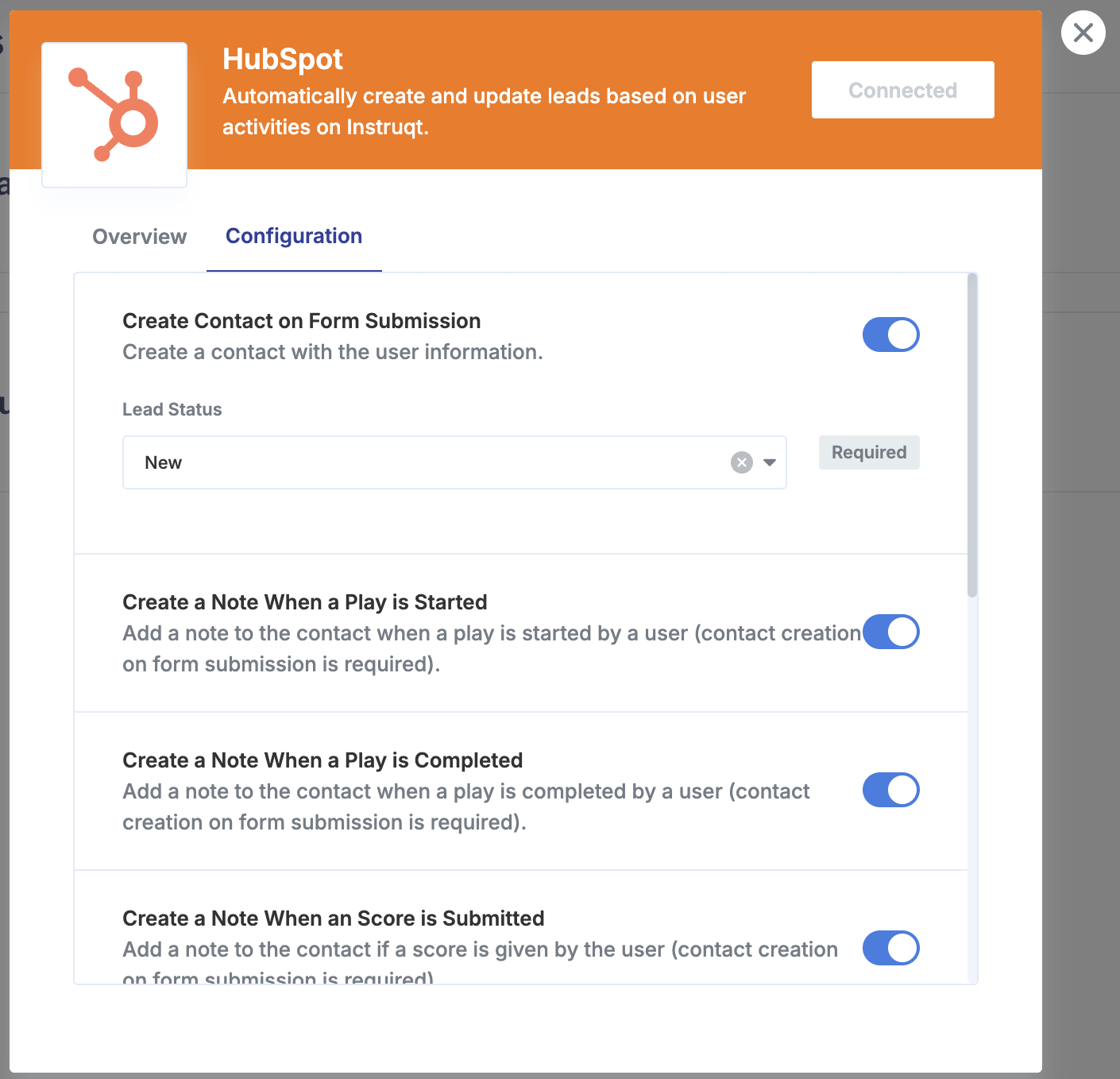
↳ The integration configuration modal is displayed.
3. Click again on **Connect** and select the desired account.\
↳ A HubSpot authorization pop-up or tab is opened. You might be required to log-in.
4. If this is the first time you connect to this HubSpot instance, the list of permissions required by the integrations is displayed.\
You need now to allow access to Instruqt via our subprocessor **Paragon** (check our [subprocessor list](https://instruqt.com/subprocessors) for more information). Review the data displayed and click on **Allow**.
5. If you are prompt with a message of Instruqt requesting access to the account, click on "Connect app" to proceed.\
↳ The configuration modal on the Integrations page now displays the configuration of the workflows.
6. Enable the first workflow **Create Lead on Form Submission** and select the **Lead Status** according to your preferences.\
**Enabling this workflow is mandatory**, but it won't duplicate entries in case there is already a Contact with the same email address, first name and last name.\
↳ The configuration is saved automatically.
7. Review all other workflows to match your preferences.\
↳ The configuration is saved automatically.
8. **All set!** You can now close the modal. **It might take a few minutes before the integration is live**.
{% endtab %}
{% endtabs %}
## Architecture
### Overview
[Paragon](https://www.useparagon.com/) serves as a middleman that connects Instruqt's events and activities to a CRM system like HubSpot.
For each of the designated events enabled on our customers' HubSpot connection page, Instruqt prepares the necessary data and sends it to the Paragon APIs. Within the Paragon, our defined workflows activate and transform the provided data into the appropriate format for HubSpot. Finally, these workflows call HubSpot's internal APIs to complete the integration.
### Scopes
To interact with HubSpot's internal objects through its API and for the Instruqt integration workflows that involve creating and manipulating custom properties and current records in HubSpot, the specified scopes are required.\
Both read and write permissions are sometimes required to check if objects already exist as well create new ones.
* `oauth`
* `crm.lists.read`
* `crm.lists.write`
* `crm.objects.companies.read`
* `crm.objects.companies.write`
* `crm.objects.contacts.read`
* `crm.objects.contacts.write`
* `crm.objects.custom.read`
* `crm.objects.custom.write`
* `crm.objects.owners.read`
* `crm.schemas.contacts.read`
* `crm.schemas.custom.read`
* `crm.pipelines.orders.write`
* `tickets`
* `e-commerce`
### Custom properties
Instruqt adds a custom property called *Instruqt Tracks* to the *Contact* HubSpot object.\
This property stores all the different tracks **started** by the respective contact.\
\
Details of the property can be find below:
| Property label | Internal name | Field type |
| --------------- | ---------------- | ------------------- |
| Instruqt Tracks | instruqt\_tracks | Multiple checkboxes |
This property is stored in the contact property group `contact_activity`, which must exist in your HubSpot portal before the integration is enabled. See the prerequisite in the Enable the integration section.
## Visualize the data on HubSpot
### Display Instruqt information on Contacts
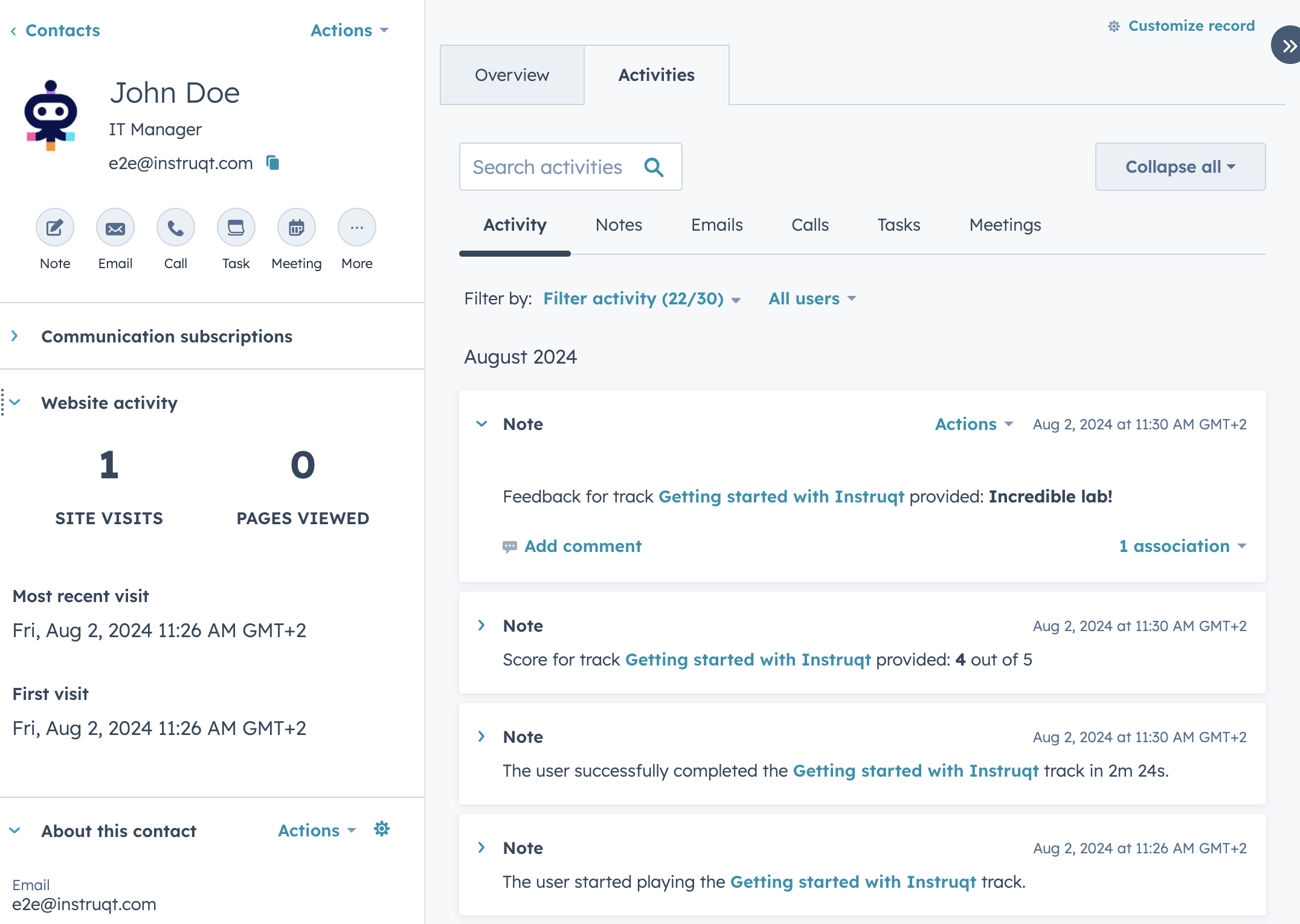
Out of the box the integration will send updates as notes in the contact, including:
* Track started by the contact
* Track completed by the contact, including time spent until completion
* Track score feedback, if provided
* Track written feedback, if provided
Instruqt activity notes
### Adding an Instruqt Card to a Contact
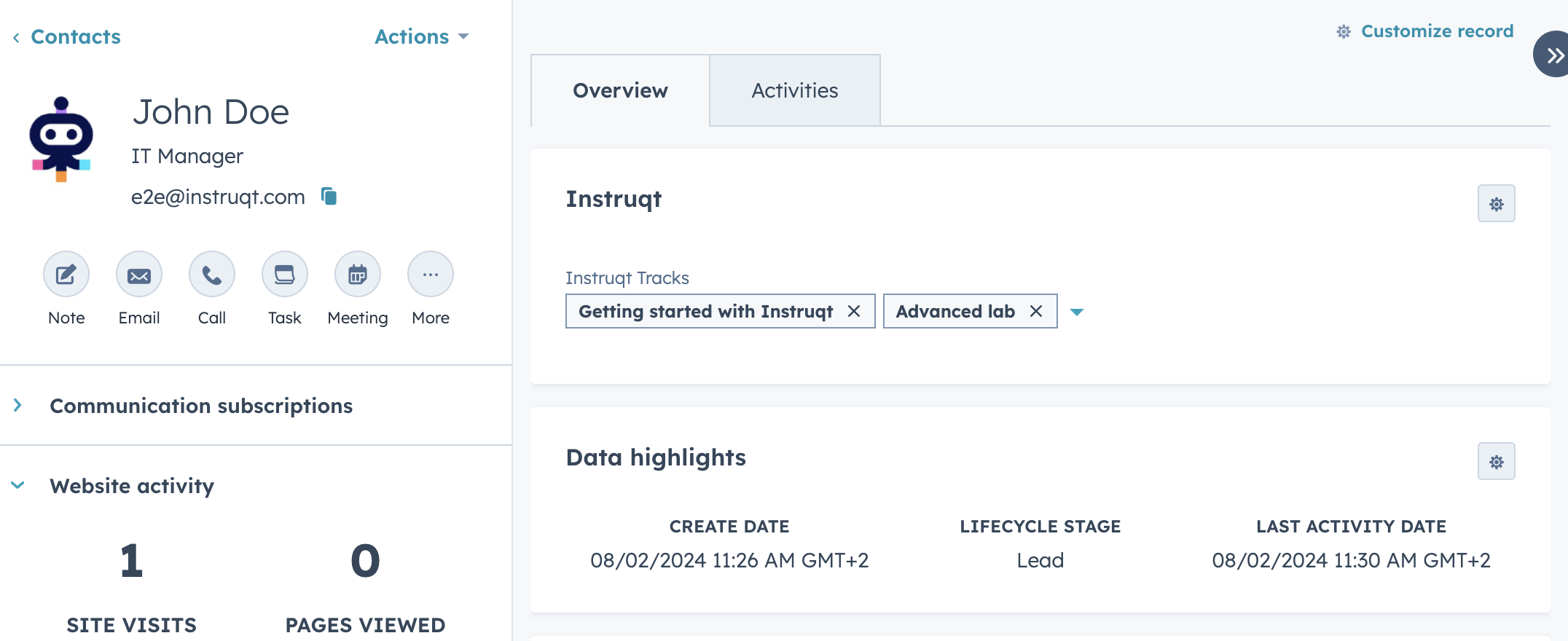
It's also possible to display which tracks were initiated by a *Contact* in a card.
Instruqt tracks played by a contact displayed as a card
{% tabs %}
{% tab title="🟠 HubSpot" %}
1. In HubSpot go to the settings from top right corner.
2. In the left menu, scroll down to the *Data Management* section, expand the *Objects* menu and click on *Contacts*.
3. Open the tab *Record Customization*.
4. Click on the desired team view.\
↳ You should be now directed to the Contact Page / Layout editor.
5. Decide where (in which column or section) you want to see the Instruqt data.\
Click on the respective button *Add cards*.
6. Click now on *Create card* button.
7. Select now *Property list* - This could be large or small depending on the location you have selected for the card.\
\&#xNAN;**\* Please note that you might be limited to adding *****property lists***** only to specific columns depending on the view (left or middle column in HubSpot default view).**
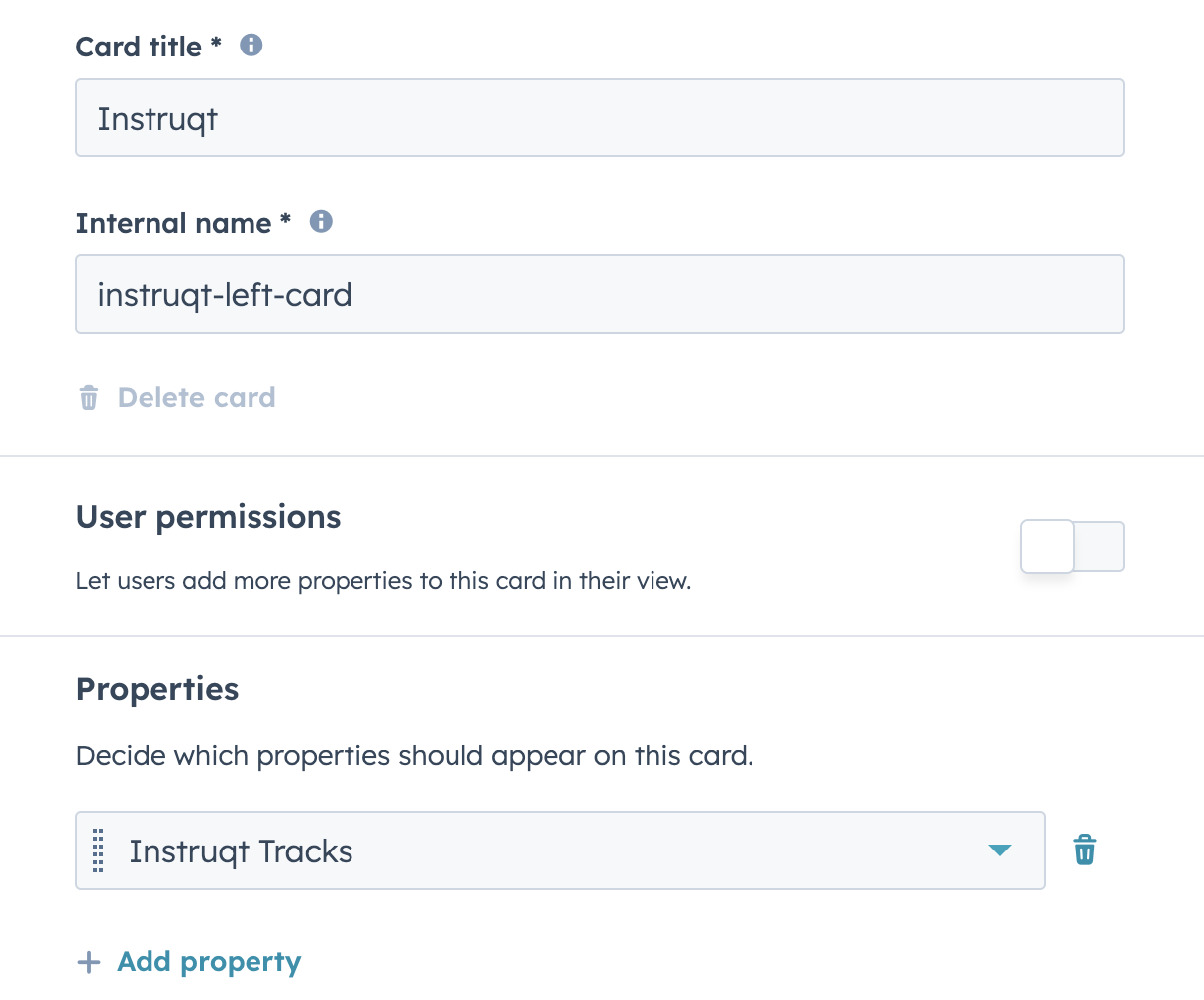
8. Fill in the *Card title* and *Internal nam*e as desired.
9. In the properties, select *Instruqt Tracks*.
Example of a card added to the left column
10. Click on *Save*.
11. And finally click on *Save and exit* on the top right.
All set, contacts will now display a Instruqt card containing all tracks started by the contact!
{% endtab %}
{% endtabs %}